
TL;DR
- Focus on Bottlenecks: Evaluate AI tools by testing them on your slowest workflow steps (e.g., culling, batch editing, or copywriting); adopt tools only if they save over an hour per job.
- Top Post-Production Choice: Aftershoot (Selects, Edits, and Retouch) handles culling, batch color/exposure adjustments, and skin retouching in a single offline platform—now featuring built-in, free RAW editing (Aftershoot Develop).
- Targeted Image Enhancements: Use specialized tools like Topaz Photo AI for noise reduction/sharpening, Photoshop Generative Fill for background extension/cleanup, and Retouch4me for granular plugin retouching.
- Style-Consistency at Scale: Platforms like Imagen AI and Impossible Things learn custom editing profiles to maintain unified aesthetics across multi-shooter or high-volume studio galleries.
- Streamlined Marketing: Leverage AI utilities like ChatGPT/Jasper for client emails and blog copy, Canva/DocHipofor brand assets, and Honcho for real-time face-recognition photo delivery.
You know it… a shoot doesn’t end when you pack the camera. There’s a card of 3,000 frames to cull, a gallery to color, faces to retouch, a client link to send, and next month’s inquiries to answer. AI can now take a real share of every one of those stages. But no single app does all of them best, and stacking random tools just moves the time you save into exporting and re-importing files.
So this guide doesn’t just list AI tools for photographers. It maps each one to a stage of the post-shoot workflow: cull, edit, retouch, enhance, deliver and market. It shows how the tools hand off to each other and what each one costs in 2026. It also covers which combinations make sense for a beginner, a working pro and a tight budget.
Quick answer: The best AI tools for photographers depend on which stage slows you down.
- Culling: Aftershoot Select (automated) or Narrative Select (assisted)
- Editing in your style: Aftershoot Edit or Imagen
- Portrait retouching: Aftershoot Retouch, Evoto or Retouch4me
- Noise and upscaling: Topaz Photo
- Generative fixes: Photoshop
- Client delivery: Aftershoot Galleries
- Marketing: ChatGPT, Claude or Gemini, plus Canva
At a Glance: AI Tools for Photographers (Post‑Production and Marketing)
| Workflow stage | Best pick | Also consider |
|---|---|---|
| Culling | Aftershoot Select | Narrative Select (assisted), FilterPixel (cloud) |
| Editing in your own style | Aftershoot Edit | Imagen (cloud, per-photo pricing) |
| Built-in AI editing | Adobe Lightroom Classic | Luminar (one-time purchase) |
| Portrait retouching | Aftershoot Retouch | Evoto (studios), Retouch4me (high-end) |
| Noise, blur and upscaling | Topaz Photo | Lightroom Denoise, DxO PureRAW |
| Generative edits | Adobe Photoshop | Luminar’s generative tools |
| Client delivery | Aftershoot Galleries | Honcho (live events) |
| Marketing | ChatGPT, Claude or Gemini + Canva | – |
If you’re just starting to explore AI tools, pick one tool for post‑production and one for marketing.
We looked at each tool the way a working photographer buys software:
- Workflow fit. Which stage does it replace, and how cleanly does it hand off to Lightroom Classic, Capture One or Photoshop?
- Control. Can you review, override and correct what the AI decides?
- Where files go. Does it process locally or require uploads? This matters for NDAs, minors and GDPR.
- Real cost. Is it a flat subscription, per-image, credit-based or a one-time license? We calculated cost over a realistic year of work, not the headline price.
- Output at default settings. How do skin texture, color consistency and artifacts look before you adjust anything?
We checked every price, plan and feature against each vendor’s own pricing pages and help documentation in September 2026. We build Aftershoot, so we’ve kept our tools to the stages they’re designed for and noted where a competitor is the better fit.
How to Choose an AI Tool for Your Photography Workflow
Bottom line: Start with the slowest step in your week.
What to weigh:
- Volume fit. Match batch size and deadlines to what the tool does well.
- Style control. The tool should learn and repeat the look clients expect.
- Handoff friction. Keep round‑trips to Lightroom, Capture One, or Photoshop simple.
- Proofing and delivery. Confirm it plays well with your gallery, albums, and prints.
- Time saved. Track edits per hour, retouch minutes per portrait, and cull time per job.
- Where your files go. Local tools keep client RAWs on your drive but lean on your computer’s GPU. Cloud tools work on any laptop but require uploading client images. That matters if you photograph minors, work under NDA, or serve GDPR clients.
- Pricing model. Flat subscriptions cost the same for a 600-frame session and a 6,000-frame wedding. Per-image and credit pricing looks cheap until busy season or re-exports. One-time licenses often stop covering new AI features after a year.
- Cost per job. Use a quick check: (annual price ÷ jobs per year), or per-image math for pay-as-you-go tools.
Quick test plan: Run one recent job through your current workflow. Log the minutes for each step. Run the same job with one new tool. Keep it if it saves an hour or more. If you’re comparing different AI photography platforms, see how Aftershoot compares with other tools across workflow, features, and pricing.
When AI is the wrong fit
- Your look changes dramatically from set to set.
- You deliver a small set of hero images where hand retouch is the product.
- A tool adds exports or duplicate steps without saving minutes elsewhere.
Best AI Stacks for Photographers
A good stack is the smallest set of tools that covers your slowest stages without adding export steps. For photographers shooting a few sessions a month in Lightroom who want AI help without a big bill.
A. Best AI Stack for Beginners
| Stage | Tool | Cost |
|---|---|---|
| Cull | Lightroom Classic Assisted Culling | Included |
| Edit | Lightroom Classic (masking, Denoise) | $19.99/mo Photography plan |
| Deliver | Aftershoot Galleries Starter | Free |
| Market | Canva Free + a free AI assistant | $0 |
| Total | ≈ $20/month |
When to upgrade: once culling takes more than an hour per session, add Aftershoot Select ($10/month billed annually).
B. Best AI Stack for Professionals
For wedding and event photographers delivering large galleries every week of the season.
| Stage | Tool | Cost |
|---|---|---|
| Cull, edit, retouch | Aftershoot Complete | $45/mo annual |
| Hero fixes and composites | Photoshop (Photography plan) | $19.99/mo |
| Rescue frames | Topaz Photo | Optional subscription |
| Deliver | Aftershoot Galleries | Paid tier (launch pricing) |
| Market | Canva Pro + a paid AI assistant | Varies |
| Core total | ≈ $65/month before optional tools |
Why it works: it gives you one pipeline from cull to delivery. Flat pricing doesn’t grow with frame counts, and Photoshop covers the few images that need hands-on work.
C. Best Budget AI Stack
For photographers who want AI help without an Adobe subscription.
| Stage | Tool | Cost |
|---|---|---|
| Cull | Aftershoot Select, or FilterPixel’s free tier | $10/mo annual, or $0 |
| Edit | Luminar Desktop | $119 one-time |
| Deliver | Aftershoot Galleries Starter | Free |
| Market | Canva Free + a free AI assistant | $0 |
| Year one | ≈ $239, about $20/month |
Trade-off: you don’t get a Lightroom catalog, and Luminar’s generative tools stop after the first year unless you renew.
D. AI Stacks by Photography Niche
| Niche | Stack | Why |
|---|---|---|
| Weddings | Aftershoot Select + Edit + Retouch → Photoshop → Topaz Photo → Aftershoot Galleries | Volume culling and consistent color, with rescue work limited to dance-floor frames |
| Portraits and headshots | Aftershoot Retouch or Evoto → Retouch4me → Lightroom Classic | Batch skin work first, then texture-level repair on beauty close-ups |
| Events and sports | FilterPixel or Aftershoot Select → Lightroom Denoise or Topaz → Honcho | Fast culling on deadline and live delivery to attendees |
| Product and e-commerce | Photoshop Generative Fill → Topaz Gigapixel → Canva | Backdrop extension, large listing images and storefront sizes |
| Family and lifestyle | Aftershoot Select + Edit → Luminar → Canva | Quick consistent galleries and simple client guides |
For a detailed look at how these stages fit together, see our guide to choosing photography workflow software.
Why AI Won’t Replace Photographers
Every tool on this list works on photos that already exist. None of them can read a room, calm a nervous groom, or notice the grandmother about to cry. None of them can decide that a slightly soft frame is the one the family will print.
AI is good at narrow, repeatable judgments: Is the eye sharp? Is this a duplicate? Is this blemish temporary? That’s exactly the work that fills your evenings after a shoot. It’s poor at the judgments clients actually pay for: which moment matters, what the story is, and how a person wants to look.
Three things still sit with you:
- The emotional picks. Review AI rejects on any job that matters.
- The look. AI profiles repeat your style; they don’t invent it.
- Client trust. Clients book a person, so be open about how you use AI, especially for generative edits. If you serve EU clients, check how the EU AI Act’s transparency rules, which apply from August 2, 2026, affect edits that add or replace content.
Photographers who lose ground won’t be replaced by AI. They’ll be out-delivered by photographers who use AI for the busywork and spend the recovered hours shooting, selling and resting.
18 AI Tools for Photographers: Save Hours With These Tools
Let’s begin!
A. AI-powered photography post‑production tools by Aftershoot
1. Aftershoot Select: Best for Automated Culling at Volume
Aftershoot Select reads every frame for focus, eyes, exposure and duplicates. It groups near-identical bursts and hands back a rated set that you review rather than build from scratch.
You choose how much control to hand over. AI-Automated culling returns Accepted and Rejected sets for you to review. AI-Assisted culling leaves every pick to you and only handles the grouping, key-face detection and scoring.
Cull-to-Target lets you set your delivery number before the cull, so the first pass lands close to the gallery size you promised the client. Processing runs on your own computer and works offline, so client RAWs never leave your drive.
- Best for: wedding, event and family photographers culling thousands of frames per job
- Pricing: $10/month billed annually, or $15 month-to-month, with unlimited images
- Free option: 30-day free trial, no credit card needed
- Watch out for: culling speed depends on your computer, and it’s worth reviewing the rejects on any job that matters
2. Narrative Select: Best for AI-Assisted Manual Culling
Narrative Select is assisted rather than automated. It zooms to faces, scores eyes and focus, groups scenes and flags near-duplicates, but every pick stays yours. Its Close-Ups panel makes checking eyes at 100% almost instant, which is usually where manual culls slow down. Culling runs locally.
- Best for: photographers who want faster manual culling without handing selections to AI
- Pricing:
- Lite: $10/month billed annually ($15 monthly)
- Standard: $20/month billed annually. This is the first tier with Scenes View and Close-Ups.
- Premium and Ultra: needed for AI presets trained on your own edits
- Free option: a free trial of the top tier, no credit card needed. There’s no permanent free plan.
- Watch out for: you still make every decision, which adds up on a 5,000-frame wedding. Check current Windows support.
3. FilterPixel: Best for Cloud Culling on Any Laptop
FilterPixel culls on cloud GPUs, so its speed doesn’t depend on your laptop. It offers genre-specific models for weddings, sports, concerts and conferences, and gives a score and a written reason for each pick. It also edits with style profiles learned from your catalog, and offers pre-built profiles if you don’t have an editing history yet.
- Best for: event and sports photographers on tight deadlines, or anyone working on older hardware
- Pricing: paid plans from $19/month with unlimited images
- Free option: free tier with a limited number of projects
- Watch out for: cloud processing means uploading client files, and its accuracy figures come from FilterPixel’s own tests
4. Aftershoot Edit: Best for Editing Full Galleries in Your Style
Aftershoot Edit applies a profile trained on your finished work across an entire gallery, so the first pass looks like your edit.
There are three ways to get a profile:
- Build your own Personal AI Profile from past edited images.
- Import your Lightroom presets as Instant AI Profiles.
- Start with one of 30+ styles on the Aftershoot Marketplace, created by working photographers. Aftershoot’s Marketplace offers AI profiles curated by pro photographers, so you can consistently apply edits across the gallery. Alternatively, you can build your own AI profile by uploading 2500+ images edited in your style, so Aftershoot understands your unique style and creates a profile for you accordingly. Editing your next gallery with batch processing done with a single-click, so your first pass is done in minutes, with zero manual effort.
Aftershoot Develop adds free manual RAW editing, including white balance, HSL, color grading, crop and subject masking. That means you can fine-tune inside the app instead of sending every gallery through Lightroom. If you prefer to finish in Lightroom Classic, edits still hand off with metadata intact.
- Best for: photographers with a consistent style who edit full galleries, not single hero images
- Pricing: $30/month billed annually, or $35 month-to-month, with unlimited images
- Free option: 30-day free trial
- Watch out for: a Personal AI Profile needs a large, consistent set of edited images. Marketplace styles are the faster start if you don’t have that history yet.
It hands off cleanly to Lightroom or your preferred editing software with metadata intact for final touches, though many photographers now complete the entire cull-to-export workflow inside Aftershoot itself thanks to Aftershoot Develop.
Bonus: You don’t need an internet connection to cull or edit with Aftershoot. Use it anywhere, anytime.
First steps: Train a profile on two finished galleries, set Cull‑to‑Target to your usual delivery number, review ten pairs in Survey Mode, then run the batch edits and spot‑check.
If you’d like to see it in action and get a feel for how the tool works to save time and work, this 3-minute self-guided, interactive demo of the Aftershoot platform is for you:
5. Aftershoot Retouch (For People and Groups)
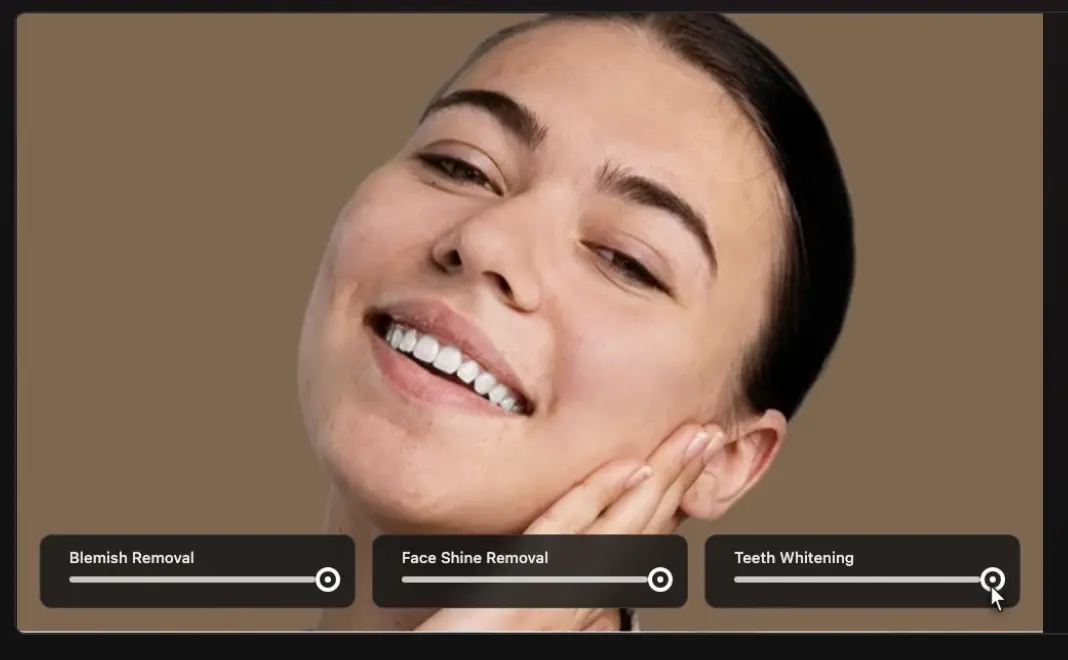
Aftershoot Retouch is a fast, natural cleanup across people photography, weddings, families, teams, newborns, headshots. Keeps skin texture intact while reducing blemishes and redness, taming flyaways, softening glare/shine, brightening eyes and teeth, balancing facial light, and removing small distractions across a full set. Launch from Lightroom via Edit In → Aftershoot, or run the set inside Aftershoot after your batch edits.
What stands out
- Consistent results on large sets; apply once, stay uniform across angles and lighting
- Correct Changes tool to bring detail back if a slider goes too far
- Face Shine slider for highlight control, plus Body Blemish Removal for non‑face cleanup
- Supports TIFF alongside RAW/JPEG for flexible handoffs
- Best for: Weddings, family portraits, headshots and group photos
- Pricing: $20/month billed annually, or $25 month-to-month
- Free Option: 30-day Free Trial
- Watch out for: keep smoothing conservative on close-up beauty work
Try this to test how well it works for you:
- Test on 8–10 images from the same scene, then paste settings to the rest.
- Keep skin smoothing conservative; let expressions and texture stay real.
Don’t forget to check out our Retouching tools to get a feeler of what Aftershoot Retouch really feels like:
AI Face Shine Removal, Blemish Remover, Removing Glass Glare from Photos, Wrinkle Remover for Portraits
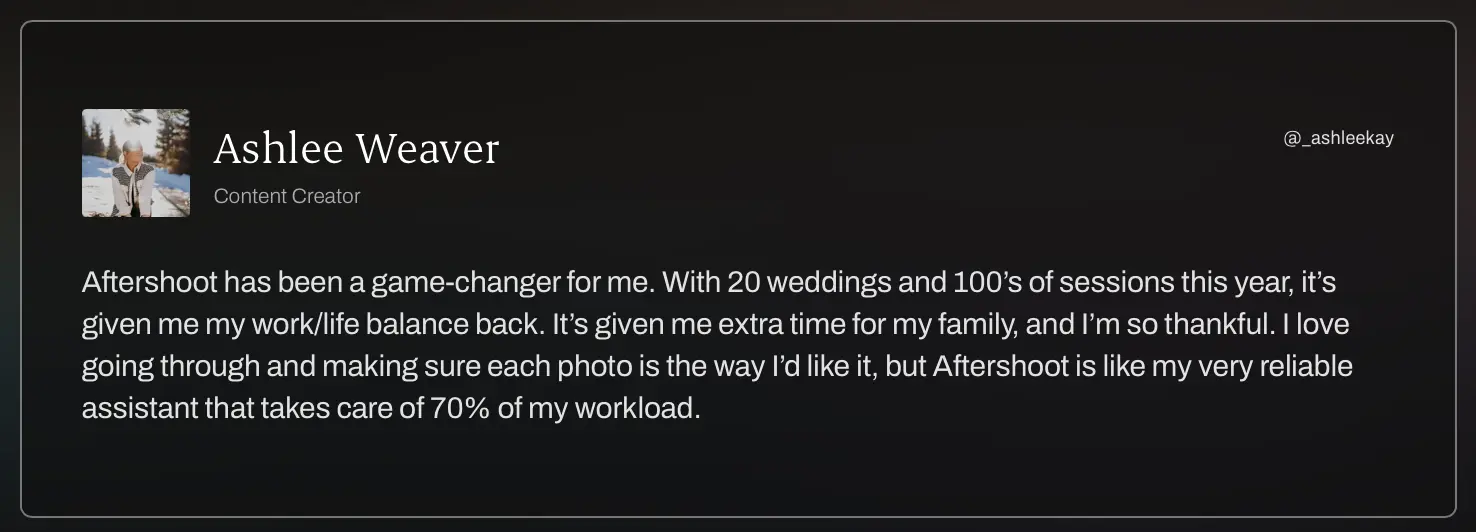
Don’t take our word for it, hear it from Ashlee Weaver, who uses Aftershoot as part of her photography workflow:
6. Evoto: Best for High-Volume Portrait Studios
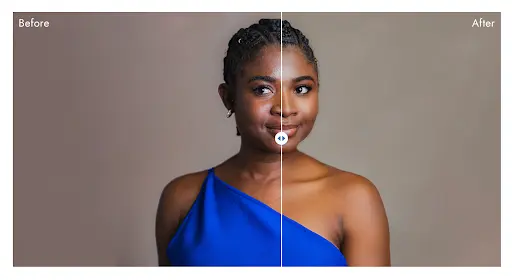
Evoto takes unedited portraits to finished images without Photoshop. It handles skin, eyes, teeth, flyaways, backdrop cleanup, relighting and color, synced across a whole shoot. It added AI culling in 2025 and runs on desktop, iPad and mobile.
- Best for: headshot, school and portrait studios with high face counts
- Pricing: credit-based. Editing is free, and each export uses one credit. Annual plans include a yearly credit allowance.
- Free option: 7-day free trial
- Watch out for: most features process in the cloud, re-exports cost credits again, and default smoothing is strong, so dial it back
7. Retouch4me: Best for Texture-Preserving High-End Retouching
Retouch4me is a set of single-purpose AI plugins for Photoshop, including Heal, Dodge & Burn, Skin Tone, White Teeth, Stray Hairs, Fabric and Clean Backdrop. They repair skin while keeping pores and fine lines, and run locally on your own machine.
- Best for: beauty, fashion and high-end portrait retouching
- Pricing: buy individual plugins or subscribe to the full set
- Free option: two permanently free plugins
- Watch out for: it needs a capable GPU, and it can over-smooth freckles, lace and black-and-white files
8. Topaz Labs: Fixing noise, blur, and detail
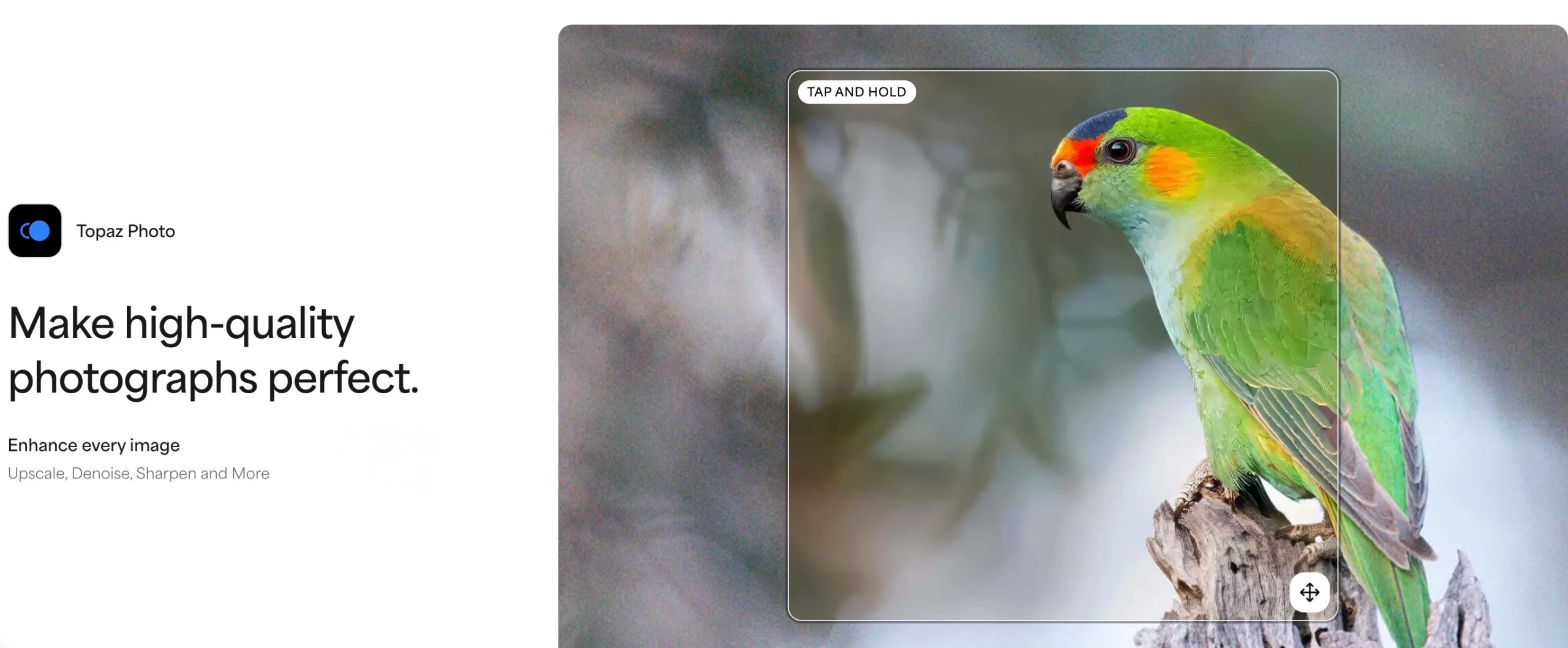
Topaz Photo is the renamed Topaz Photo AI. It handles the frames you can’t reshoot: ISO 12,800 reception shots, slightly soft keepers, and large prints from tight crops.
Its AI editing software eliminates snow-speckled noise, can upscale images without loss, and will breathe new life into blurred images you thought were goners.
- The DeNoise AI is intelligent enough to distinguish between actual noise and the details of your photographs, which means you won’t lose sharpness when it recovers details.
- Gigapixel AI is not only handy for enlarging photos up to 600% without losing quality, but it’s also useful for zooming in and cropping details from an original image and enhancing it for print.
- Bonus: Topaz Labs tools can be installed as standalone programs, or you can integrate them into your Lightroom and Photoshop workflows.
- Best for: low-light event, wildlife and large-print work
- Pricing: subscription only since late 2025. Buy Photo as a standalone app, or get it in the Topaz Studio bundle ($399/year, or $69/month month-to-month).
- Free option: no permanent free plan. Check Topaz’s current trial and refund terms before buying.
- Watch out for: high strength settings invent detail, and faces can come back subtly different. Use it on selects at moderate settings.
Quick pass: Duplicate your selects and apply moderate denoise and sharpening. Compare faces at 100%, then soft-proof at your largest album or print size before delivering.
Read also: A Complete Guide to Wedding Retouching
9. Adobe Lightroom Classic: Lightroom‑native AI
If you already pay for Adobe, some of the most useful AI is already in your catalog:
- AI masking selects subjects, skies, backgrounds and people.
- Denoise cleans high-ISO RAW files.
- Lens Blur adds depth of field after capture.
- Generative Remove clears distractions.
- Assisted Culling, now generally available in Lightroom Classic, scores subject focus, eye focus and eyes-open. It also stacks similar frames and flags misfires, at no extra cost.
- Best for: photographers who live in Lightroom and want AI without adding another app
- Pricing: the Photography plan (Lightroom, Lightroom Classic, Photoshop and 1 TB of storage) costs $19.99/month on an annual plan in the US
- Free option: 7-day trial
- Watch out for:
- Assisted Culling is tuned for people photography.
- Generative features draw on a monthly credit allowance.
- The old $9.99 20 GB plan is closed to new subscribers.
Try this: Build adaptive presets for your recurring conditions, such as backlit ceremonies, flat prep rooms and blue-hour portraits, and apply them on import.
10. Adobe Photoshop Generative Fill: Generative edits and composites
Photoshop is where you go when a batch tool can’t handle the fix:
- Generative Fill and Expand add, remove or extend content from a text prompt.
- The Remove tool clears bystanders.
- Harmonize matches the light and color of elements you drop into a frame.
- Select Subject holds onto hair.
You can now choose between Adobe’s Firefly models and third-party models.
- Best for: album extensions, composites, product work and hero-image fixes
- Pricing: included in the $19.99/month Photography plan, or $22.99/month on its own (US, annual plan)
- Free option: 7-day trial
- Watch out for: generative features use monthly credits, and Photoshop is slow for volume work
Try this: Extend a tight group shot to fit an album spread, clean power lines from an outdoor portrait, or rebuild a torn backdrop edge. Keep the client’s reality intact on documentary work.
11. Luminar: Best One-Time-Purchase AI Editor
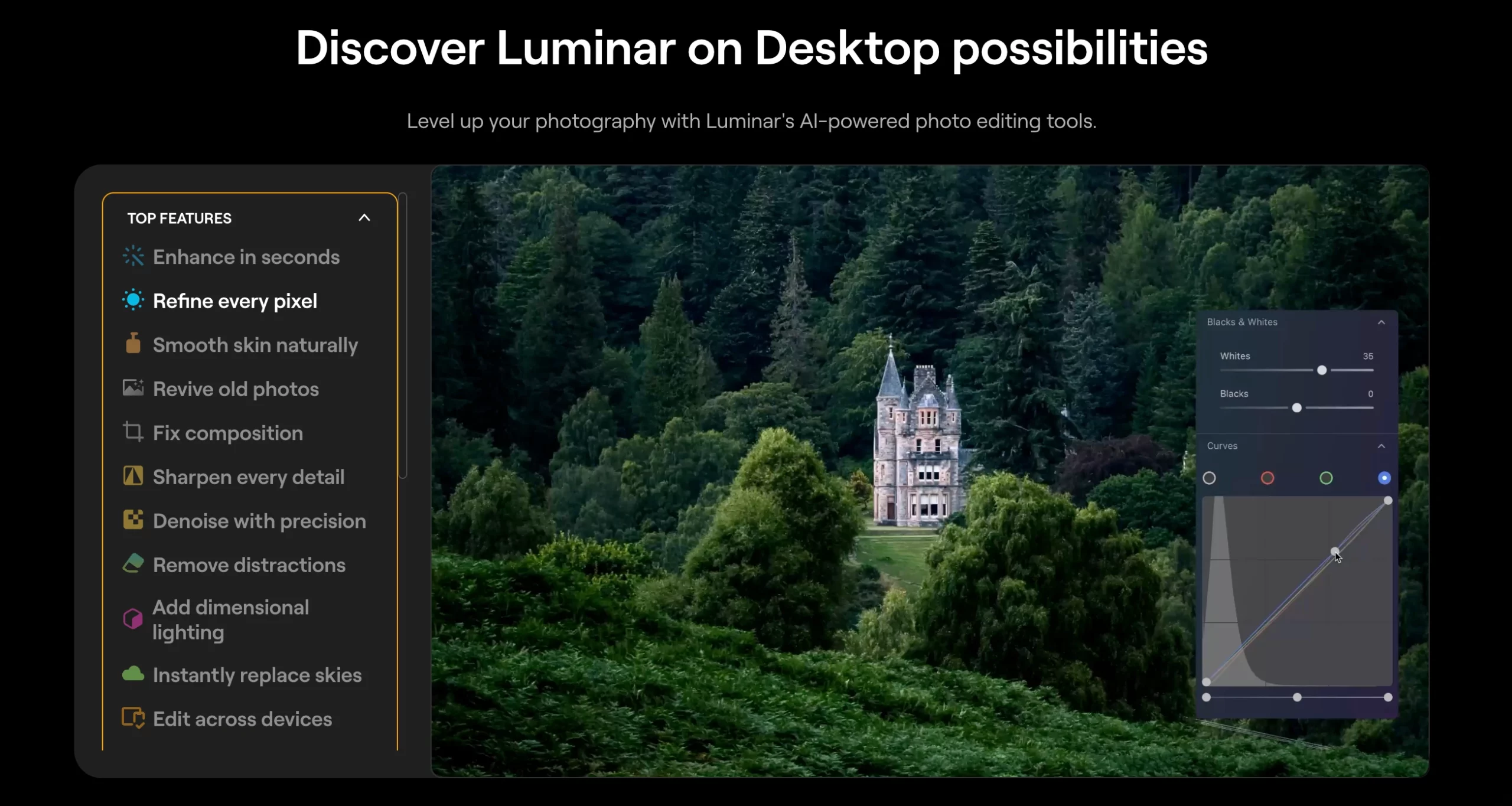
Skylum dropped the “Neo” in August 2026, so the software is now simply Luminar. It’s one of the few AI editors you can still buy outright. It offers sky replacement, relighting, portrait tools and Enhance AI, and it runs standalone or as a Lightroom Classic and Photoshop plugin.
- Best for: hobbyists, landscape and travel photographers, and anyone avoiding subscriptions
- Pricing: one-time Desktop license from $119. It goes on sale often.
- Free option: 7-day trial
- Watch out for: the generative tools are included for only one year. There’s no culling, and batch editing is basic for gallery-volume work.
12. Imagen + Impossible Things: Style libraries and studio scale
If multiple shooters touch the same brand, consistency is the main job. Imagen builds style profiles that match a library of finished edits. Impossible Things keeps the whole process inside Lightroom with adaptive adjustments.
Studio test: build one studio profile from last season’s keepers, then test on a multi‑shooter wedding to see if tones and contrast hold together.
13. Imagen: Best for Cloud Editing Back Into Lightroom
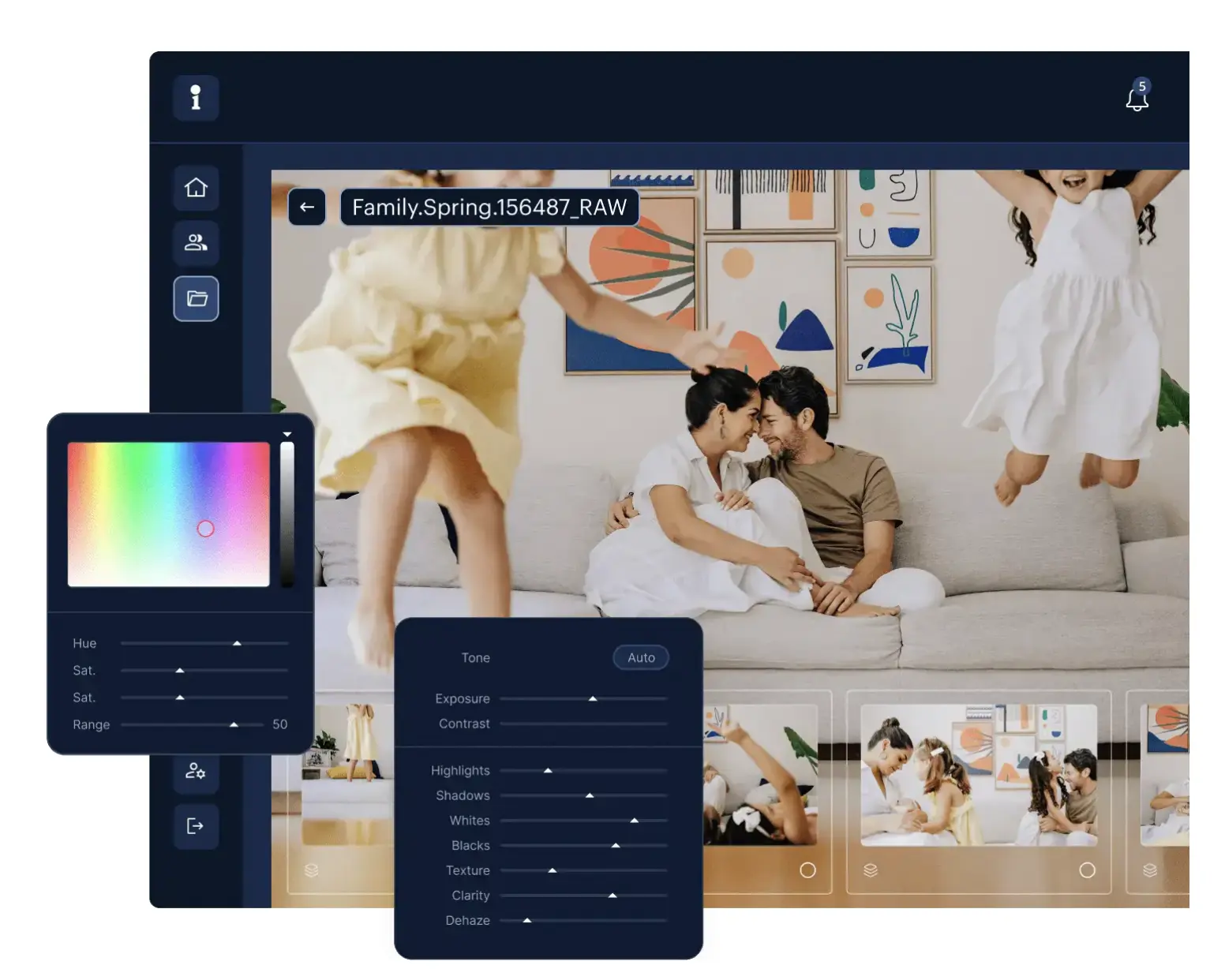
Imagen learns your style from your Lightroom Classic catalog. It returns edits as adjustable Lightroom settings, so a bad call is one slider away from fixed. It also offers AI culling and add-on tools for cropping, straightening, subject masking and skin smoothing. Processing happens in the cloud, so you don’t need a powerful computer, but you do upload every job.
Watch out for: a Personal AI Profile needs at least 2,000 previously edited photos, and pay-as-you-go costs climb in busy season
- Best for: Lightroom Classic users who want edits delivered back into their catalog
- Pricing: two options.
- Pay-as-you-go: a monthly base fee plus a per-photo rate. AI tools cost extra per photo.
- Limitless: a flat plan with unlimited editing and culling, for solo photographers.
- Free option: 1,000 free edits, no credit card needed
14. PhotoPrism: Organizing and managing digital photo collections
When it comes to organizing and managing your digital photo collections, PhotoPrism is one of the top AI tools for photographers out there.
It helps streamline your photo management and quickly syncs your photos to preferred cloud storage services like Dropbox, Google Drive, and Amazon S3.
The AI software analyzes every photo to automatically sort, tag, and categorize your images based on criteria like location, date, and content.
It can identify objects, people, and other details to make smart organizational decisions. What’s more, it also makes it easy to find photos in a collection with its advanced search capabilities.
15. Aftershoot Galleries: Best for Going From Edit to Delivery in One App
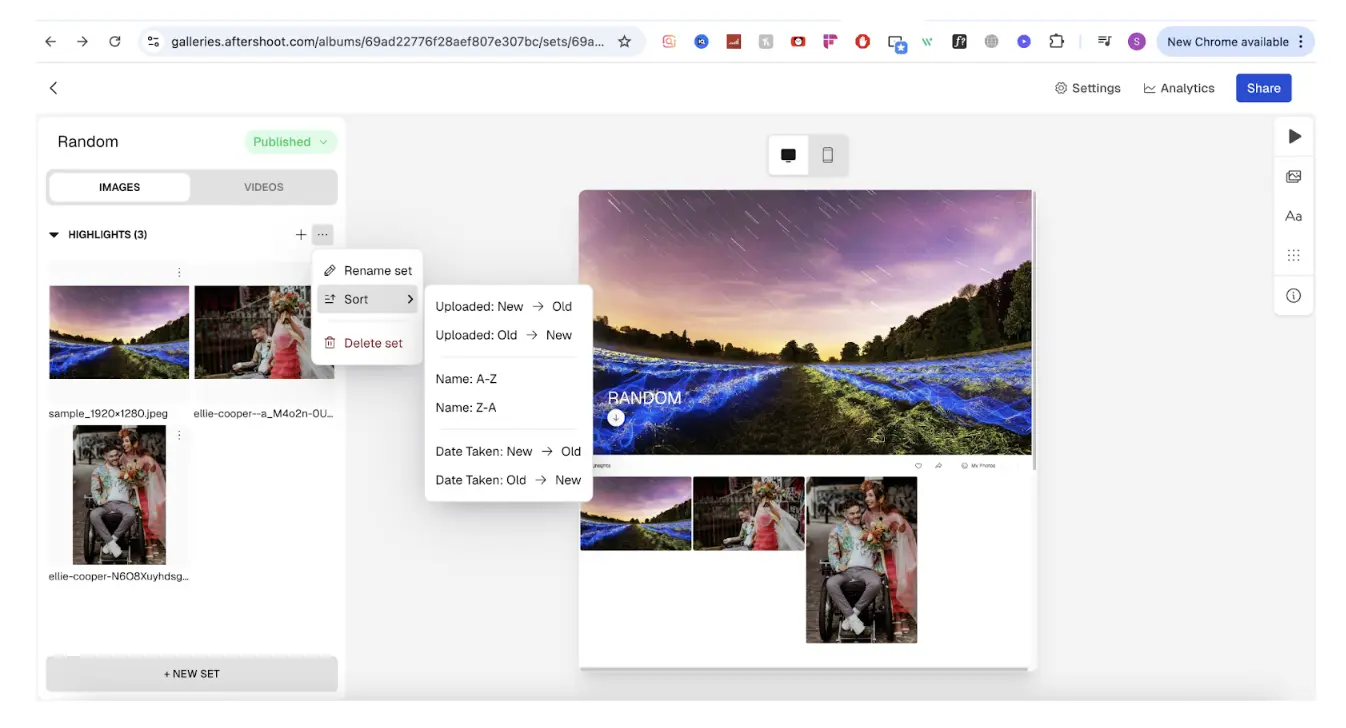
Aftershoot Galleries closes the loop. You share branded galleries straight from Aftershoot, without exporting and re-uploading.
- Clients find their photos with Face Detection.
- Face Gating shows each guest only the images they appear in.
- A built-in print store with lab fulfillment handles orders.
- It delivers photos and video, supports proofing and favorites, and also works as a standalone gallery platform.
- Free migration from Pixieset, Pic-Time and ShootProof lowers the switching cost.
- Best for: photographers who want cull-to-delivery in one place
- Pricing: free Starter plan. Paid plans are currently at launch pricing; check the Galleries pricing page.
- Free option: 10 GB of photo and 1 GB of video storage free
- Watch out for: it’s Aftershoot’s newest product, so run it alongside your current platform for a season before fully switching
Also read: the best online proofing galleries for photographers
Best AI Marketing Tools for Photographers
Marketing wins come from publishing consistently. These tools help you draft copy, keep brand styling tight, and spin ad variants without opening five apps.
Also, we put together an ebook to help you streamline your marketing workflows and book more clients, and its free!
16. Honcho: Photo sharing platform
Honcho is built for delivery during the event. You upload from camera to cloud while you shoot, and guests find their photos minutes later with a selfie or a QR code. It also runs live slideshows, supports on-site printing and sells digital downloads.
- Best for: corporate events, marathons, parties and brand activations
- Pricing: free sign-up, with paid plans for more features
- Watch out for: it’s an event-delivery tool, not a replacement for a wedding proofing gallery
17. ChatGPT, Claude and Gemini: Marketing copy and ideation
General-purpose AI assistants are the quickest win for the admin work around a shoot: inquiry replies, session prep guides, blog drafts, image alt text, captions and SEO headings.
The output is only as good as the context you give it. Before you ask for copy, paste in a short voice sheet (tone, audience, phrases you never use) and your package details.
- Best for: captions, inquiry replies, blog outlines and FAQ pages
- Pricing: free tiers, with paid plans for heavier use
- Watch out for: check every fact and price before it reaches a client, and don’t paste in private client details
18. Canva and DocHipo: Quick designs for marketing assets
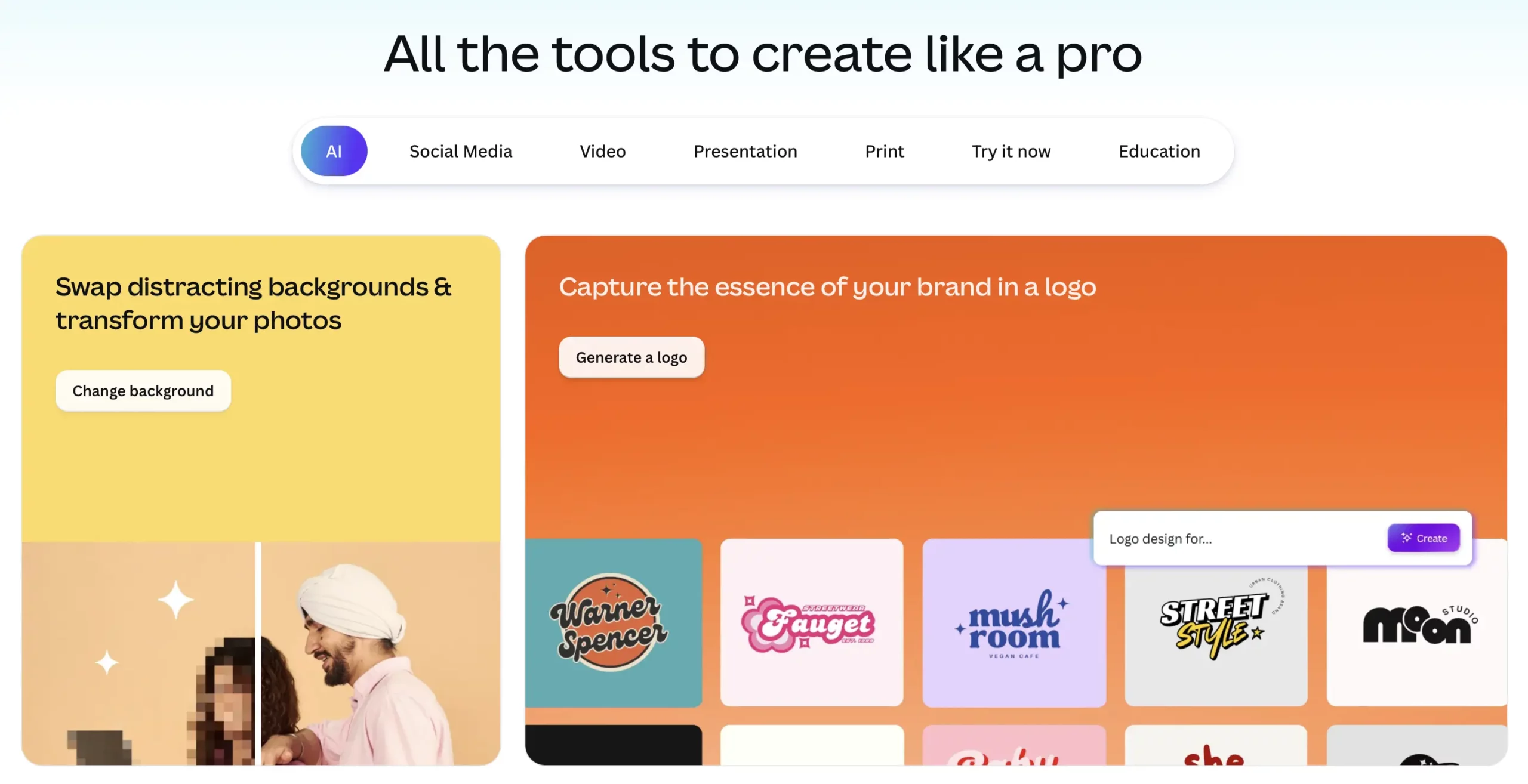
Canva is a convenient online design platform that has become popular with creatives of all shades and colors.
Recently they’ve added certain generative AI features that take the ease of creating your social media, blog, site, printed, and any other graphics up a notch, so you really should look into this one.
Some of the AI-powered features that we’re most impressed with are the remove background and magic resize tools.
Resize a set for each platform, remove backgrounds cleanly, and keep brand colors, type, and logos consistent with Brand Kits. Great for client guides and simple ads you need today.
DocHipo is an easy-to-use, AI-powered design tool trusted by creators and photographers to craft stunning visual content across multiple formats.
Photographers can easily turn their images into professional-quality branding, marketing, or advertising materials such as logos, business cards, social media posts, carousels, posters, ads, and more within minutes.
DocHipo also allows one to enhance their photos effortlessly with powerful editing options. Apply filters, adjust tones, add effects, crop into custom shapes, or place them in stylish frames from a wide range of categories.
Its one-click AI Background Remover instantly eliminates unwanted backgrounds from product photos, portraits, and more, giving your images a clean, professional finish. You can also use the built-in AI Writer to generate engaging captions that perfectly complement your visuals.
With Smart Resize and Brand Kit, DocHipo ensures your designs stay visually consistent and on-brand across every platform.
| Tool | Starting price (USD) | Free plan / trial | AI culling | AI editing | AI retouching | Marketing / delivery | Integrations |
|---|---|---|---|---|---|---|---|
| Aftershoot Select | $10/mo annual ($15 monthly) | 30-day trial, no card | ✓ Automated + assisted | — | — | — | Lightroom Classic, Capture One |
| Aftershoot Edit | $30/mo annual ($35 monthly) | 30-day trial | — | ✓ Personal, Instant and Marketplace profiles | — | — | Lightroom Classic, built-in RAW editor |
| Aftershoot Retouch | $20/mo annual ($25 monthly) | 30-day trial | — | — | ✓ Batch | — | Lightroom (Edit In) |
| Aftershoot Galleries | Free Starter; paid launch pricing | Free plan (10 GB) | — | — | — | ✓ Face Detection, print store | Built into Aftershoot |
| Narrative Select | $10/mo annual ($15 monthly) | Free Ultra trial; no free plan | ✓ Assisted | ✓ Standard tier and up | — | — | Lightroom Classic, Capture One (Mac) |
| FilterPixel | From $19/mo | Free tier | ✓ Cloud | ✓ | — | — | Lightroom, Capture One, Photo Mechanic |
| Imagen | Per-photo + monthly base fee, or flat Limitless | 1,000 free edits | ✓ | ✓ | Skin smoothing (add-on) | — | Lightroom Classic |
| Adobe Lightroom Classic | $19.99/mo Photography plan | 7-day trial | ✓ Assisted Culling | ✓ Masking, Denoise | Basic | — | Photoshop, plugins |
| Luminar | $119 one-time | 7-day trial | — | ✓ | Portrait tools | — | Plugin for Lightroom Classic and Photoshop |
| Evoto | Credit-based annual plans | 7-day trial | ✓ | ✓ | ✓ | — | Standalone, tethering |
| Retouch4me | Per-plugin or subscription | 2 free plugins | — | — | ✓ | — | Photoshop |
| Topaz Photo | Subscription (Studio $399/yr) | No permanent free plan | — | Enhancement | Recover Faces | — | Lightroom Classic, Photoshop, Capture One |
| Adobe Photoshop | Included in $19.99 plan ($22.99 alone) | 7-day trial | — | ✓ Generative | ✓ | — | Hosts most plugins |
| Honcho | Free sign-up; paid plans | Free | — | Shared presets | — | ✓ Live delivery | Camera-to-cloud app |
| ChatGPT / Claude / Gemini | Free tiers; paid plans | Free | — | — | — | ✓ Copy | — |
| Canva | Free; Pro paid | Free plan | — | Basic | Background remover | ✓ Design | Brand Kit |
Aftershoot’s Complete bundle (Select + Edit + Retouch) is $45/month billed annually, or $55 month-to-month. Prices are US list prices checked September 2026. Confirm on each vendor’s site before buying.
Other Business Functions to Consider
Aim to reduce admin time and tighten handoffs. Fewer apps, cleaner steps.
- CRM and studio management: Look for smart email templates, proposal automation, and lead routing that cut response time.
- Scheduling and payments: Auto‑reminders, deposit requests, and reschedule links that sync with your calendar.
- Galleries and sales: Built‑in store automations, coupon logic, and album proofing to lift AOV (average order value) with little manual work.
- Client comms: Canned responses and AI‑assisted drafts that keep replies on brand and fast.
- Knowledge base and docs: Reusable guides for wardrobe, pricing, and delivery that personalize quickly.
Keep tools that remove a task or reduce steps. Skip the rest.
AI Tools Stacks by Niche
1. Weddings
Cull and color fast in Aftershoot, fine-tune with Aftershoot Develop’s manual controls or finish in Lightroom if preferred, retouch groups in Retouch, and rescue a few high-ISO dance-floor frames in Topaz Photo AI.
2. Portraits
Batch retouch in Aftershoot, finesse a few selects in Lightroom, fix backgrounds or clothing in Photoshop Generative Fill. Keep texture visible and focus on expression.
3. Product and e‑commerce
Use Generative Fill to extend backdrops and remove props, run Gigapixel for large marketplace images, and keep color true in Lightroom. Canva handles size templates for storefronts.
4. Sports and wildlife
Run Photo AI for denoise and sharpen on keepers, use Lightroom subject masks for fast separation, and crop with intention for story.
5. Family and lifestyle
Aftershoot for cull and color, Luminar Neo for quick polish, Canva for social sets and simple client guides.
Choosing the Best AI Tools For Your Photography Business: Start with your slowest stage
You don’t need all these tools. Time one recent job stage by stage and find the step that eats the most hours. Then trial one tool for that stage on a real gallery, not a folder of your best frames. Keep the tool only if it saves time without costing you control, then move on to the next bottleneck.
If culling and editing are where your evenings go, Aftershoot covers cull, edit, retouch and delivery in one app with flat pricing.
We hope this upward trajectory of AI software in photography will allow many photographers to focus on the creative side of their craft, freeing up time and resources for taking great pictures.
And if you are looking for a tool to streamline your photography workflow, you know who you can rely on! Claim your FREE 30-day trial today!
FAQs about AI Tools for Photographers
Q1. What are the best AI tools for photographers right now?
Aftershoot for culling and edits, Aftershoot Retouch for portraits, Lightroom and Photoshop for native AI, and Topaz Photo AI for rescue work cover the essentials for most pros.
Q2. Which AI editor is best for wedding photographers?
Start with Aftershoot Selects and Edits, add Aftershoot Retouch for portraits, then keep Lightroom for local adjustments.
Q3. Lightroom vs Photoshop vs Aftershoot?
Use Aftershoot to batch retouch, color, and now handle full RAW editing (crop, masking, manual sliders) for speed and consistency in one app. Lightroom is still useful for masks and local cleanup if you prefer it, and Photoshop remains best for complex composites and hero images.
Q4. How much time can AI save?
A wedding gallery can shift from 8 to 4–5 hours when cull, color, and retouch all run through an optimized stack.
Q5. Can AI tools learn my editing style?
Yes. Aftershoot Edit, Imagen and FilterPixel all train profiles on your past edits, and Narrative does on its Premium and Ultra tiers. You’ll need a large, consistent set of edited images; Imagen, for example, requires at least 2,000. If you don’t have that history yet, start with marketplace styles or import your Lightroom presets as an Aftershoot Instant AI Profile.
Q6. Do I have to tell clients I used AI?
Color, exposure and routine retouching generally don’t require disclosure, though being open builds trust. Generative edits that add, remove or replace content are different: in the EU, the AI Act’s transparency obligations apply from August 2, 2026. This isn’t legal advice, so check your local rules and state your AI use in your contracts.
Q7. Is it safe to upload client photos to AI tools?
It depends on where processing happens:
Local: Aftershoot, Narrative’s culling and Retouch4me run on your own machine, and Topaz does by default.
Cloud: Imagen, FilterPixel and most Evoto features process your files on their servers.
If you shoot minors, NDA work or GDPR clients, read the vendor’s data policy and mention AI processing in your contract.
Q8. How much do AI photography tools cost?
Culling: from about $10/month billed annually (Aftershoot Select, Narrative Lite)
Style-based editing: $30/month flat (Aftershoot Edit), or per photo with Imagen’s pay-as-you-go plan
Full cull, edit and retouch bundle: $45/month billed annually (Aftershoot Complete)
Adobe Photography plan: $19.99/month
One-time option: Luminar from $119
Q9. What is the best free AI tool for photographers?
No professional culling or editing tool is permanently free with unlimited use. The closest options are:
– Lightroom Classic’s Assisted Culling, included in an Adobe subscription
– Aftershoot Galleries’ free Starter plan
– FilterPixel’s free tier
– Retouch4me’s two free plugins
– the free plans of Canva and the major AI assistants
For trials, Aftershoot offers 30 days with no card, and Imagen offers 1,000 free edits.
Q10. What AI tools do professional photographers use?
Most working pros combine four kinds of tool:
– A culling tool, such as Aftershoot Select, Narrative Select or FilterPixel
– A style-based editor, such as Aftershoot Edit or Imagen
– A retoucher, for portrait-heavy work
– Lightroom Classic or Photoshop, for finishing
– Topaz Photo covers noise and upscaling, and a gallery platform handles delivery.