TL;DR
- The best AI editing software depends on your bottleneck: style-matched batch editing (Aftershoot, Imagen), manual control with AI help (Lightroom Classic, Capture One), or one specific job such as retouching (Evoto), noisy files (Topaz Photo), or creative edits (Luminar Neo).
- For high-volume wedding, event, and portrait photographers, Aftershoot covers culling, editing, retouching, and RAW editing in one offline app with flat pricing.
- Imagen is the strongest pick if you want to stay inside Lightroom Classic, and it now offers a flat Limitless plan alongside pay-per-photo pricing.
- How a tool charges matters as much as what it charges: per-image and credit-based tools suit low volume, while flat subscriptions usually win once you edit around 20,000 images a year.
- Tools that learn from your own past edits hold a consistent look across changing light far better than presets or one-click AI.
- AI handles the repeatable first pass; hero images, difficult light, and high-end retouching still need your judgment.
The best AI editing software for photographers depends on where your hours actually go. If culling and color-correcting large galleries eats your week, tools that learn from your past edits (Aftershoot and Imagen) do the most work. If you want fine manual control with AI help built in, Lightroom Classic and Capture One are still the benchmark. And if your bottleneck is a specific job, like skin retouching, noisy files, or creative one-off edits, a specialist such as Evoto, Topaz Photo, or Luminar Neo will do it better than an all-rounder.
The Best AI Editing Software for Photographers in 2026 (the quick answer you’re looking for)
- Best for high-volume culling, editing, and retouching in one app: Aftershoot
- Best for Lightroom Classic loyalists: Imagen
- Best for manual control with built-in AI: Adobe Lightroom and Lightroom Classic
- Best for portrait and beauty retouching: Evoto
- Best for studio, tethered, and color-critical work: Capture One Pro
- Best one-time purchase for creative edits: Luminar Neo
- Best for denoising, sharpening, and upscaling: Topaz Photo
- Best for AI-assisted (not automated) culling: Narrative
- Best for generative cleanup and compositing: Adobe Photoshop
Most working photographers don’t pick just one. In our 2025 photography industry report, 62% of the 1,000+ photographers surveyed said they run hybrid workflows, pairing specialized AI tools with their main editor. This guide compares all nine on pricing, AI features, speed, and where each one still needs a human hand, so you can build the combination that fits how you shoot.
AI sits inside nearly every professional workflow now. You load a card, and before you’ve made coffee, the software has already sorted, balanced, and matched most of the set. The hours that used to disappear into exposure checks and color correction are gone.
Photographers adopted it because it solved three daily problems:
- volume,
- consistency, and
- burnout.
Most of us shoot more than ever and deliver in less time. The only way that math works is if something else handles the repetition.
The newer AI systems learn from your past edits. They pick up how you handle contrast, color balance, and skin tone, then apply those choices across hundreds of files in seconds. You still review and adjust, but the baseline lands close. What used to take a weekend now fits into an afternoon.
That’s what the best AI editing software does in 2026; it carries the routine work so you can spend your time on judgment, pacing, and polish.
How We Evaluated These AI Editing Tools: Our Evaluation Criteria
| Criterion | What we measured | Weight |
|---|---|---|
| Edit accuracy | How closely AI edits matched the photographer’s own final edits (exposure, white balance, skin tone) | 25% |
| Consistency | Whether the look held across lighting changes, venues, and camera bodies in one gallery | 15% |
| Speed and batch processing | Time from import to editable results on a [1,000]-image set, including training/upload time | 15% |
| Workflow fit | Integrations (Lightroom Classic, Capture One, Photoshop), export options, how many apps you need | 15% |
| Retouching quality | Skin texture preservation, blemish removal, and artifacting on portraits | 10% |
| Pricing at volume | Real annual cost at 30,000 images a year, including add-ons | 10% |
| Privacy and offline use | Whether files leave your machine; whether it works without internet | 5% |
| Learning curve | Time for a new user to get a usable first gallery | 5% |
We’ll re-run pricing and feature checks every quarter and note the date at the bottom of this article.
Best AI Editing Software for Photographers at a Glance
| Tool | Best for | What the AI does | Learns your style? | Works offline? | Pricing model | Starts at |
|---|---|---|---|---|---|---|
| Aftershoot | High-volume wedding, event, portrait | Culling, editing, retouching, RAW editing, galleries | Yes (trained or preset-based profiles) | Yes | Flat subscription, unlimited images | $10/mo (culling); $30/mo (editing), billed annually |
| Imagen | Lightroom Classic workflows | Editing, culling, AI crop/mask/retouch tools | Yes (trained on past Lightroom edits) | No (cloud processing) | Per photo or flat (Limitless) | $7/mo minimum on pay-as-you-go |
| Lightroom / Lightroom Classic | Manual control, cataloging | Denoise, AI masking, Generative Remove, adaptive presets, assisted culling | No | Classic: yes (generative tools need internet) | Subscription | Lightroom plan (check Adobe for regional price) |
| Evoto | Portrait, beauty, headshots | Skin, facial features, backgrounds, batch retouching | Presets, not trained profiles | Partially | Credits per exported image | ~$80/yr (800 credits) |
| Capture One Pro | Studio, tethered, color-critical | Assisted masking, Match Look, skin tone uniformity, denoise | No (Match Look copies a reference image) | Yes | Subscription or perpetual | ~$18/mo, billed annually |
| Luminar Neo | Creative, travel, landscape | Sky, relight, skin, generative erase/expand | No | Yes (except generative tools) | One-time license | $119 |
| Topaz Photo | Noisy, soft, or low-res files | Denoise, sharpen, upscale, face recovery | No | Yes | Subscription only | ~$199/yr |
| Narrative | Photographer-led culling + editing | AI-assisted culling, personal AI presets | Yes (higher tiers) | Yes for culling | Flat subscription tiers | $10/mo (culling), billed annually |
| Adobe Photoshop | Generative cleanup, composites | Generative Fill, Remove, Expand, Harmonize | No | Generative tools need internet | Subscription | Included in Adobe Photography plan |
Prices in USD, checked September 2026. See the pricing comparison below for plan details and usage limits.
What AI Editing Actually Does Now and Where it Stops (in 2026)
AI has become part of the darkroom. You feed it your work, and it learns the moves you repeat without thinking, how you balance mixed light, how far you pull shadows before the image starts to feel brittle, how warm your skin tones usually sit.
The software turns those habits into rules it can apply at scale. Every new frame is measured against what you’ve already approved. Exposure, color, and tone land inside the range you’d choose on your own. You still make the final pass, but you start from something that already feels like your work.
Most professionals in 2026 rely on Aftershoot to carry the first half of their workflow (culling, editing, and retouching) to achieve this before final polish in Lightroom or Photoshop. AI photo editing automates exposure, tone, and color balance using your own past work as reference. Aftershoot applies this logic locally, so results stay fast, consistent, and secure.
Additionally, ‘AI photo editor’ covers four very different kinds of software, and mixing them up is the fastest way to buy the wrong one.
| Type | What it does | Examples |
|---|---|---|
| Style-learning batch editors | Study your past edits and apply your look (exposure, white balance, tone, color) across a whole gallery | Aftershoot, Imagen, Narrative |
| RAW editors with built-in AI | Manual editing with AI masking, denoise, and object removal for individual images or synced batches | Lightroom Classic, Capture One, Luminar Neo |
| AI retouchers | Skin, blemishes, facial features, glare, and backgrounds across portraits | Evoto, Aftershoot Retouch, Photoshop |
| AI enhancers | Fix technical flaws: noise, softness, low resolution | Topaz Photo, Lightroom Denoise |
The first category is the one that changes your week. Good AI photo editing doesn’t apply a filter; it predicts the adjustments you’d make on each frame. It learns how warm you like skin under tungsten, how far you pull shadows before an image starts to feel brittle, and how you balance a mixed-light reception, then applies those choices to thousands of files. You still review every gallery. You just start from something that already looks like your work.
The other three categories save time on specific tasks inside a single image. That’s why most working photographers combine one batch editor with one or two specialists.
9 Best AI Photo Editing Software for Photographers
With AI photo editing tools becoming more advanced (and more accessible), photographers now have a wide range of options to choose from. Some specialize in retouching, others in batch processing, and a few offer all-in-one solutions.
To help you make a decision, we’ve rounded up the 9 best AI editing software that photographers are using to save time, enhance quality, and streamline their editing workflow. Each tool below is ranked by how much post-production time it realistically saves a working professional, not by feature count. For every entry you’ll find what the AI actually does, current pricing, and where it falls short.
1. Aftershoot – Full-Workflow Automation (Culling, Editing, Retouching)
| Best for | Wedding, event, portrait, and family photographers delivering large galleries on deadlines |
| AI features | Culling, style-learning editing, retouching, in-app RAW editing, client galleries |
| Pricing | From $10/mo (culling) or $30/mo (editing), billed annually; $45/mo for culling + editing + retouching |
| Free trial | 30 days, full access, no credit card |
| Platforms | macOS and Windows |
Aftershoot covers the whole post-shoot workflow in one desktop app: cull, edit, retouch, fine-tune the RAW, and deliver. Everything runs locally, so files never leave your machine and you can work without an internet connection. That matters more than it sounds when you’re editing on a flight home from a destination wedding.
Culling comes in two modes. AI Automated Culling makes a hands-off first pass and picks your keepers; AI Assisted Culling groups and scores frames but leaves the decisions to you. Cull to Target lets you set a final gallery count and have the selection land close to it.
AI editing works three ways. You can train a personal AI profile on your past edits from Lightroom or Capture One, convert a favorite Lightroom preset into an adaptive profile in under a minute with Instant AI Profiles, or start from a creator style in the Aftershoot Marketplace. Either way, the AI adjusts each frame to its own lighting instead of stamping the same values across the gallery.
Aftershoot Develop is the newer piece. It’s a built-in RAW editor with sliders, masking (including a manual brush mask), presets, histogram and clipping indicators, AI denoise, and export controls such as resizing and watermarking. For many galleries, that means you can review and fix AI edits without round-tripping to Lightroom.
Retouching handles skin, flyaways, glare, and background cleanup across a whole album while keeping skin texture, and finished images can go straight to branded client Galleries.
Pros
- Culling, editing, retouching, RAW editing, and delivery in one app
- Flat pricing with unlimited images, so a 3,000-image wedding costs the same as a 300-image session
- Fully local processing; works offline and keeps client files private
- Choice of automated or photographer-led culling
- Exports to Lightroom Classic and Capture One when you want to finish elsewhere
Cons
- Training a personal AI profile needs a solid back catalog of consistently edited images
- The first few jobs usually need small tweaks while the profile settles
- Develop is newer than Lightroom or Capture One and doesn’t replace Lightroom’s cloud/mobile ecosystem or Capture One’s tethering and color depth
“Using Aftershoot over the past two years has significantly streamlined my workflow and boosted my editing speed. The customer support is excellent, and the value it offers far surpasses other AI culling and editing services I’ve tried,” says Lucy Wadell.

2. Imagen AI
| Best for | Photographers who live in Lightroom Classic and want their own style applied at scale |
| AI features | Personal AI profiles, Talent/Profile Shop styles, AI culling, AI crop, straighten, subject mask, skin smoothing |
| Pricing | Pay-as-you-go per photo ($7 monthly minimum, rolls over as credit) or Limitless flat plan (US$179/mo billed annually) |
| Free trial | 1,000 free edits, no credit card |
| Platforms | Desktop app; processing happens in the cloud |
Imagen learns from the edits you’ve already made in Lightroom Classic. Upload a back catalog of finished work (roughly 2,000 images is the commonly cited starting point) and it builds a personal profile that predicts your exposure, white balance, and color for each new frame. Edits come back into your Lightroom catalog, so you finish in the tool you already know.
Processing happens in the cloud. You don’t need a powerful computer, but upload speed becomes part of your turnaround time, and you can’t edit without a connection. The quality of the output also depends heavily on the consistency of your training catalog: a clean, consistent back catalog produces near-final edits, while inconsistent inputs lead to drift.
The bigger 2026 change is pricing. Imagen now offers two plans for individual photographers: pay-as-you-go, where you pay per edited photo plus per-photo charges for AI tools, and Limitless, a flat fee covering unlimited editing, AI tools, retouching, and culling for solo photographers. Imagen itself estimates you need around 20,000 edits a year for Limitless to pay off.
Pros
- Strong color consistency, especially skin tones, once trained
- Native Lightroom Classic round trip
- No heavy local hardware needed
- Flexible pricing: per photo for low volume, flat for high volume
Cons
- Requires an internet connection for processing
- On pay-as-you-go, AI tools (crop, straighten, masking, skin smoothing) cost extra per photo
- Limitless is for solo photographers; studios need a custom Business plan
“After running tens of thousands of images through it, I’ve found that about 80% require no further edits at all,” says Zach Nicholz in his review of Imagen.
Choosing between these two? Our Aftershoot vs Imagen comparison breaks down workflow, pricing, and offline use side by side.
3. Evoto
| Best for | Portrait, headshot, beauty, newborn, and studio photographers who retouch every frame |
| AI features | Skin retouching, blemish removal, facial feature and makeup adjustments, background edits, color, batch retouching, tethered instant delivery (Evoto Instant) |
| Pricing | Credit-based: 1 credit per exported edited image; annual plans from about $80/year for 800 credits, lower per-credit rates on bigger plans |
| Free trial | 7 days |
| Platforms | Desktop, iPad, mobile, web |
Evoto is built for retouching. It maps facial regions separately, so eyes, lips, and hair stay protected while skin tone and texture are evened out. It keeps micro-texture visible, which is the difference between a polished portrait and a plastic one. Batch retouching applies the same treatment across a whole session, so a set of 200 headshots looks like it came from one retoucher on one afternoon.
Evoto has also expanded beyond retouching. Evoto Instant runs from tethered shooting through editing to delivery, aimed at studios and events that deliver on the spot.
Pricing is the thing to model before you commit. Editing inside Evoto is free; you spend a credit each time you export a finished image. For a portrait studio, that’s predictable. For a wedding photographer delivering 800 images per event, it adds up in a way flat-fee tools don’t.
Pros
- Natural-looking skin retouching with texture preserved
- Precise facial and background controls
- Fast batch retouching for large portrait sets
- Runs across desktop, iPad, and mobile
Cons
- Pay-per-export credits get expensive at wedding volumes
- Less suited to style-matched color grading of full galleries
- Some features require an internet connection
Comparing retouching tools specifically? See our guide to the best portrait editing software.
4. Topaz Labs
| Best for | Rescuing noisy, soft, or low-resolution files, and preparing large prints |
| AI features | Denoise, sharpen (including motion and focus blur), upscale, face recovery, Autopilot suggestions |
| Pricing | Subscription only since October 2025: about $199/year for Topaz Photo, or $399/year for the Topaz Studio bundle |
| Free trial | Yes; trial exports may be watermarked] |
| Platforms | macOS, Windows; standalone or as a Lightroom/Photoshop plugin |
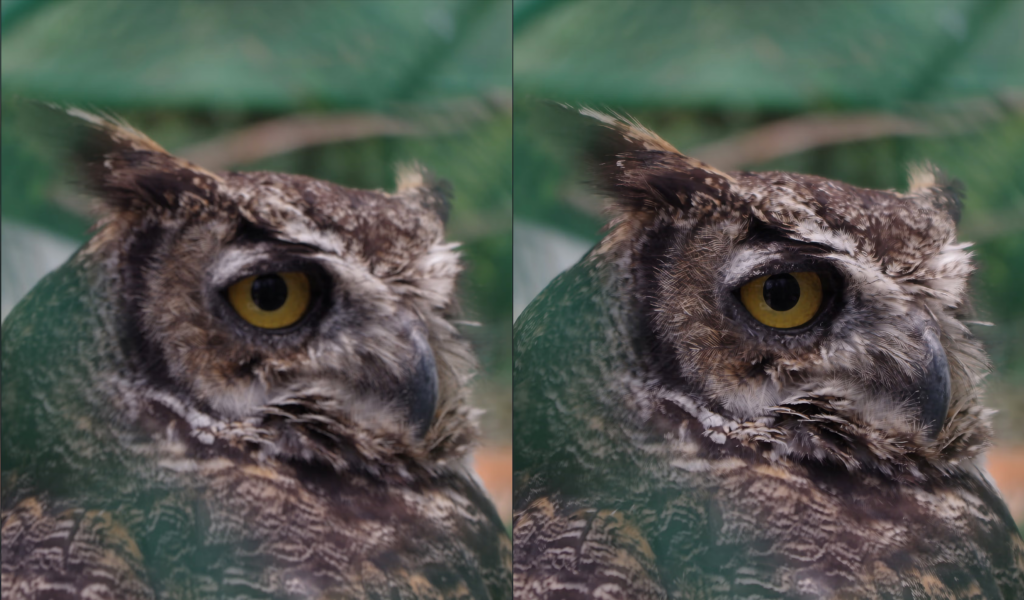
Topaz Photo sits at the end of the workflow. It’s what you reach for when a great frame isn’t technically perfect: shot at ISO 12,800 in a dark reception, slightly soft from motion, or cropped too tight to print large. Autopilot reads each image and suggests which correction to prioritize, and the models treat detail by context, keeping eyes crisp and skin textured while evening out background grain.
Two things changed recently. Topaz ended perpetual licenses in October 2025, so new buyers need a subscription (existing owners keep the version they bought). And in June 2026, Adobe announced an agreement to acquire Topaz Labs; the deal is pending, and Adobe has said Topaz products will remain available.
Pros
- Among the best denoise and sharpening results available
- Rescues frames you’d otherwise discard
- Works as a plugin inside your existing editor
Cons
- Not a full editor: no color grading, culling, or style learning
- Heavy on GPU and processing time
- Now subscription-only
“The default results can occasionally appear over-processed, so some manual refinement may still be necessary,” notes Darean Leal in his review of Topaz Photo AI.
5. Adobe Lightroom
| Best for | Photographers who want full manual control, with AI speeding up masking, noise, and cleanup |
| AI features | AI masking (subject, sky, people), Denoise, Generative Remove, Lens Blur, Adaptive Presets, Point Color, Assisted Culling (Lightroom Classic) |
| Pricing | Subscription only; the Lightroom plan includes Lightroom Classic and 1TB storage, the Photography plan adds Photoshop. Check Adobe’s plans page for your region’s current price |
| Free trial | 7 days |
| Platforms | Lightroom Classic: macOS, Windows. Lightroom: desktop, mobile, web |
Lightroom is still where most photographers do their precise work: tone curves, color grading, print prep, and a catalog that can hold a career’s worth of images. Adobe’s AI features make that manual work faster without taking the controls away from you.
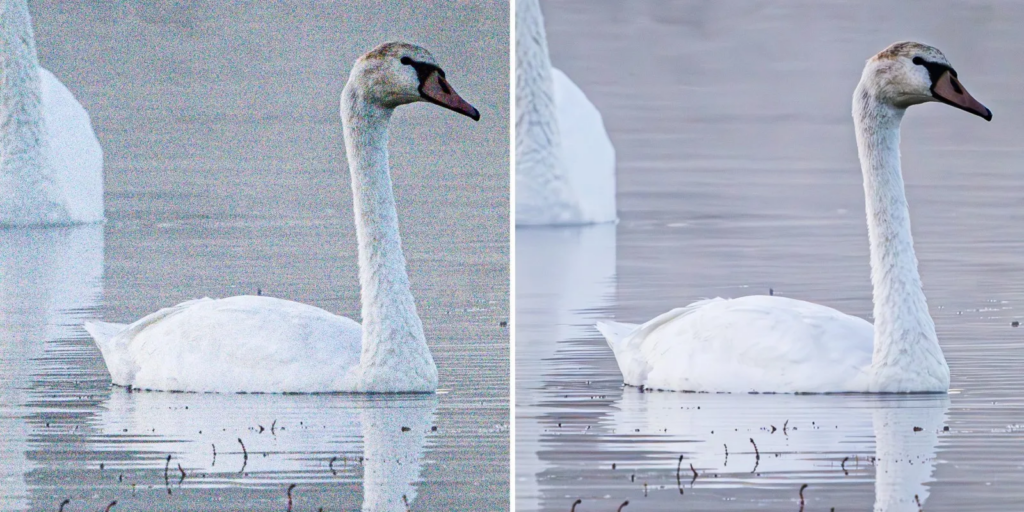
AI masking selects subjects, skies, and people in one click. Denoise cleans high-ISO files while keeping detail. Generative Remove erases distractions with context-aware fill, and Lens Blur adds depth after the fact. Adaptive Presets adjust their strength per image rather than applying blanket values. In Lightroom Classic, Assisted Culling now flags likely keepers and rejects inside your catalog.
What Lightroom doesn’t do is learn your editing style. Presets apply the same values to every frame; they don’t adapt the way a trained AI profile does. That’s why many high-volume photographers pair Lightroom with a style-learning editor and use Lightroom for the finishing pass.
Pros
- Industry-standard RAW editing and cataloging
- Mature AI masking and denoise
- Lightroom Classic keeps catalogs and files local
- Works with almost every AI plugin and batch editor
Cons
- Doesn’t learn your personal style; batch consistency relies on presets and syncing
- Subscription only
- Generative features use Adobe generative credits and need an internet connection
6. Capture One Pro
| Best for | Studio, commercial, product, and fashion photographers who shoot tethered and care most about color |
| AI features | Assisted masking (subject/background), Match Look, skin tone uniformity, Enhanced Denoise |
| Pricing | About $18/mo billed annually for Pro after a 6% increase in mid-2026; a perpetual license is still sold |
| Free trial | Yes |
| Platforms | macOS, Windows, iPad, iPhone |
Capture One is the editor studio photographers switch to when Lightroom’s color tools stop being enough. Its tethered shooting is the industry reference, and its color editor gives finer control over hue and skin tones than most alternatives.
Its AI features are recent but practical. Assisted masking detects your subject or background automatically. Match Look applies the style of any reference image in one click, which is useful for matching a client’s brand look. Skin tone tools unify complexion across a portrait set, and Enhanced Denoise recovers detail from high-ISO files.
Pros
- Best-in-class tethering and color control
- One of the few pro editors still sold as a perpetual license
- Strong session-based organization for client work
Cons
- AI culling and batch style-learning are limited compared with dedicated tools
- Steeper learning curve than Lightroom
- Prices have risen two years in a row
7. Luminar Neo
| Best for | Travel, landscape, and creative portrait photographers who want dramatic results on individual images |
| AI features | Sky AI, Relight AI, Skin AI, portrait bokeh, GenErase, GenExpand, GenSwap, upscale, photo restoration |
| Pricing | One-time license: $119 (Desktop), $159 (Cross-device), $179 (Max) |
| Free trial | 7 days, no credit card |
| Platforms | macOS, Windows; also runs as a Lightroom Classic and Photoshop plugin |
Luminar Neo is the creative tool on this list. Where Aftershoot and Imagen try to match your style across 1,000 images, Luminar tries to make one image look spectacular with a few sliders: replace a flat sky, relight a backlit subject, or erase a tourist from a landmark shot.
It’s also one of the few serious editors you can still buy outright. The catch is that “lifetime” covers the app, not everything Skylum ships afterward. The generative tools (GenErase, GenExpand, GenSwap) are included for one year from purchase, and major upgrades may cost extra.
Pros
- One-time purchase
- Fast, dramatic one-click AI effects
- Works standalone or as a plugin
Cons
- Not built for batch consistency across large galleries
- No culling and no style learning
- Some future features require paid upgrades
For a head-to-head of how Luminar Neo handles real client work, see Aftershoot vs Imagen vs Luminar Neo.
8. Narrative
| Best for | Photographers who want AI to speed up culling decisions without making them |
| AI features | Face close-ups, focus and eye assessment, scene grouping, personal AI editing presets (Premium and Ultra) |
| Pricing | Billed annually: Lite $10/mo (culling), Standard $20/mo (advanced culling + basic AI editing), Premium $40/mo, Ultra $60/mo; all tiers include unlimited images |
| Free trial | Full Ultra trial, no credit card |
| Platforms | macOS and Windows |
Narrative takes the opposite approach to fully automated culling. Instead of choosing keepers for you, it groups similar frames, shows close-up crops of every face beside the full image, and flags focus and closed eyes, so you make each decision faster. Selections go to Lightroom or Capture One in one click.
Editing lives on the higher tiers. Premium and Ultra include personal AI presets trained on your own edits, which makes Narrative a culling tool first and an editor second.
Worth knowing before you compare prices: the $10 Lite plan doesn’t include the Close-ups panel or scene grouping, the two features that make Narrative’s culling distinctive. For most photographers, Standard is the real entry point.
Pros
- Photographer-led culling with excellent face detail views
- Unlimited images on every tier
- Clean handoff to Lightroom and Capture One
Cons
- You still make every selection, which takes longer than automated culling on big events
- AI editing requires the $40+ tiers
- No retouching
If culling is your main bottleneck, our roundup of the best AI culling tools compares Narrative with the dedicated alternatives.
9. Adobe Photoshop
| Best for | Generative cleanup, composites, and hero-image retouching |
| AI features | Generative Fill, Generative Remove, Generative Expand, Harmonize, Firefly-powered edits |
| Pricing | Included in Adobe’s Photography plan with Lightroom and Lightroom Classic |
| Free trial | 7 days |
Photoshop isn’t a batch editor, and it won’t speed up a 900-image gallery. It earns a place here because its generative tools solve problems nothing else on this list can: extending a cropped-in background for an album spread, removing a guest’s phone from the first kiss, or blending a composite so the light matches. Generative actions use Adobe’s generative credits.
Pros: Unmatched generative and pixel-level control; included with Lightroom in the Photography plan. Cons: One image at a time; steep learning curve; generative edits need an internet connection.
Comparison between Aftershoot, Imagen AI, and Narrative Edit
When you’re evaluating AI editing tools, look at how they handle three things: learning accuracy, offline reliability, and cost predictability; benchmarks that Aftershoot was built around.
Here’s a comparison table of Aftershoot, Imagen AI, and Narrative AI:
| Feature | Aftershoot | Imagen AI | Narrative AI (Select + Publish) |
| Batch Editing | ✔ Yes — full culling, editing, and retouching workflows supported | ✔ Yes — batch processing in Lightroom catalogs | ✔ Yes — batch ranking, selection, and AI-driven story sequencing |
| Style Learning / AI Training | ✔ Two pathways:• Instant AI Profiles (convert presets to adaptive logic instantly)• Professional AI Profiles (trained on 2.5k–5k+ edited images) | ✔ Learns from Lightroom catalog history (2k–10k images recommended for strong accuracy) | ✔ Personal AI Profiles available; learns from past blog or selection behavior |
| Speed | ⚡ Extremely fast; optimized for local GPU processing. Processes 10k+ images in minutes. | ⚡ Cloud-side processing; fast for smaller sets, but dependent on upload bandwidth. | ⚡ Quick local performance for culling and ranking; layout generation runs cloud-side. |
| Pricing Model | 💰 One flat monthly or annual fee, unlimited image processing (no per-image pricing) | 💰 Pay-per-image model (credits-based); scales with volume | 💰 One flat fee (subscription) |
| Offline Availability | ✔ Fully works offline after setup (local model training and processing) | ✖ Requires internet for uploads and cloud rendering | ✔ Works offline for Select; Publish requires connection for web export |
| Ease of Use | ✔ Simple, unified interface for culling, editing, and retouching | ✔ Streamlined interface integrated into Lightroom workflow | ✔ Clean layout; intuitive drag-and-drop flow for selection and blog layout |
| Export and Integration | ✔ Exports to Lightroom Classic, Lightroom, Bridge, Capture One, and Photoshop | ✔ Syncs directly with Lightroom Classic, Photoshop, Bridge | ✔ Integrates with Lightroom, Capture One, and WordPress for blog export |
| Format Support | RAW, JPEG (Retouching currently JPEG only) | RAW and JPEG | RAW and JPEG |
AI Photo Editor Pricing Comparison (2026)
How a tool charges matters as much as what it charges. A per-image tool that looks cheap for a 200-image portrait session can cost more than a flat subscription for a photographer delivering 30,000 images a year.
| Tool | Pricing model | Starting price | Free plan or trial | Usage limits | One-time option? |
|---|---|---|---|---|---|
| Aftershoot | Flat subscription, modular | Culling $10/mo, Editing $30/mo, Retouching $20/mo, all three $45/mo (annual); $15 / $35 / $25 / $55 monthly | 30-day full trial, no card | Unlimited images | No |
| Imagen | Per photo or flat | Pay-as-you-go: per-photo rate with $7/mo minimum; Limitless: US$179/mo billed annually; culling add-on from $29/mo on pay-as-you-go | 1,000 free edits, no card | Pay per edit, or unlimited on Limitless (solo photographers) | No |
| Lightroom / Lightroom Classic | Subscription | Lightroom plan (includes Classic, 1TB); Photography plan adds Photoshop. Regional pricing varies | 7 days | Generative credits capped per month | No |
| Evoto | Credits per export | ~$80/yr for 800 credits; lower per-credit cost on larger plans | 7 days | 1 credit per exported edited image | No |
| Capture One Pro | Subscription or perpetual | ~$18/mo (annual) | Yes | Unlimited | Yes |
| Luminar Neo | One-time license | $119 / $159 / $179 | 7 days, no card | Unlimited; generative tools included for 1 year | Yes |
| Topaz Photo | Subscription | ~$199/yr; Studio bundle $399/yr | Yes | Unlimited local processing | No (legacy licenses only) |
| Narrative | Flat subscription tiers | $10 / $20 / $40 / $60 per month (annual) | Full Ultra trial, no card | Unlimited images | No |
| Photoshop | Subscription | Included in Adobe Photography plan | 7 days | Generative credits capped per month | No |
How to compare per-image and flat pricing: multiply the number of images you deliver in a year by the per-image rate (including any per-image AI tool charges), then compare that to the flat plan’s annual cost. Imagen, for example, estimates the break-even point for its flat plan at around 20,000 edits a year. If you shoot 25 weddings of 1,200 images each, you’re at 30,000, and flat pricing usually wins.
See current Aftershoot plans on the pricing page.
Speed, Batch Processing, and Consistency Compared
Raw processing speed depends on your computer and connection, so the more useful question is what shapes turnaround time: where the processing happens, whether it runs in batch, and how much you’ll need to fix afterwards.
| Tool | Where processing runs | Batch editing | What drives consistency | Export path |
|---|---|---|---|---|
| Aftershoot | Locally on your computer | Full gallery (cull, edit, retouch) | Personal or preset-based AI profile that adapts per image | In-app export, or to Lightroom Classic / Capture One |
| Imagen | Cloud (upload required) | Full gallery | Personal AI profile trained on your Lightroom history | Back into your Lightroom Classic catalog |
| Lightroom Classic | Locally (generative tools need internet) | Sync settings or apply presets across selected images | Presets and Adaptive Presets; no style learning | Native export |
| Narrative | Locally for culling | Culling in batch; AI editing on Premium/Ultra | Personal AI presets (higher tiers) | Lightroom Classic, Capture One |
| Evoto | Locally with some online features | Batch retouching across a session | Retouch settings applied uniformly | In-app export (1 credit per image) |
| Topaz Photo | Locally (GPU-heavy) | Batch denoise, sharpen, upscale | Per-image model decisions (Autopilot) | Standalone or Lightroom/Photoshop plugin |
What this means in practice: local tools are limited only by your hardware, so a large wedding can process on a flight or with no signal. Cloud tools need less computing power but add upload time, which becomes noticeable on 1,000+ RAW galleries or slower connections. And consistency across a gallery comes from style learning, not speed: tools that learn your past edits hold a look through lighting changes better than presets that apply fixed values.
Generic AI Edits vs Photographer-Trained AI Profiles
Not all “AI editing” learns anything about you. There are four levels, and the difference shows up the moment you edit a full gallery.
| Approach | How it works | Consistency across a gallery | Looks like your work? | Examples |
|---|---|---|---|---|
| One-click auto / AI enhance | Generic model applies “good-looking” corrections to each image | Low to medium | Rarely | Lightroom Auto, Luminar one-click tools |
| Presets and adaptive presets | Fixed values (or area-aware adjustments) applied to every frame | Breaks when light changes | Yes, in the light the preset was built for | Lightroom presets, Adaptive Presets |
| Pre-built creator AI styles | A model trained on another photographer’s edits, adapted per image | High | Their look, not yours | Aftershoot Marketplace, Imagen Talent profiles |
| Personal AI profile | A model trained on your own past edits, adapted per image | High | Yes | Aftershoot, Imagen, Narrative (Premium+) |
A preset is a recipe: +0.3 exposure, 5,200K, the same every time. That works until the ceremony moves from a sunlit garden into a tungsten-lit hall, and suddenly every frame needs fixing. A trained profile has seen how you handled that exact shift in past weddings, so it predicts different adjustments for different conditions.
There’s a middle path too. Aftershoot’s Instant AI Profiles turn a Lightroom preset you already love into an adaptive profile, and AI Styles let you start from a professional’s look if you don’t have a big back catalog yet.
The trade-off is setup. A personal profile needs a sizable set of consistently edited images to learn from, and it only learns the editing style you give it. If your past edits wander, so will the AI.
Where AI Editing Still Falls Short
AI handles the repeatable 80% of editing well. The last 20% is where your judgment is the product.
- Creative intent the AI hasn’t seen. A profile trained on bright, airy weddings will “correct” a moody, underexposed frame you shot that way on purpose.
- Extreme or unusual light. Colored stage lighting, mixed LEDs, and heavy backlight still trip up most models. Expect to fix these by hand.
- Inconsistent training data. Style-learning tools amplify whatever they’re given. An inconsistent back catalog produces an inconsistent profile.
- High-end retouching. Batch retouching is excellent for cleanup, but beauty, fashion, and commercial work still need frequency separation and dodge-and-burn in Photoshop.
- Skin tones across a diverse group. A single correction that suits one skin tone can shift another in the same frame. Review group shots individually.
- Generative edits and authenticity. Many photo contests, documentary, and journalistic outlets prohibit generative fills. Know the rules before you use Generative Remove or GenErase on delivered work.
When Manual Editing Is Still the Right Call
- Album covers, hero images, and anything going to large print
- Fine art and editorial work where the edit is the style
- Commercial and product work with strict brand color requirements
- The handful of frames in every gallery with difficult light
The practical way to do this: let AI produce the first pass on the full gallery, then spend your time on the 5–10% of images that matter most. That’s where a hybrid photo editing workflow earns its keep.
Choosing the Right AI Editing Software For You
Start with your bottleneck, not the feature list.
| If you… | Choose | Why | Also consider |
|---|---|---|---|
| Shoot weddings or events and deliver 500+ images per job | Aftershoot | Culling, style-matched editing, and retouching in one flat-priced, offline app | Imagen (Limitless) if you want to stay inside Lightroom Classic |
| Edit everything in Lightroom Classic and want your own style applied | Imagen | Trains on your Lightroom history and returns edits to your catalog | Aftershoot, which also exports to Lightroom Classic |
| Shoot portraits, headshots, or newborns and retouch every frame | Evoto | Most precise batch skin and facial retouching | Aftershoot Retouch for gallery-wide cleanup |
| Work in a studio, tethered, with strict color | Capture One Pro | Tethering and color control are the benchmark | Lightroom Classic |
| Shoot landscape or travel and edit a few hero images | Luminar Neo | Dramatic one-click AI edits and no subscription | Lightroom + Photoshop |
| Regularly shoot in very low light or need big prints | Topaz Photo | Best denoise, sharpening, and upscaling | Lightroom Denoise |
| Want to make every culling call yourself, just faster | Narrative | AI-assisted culling that keeps you in control | Aftershoot’s AI Assisted Culling mode |
| Need composites or generative cleanup | Photoshop | Generative Fill and Remove | Luminar Neo GenErase |
| Are on a tight budget | Luminar Neo (one-time) or Aftershoot culling ($10/mo) | Lowest ongoing cost for their category | Lightroom’s built-in AI |
The most common setup for high-volume photographers is one style-learning editor for the full gallery plus one specialist. For example: Aftershoot to cull, edit, and retouch the wedding, then Photoshop for the album cover and Topaz Photo for the three dark-reception frames you can’t lose.
If that high-volume workflow sounds like yours, you can run your next shoot through Aftershoot’s 30-day free trial, no credit card needed, and compare the result against your own edits.
Final Thoughts on Choosing AI Editing Software
No single AI editor does everything well, and the photographers who get the most from AI rarely try to make one tool do it all. The tools worth paying for are the ones pointed at where your hours actually go.
If large galleries eat your week, start with a style-learning editor and judge it on one number: how many images you’d deliver without touching them. If your bottleneck is a specific job, like retouching a day of headshots or rescuing high-ISO reception frames, a specialist will beat an all-rounder. Either way, keep your own time for the frames that carry the gallery: the album cover, the difficult light, the moment the client will print.
Before you commit to anything, do two things. Run a recent, real client session through the free trial instead of a handful of hand-picked test images, because that’s where inconsistent light and awkward frames show up. Then price your actual yearly volume against each tool’s pricing model, not the headline monthly rate.
If you shoot high-volume weddings, events, or portraits, Aftershoot’s 30-day free trial is an easy place to start: cull, edit, and retouch a full gallery in your own style, with no credit card, and compare the result against your own edits.
FAQs for AI Photo Editing
Q1. What is the best AI editing software for photographers?
For high-volume wedding, event, and portrait photographers, Aftershoot is the most complete option because it culls, edits, and retouches in one offline app with flat pricing. Imagen is the strongest alternative if you want to stay inside Lightroom Classic. For manual control with AI help, Lightroom Classic and Capture One lead; for retouching, Evoto; for creative single-image edits, Luminar Neo.
Q2. Is there a free AI photo editor for professional photographers?
There’s no permanently free professional AI editor, but most offer trials. Aftershoot has a 30-day full trial with no credit card, Imagen gives 1,000 free edits, Narrative offers a free trial of its top tier, and Adobe, Evoto, and Luminar Neo offer 7-day trials. Lightroom mobile is free for basic editing, but its advanced AI features require a paid plan.
Q3. How does AI photo editing software learn my editing style?
Style-learning tools analyze the edits you’ve already made (exposure, white balance, tone, and color choices) and build a model that predicts how you’d treat a new image in similar light. The more consistent your past edits, the closer the match. Aftershoot, Imagen, and Narrative’s higher tiers train on your own catalog; presets and one-click AI tools don’t learn from you at all.
Q4. Which AI photo editors work offline?
Aftershoot runs culling, editing, and retouching locally, so it works without an internet connection. Lightroom Classic, Capture One, Luminar Neo, and Topaz Photo also edit locally, though generative features in Adobe and Luminar need a connection. Imagen processes edits in the cloud, so it needs internet access.
Q5. Is AI editing software worth It for wedding photographers?
Usually, yes, because weddings combine high image counts with fast turnaround expectations. A tool that culls and applies your style to a 1,200-image gallery can turn days of editing into hours of review. At that volume, flat-rate pricing (Aftershoot, Imagen Limitless, Narrative) tends to cost less than per-image billing.
Q6. Can AI editing replace manual editing in Lightroom?
No. AI handles the rule-based work well: exposure, white balance, tone consistency, and routine retouching. Creative choices, difficult light, and hero images still need your hands. Most professionals use AI for the first pass and finish the key frames manually.
Q7. Is It safe to use AI editing software on client photos?
It depends on where processing happens. Tools that process locally, like Aftershoot, Lightroom Classic, and Capture One, keep files on your computer. Cloud-based tools like Imagen upload images to their servers, so read their privacy and data-retention policies and mention AI-assisted editing in your client contract if required.
Q8. How many edited photos do I need to train an AI Editing Profile?
It varies by tool, but most personal profiles need a few thousand consistently edited images from your recent work. If you don’t have that yet, you can start with a pre-built creator style or convert a favorite Lightroom preset into an adaptive profile. Our guide on how to build your own AI profile walks through preparing a clean training set.
Q9. What’s the difference between per-image and flat-rate AI editing pricing?
Per-image pricing charges for every photo you edit, which is cheap at low volume but scales with every wedding you book. Flat-rate pricing charges the same whether you edit 500 or 50,000 images. To compare, multiply your annual image count by the per-image rate (plus any per-image AI tool charges) and compare it with the flat plan’s yearly cost.
Q10. Does Lightroom have AI editing features?
Yes. Lightroom and Lightroom Classic include AI masking, Denoise, Generative Remove, Lens Blur, and Adaptive Presets, and Lightroom Classic has Assisted Culling. What Lightroom doesn’t do is learn your personal editing style and apply it across a gallery, which is why many photographers pair it with a style-learning editor.