
Instant AI Wrinkle Remover for Portraits
AI-powered photo Wrinkle Remover that softens lines without flattening skin or removing character. Built for natural, professional retouching.
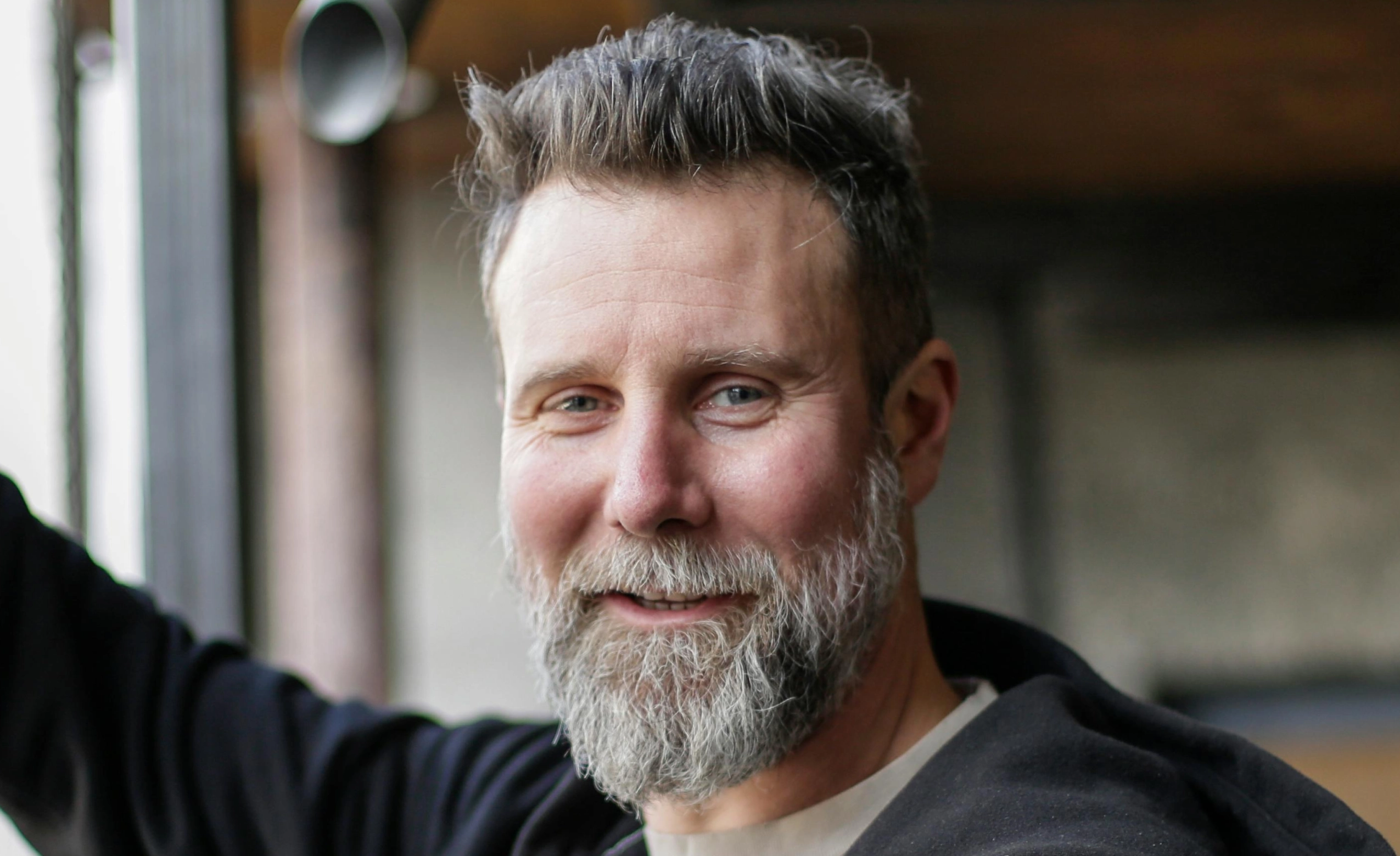
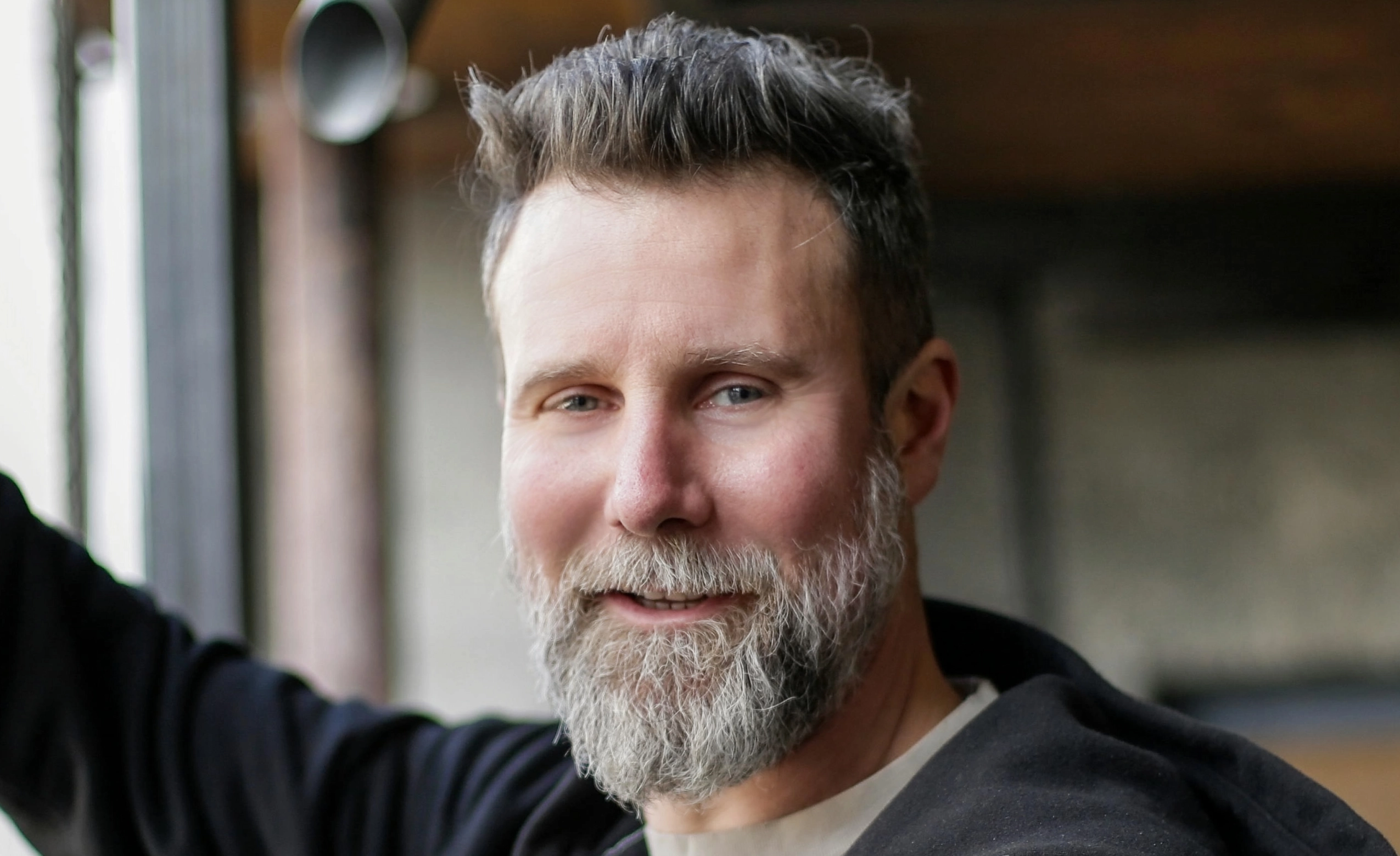
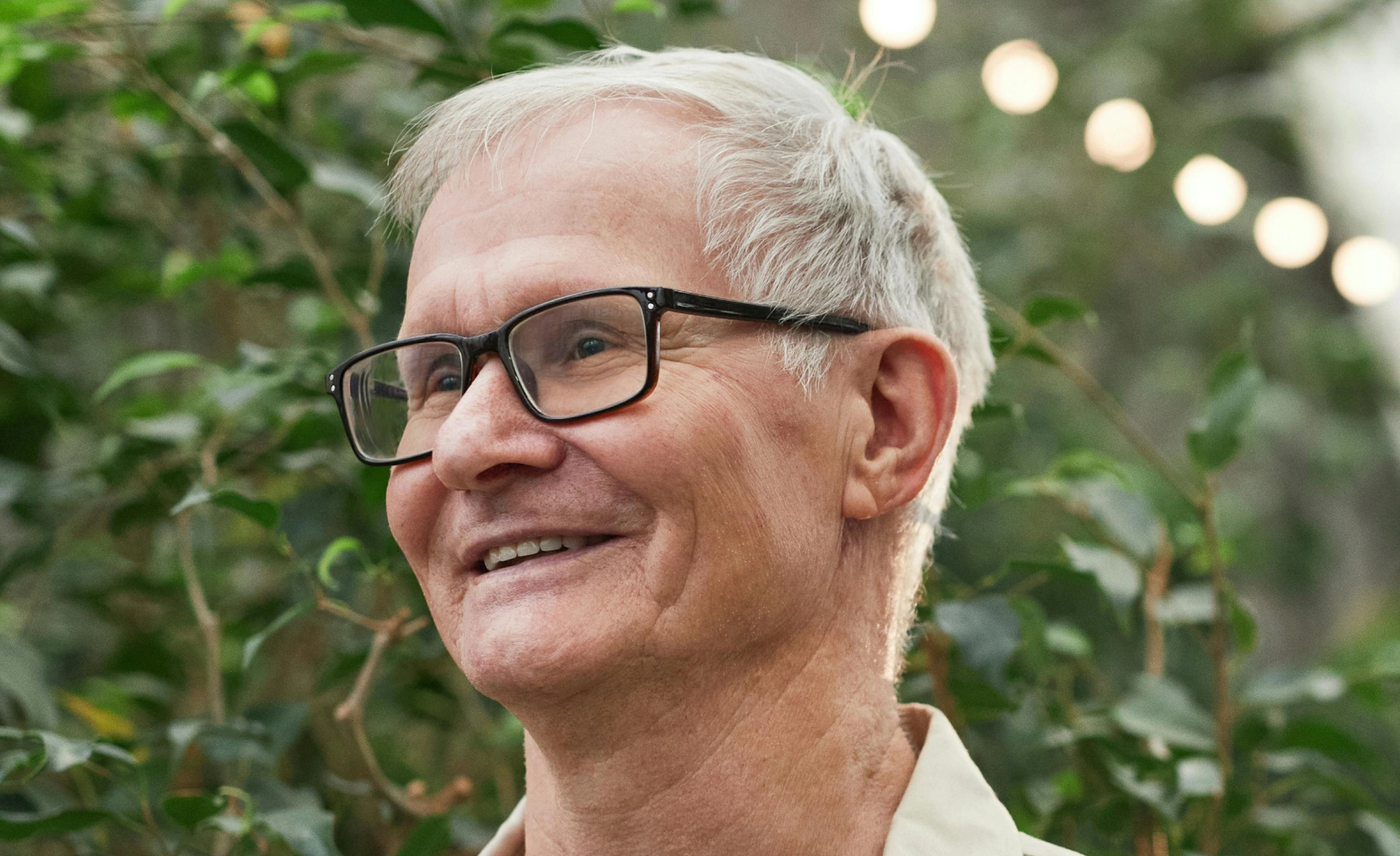
Loading..
No image? Try with one of these

0 of 3 free retouches used
As seen in




Wrinkle Retouching That Keeps Faces Real
Lines Taking Over the Portrait
Wrinkles are natural. But certain lighting can exaggerate fine lines and creases in portraits. Shadows deepen. Texture sharpens. Expression gets lost. When that happens, wrinkle retouching becomes a balance. Manual wrinkle removal takes precision. Too much smoothing flattens the skin. Too little leaves harsh lines inconsistent across a gallery. Most consumer photo editors rely on global blur, erasing texture and making faces look artificial.
Reduce Wrinkles, Preserve Character
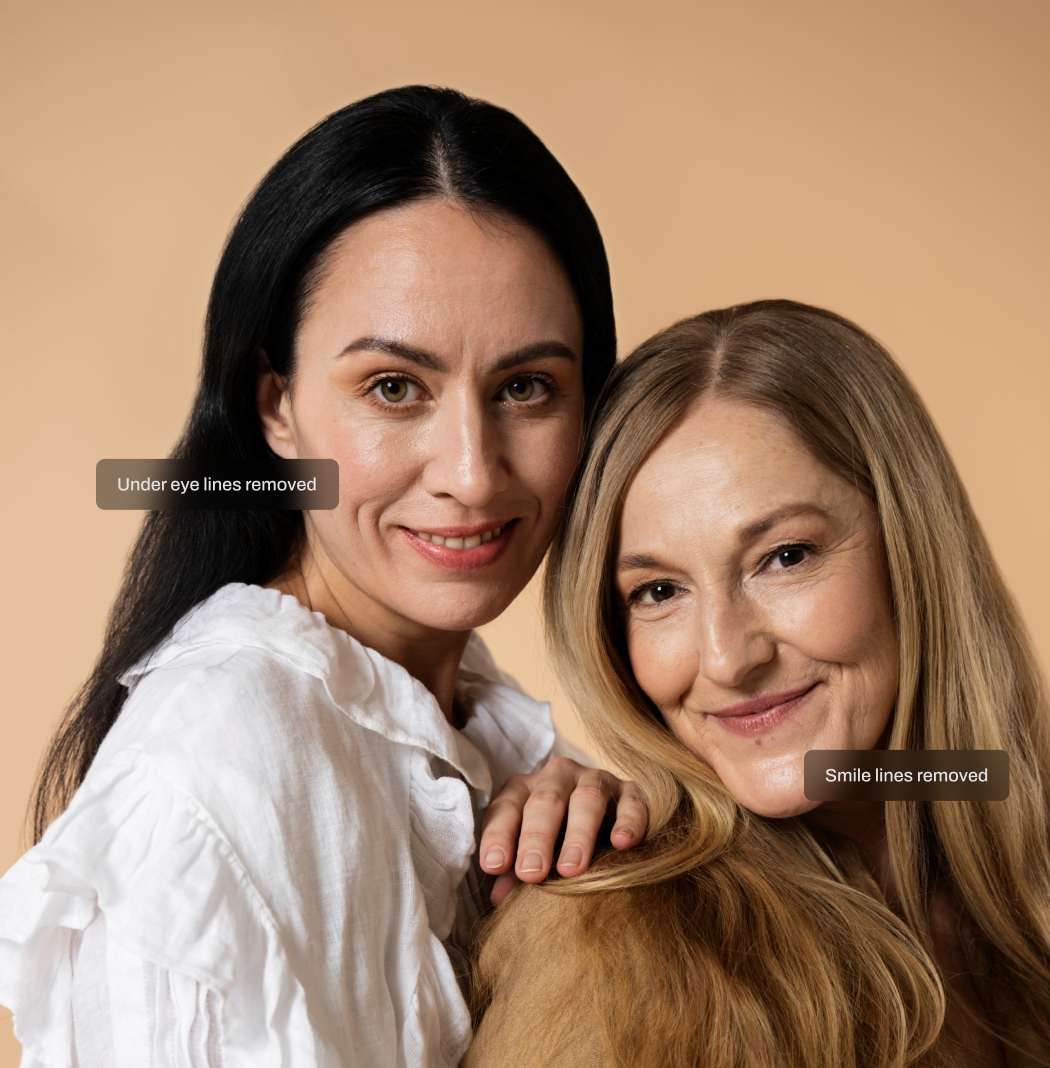
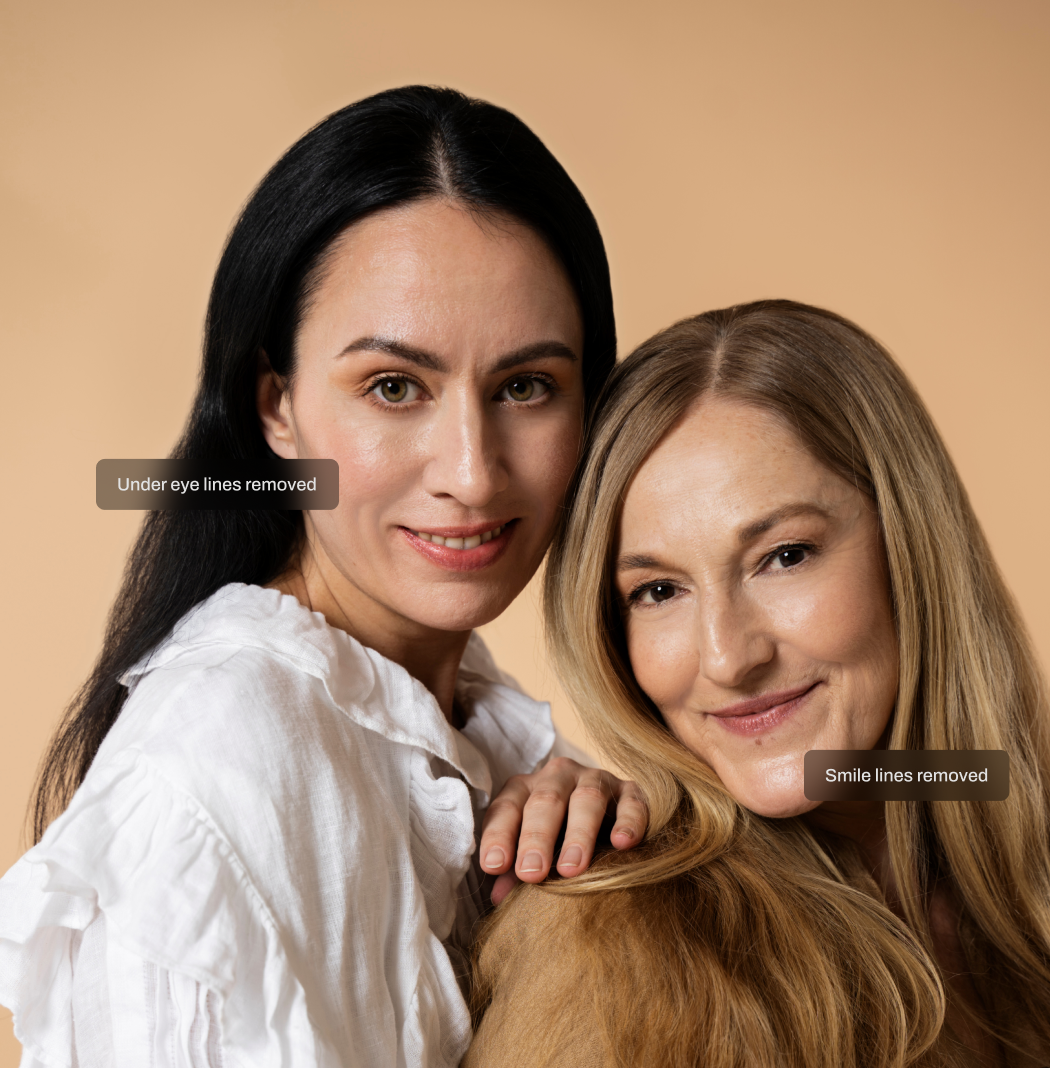
Aftershoot’s AI Wrinkle Remover is built to soften the appearance of wrinkles without flattening skin or removing natural expression. It evaluates facial structure, distinguishes between natural expression lines and harsh creases, then retouches only what needs softening while keeping texture and depth intact.

Face-Aware Wrinkle Detection
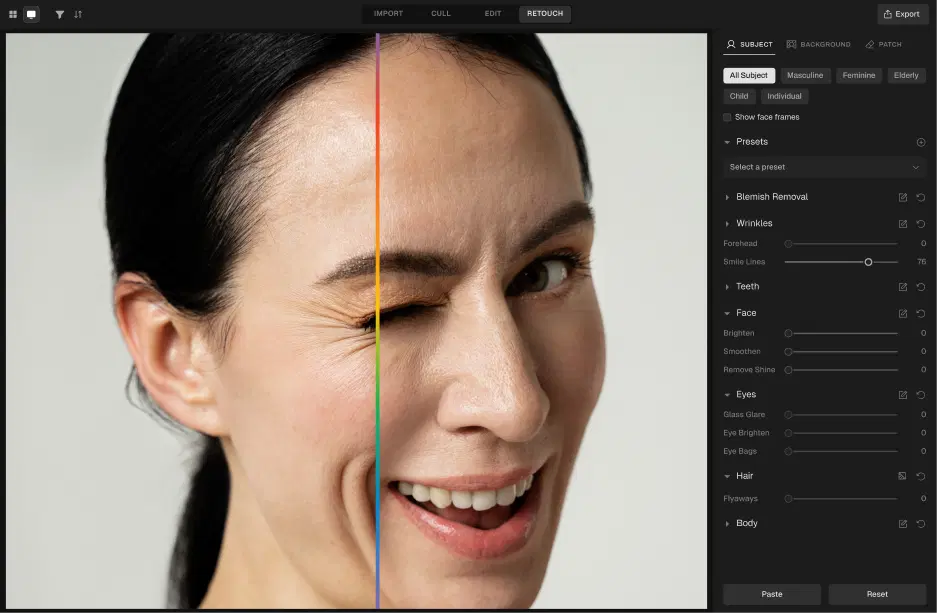
Aftershoot’s photo Wrinkle Remover evaluates skin texture and depth before adjusting contrast or creases. It distinguishes between natural expression lines and wrinkles that appear overly harsh in camera lighting. This is context-aware wrinkle reduction, not uniform smoothing.
Natural Texture & Expression Preservation
When wrinkles are reduced, pores and skin detail remain intact. Lighting and facial contours stay realistic. There is no plastic smoothing, artificial blur, or loss of dimension. The result feels professionally retouched, subtle, intentional, and true to the subject.
Adjustable Control
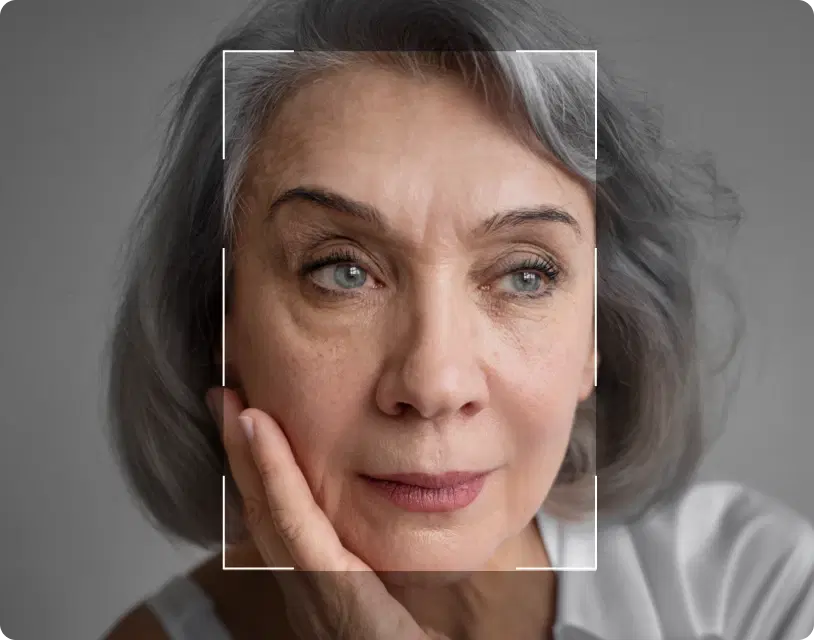
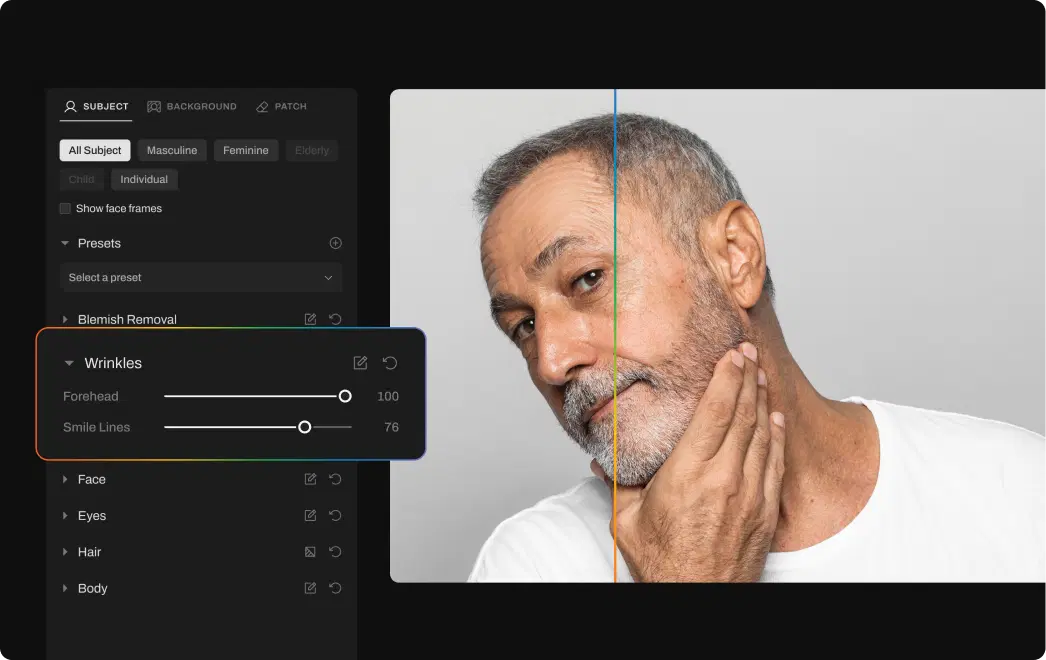
Aftershoot’s AI Wrinkle Remover offers adjustable intensity through presets, allowing photographers to match different client preferences or editorial styles. Apply selectively or maintain consistency across a full shoot. You decide how much correction is applied.
How to Remove Wrinkles from Photos in 3 Steps

Upload Photos
Add your gallery (RAW or JPEG)

Adjust the Wrinkle Remover Slider
Go to Retouching, select Wrinkles, and adjust the slider for subtle or polished results

Export Album Instantly
Preview and export to view final results
Go Beyond Wrinkle Removing
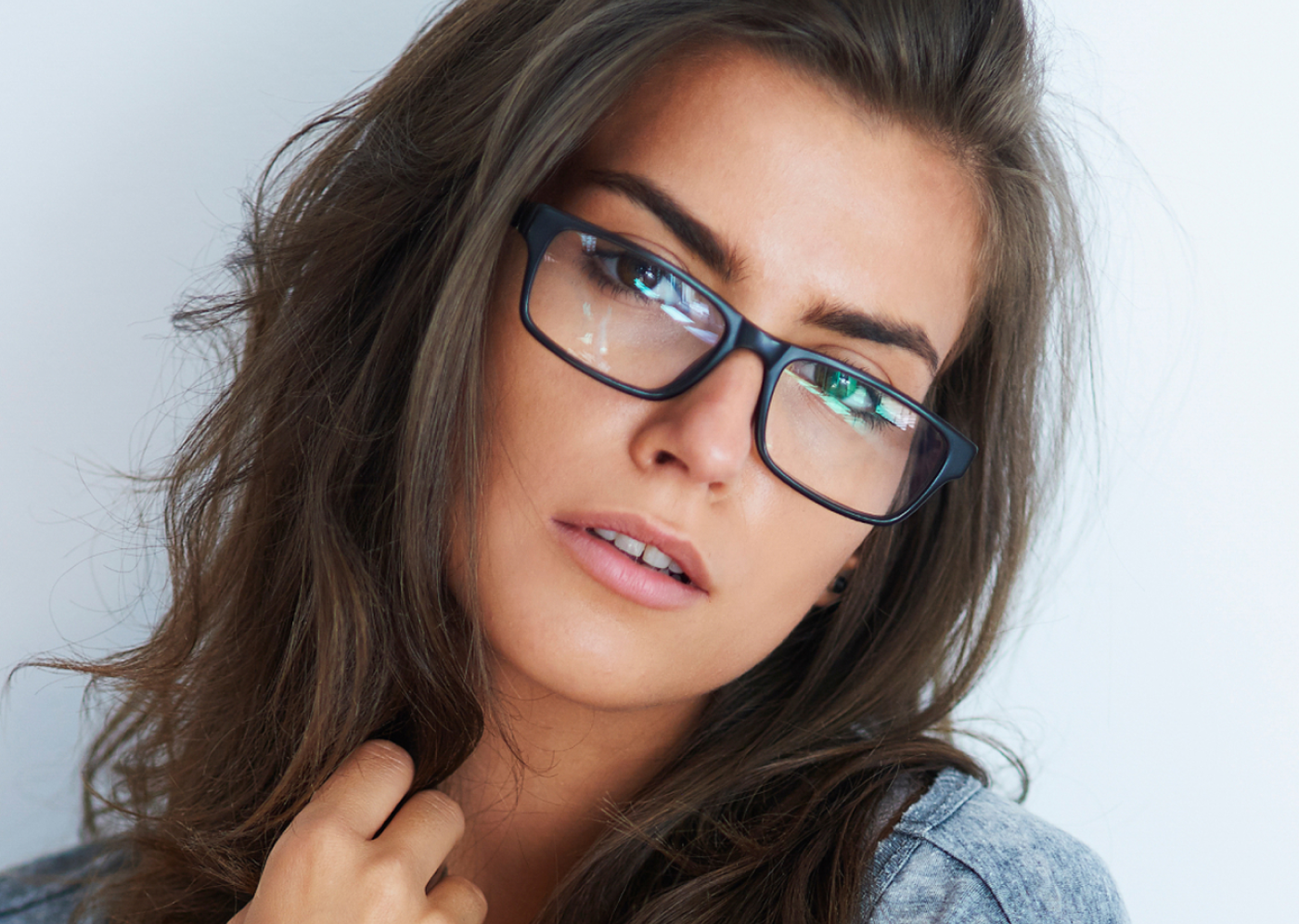
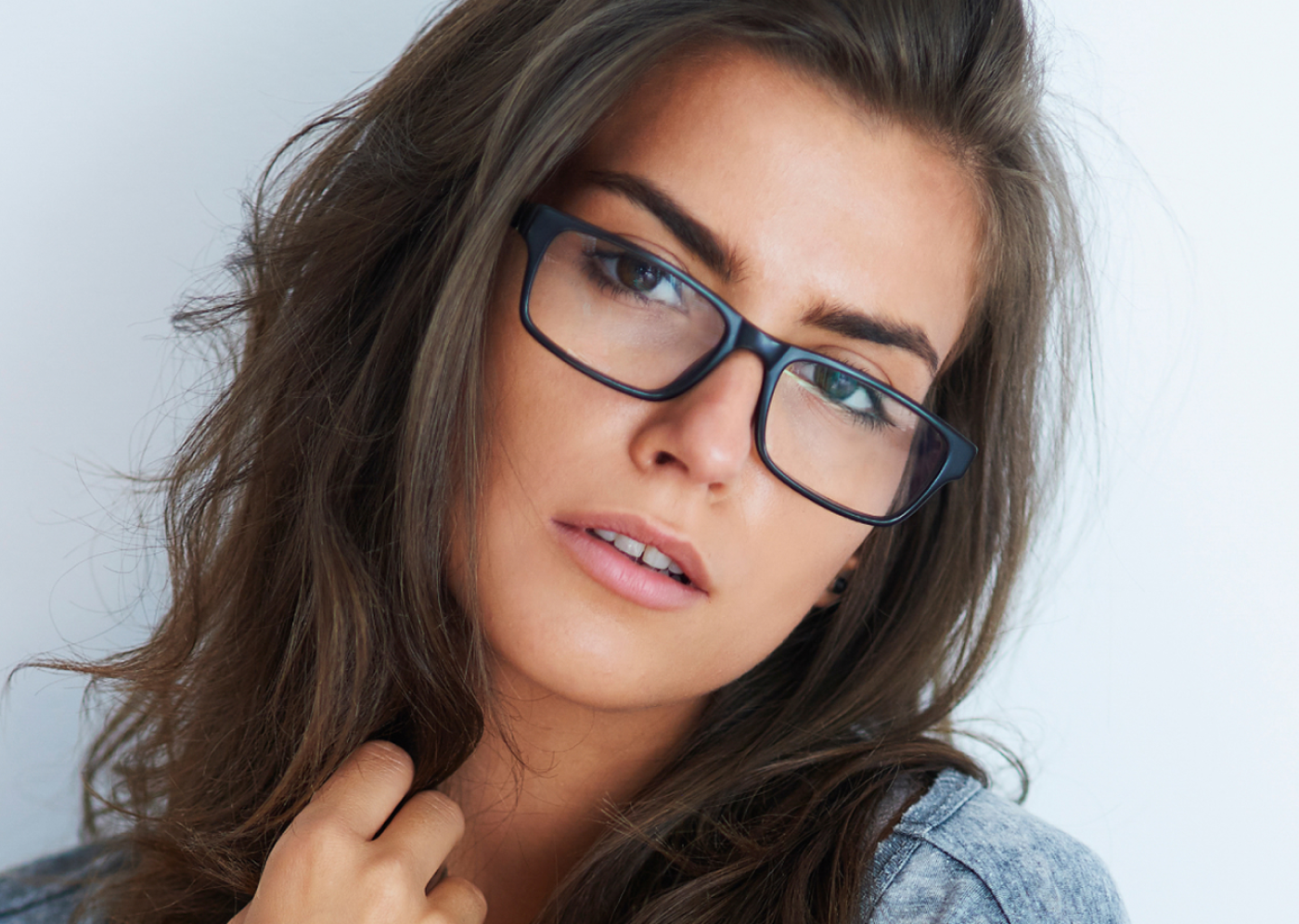
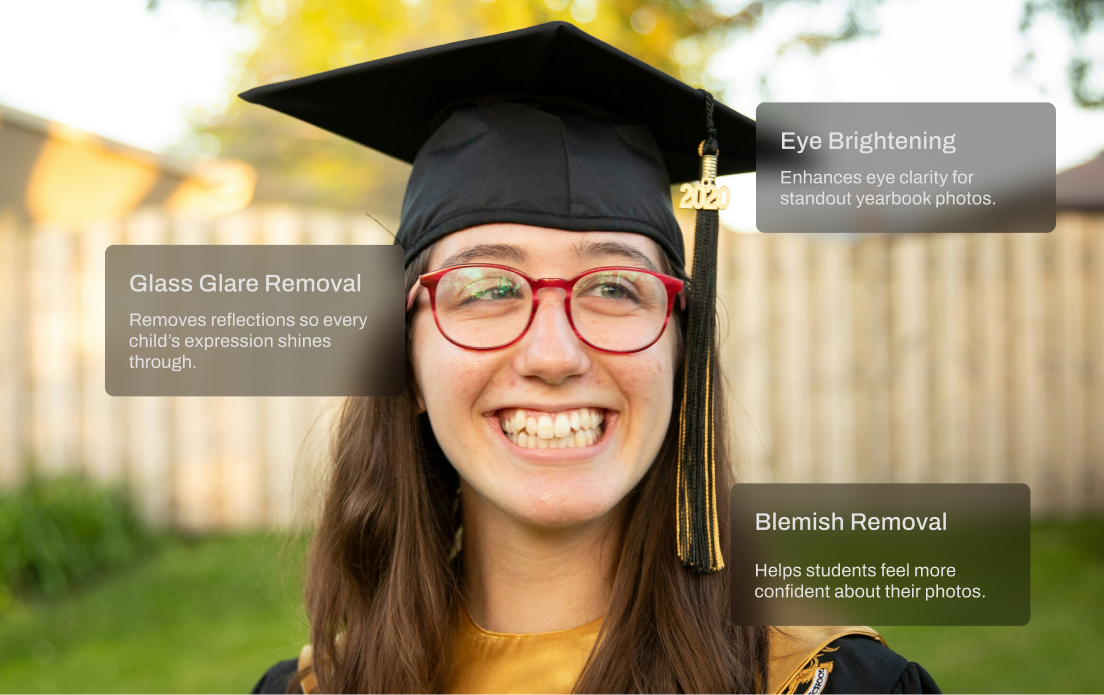
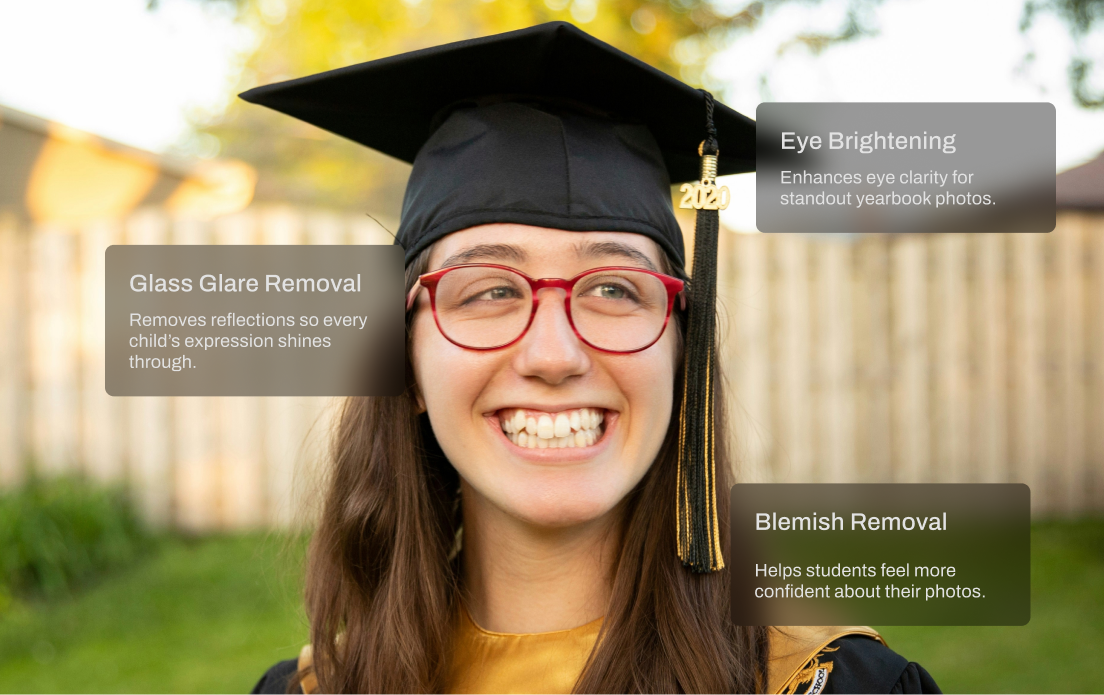
Glass Glare Removal
Remove glare and reflections from glasses in portraits while preserving natural skin tone and eye detail.
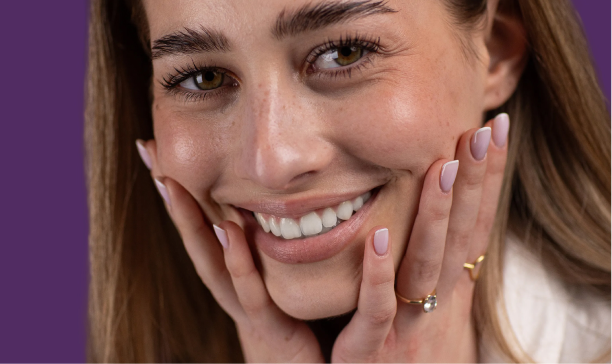
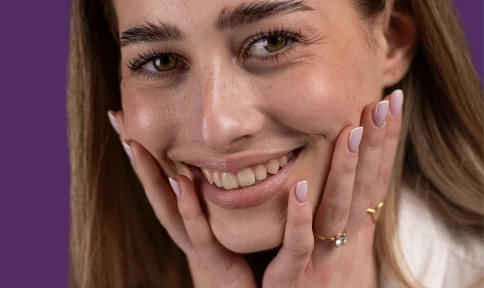
Teeth Whitening
Brighten teeth naturally with adjustable intensity. No over-editing, just a cleaner, more polished smile.
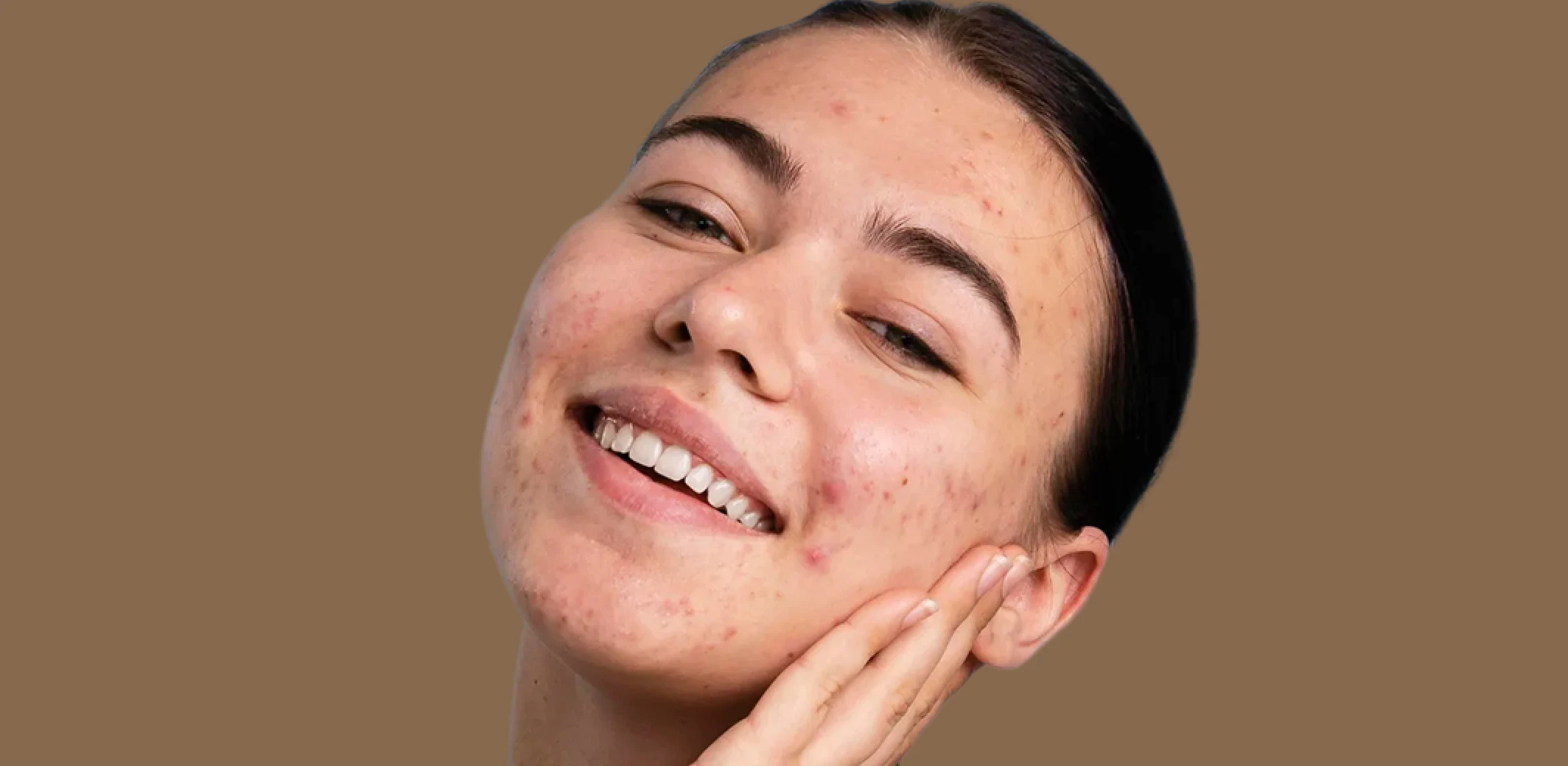
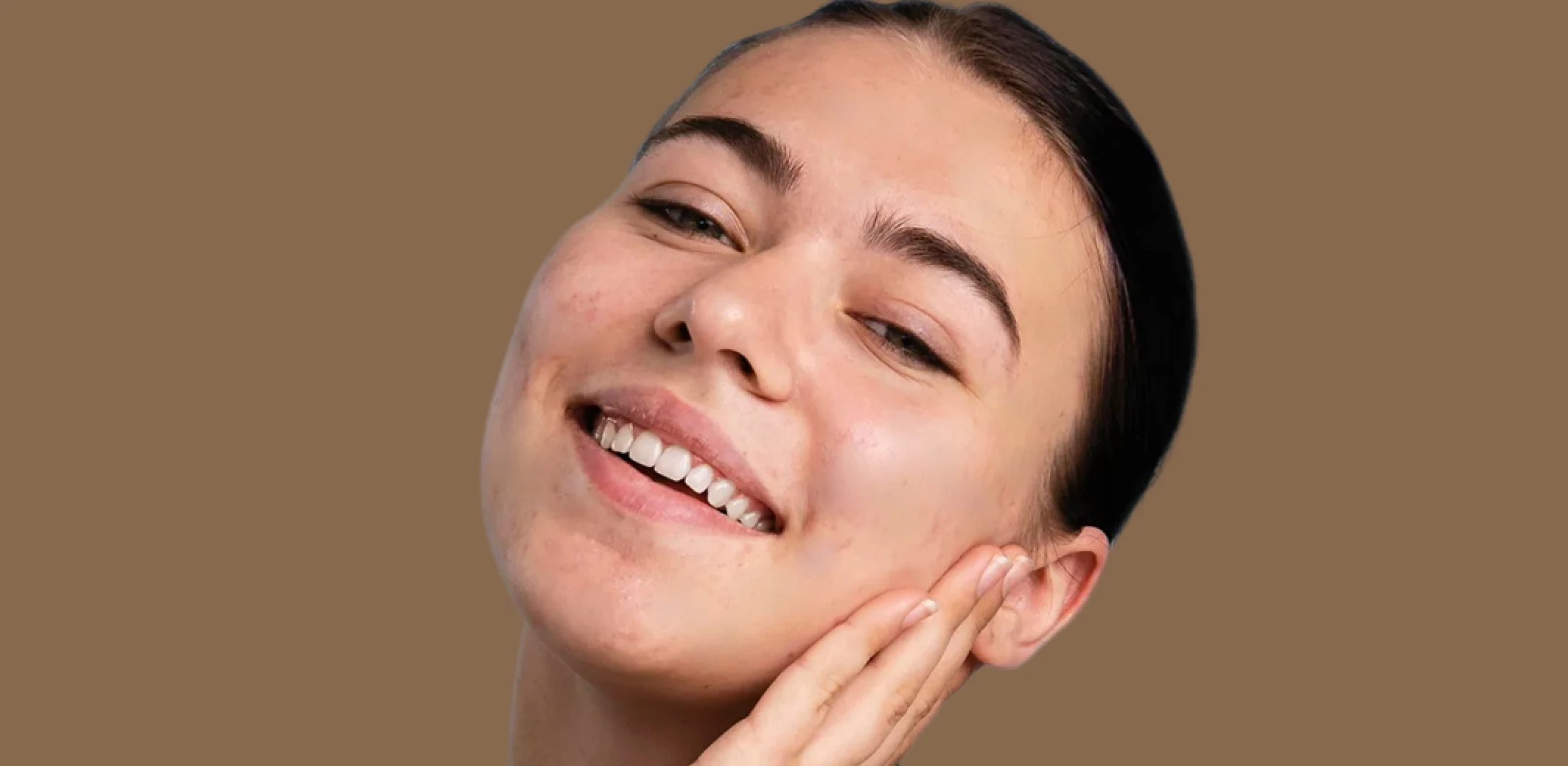
Blemish Remover
Remove temporary blemishes and spots while preserving natural skin texture and tone.
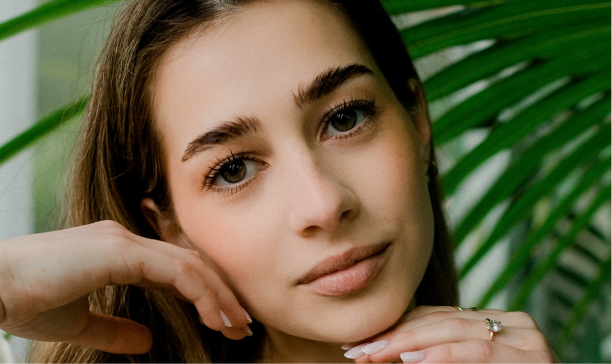
Face Pop
Enhance facial clarity, presence, and sharpness without over-processing or altering natural features.
Made for All Moments


.png&w=48&q=75)


School & Team Sport
Hundreds of faces, one consistent finish.
School and team photo days are fast-paced and high-volume. You’re dealing with glare from glasses, inconsistent lighting, messy hair, and hundreds of files to deliver on tight deadlines. Aftershoot speeds things up with smart batch retouching that handles the heavy lifting. Even out skin tones, reduce glare, and clean up every shot in minutes so your final gallery looks polished and ready to print.
AI Retouching, Trusted by the Pros
Top photographers rely on Aftershoot to streamline their workflow and achieve stunning results.
Ready to Remove Wrinkles Instantly?
-(1).webp&w=3840&q=75)