
TL;DR
- Best overall for professional portrait workflows: Aftershoot. Portrait, Family Portraits, School Portraits, Boudoir, and Newborn culling options give photographers more control over how different types of people-focused sessions are assessed.
- Best for hands-on face comparison: Narrative. Its Close-ups Panel can display multiple detected faces side by side, while Eye and Focus Assessments help you make the final selection yourself.
- Best for transparent AI scoring: FilterPixel. It combines basic culling with DeepCull’s score-and-reason approach so you can see why an image was favored.
- Best for photographers already invested in AI editing: Imagen. Culling sits inside Imagen’s editing workflow, either as a $12/month add-on billed annually or included in its Limitless plan.
- Best for skipping AI entirely: Photo Mechanic. No blur, eye, or duplicate detection of any kind, but it’s still the fastest manual browser available for photographers who trust their own eye over an algorithm.
- Best for bundling culling with high-volume retouching: Evoto. Culling flags the obvious rejects, then the same platform handles skin, background, and color work across hundreds of portraits at once.
- Best for managing large, ongoing portrait archives: Excire Foto. Built more as a searchable photo library than a single-session culler, useful for studios with years of repeat client work to sort through.
- Best for staying inside Lightroom Classic: ON1 Lightpanel. Culling, face checks, and AI editing happen in your existing catalog, and it now comes bundled with ON1 Photo Studio.
- Don’t judge portrait culling tools on speed alone. The bigger question is how much time you’ll spend rechecking expressions, focus, duplicates, and group portraits after the AI finishes.
Portrait culling gets tricky for a reason that has very little to do with file count.
You might have eight nearly identical frames where the lighting, pose, and focus are all technically fine… but one person blinked in frame three, the smile looks more natural in frame five, and frame seven is the only one where everyone in the family is looking in the same direction.
That means the best AI culling tool for portrait photography needs to do way more than remove obvious blur and duplicates. It should help you compare faces, eye sharpness, expressions, and similar poses without taking the final creative decision away from you.
For most professional portrait workflows, Aftershoot is our strongest overall pick because it combines portrait-specific culling modes, closed-eye and key-face analysis, duplicate grouping, and an offline workflow with editing and retouching in the same platform. But it isn’t the automatic winner for everyone.
Narrative offers particularly strong face-by-face review tools, FilterPixel combines technical and genre-aware analysis, and Imagen makes the most sense if you’re already using its editing ecosystem. If you’d rather skip AI decision-making altogether, Photo Mechanic still browses large batches faster than anything else, just without any automated flagging. Evoto is worth a look if culling and heavy portrait retouching need to happen in the same place, ON1 Lightpanel suits anyone unwilling to leave Lightroom Classic, and Excire Foto is built less for culling a single shoot and more for finding your way back through years of a studio’s archived client work.
👁️ Also Read: Tips for Creative Portrait Photography
How we evaluated the best AI culling tools for portrait photography?
This isn’t a ranking based on which tool can blast through the most RAW files in the shortest benchmark.
For portrait photographers, a fast cull isn’t very useful if you spend another hour checking whether the AI chose the wrong expression.
We evaluated the tools around five portrait-specific questions:
- Can it help identify closed or soft eyes?
- Can you inspect individual faces in group portraits?
- How well does it organize near-identical poses or bursts?
- How much control do you retain over the final selects?
- What happens after the cull? Can those selects move smoothly into editing, retouching, or delivery?
We also checked current product documentation and pricing rather than relying on older comparison articles. That’s particularly important in this category: Lightroom’s culling capabilities changed significantly in 2026, while Imagen and FilterPixel have both updated their pricing and product structures.
👁️ Also Read: How to Shoot Conceptual Portrait Photos?
At a glance: 8 best AI culling tools for portrait photography
| Tool | Best for | Face and eye analysis | Similar-shot review | Processing | Starting price |
|---|---|---|---|---|---|
| Aftershoot | Portrait studios that want culling connected to editing and retouching | Key Faces, Image Scores, closed-eye and focus analysis, plus genre modes for newborn and boudoir work | Automatic duplicate grouping and Survey Mode | Local/offline (macOS, Windows) | $10/mo billed annually (Select); $45/mo for Complete |
| Narrative | Photographers who want AI help but make the final selections themselves | Close-ups Panel (up to 24 faces), Eye & Focus Assessments, Smart Face Zoom | Scenes View and image comparison | Desktop app (macOS, Windows) | $10/mo billed annually (Lite); advanced portrait tools from $20/mo (Standard) |
| Photo Mechanic | Fast manual browsing with no AI | None. Every face is checked by eye | Manual side-by-side comparison only | Local | $14.99/mo or $149/yr; perpetual license also available |
| FilterPixel | Photographers who want to see why the AI picked a frame | Blink, expression, and focus checks; DeepCull Score + Reason | Automatic duplicate grouping | Cloud | $14.99/mo billed annually (includes 20 DeepCull shoots/yr) |
| Imagen | Photographers already editing with Imagen | Face recognition, blink and blur detection | Automatic grouping of similar images | Cloud | Culling from $12/mo as a PAYG add-on; included in Limitless ($129/mo billed annually) |
| Evoto | High-volume portrait and school retouching alongside culling | Flags closed eyes, blur, and poor exposure | Groups similar frames | Cloud | $89/yr for 800 export credits (Starter) |
| ON1 Lightpanel | Staying inside Lightroom Classic | Closed-eye flags and zoomed face comparisons | Groups similar shots | Local, inside Lightroom Classic | Included in ON1 Photo Studio, $179.99/yr (requires Lightroom Classic) |
| Excire Foto 2027 | Searching and managing large, multi-year portrait archives | Face recognition, eyes-open filter, sharpness markers | Similarity search and Survey Mode | Local | $249 one-time |
Note: Pricing and product information checked against vendor documentation in August 2026. Plans and features can change, so verify current pricing before subscribing.
8 Best AI Culling Tools For Portrait Photography
1. Aftershoot: Best overall AI culling tool for portrait photography
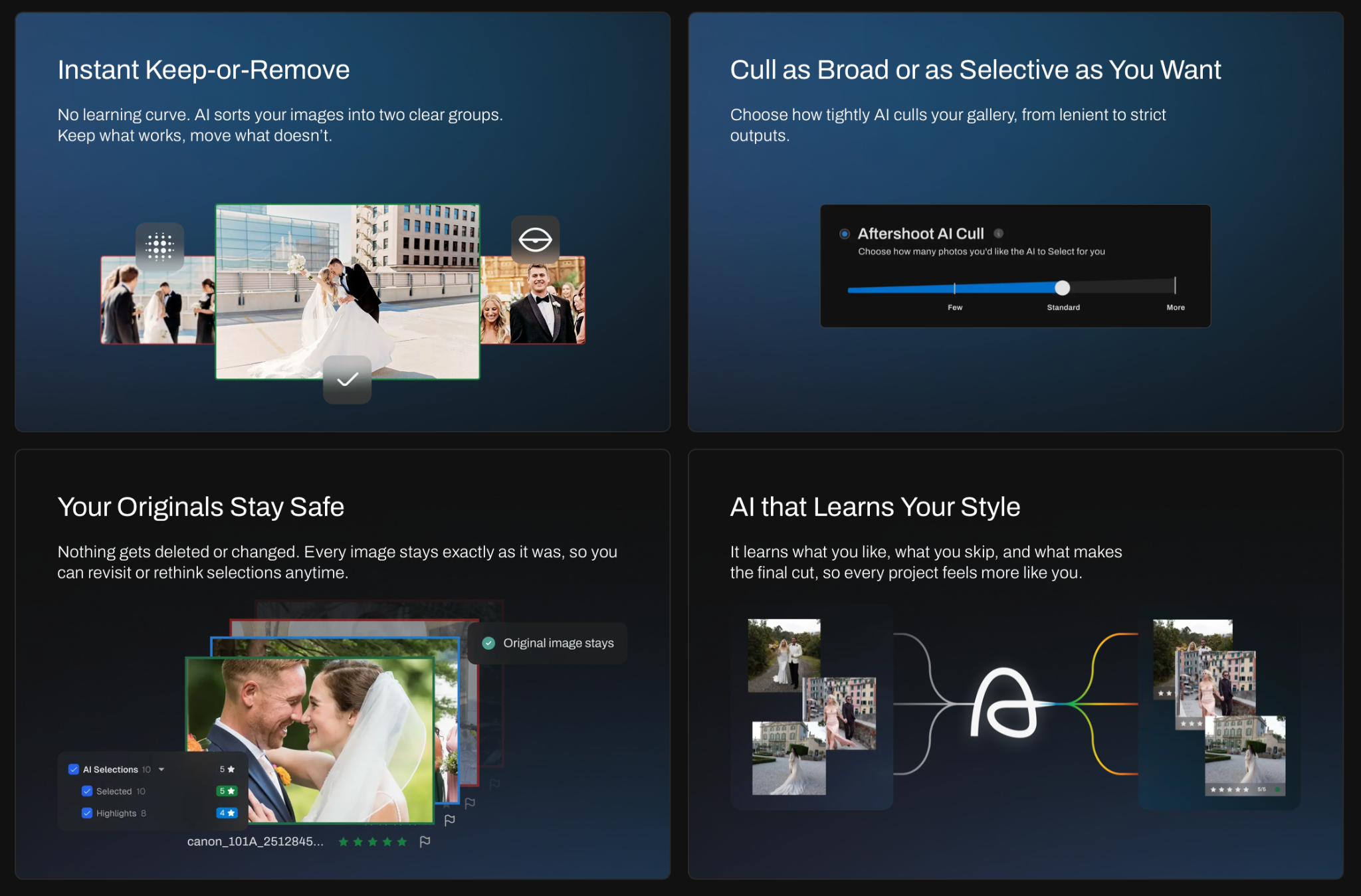
Aftershoot features and functionality
Aftershoot Select gives photographers two ways to cull: Automated AI Culling, where the software recommends selections based on your preferences, and AI-Assisted Culling, where you make the selections while AI helps organize the shoot.
For portrait photographers, the bigger advantage is that the cull can be adjusted for the type of session you’re shooting.
Aftershoot currently includes dedicated culling genres for:
- Portraits & Headshots
- Family Portraits
- School Portraits
- Boudoir
- Newborn
- Weddings & Engagements
- Other photography genres
Those modes don’t all assess photographs in exactly the same way, and that makes a huge difference for photographers… let me explain how.
For example, Aftershoot’s Portrait & Headshots mode looks for factors including blur, emotion, closed eyes, and similar poses. Family Portraits is intended for controlled images containing multiple important people, while Newborn and Boudoir workflows allow photographers to account for situations where closed eyes may be intentional rather than a reject.
That’s a useful distinction. The correct expression for a corporate headshot isn’t necessarily the correct expression for a newborn portrait.
During review, Key Faces gives you enlarged views of detected faces, while Image Scores can show assessments based on factors including focus and closed eyes. Similar photographs can also be grouped automatically and compared side by side in Survey Mode.
If you’d rather understand the complete process before choosing software, our AI photo culling workflow guide walks through the workflow from import to final review.
👁️ Also Read: How to Cull Photos Quickly with Aftershoot
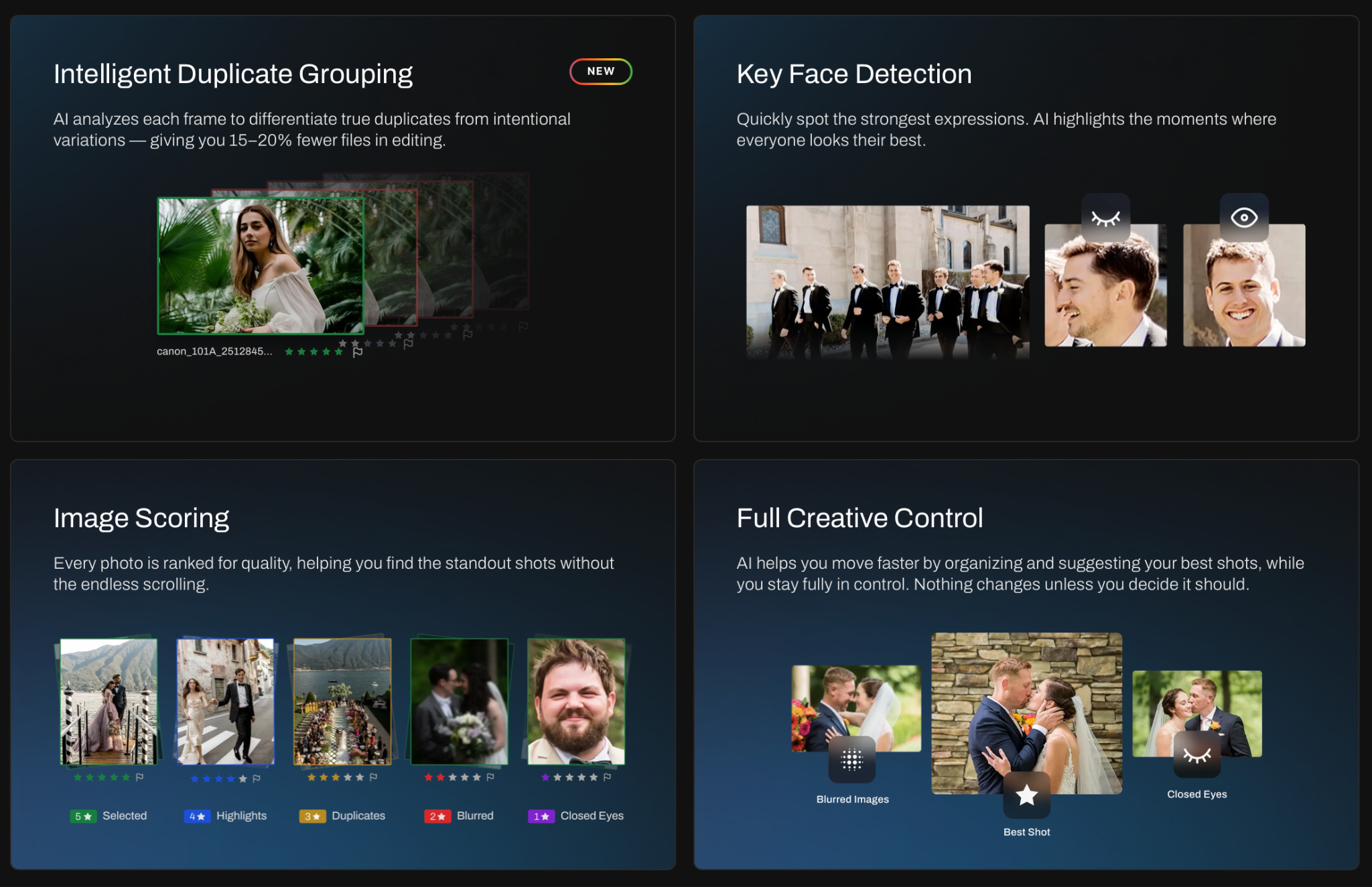
What happens after the cull
Aftershoot also connects culling with AI editing and AI retouching.
So instead of thinking only about how quickly you can identify selects, consider how many handoffs happen afterward.
A portrait studio might otherwise:
- Cull in one application.
- Export ratings.
- Open the selects in Lightroom.
- Apply base edits.
- Move hero images into another retouching tool.
- Export again for delivery.
Keeping more of those stages together doesn’t make the creative decisions disappear. It reduces the repetitive moving, sorting, and re-importing around them.
Aftershoot privacy and platform support
Aftershoot runs on macOS and Windows and can process images locally. Your original photographs don’t need to be uploaded to the cloud for culling.
That can be especially relevant to photographers working with private portrait sessions, schools, families, newborns, or boudoir clients.
After the cull, ratings and color labels can be moved into workflows involving Lightroom Classic or Capture One.
Aftershoot pricing
| Plan | Billed annually | Billed monthly |
|---|---|---|
| Select | $10/mo ($120/yr) | $15/mo |
| Edit | $30/mo ($360/yr) | $35/mo |
| Retouch | $20/mo ($240/yr) | $25/mo |
| Complete | $45/mo ($540/yr) | $55/mo |
Complete bundles Select, Edit, and Retouch for 25% less than buying all three separately on annual billing. Every plan includes unlimited images with no per-photo fees, and new accounts start with a 30-day free trial that doesn’t require a credit card. For a full breakdown of bundles and billing options, see Aftershoot’s pricing plans.
Advantages of Aftershoot
- Dedicated culling options for several portrait genres
- Closed-eye, focus, Key Faces, and duplicate analysis
- Automated and AI-assisted approaches depending on how much control you want
- Local processing on macOS and Windows
- Unlimited image processing under the current flat-rate plans
- Culling connects directly with editing and retouching
- Survey Mode makes comparing near-identical photographs easier
Limitations of Aftershoot
- Local AI processing means performance can vary with your computer’s hardware
- Automated selections still need a final human review, especially when expression is intentionally unconventional
- Photographers who only want a lightweight manual culling interface may not need the broader post-production platform
Who should choose Aftershoot?
Aftershoot makes the most sense for portrait, family, school, headshot, boudoir, and newborn photographers who shoot enough volume for duplicate review and first-pass selection to become a real workflow bottleneck.
It’s particularly useful if culling is only one part of the problem and you also want to reduce the number of tools used between ingest and final retouching.
Got more questions? Take a look at our Culling FAQs.
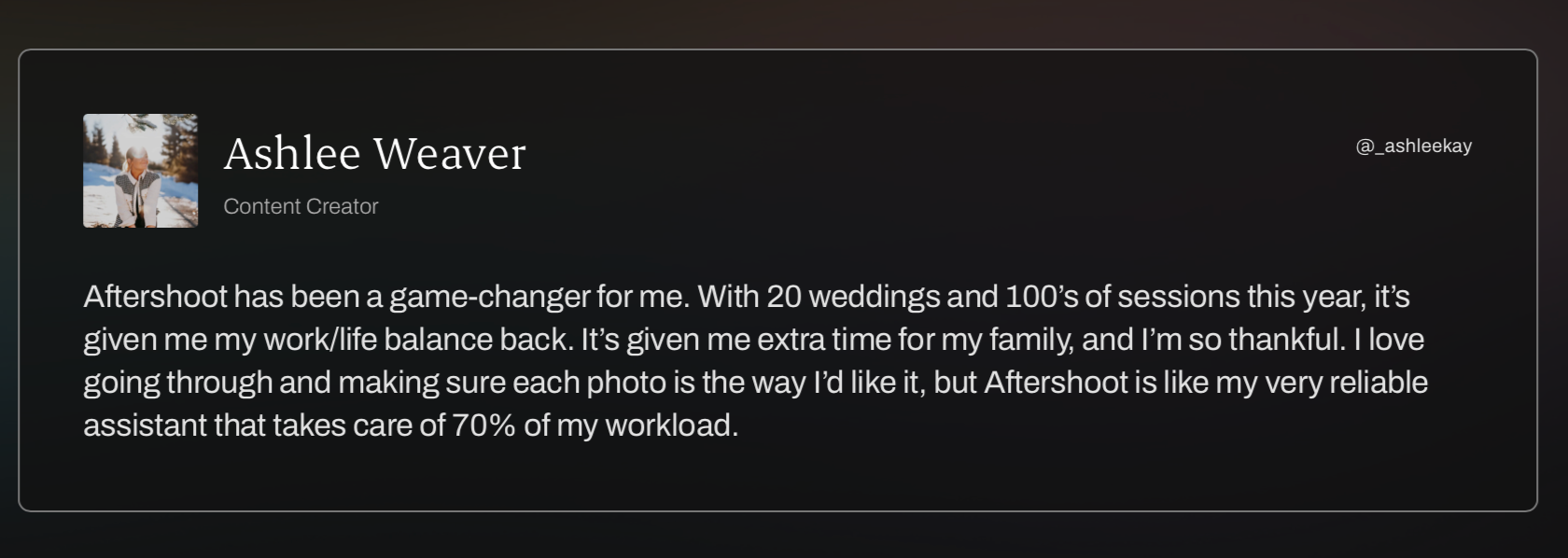
You don’t have to take our word for it when we say Aftershoot is one of the best AI culling tools for portrait photography… hear it from Ashlee Weaver:
2. Narrative: Good for hands-on face and expression review
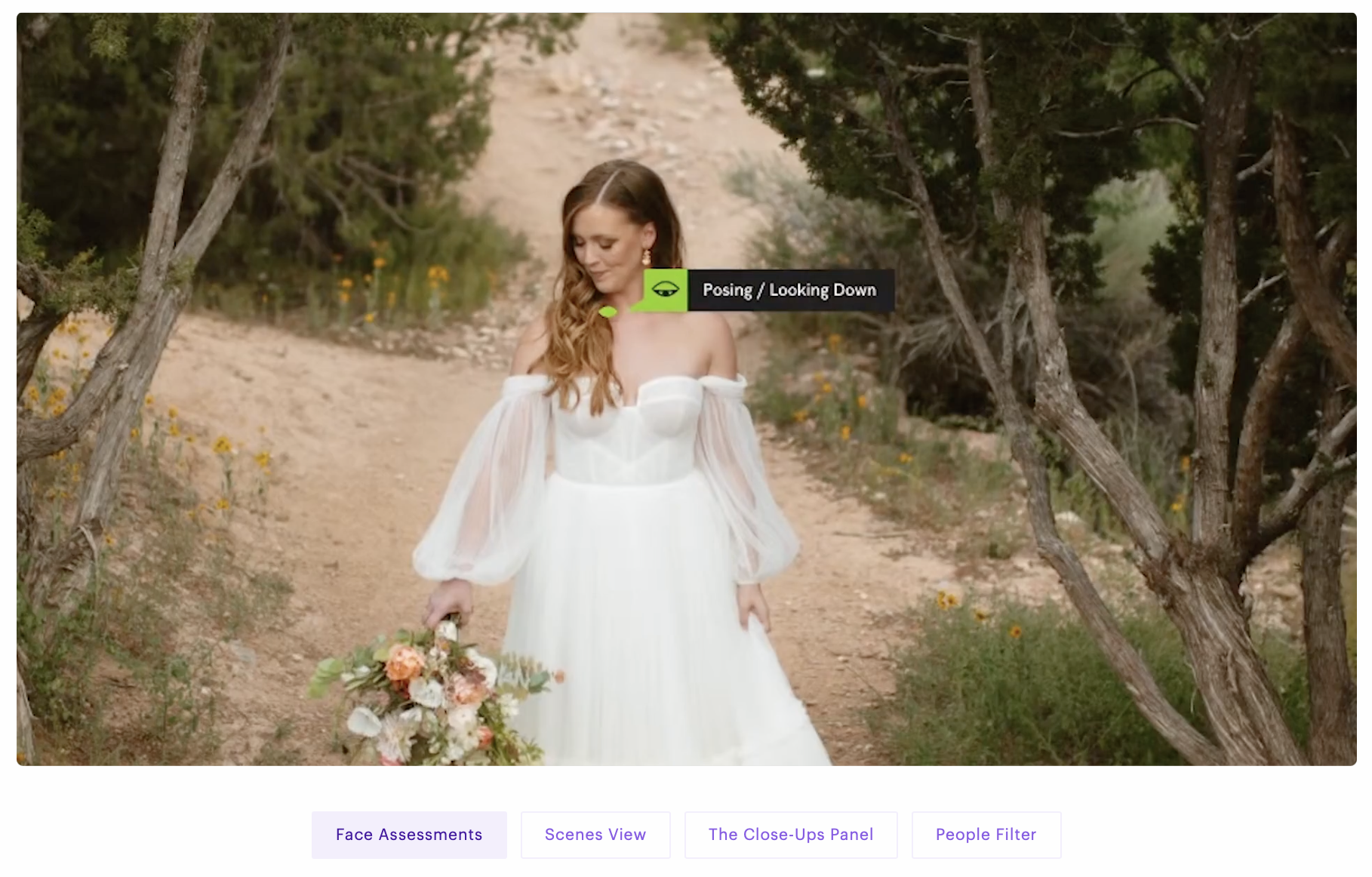
Narrative features and functionality
Narrative takes a slightly different approach.
Rather than simply asking you to trust a final list of AI picks, many of its strongest culling features are designed to make your own review faster.
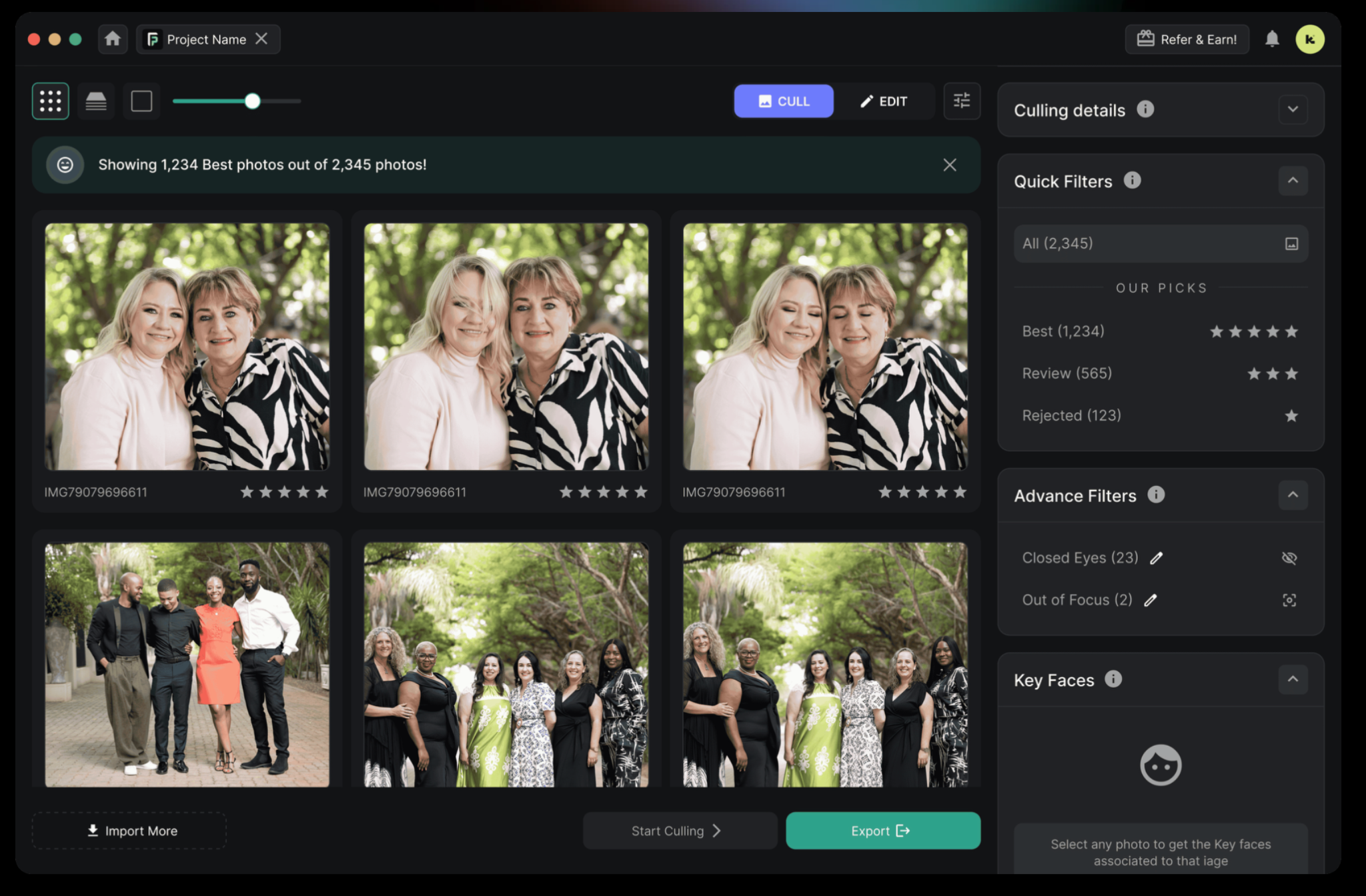
The standout for portraits is the Close-ups Panel. Narrative says it can display up to 24 detected faces simultaneously, letting you compare expressions without repeatedly zooming in and out of a large group portrait.
That becomes useful very quickly when you’re looking at:
- Large family photographs
- Wedding party portraits
- School groups
- Team photographs
- Corporate group headshots
Narrative also provides Eye and Focus Assessments, Smart Face Zoom, image focus scores, and Scenes View on its advanced culling tiers.
Scenes View groups related photographs and ranks images within each scene using Narrative’s assessments. Instead of moving through a session strictly one file at a time, you can review photographs in context.
Narrative’s current website offers the software for both Windows and macOS, so Windows support should not be used as a reason to eliminate it from a 2026 comparison.
Narrative pricing
When billed annually, current plans start at:
| Plan | Price | Relevant culling capability |
| Lite | $10/mo | Basic culling, unlimited projects and images |
| Standard | $20/mo | Advanced AI culling, Close-ups Panel, Scenes View |
| Premium | $40/mo | Standard + personal AI editing presets |
| Ultra | $60/mo | More personal AI presets and multi-user features |
The distinction matters for this comparison: the $10 Lite plan does not include the full set of advanced portrait review features.
If the Close-ups Panel or Scenes View is why you’re considering Narrative, Standard is the more relevant starting point.
Advantages of Narrative
- Excellent interface for inspecting several faces at once
- Close-ups Panel is particularly useful for group portraits
- Strong focus and eye-assessment tools
- Leaves photographers closely involved in final selection decisions
- Available on Windows and macOS
- Unlimited images and projects on current plans
Limitations of Narrative
- The most useful advanced culling features start on the $20 Standard tier, not Lite
- Photographers wanting highly automated final selections may prefer a more automation-led workflow
- Retouching and client delivery aren’t the focus of the platform
Who should choose Narrative?
Narrative is a strong choice if you don’t want AI to make too many creative decisions for you but you do want it to remove the tedious mechanics of checking focus and expressions.
For group-heavy portrait photographers, the face-comparison workflow is particularly compelling.
3. Photo Mechanic
Photo Mechanic Features and Functionality
Photo Mechanic isn’t an AI culling tool, and it’s worth saying that plainly upfront. It’s a photo browser built for speed: it renders the embedded JPEG preview inside a RAW file instead of processing the RAW data itself, which is why photographers have relied on it for two decades to open a folder of 5,000 images without the lag that Lightroom or Bridge introduce at that volume.
Everything else is manual. There’s no eyes-closed detection, no blur scoring, no duplicate grouping, and no expression analysis. You’re tagging color labels and star ratings by eye, at speed, using keyboard shortcuts. For portrait work specifically, that means checking every face in a group shot yourself, frame by frame, with none of the per-face flagging that Aftershoot or Narrative Select provide.
Where it still earns a place in some studios’ workflows is metadata and ingest: fast batch renaming, keywording, captioning, and copyright stamping on import. Aftershoot can export ratings and labels to Photo Mechanic, so the two can sit in the same workflow rather than one replacing the other.
Photo Mechanic Pricing
Photo Mechanic is sold as a subscription or a perpetual license. The subscription costs $14.99/month or $149/year and includes updates and support for as long as it stays active. A perpetual license is a one-time $299 payment that includes one year of updates and support. After that year, it keeps working on the last compatible operating system but receives no new updates.
Photo Mechanic Plus, which adds catalogs for managing larger archives, costs $24.99/month or $249/year. A free 30-day trial is available with no payment method required.
Advantages of Photo Mechanic
- Fastest RAW preview rendering of any tool in this comparison, even on large batches
- One-time perpetual license option alongside monthly and annual subscriptions
- Strong metadata, keywording, and captioning tools built for photojournalism and event delivery
- Two decades of refinement behind its keyboard-shortcut workflow
Limitations of Photo Mechanic
- No AI culling of any kind: no eyes-closed detection, no blur scoring, no duplicate grouping, no expression analysis
- Every selection decision is fully manual, which is slower than AI-assisted tools for portrait-heavy, face-first culling
- The interface hasn’t changed much in years and can feel dated next to newer AI culling tools
- No group-shot consistency scoring, which matters more in portrait and family work than in the photojournalism use case it was built for
Who Photo Mechanic Is Best Suited For
Photojournalists, sports photographers, and anyone who prefers culling portraits entirely by eye over letting AI flag closed eyes and expression issues first. If you like Photo Mechanic’s speed but want AI to handle the first pass, our roundup of Photo Mechanic culling alternatives compares the options.
4. FilterPixel: Best for transparent AI recommendations
FilterPixel features and functionality
FilterPixel separates its culling workflow into two broad approaches.
Basic Culling handles technical checks including:
- Blur
- Focus
- Closed eyes
- Expressions
- Similar photographs
DeepCull goes further by scoring photographs against several criteria and providing a written reason for its decision.
Current DeepCull output can evaluate factors such as:
- Subject lighting
- Background cleanliness
- Narrative clarity
- Moment timing
- Technical quality
That explainability is its most interesting differentiator.
Instead of simply seeing that the AI prefers frame 47 over frame 48, you can inspect why it made that choice and decide whether its reasoning makes sense for the portrait you’re delivering.
DeepCull’s genre modes currently cover conference, sports, concert, and wedding work. There’s no dedicated portrait mode, so portrait sessions rely on basic culling and DeepCull’s general scoring.
FilterPixel processing
FilterPixel currently uses cloud processing while providing desktop workflows for Mac and Windows.
That means it can move heavier processing away from your computer, but photographers working with privacy-sensitive portrait sessions should factor cloud processing into their decision.
FilterPixel pricing
New users can try FilterPixel with free DeepCull shoots, no credit card required. Paid plans, billed annually:
| Plan | Annual billing equivalent | DeepCull allowance on annual plan |
| Standard | $14.99/mo | 20 shoots/year |
| Pro | $34.99/mo | 70 shoots/year |
| Studio | $64.99/mo | 140 shoots/year |
Each DeepCull shoot covers up to 5,500 photos. Extra shoots cost $7.99 each and never expire, while unused shoots from your plan don’t roll over. Basic culling is unlimited on every paid plan.
Advantages of FilterPixel
- AI recommendations include scores and explanations
- Basic culling covers common portrait issues such as blur, focus, and blinks
- Cloud processing reduces reliance on local hardware
- Lightroom and Capture One workflows are supported
- Free DeepCull trial shoots let you test the software on your own sessions before paying
Limitations of FilterPixel
- DeepCull usage is capped by plan tier
- Cloud processing may not suit every privacy workflow
- No portrait-specific DeepCull mode; its genre modes are built for conferences, sports, concerts, and weddings
Who should choose FilterPixel?
FilterPixel is worth considering if you want to understand the reasoning behind AI picks rather than seeing an unexplained selection.
It’s also useful for photographers whose work spans portraits and faster-turnaround genres such as events or sports.
5. Imagen: Best for photographers already using Imagen to edit
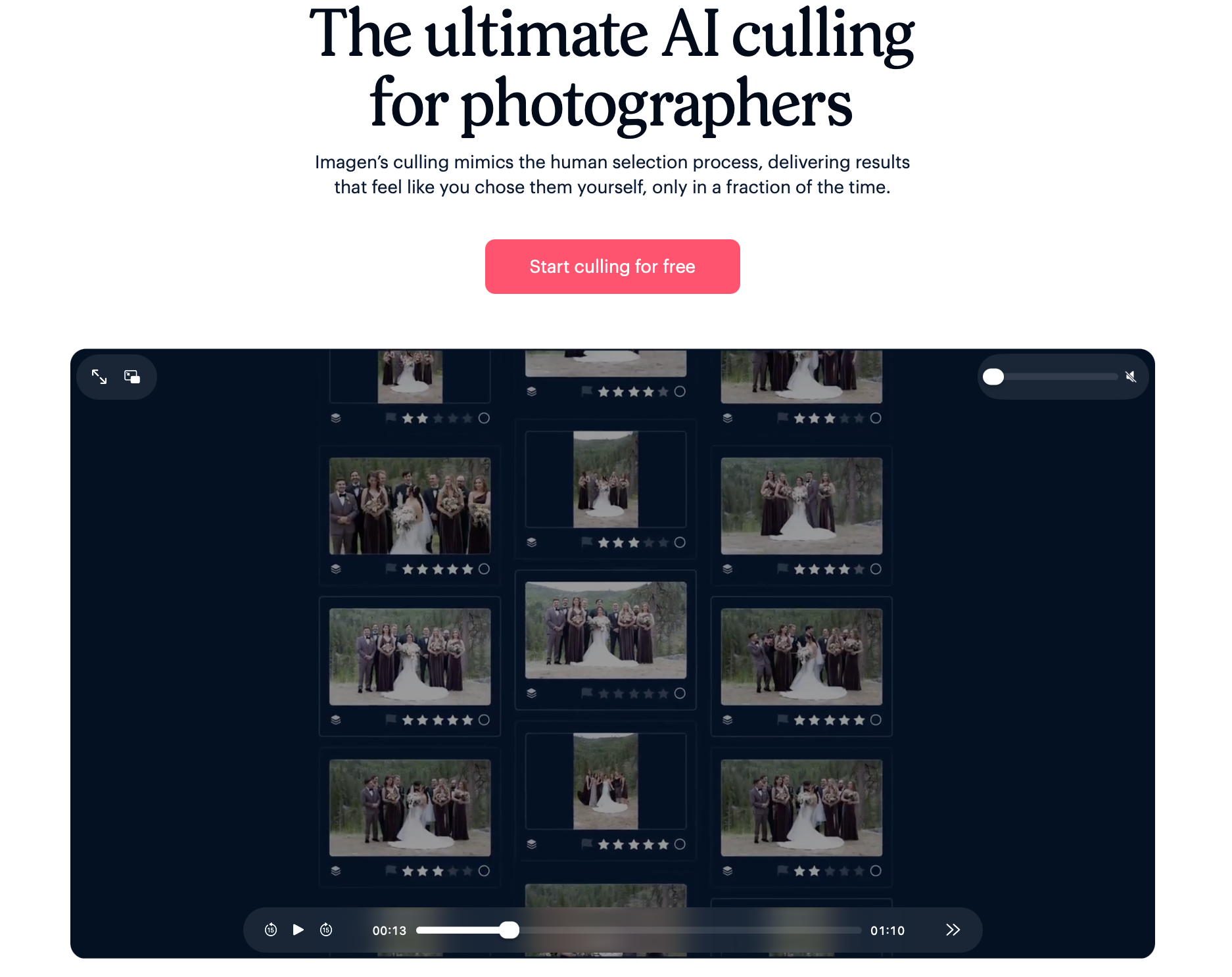
Imagen features and functionality
Imagen is best known for AI-assisted editing, but culling can sit at the start of the same post-production workflow.
That makes its strongest argument less about being a standalone portrait culling application and more about what happens after you’ve made the selection.
If you already rely on Imagen for editing, keeping the cull inside the same ecosystem can reduce another handoff.
Its culling tools can help narrow a shoot before you move into editing, while Imagen’s editing profiles handle bulk color and tonal adjustments afterward.
Imagen pricing
Imagen sells culling as an add-on to its editing plans:
- Culling add-on: $12/month billed annually, or $18/month billed monthly, with unlimited culling. The add-on also covers the $7 monthly minimum on Pay-As-You-Go editing.
- Pay-As-You-Go editing: charged per edited photo, with a $7 monthly minimum that rolls over as editing credit if unused.
- Limitless: $129/month billed annually, covering unlimited editing, retouching, AI tools, and AI culling.
- Business: custom pricing for multi-photographer studios.
New users can cull two projects for free before subscribing.
Advantages of Imagen
- Culling feeds directly into an established Imagen editing workflow
- You can review previews with your AI Profile already applied while you cull
- Cloud processing doesn’t tie up your computer’s CPU or GPU
- Limitless bundles culling with unlimited editing and AI tools
Limitations of Imagen
- Culling is cloud-based, so it needs a steady internet connection
- Pay-As-You-Go editing costs rise with the number of photos you edit
- The culling add-on sits on top of an Imagen editing plan rather than working as a standalone culling app
- Limitless is priced for photographers using Imagen’s full editing toolkit, not someone who only needs culling
Who should choose Imagen?
Imagen makes the most sense if you already use, or plan to use, Imagen for AI editing. If culling is the only problem you’re solving, compare it against dedicated culling tools first. Our guide to Imagen alternatives covers the main options.
6. Evoto
Evoto Features and Functionality
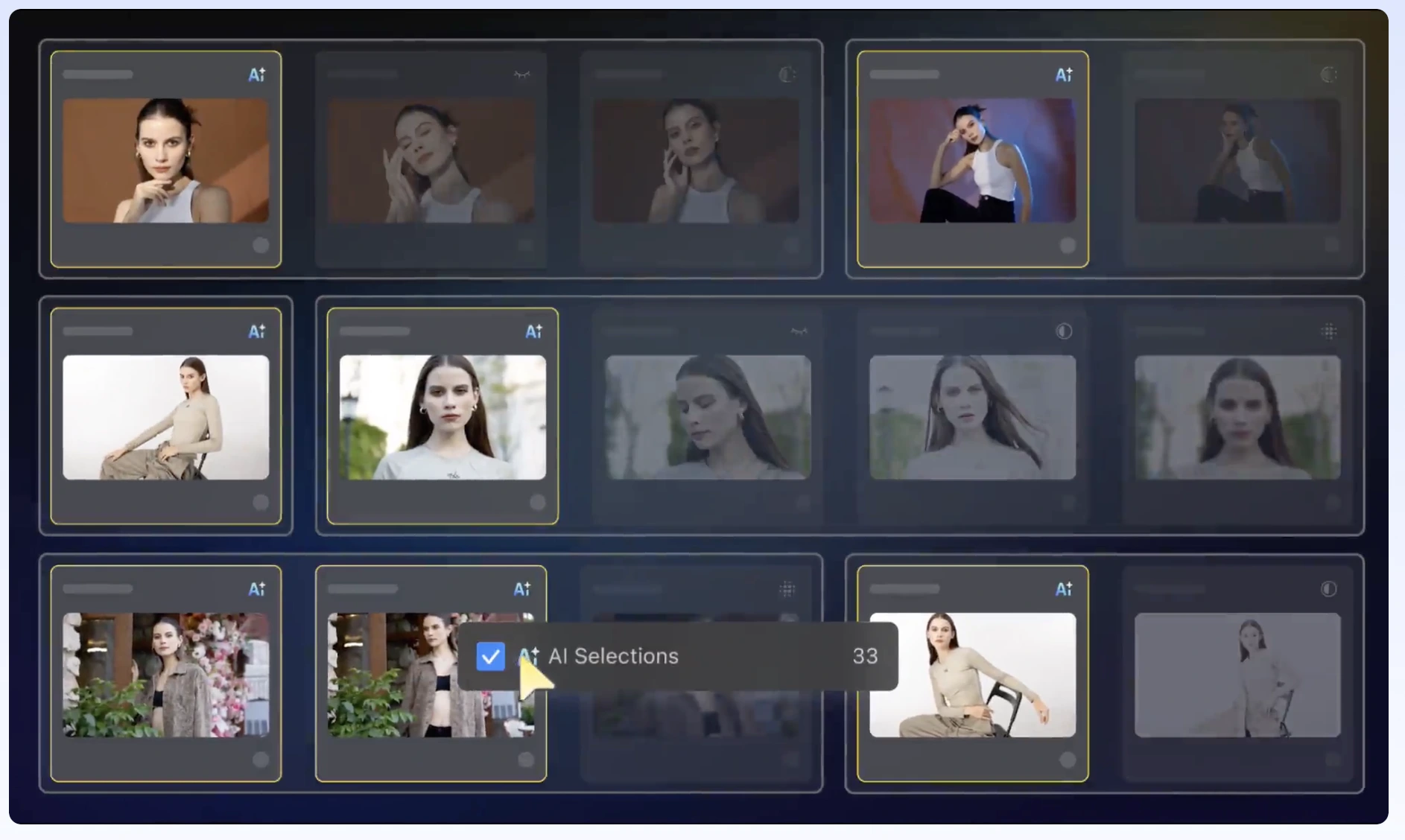
Evoto pairs AI culling with what it’s actually known for: fast, high-volume portrait retouching. Its AI Culling feature (launched fall 2025) flags blur, poor exposure, and closed eyes, then groups similar frames so you can pick the best from each burst, comparable in concept to Aftershoot’s first pass, though newer and less refined specifically for group-shot consistency.
Where Evoto pulls ahead is what happens after culling. It applies skin smoothing, background replacement, spill removal, and AI Color Match across hundreds of images at once, which is why it’s become popular with school photographers and studios doing headshot sessions at volume. Editing and previewing are free inside the app; exporting a finished image is what costs you.
Evoto Pricing
Evoto runs on credits rather than a flat monthly fee. Exporting a finished image uses one credit, while editing and previewing are free. Annual plans start with Starter at $89/year for 800 credits, about $0.11 per exported image, and go up to Standard Plus at $1,339/year for 24,000 credits.
Unused subscription credits roll over when you renew, up to five times your plan’s annual allowance. Pay-as-you-go credit packs are also available and stay valid for two years from purchase. A 7-day free trial is available on the Starter, Basic, and Basic Plus plans, and Evoto regularly discounts its annual plans.
Advantages of Evoto
- Culling and high-volume retouching live in one app, which cuts a step for portrait and school photographers
- AI Color Match and background tools are genuinely strong for studio and headshot work
- Free editing and previewing means you only pay for images you actually deliver
Disadvantages of Evoto
- Credit-based pricing makes monthly cost harder to predict than flat-fee tools like Aftershoot or Narrative Select
- AI Culling is newer and less refined for face-specific, group-shot scoring than dedicated culling tools
- AI processing relies on Evoto’s cloud. For local projects, only thumbnails are sent and they’re deleted after processing, but features such as AI Color require uploading full images
Who Evoto Is Best Suited For
School, headshot, and portrait studios that need heavy retouching volume alongside culling, and who are comfortable with pricing tied to how many images they export. If credit-based pricing is the sticking point, our comparison of Evoto alternatives looks at flat-rate options.
7. ON1 Lightpanel
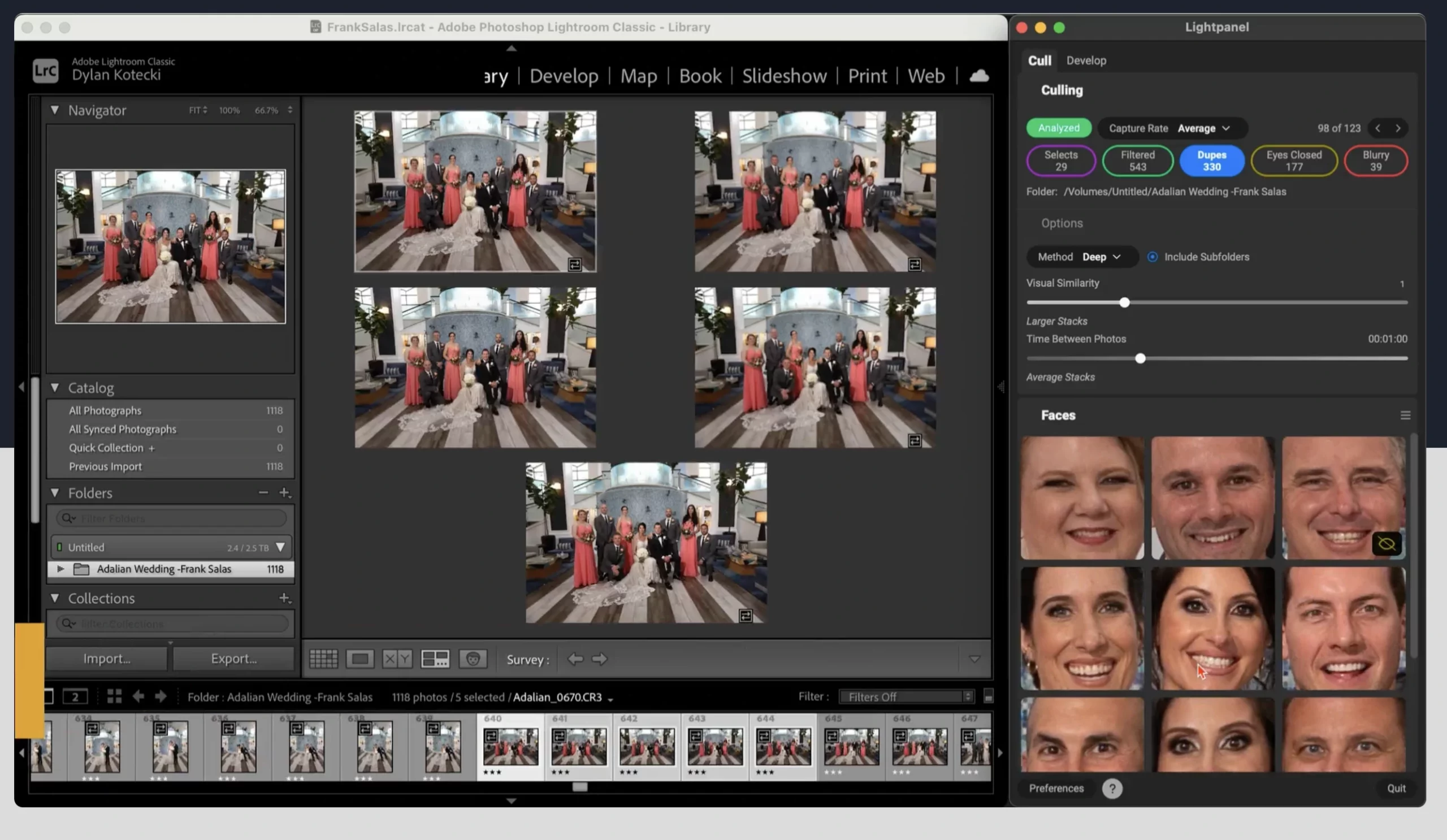
ON1 Lightpanel Features and Functionality
Lightpanel is the only tool in this comparison that runs as a plugin directly inside Lightroom Classic rather than as a separate app. It groups similar shots and flags images with motion blur, missed focus, or people blinking. ON1 designed it around wedding and portrait workflows.
Because it works inside your existing catalog, there’s no import or export step: ratings and edits stay in Lightroom Classic the whole time. The same panel also handles AI-driven tone and color adjustments and portrait retouching.
Lightpanel is no longer sold as a standalone subscription. ON1 now includes it in ON1 Photo Studio, its all-in-one subscription, and moved existing Lightpanel subscribers onto that plan in early 2026.
ON1 Lightpanel Pricing
Lightpanel comes with ON1 Photo Studio at $179.99/year. The subscription also includes ON1 Photo RAW MAX, ON1’s standalone apps and plugins such as NoNoise AI, Resize AI, and Portrait AI, 1 TB of cloud sync, and activation on up to five computers. ON1 offers a 30-day money-back guarantee.
Because Lightpanel runs inside Lightroom Classic, you’ll also need an Adobe plan that includes Lightroom Classic.
Advantages of ON1 Lightpanel
- Native Lightroom Classic integration, with no app switching or re-importing
- Culling and AI editing happen in the same panel
- Photo Studio bundles Lightpanel with ON1’s full editing suite, so the subscription covers more than culling
Disadvantages of ON1 Lightpanel
- Requires a separate Adobe subscription that includes Lightroom Classic
- Can’t be bought on its own, so you pay for the full Photo Studio bundle even if you only want culling
- Lightroom Classic’s built-in Assisted Culling now offers per-face Eye Sharpness and Eyes Open scores, which overlaps with part of what Lightpanel does
Who ON1 Lightpanel Is Best Suited For
Portrait and wedding photographers committed to Lightroom Classic as their main catalog, who want AI culling and editing inside it and will also use ON1’s broader editing tools.
8. Excire Foto
Excire Foto Features and Functionality
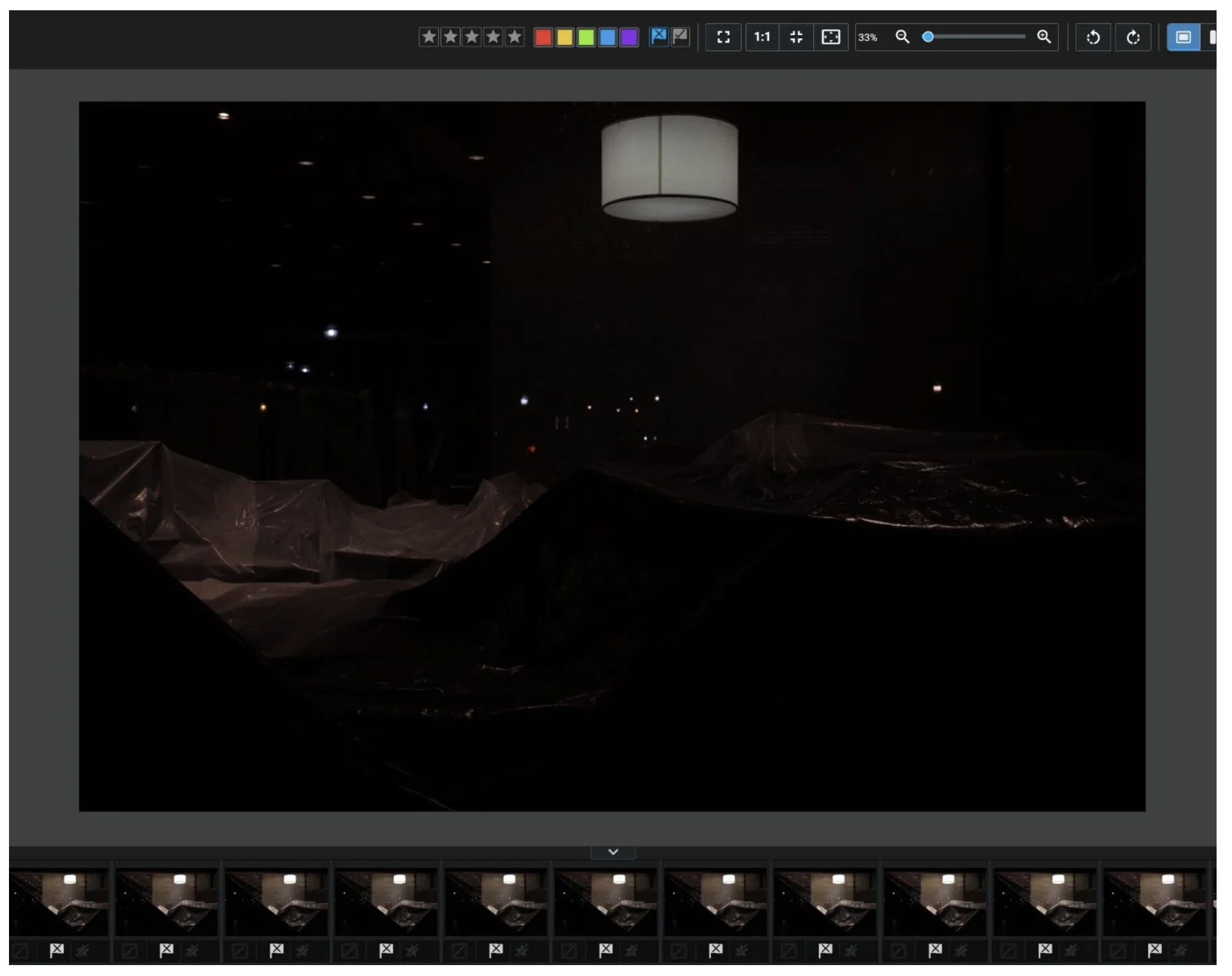
Excire Foto 2027, released in June 2026, added Survey Mode, a light-table-style view for reviewing, comparing, and rating images side by side, along with focus peaking and an AI filter bar. Combined with its close-up face view and AI aesthetic ratings, that makes it a workable culling tool rather than only an organizer. It runs entirely locally on Windows or Mac, with no cloud upload.
Excire Foto is built as an AI photo organizer first and a culling tool second, which sets it apart from everything else on this list. Its strength is searching and managing a large, ongoing photo library: free-text search where you type a description of the photo you want, face recognition with named people collections, and duplicate detection across years of archived sessions, not just a single shoot.
For a portrait studio, Excire is less about culling a single family session the day after the shoot. It’s more about finding every portrait of a returning client across ten years of archives in seconds.
Excire Foto Pricing
Excire Foto 2027 is a one-time purchase rather than a subscription, with a regular price of $249. Owners of Excire Foto 2025 can upgrade for $79, and Excire Foto 2024 owners for $99.
Advantages of Excire Foto
- One-time purchase with no ongoing subscription
- Best-in-class free-text and face search across large, multi-year archives
- Fully local processing, with no cloud upload at any point
- Genuinely useful for studios managing repeat portrait clients over years, not just single sessions
Disadvantages of Excire Foto
- Built primarily as a photo organizer, so its shoot-by-shoot culling is less purpose-built than Aftershoot’s or Narrative Select’s
- No dedicated group-shot consistency scoring for family or team portraits
- No built-in editing or retouching, so it needs to sit alongside another tool for that step
Who Excire Foto Is Best Suited For
Portrait studios managing large, ongoing client libraries who need to search and retrieve past sessions as much as cull new ones, and who want to avoid another monthly subscription.
How AI Culling Tool Pricing Compares Over a Year
Starting prices only tell part of the story. These tools charge in very different ways, and that changes what you actually pay once you’re culling several sessions a month.
| Tool | Pricing model | Lowest yearly cost for culling | What raises your cost |
|---|---|---|---|
| Aftershoot | Flat subscription, unlimited images | $120 (Select, billed annually) | Adding the Edit or Retouch modules |
| Narrative | Flat subscription, unlimited images | $120 (Lite); $240 for Standard’s advanced portrait tools | Moving to Premium or Ultra for AI editing presets and extra users |
| Photo Mechanic | Subscription or one-time license | $149/yr, or $299 one-time | Photo Mechanic Plus for catalogs |
| FilterPixel | Subscription with a yearly DeepCull allowance | $180 (Standard, 20 DeepCull shoots) | Extra DeepCull shoots at $7.99 each, or a higher tier |
| Imagen | Culling add-on on top of an editing plan | $144 (culling add-on, billed annually) | Per-photo editing on Pay-As-You-Go, or $179/mo for Limitless |
| Evoto | Credits, one per exported image | $89 (800 credits) | Exporting more images |
| ON1 Lightpanel | Included in ON1 Photo Studio | $179.99, plus an Adobe plan with Lightroom Classic | The Adobe subscription it runs on |
| Excire Foto 2027 | One-time purchase | $249 one-time | Paid upgrades to future versions |
To see how these costs work out per shoot, our breakdown of AI photo culling tool pricing runs the numbers.
Which Portrait Culling Features Matter the Most to Photographers?
Feature lists make these tools look more similar than they really are.
For portrait work, these are the differences worth paying attention to.
1. Closed-eye detection
Closed-eye detection is useful, but it needs context.
A corporate headshot where the subject blinked is probably a reject. A newborn sleeping peacefully with their eyes closed obviously isn’t.
That’s why adjustable detection and genre-specific behavior can be more useful than a simple “closed eyes = reject” rule.
Aftershoot, Narrative, FilterPixel, and Imagen all surface eye-related issues, but you should still check the final selects yourself.
2. Per-face review in group portraits
A technically sharp family photograph can still fail because one person blinked.
For group work, look for tools that let you inspect individual faces without repeatedly zooming manually.
Narrative’s Close-ups Panel is particularly strong here. Lightroom’s newer Faces panel also gives you per-face eye information, while Aftershoot’s Key Faces and Image Scores help surface important faces during the review.
3. Duplicate and pose grouping
Portrait photographers don’t only create exact duplicates.
A set might contain:
- Three photographs with the subject looking left
- Four looking directly at the camera
- Five subtle variations of a smile
- Another group with small hand or shoulder changes
Useful culling software should reduce the number of comparisons without collapsing genuinely different poses into the same decision.
Aftershoot’s Portrait & Headshots mode, for example, is designed to build duplicate groups around similar poses. For a closer look at sorting near-identical frames, see our guide on handling duplicate photos during culling.
4. Expression quality
No AI tool should be treated as the final authority on expression.
A technically “better” smile may feel less genuine. A serious expression could be exactly what a client chose you for. Closed eyes might be intentional.
Use AI to reduce the number of frames you need to compare, then make the creative decision yourself.
5. The workflow after culling
This is the part many software comparisons ignore.
Suppose Tool A finishes its automated cull five minutes faster than Tool B.
That sounds important until Tool A leaves you with another hour of exporting, rechecking, rebuilding selections, or moving files across three applications.
For working photographers, the better metric is: How long does it take to move from the full shoot to a set of photographs that is genuinely ready for editing?
And after that: How much work remains between the edit and final delivery?
A tool that saves five minutes during culling but creates 30 minutes of extra work downstream hasn’t made your workflow faster.
What does that mean for a working portrait photographer?
If I had to tell you honestly, there’s no useful way to declare one tool “cheapest” without looking at what happens after the cull.
If you only need selection help, a 10–20 dedicated culling plan may be enough.
If you’re paying separately for culling, editing, and retouching, compare the total post-production cost, not just the first number in the pricing table.
And if you’re shooting 20 sessions this month instead of two, check whether the pricing stays flat, charges by image, or limits the number of advanced culls you can run.
That’s the math that matters once your studio starts scaling.
Which AI Culling Tool Should You Choose For Different Portrait Workflows?
| Your workflow | Best fit to consider | Why |
|---|---|---|
| Family and group portraits | Narrative or Aftershoot | Strong per-face review tools |
| Headshot studio | Aftershoot or Narrative | Eye and focus assessment plus similar-frame review |
| School portraits | Aftershoot | Dedicated School Portraits culling genre |
| Newborn photography | Aftershoot | Dedicated Newborn mode where closed eyes are handled differently |
| High-volume portrait retouching | Aftershoot or Evoto | Culling and batch retouching in one app |
| Lightroom Classic-based workflow | ON1 Lightpanel | Culls inside your existing catalog |
| Large, multi-year client archives | Excire Foto 2027 | Face search across your whole library |
| Fast manual culling with no AI | Photo Mechanic | Fastest preview browsing |
| Mixed portrait and event work | Aftershoot or FilterPixel | Broader genre workflows |
| Already editing with Imagen | Imagen | Culling stays in the same ecosystem |
| Privacy-sensitive local workflow | Aftershoot or Excire Foto 2027 | Processing stays on your computer |
| Final manual control | Narrative | AI assists the review rather than replacing it |
Why Is Aftershoot the Best AI Culling Tool For Portrait Photography?
The most repetitive part of portrait culling isn’t usually spotting the completely unusable frame, but deciding between the photographs that are almost equally good.
You zoom into the eyes. Back out. Move to the next frame. Zoom again. Compare smiles. Realize someone in the back row blinked. Go back two images. Repeat.
That’s where capabilities such as Key Faces, duplicate groups, Image Scores, and portrait-specific culling genres become useful.
Aftershoot can take the first pass through those repetitive checks while you retain control over the final gallery.
And because Aftershoot’s culling workflow can continue into editing and retouching, the benefit isn’t simply “AI picked the photographs faster.”
It’s fewer repetitive decisions across the whole post-shoot workflow.
For a photographer handling one portrait session a month, that may not transform the business.
For a studio photographing families, headshots, schools, or several client sessions every week, those small decisions stack up fast.
Try Aftershoot AI Culling on one of your own portrait sessions and compare its first-pass selections with the gallery you would have chosen manually.
In a Nutshell…
The best AI culling tool for portrait photography isn’t simply the one that processes photographs fastest. Portrait photographers need software that helps answer a harder question: which of these technically similar photographs is actually worth keeping?
Aftershoot is the strongest overall option if you want portrait-specific culling connected to editing and retouching. Narrative suits photographers who want to inspect faces and make every selection themselves. FilterPixel stands out for explaining its picks, and Imagen makes the most sense when culling is one part of an Imagen editing workflow.
The rest serve narrower needs. Photo Mechanic is for fast manual browsing with no AI at all, Evoto pairs culling with heavy portrait retouching, ON1 Lightpanel keeps everything inside Lightroom Classic, and Excire Foto 2027 is built for finding portraits across years of archives.
Whichever you choose, treat AI as the first pass rather than the final creative authority. Let the software check the repetitive details so you can spend your time deciding which photograph actually feels right.
FAQs for Best AI Culling Tools for Portrait Photography
Q1. What is the best AI culling tool for portrait photography?
Aftershoot is one of the strongest overall options for professional portrait photographers because it combines portrait-specific culling genres, duplicate grouping, Key Faces, focus and closed-eye analysis, and local processing. Narrative is particularly strong for manually comparing faces, while FilterPixel is worth a look if you want the AI to explain its picks. The best choice depends on how much automation you want and what happens after your cull.
Q2. Can AI culling software detect closed eyes in group portraits?
Yes. Tools including Aftershoot, Narrative, FilterPixel, and Imagen can identify or surface eye-related issues.
However, you shouldn’t automatically reject every image containing closed eyes. In newborn, boudoir, emotional portraiture, or other creative work, closed eyes can be intentional. Use detection as a review shortcut, then make the final selection yourself.
Q3. Can AI choose the best expression in a portrait?
AI culling software can help compare factors such as focus, eye state, technical quality, and sometimes expression or emotion. It cannot reliably decide which expression best represents your subject, client, or creative intent in every situation.
For portrait work, AI works best as a first-pass assistant that narrows a group of similar photographs before you make the final creative choice.
Q4. Is offline or cloud AI culling better for portrait photographers?
Neither is automatically better.
Local tools such as Aftershoot can process photographs without uploading the original files to a cloud culling service, which may appeal to privacy-conscious studios.
Cloud processing can reduce the processing burden on your computer and provide more consistent performance across different hardware. The right choice depends on your internet connection, hardware, client privacy requirements, and workflow.
Q5. Does Lightroom have AI culling for portraits?
Yes. Lightroom Classic’s Assisted Culling can evaluate subject focus, eye focus, and whether eyes are open, and it shows Eye Sharpness and Eyes Open scores for each detected face in a group shot. It’s included with your existing Lightroom subscription.
If you’re already paying for Lightroom, test it before deciding whether you need separate culling software.
Q6. Should portrait photographers still review AI-culled photographs manually?
Yes.
AI is very good at reducing repetitive review work such as finding blur, checking eyes, and organizing similar frames. Final portrait selection still involves subjective decisions about expression, body language, storytelling, and what your client will value.
A quick human review should remain the final step before photographs move into editing or client proofing.