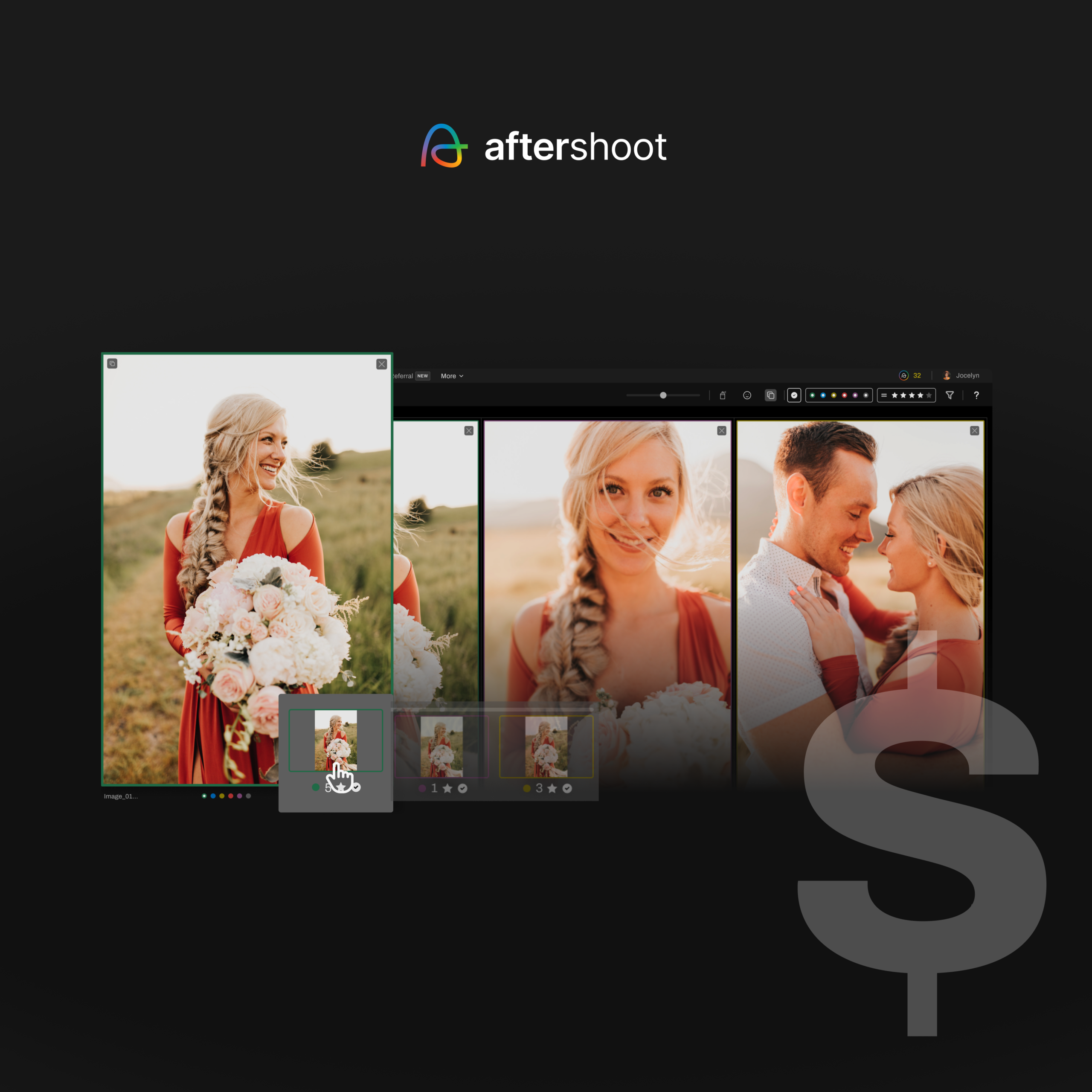
TL;DR
- Offline photo culling software runs its analysis on your computer, so you can cull on a plane, in a hotel, or at a remote venue without uploading RAW files.
- Aftershoot Select is the strongest pick for high-volume photographers who want AI to make the first selection offline, with unlimited images from $10/month (billed annually).
- Narrative, Lightroom Classic’s Assisted Culling, and Excire Foto 2025 also cull locally. Photo Mechanic is the fastest manual option.
- “Offline” rarely means never online. Sign-in, license checks, app updates (including support for new camera RAW formats), and gallery delivery all need internet.
- Local AI needs real hardware. Plan for at least 8 GB of RAM (16 GB is more comfortable), a dedicated GPU with 2 GB+ VRAM, and a fast SSD.
- Before any trip, update your apps, sign in while connected, and run a test cull with Wi-Fi switched off.
Picture this: You’ve just wrapped a destination wedding. You’re sitting in a hotel room with 4,000 RAW files, a flight in the morning, and Wi-Fi that can barely load your inbox. The couple is already asking about sneak peeks.
That’s where “works offline” stops being a feature line and becomes the whole decision. The problem is that “offline” means different things to different tools. Some run AI entirely on your laptop. Some need to check in with a server every few weeks. Some are cloud tools that don’t work at all without a connection.
This guide compares the offline photo culling software professionals actually use. It explains what still needs internet and what your laptop needs, and gives you a travel workflow to set up before your next trip.
What “Offline” Really Means in Offline Photo Culling Software
Most comparison articles treat “works offline” as a simple yes or no, but if you think about it, there are three levels. Knowing which one a tool falls into tells you whether it will actually work at 35,000 feet.
| Level | What happens | Examples |
| Fully local processing | Import, AI analysis, review, and export all run on your machine. The internet is only needed for sign-in, updates, and account tasks. | Aftershoot Select, Narrative, Excire Foto 2025, Photo Mechanic |
| Local processing with license check-ins | The AI runs on-device, but the app has to validate your subscription periodically. It works offline for a set grace period. | Lightroom Classic (Assisted Culling) |
| Cloud processing | Images, or data from them, are sent to remote servers for analysis. No connection means no cull. | Imagen |
The test that matters is simple: turn off Wi-Fi, import a real shoot, and run a full cull. If the tool finishes, it’s offline photo culling software. If it stalls, it isn’t, whatever the marketing page says.
The Best Offline Photo Culling Software at a Glance
| Software | Where the AI runs | AI selects for you? | Pricing | Free trial | Best for |
| Aftershoot Select | Your computer | Yes (automated or assisted) | $10/mo billed annually, $15/mo monthly, unlimited images | 30 days, no card | High-volume wedding and event photographers |
| Narrative | Your computer | Assists and ranks; you decide | From $10/mo billed annually, $15/mo monthly | Free trial of Ultra, no card | Photographers who want AI guidance, not AI decisions |
| Lightroom Classic (Assisted Culling) | Your computer | Assists with thresholds and filters | Included in your Lightroom subscription | Adobe’s trial | Photographers who never want to leave Lightroom |
| Excire Foto 2025 | Your computer | Can auto-select and reject by criteria | $199 one-time | 14 days | Photographers who dislike subscriptions |
| Photo Mechanic | Your computer (no AI culling) | No, manual | $14.99/mo, $149/yr, or $299 perpetual | 30 days | Sports, news, and manual cullers |
Pricing verified September 2026. Check each vendor’s site before purchasing.
If you want to compare culling tools on criteria beyond offline use, such as accuracy, speed, and interface, see our broader comparison of culling software.
The Best Offline Photo Culling Software for Professional Photographers
1. Aftershoot Select: Best Offline AI Culling Software for High-Volume Shoots
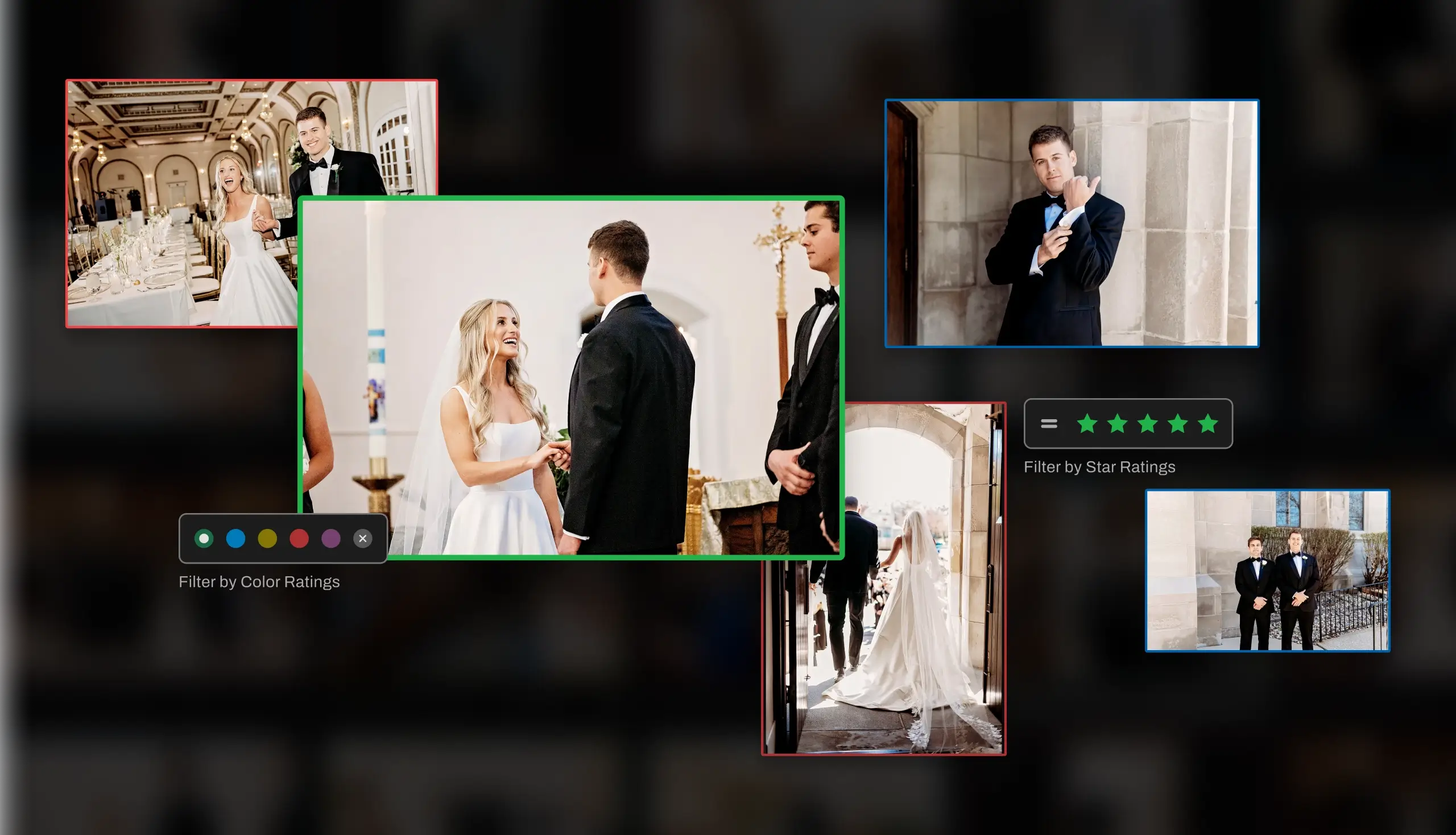
Aftershoot Select runs its AI locally, and the product page says images never leave your machine. You import RAW or JPEG files without a connection. The AI then scores images, groups duplicates, and flags blur and closed eyes. Afterward, you review and export to Lightroom Classic, Capture One, or local storage with ratings and labels intact.
What makes it useful when you’re away from your desk:
- Two ways to cull. AI-automated culling makes the first selection for you. AI-assisted culling groups, scores, and highlights key faces while you make every call.
- Cull to Target. Set the number of images you want to deliver before you cull, and Aftershoot builds the selection around that count. This helps when you’ve promised a client a specific gallery size.
- Non-destructive by design. Nothing is deleted or overwritten. For RAW workflows, ratings are written to XMP sidecar files, so your originals stay untouched on the card or drive.
- Unlimited images at a flat price. A 6,000-image wedding costs the same to process as a 300-image headshot session.
Aftershoot says most shoots are fully culled in 20 to 30 minutes, compared with 3 to 5 hours of manual culling.
- Hardware: Aftershoot lists 8 GB of RAM and a relatively recent CPU as the minimum. Preview rendering and retouching may not work reliably on Intel integrated graphics or on GPUs with less than 2 GB of VRAM.
- What needs internet: Signing in, updates, and account tasks. Gallery delivery through Aftershoot Galleries is also online (I’ve covered it in more detail below).
- Pricing: $10/month billed annual (120/year) or $15/month billed monthly, with a 30-day free trial and no credit card. See Aftershoot’s plan breakdown for bundles that add Edit and Retouch.
- Limitations: Like every local AI tool, speed depends on your hardware. An older laptop will cull more slowly than a current desktop.
- Explore Aftershoot Select’s AI culling to see how the automated and assisted modes differ.
2. Narrative: Best for AI-Assisted Culling Without Handing Over the Decision
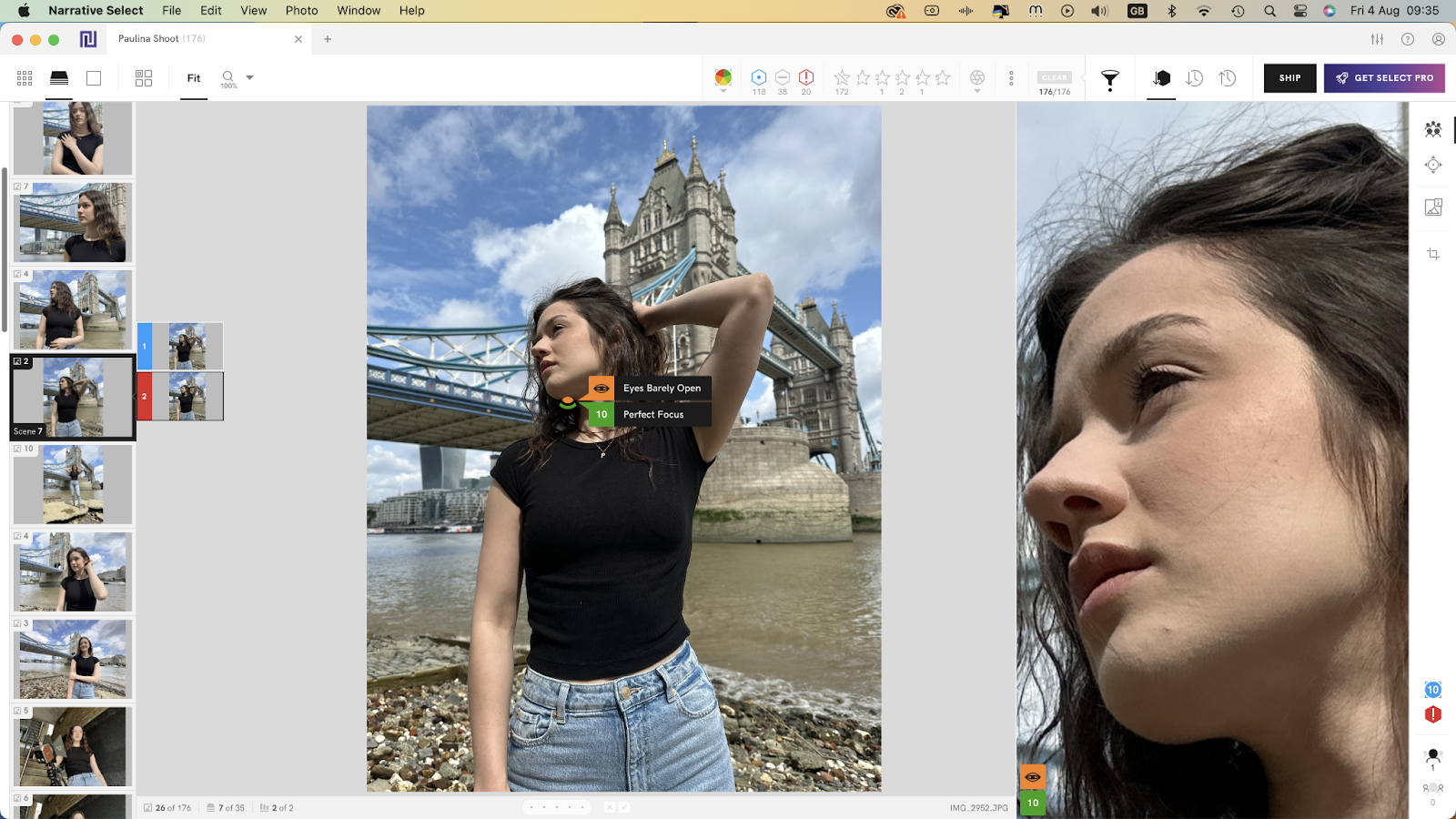
Narrative runs locally and is built around assisted culling. It assesses focus and eye state, groups a shoot into scenes, and ranks images, but you make every final selection. Narrative describes this as a deliberate design choice, not a limitation.
- Strengths: Fast RAW import and rendering, close-up face panels, and direct shipping to Lightroom, Photoshop, and Capture One.
- Pricing: Lite is $10/month billed annually or $15 monthly. Standard is $20 annually or $29 monthly. Narrative’s own FAQ notes that AI presets trained on your editing style are limited to the Premium and Ultra plans.
- Limitations: It doesn’t make automated selections for you. If you want AI to hand you a finished first pass, that’s a different workflow.
3. Lightroom Classic Assisted Culling: Best for Staying Inside Lightroom
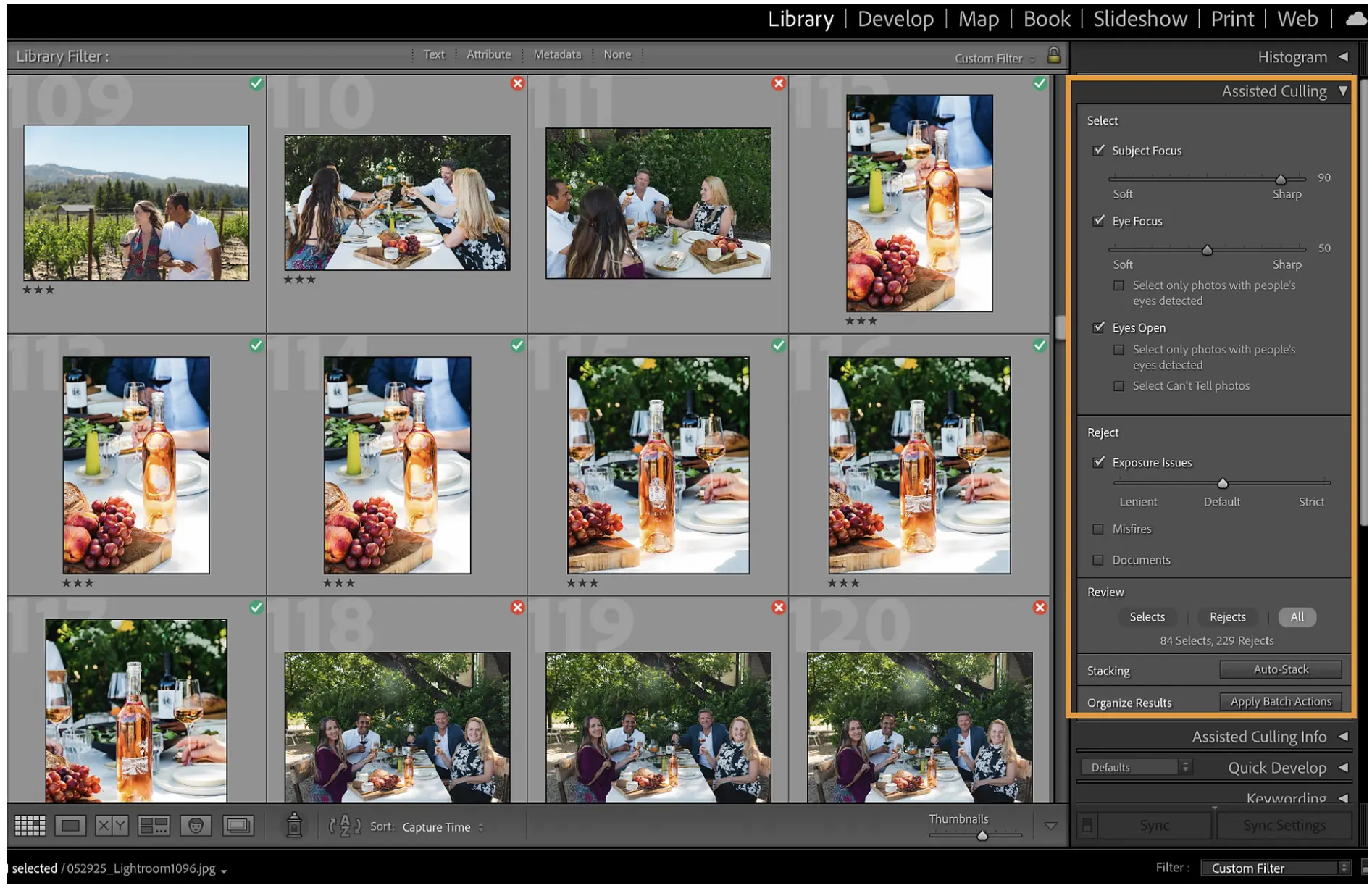
Adobe’s Assisted Culling moved from Early Access to general availability in Lightroom Classic in June 2026. It’s included in existing Lightroom subscriptions at no extra cost. Adobe’s design team says the feature runs on-device, specifically so photographers don’t have to wait for uploads.
- Strengths: No new app to learn. It filters by eyes open, eye focus, and subject focus, and stacks images by capture time or visual similarity.
- Offline caveat: Creative Cloud apps validate your license periodically. Adobe’s help page describes a reminder window followed by an offline grace period of around 99 days before the apps stop launching. Sign in right before a long trip to reset the clock.
- Limitations: Adobe says it’s tuned mainly for people-focused photography. In Adobe’s own feedback thread, some users on large catalogs have reported long background processing and slowdowns.
4. Excire Foto 2025: Best One-Time-Purchase Offline Photo Culling App
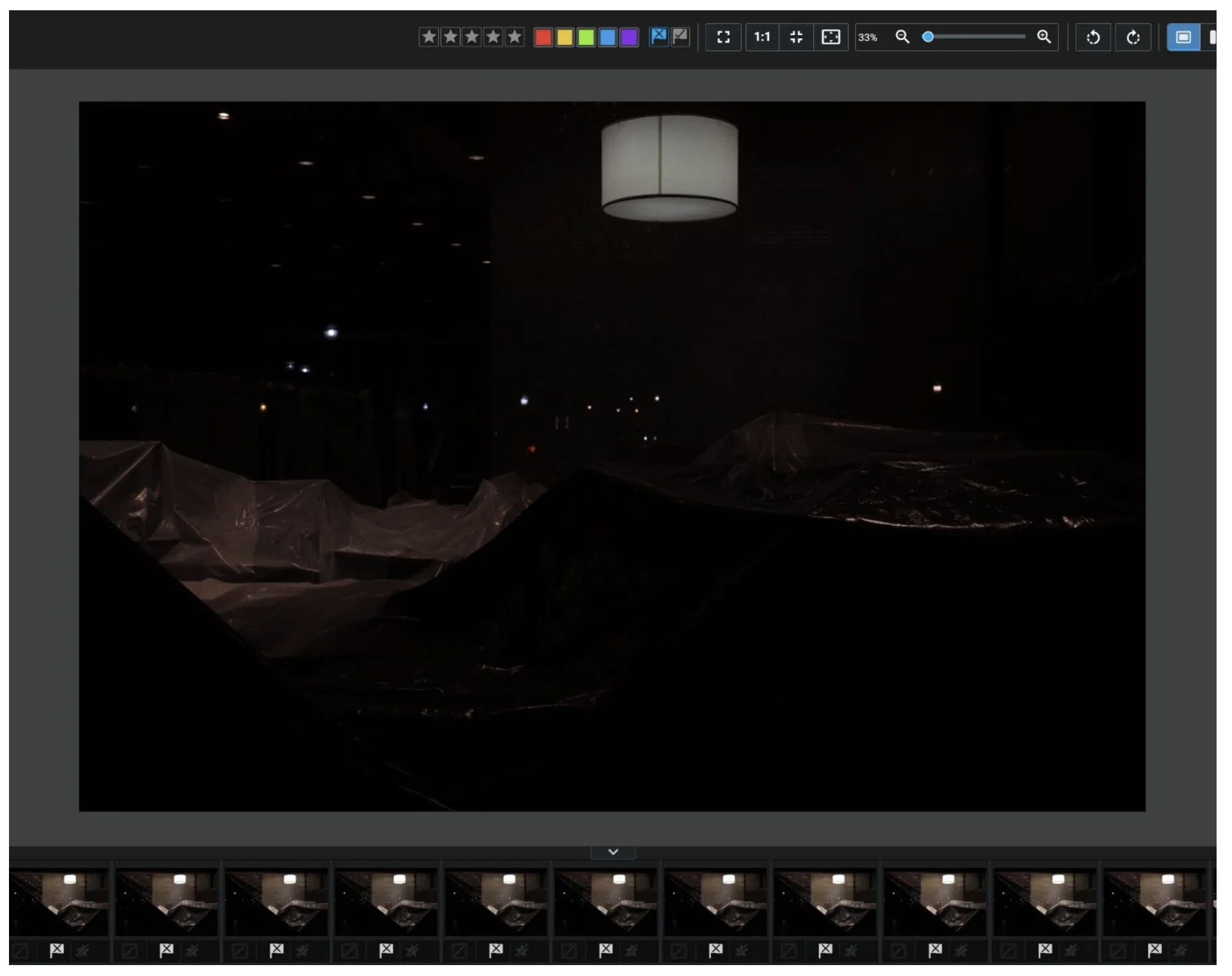
Excire Foto 2025 is a standalone photo manager with a culling module that runs entirely on your machine. It can group by similarity and automatically select or reject images based on criteria like exposure, sharpness, face sharpness, and whether eyes are open.
- Strengths: A one-time license with no subscription, and strong search and face-tagging tools for large archives.
- Pricing: $199 for a lifetime license, with a 14-day trial.
- Hardware: Digital Camera World’s review lists 8 GB of RAM as required and 16 GB as recommended.
- Limitations: It’s a library manager first and a culling tool second. Photographers who only want fast selections may find it heavier than they need.
5. Photo Mechanic: Best Offline Option for Fast Manual Culling
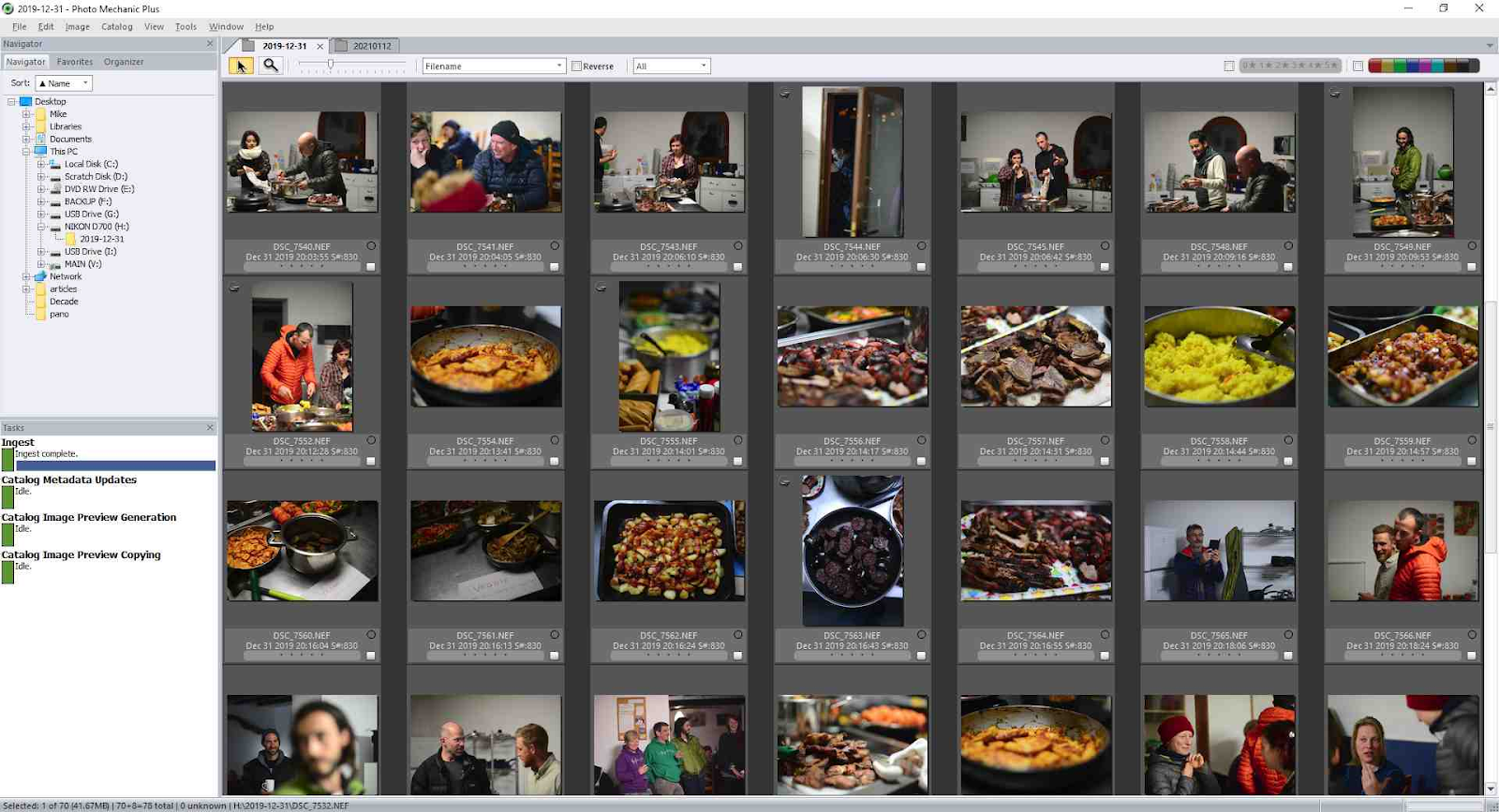
Photo Mechanic has no AI culling, but it’s still the benchmark for raw speed. It works as a file browser rather than a catalog, so previews appear almost instantly and nothing needs to be “imported” before you start tagging. Sports, news, and event photographers who cull on deadline still rely on it.
- Pricing: $14.99/month, $149/year single user license for one user on up to 2 computers,, or $299 perpetual license for a one-time purchase with updates for 1 year.
- Worth knowing: Camera Bits says subscribers get maintenance updates that add support for newly released cameras. That’s important if you buy a new body right before a trip.
- Limitations: Every decision is yours, which is exactly the work AI culling is designed to remove. If you’re weighing that trade-off, our guide to Photo Mechanic alternatives compares the options.
What Still Needs Internet, Even With Offline Photo Culling Software
“Offline” means the culling itself doesn’t need a connection. The rest of your workflow still touches the internet at predictable points. Knowing where those points are is how you avoid surprises on location.
| Task | Needs internet? | What to do before you travel |
| Installing and signing in | Yes | Install and sign in at home, then confirm the app opens with Wi-Fi off |
| License or subscription check-ins | Sometimes (varies by app) | Open each app while online right before you leave |
| App updates | Yes | Update everything the day before you travel |
| Support for new camera RAW formats | Yes, arrives via updates | If you’re shooting a brand-new body, confirm your culling app reads its RAWs before the trip |
| Downloading AI profiles, presets, or marketplace styles | Yes | Download anything you’ll need in advance |
| Syncing settings or profiles across devices | Yes | Sync before you disconnect |
| AI analysis and culling | No (local tools) | Nothing, this is the point |
| Exporting ratings to Lightroom Classic or Capture One | No (local catalogs) | Keep your catalog on the laptop or an attached drive |
| Cloud backup and client gallery delivery | Yes | Queue it for when you’re back on a stable connection |
The camera support row catches more photographers than any other. RAW formats change with new camera bodies, and support usually arrives through an app update. If you pick up a new camera the week of a destination wedding, test a file from it in your culling software before you leave.
Hardware Requirements for Local AI Photo Culling
With local AI photo culling, your laptop does all the work a cloud server would otherwise do. That’s what makes it private and connection-free. It’s also why hardware matters more than with cloud tools.
| Component | Minimum | More comfortable | Why it matters |
| RAM | 8 GB | 16 GB or more | Large RAW batches and previews fill memory quickly |
| GPU | Dedicated GPU with 2 GB+ VRAM, or Apple silicon | Recent Apple silicon or a mid-range dedicated GPU | Aftershoot notes that previews and retouching may struggle on Intel integrated graphics |
| Storage | Fast internal SSD | SSD plus a fast external SSD for backups | Reading thousands of RAWs from a slow drive becomes the bottleneck |
| Power | Charger in your bag | Plug in whenever you cull | AI analysis keeps the CPU and GPU busy, which drains batteries faster |
A practical tip: cull from a fast SSD, not directly from the memory card. Copy the card first, back it up, and point your culling software at the SSD copy. It’s faster, and you’re never working from your only copy.
Cloud vs Local Culling: When Cloud Still Makes Sense
Cloud vs local culling is a real trade-off, and cloud tools do have a genuine advantage. Because the processing happens on remote servers, you can get fast results on entry-level hardware.
The catch is your connection. Here’s what moving a full wedding’s RAW files looks like over typical connections. This matters whether you’re syncing to cloud storage or using a workflow that uploads full files.
| Upload speed | ~100 GB of RAW files (e.g., 4,000 files at ~25 MB) |
| 10 Mbps (typical hotel Wi-Fi) | About 22 hours |
| 50 Mbps | About 4.5 hours |
| 200 Mbps (fast home fiber) | About 1.1 hours |
Note: Theoretical best case at a sustained speed. Real-world uploads are usually slower. Cloud tools that upload compressed previews move less data, but they still can’t run without a stable connection.
- Choose cloud culling if you work mostly from a studio with fast, reliable internet and your computer is older or underpowered.
- Choose offline photo culling software if you travel, shoot destination work, cull on flights or at venues, work with clients under NDAs, or simply don’t want your culling speed to depend on the Wi-Fi.
For a deeper look at how the two models differ for both culling and editing, see our breakdown of local versus cloud processing in Aftershoot vs Imagen.
Why Offline Culling Matters for Client Privacy
Privacy is the most underrated reason to choose offline AI culling software.
Boudoir, newborn, corporate, and celebrity work often comes with contractual or ethical expectations about where images go. With local processing, the images stay on hardware you control. With cloud processing, you’re trusting a third party’s storage and handling policies, and you may need to disclose that to clients.
Aftershoot also lets you opt out of data sharing directly on the import screen, before any images are processed. That’s useful for NDA shoots, where you want a clear, documented answer if a client asks how their images were handled.
A Travel Workflow for Photo Culling Without Internet
Here’s a workflow travel and destination photographers can set up once and reuse on every trip.
Before You Leave (Or… while you’re still online)
- Update your culling app, editor, and OS so the latest camera support and fixes are installed.
- Open each app and sign in to refresh any license check-ins.
- Download any AI profiles, presets, or styles you’ll need (will need internet for this).
- Run a test cull with Wi-Fi switched off using a folder of real RAW files, ideally from the camera you’re taking.
- Pack a fast external SSD and your laptop charger.
On Location
- Copy each card to your laptop SSD, then back it up to the external drive before you format anything.
- Run your first cull the same night. If you’ve promised a set number of images, set a target count before you cull so you’re not doing three extra passes to trim the gallery down.
- Pull sneak peeks from the culled set so they’re ready as soon as you have a connection.
In Transit
- Review the AI’s selections on the flight or train. This is quiet, focused time, and it’s often the best part of the trip to make final calls.
- Start editing if your editor also runs locally. With Aftershoot, you can move straight into AI editing in your own style on the same laptop, still offline.
Back Online
- Sync or back up to the cloud once you’re on a fast, stable connection.
- Deliver the gallery. Aftershoot Galleries lets you create and share client galleries straight from your Aftershoot workflow, without exporting and re-uploading to a separate platform. Start free with the Starter plan – get 10 GB of photo storage & 1 GB video. There are two paid plans: the Premium Plan comes with 500 GB photo storage and 20 GB video storage; and the Unlimited plan comes with unlimited photo storage and 6 hours of video storage.
How to Choose the Right Offline Photo Culling Software
| If this sounds like you… | Best fit |
| You shoot high volumes and want AI to make the first selection offline | Aftershoot Select |
| You want AI to rank and assess, but you want to make every call | Narrative |
| You live in Lightroom Classic and don’t want another app | Lightroom Classic Assisted Culling |
| You’d rather pay once than subscribe | Excire Foto 2025 |
| You cull manually under tight deadlines | Photo Mechanic |
Photographers rate Aftershoot on G2 if you want to see what current users say about culling speed and accuracy.
In a Nutshell: Choosing Offline Photo Culling Software You Can Trust on the Road
The best offline photo culling software is the one that finishes the job when the Wi-Fi doesn’t. Before you commit to any tool, run the Wi-Fi-off test on a real shoot and check your hardware against its requirements. Update everything before you travel.
For most working photographers who travel or shoot at volume, a fully local AI tool with a flat price is the most practical choice. It lets you get from 4,000 frames to a clean shortlist on the flight home and have sneak peeks ready when you land.
If you want to see how culling fits alongside editing, retouching, and delivery, here’s our guide to workflow software for each stage of post-production.
Ready to cull your next trip without the Wi-Fi? Start a 30-day free trial of Aftershoot Select. No credit card required.
FAQs for Offline Photo Culling Software
Q1. Does offline photo culling software need the internet at all?
Usually, yes, but only occasionally. You’ll need a connection to install the app, sign in, download updates, and complete any license check-ins. The culling itself (importing, AI analysis, reviewing, and exporting ratings to a local catalog) runs without the internet. The safest habit is to open and update your apps while connected, then test a cull with Wi-Fi off before you travel.
Q2. Is local AI photo culling faster than cloud culling?
It depends on your hardware and your connection. Local AI photo culling has no upload or download wait, so on a modern laptop it’s often faster from card to shortlist, especially on slow hotel or venue Wi-Fi. Cloud culling can be quicker on older computers, because remote servers do the heavy processing. It’s only an advantage when your internet is fast and stable.
Q3. Can I cull raw files on a laptop while traveling?
Yes. Tools like Aftershoot Select, Narrative, and Excire Foto process RAW files locally. Plan for at least 8 GB of RAM (16 GB is more comfortable) and a dedicated GPU or Apple silicon. Work from a fast SSD rather than directly from the memory card. If you’re shooting with a brand-new camera, confirm your culling app supports its RAW files before you leave.
Q4. Is Lightroom Classic’s assisted culling enough on its own?
For some photographers, yes. It runs on-device, costs nothing extra with a Lightroom subscription, and filters by eyes open, eye focus, and subject focus. It’s built to assist rather than make selections for you, though, and Adobe says it’s tuned mainly for people-focused photography. High-volume wedding and event photographers who want AI to hand them a finished first pass usually pair Lightroom with a dedicated culling tool.
Q5. Is offline culling more private than cloud culling?
Generally, yes. With offline culling, your images are processed on your own computer instead of being sent to a third-party server. That makes it easier to meet NDA terms and client expectations for boudoir, newborn, or corporate work. Aftershoot also lets you opt out of data sharing on the import screen before processing starts.
Q6. What happens to my selections when I reconnect to the internet?
Nothing changes, because the selections are already saved locally. With Aftershoot, ratings and labels for RAW workflows are written to XMP sidecar files and carried over when you export to Lightroom Classic or Capture One. Reconnecting only matters for the online steps, such as cloud backup, syncing across devices, and delivering the gallery to your client.