
TL;DR
- Efficiency for photographers is about eliminating context-switching and unnecessary rendering steps from card import to final client delivery.
- Modern all-in-one software enables photographers to import, cull, edit, and deliver reception slideshows during dinner without juggling multiple apps.
- Moving from traditional Lightroom preview-building to Aftershoot allows automated overnight backup, culling, and AI color grading, saving hours of manual screen time.
- Modern AI retouching tools allow photographers to retouch skin, hair, and glare directly on RAW files and sync settings across entire portrait sessions in one click.
- Pairing your workflow with file-compression software like JPEGmini cuts export file sizes by up to 50–60% without quality loss, speeding up gallery uploads and client downloads.
- While Aftershoot serves as the central engine for culling, editing, and retouching, traditional software like Lightroom and Capture One remain useful for complex catalog management or specialized tethered studio shoots.
For years, photographers have been asking the wrong question:
“What’s the best editing software?”
The reality is that editing is only one small part of your overall photography workflow.
A complete workflow starts long before you’re making your first exposure adjustment. It starts the moment those memory cards come out of your camera and doesn’t end until your clients have their final gallery in hand.
Over the last thirteen years photographing weddings, I’ve slowly refined every part of that process. Some of those changes have saved me minutes. Others have literally saved me days, every single wedding season.
Today, my workflow looks dramatically different than it did even… two years ago.
So rather than ranking software from best to worst, I thought it would be more helpful to walk you through each stage of my post-production workflow, the software I use for that stage, and why.
Best Photography Workflow Software for Post-Production for Every Stage of your Workflow
Stage 1. The Same-Day Edit
If you’ve ever been to one of my weddings, you’ve probably seen a slideshow playing during the reception.
This has become one of my favorite parts of the wedding day.
During dinner, I’ll edit roughly 50 of my favorite images from the day and have them playing before guests even finish eating. I’ll also deliver those same images directly to my clients before the reception is over.
It’s one of those “Wow!” moments that people never expect.
The crazy part? The entire workflow takes me about an hour.
That includes:
- Importing the cards
- Backing everything up to a second SSD
- Culling
- Editing
- Exporting
- Delivering the gallery
A few years ago, I honestly don’t think this would’ve been realistic and while it was possible, it was one of the most stressful parts of the day. Clients, families, friends and every guest love same-day edits, but these edits tend to take a ton of time to create.
But with Aftershoot, this changes dramatically…
Earlier, I’d have to import into one program, wait for previews to build, move into another program for editing, then export somewhere else.
Those minutes really add up quickly.
Today, I do everything inside Aftershoot.
Having my import, backup, culling, and editing happen in one application, which means I’m not wasting time bouncing between different pieces of software while my clients are waiting.
A couple things make this possible:
- Invest in fast equipment
Even the fastest software can’t overcome a slow hard drive or outdated computer. If you’re importing onto an older spinning hard drive, you’ve already created the biggest bottleneck in your workflow before you even start editing. Fast SSDs are worth every penny.
- Have a second shooter you trust
While I’m editing during dinner, I know someone is still covering the reception in case speeches start early or my couple wants a few extra portraits. Technology can save you lots of time, but a great second shooter gives you the freedom to actually use that time.
Stage 2. Importing, Culling, and Editing
This is probably the biggest change I’ve made over the past few years.
For a long time, my workflow looked something like this:
Import into Lightroom, Create a catalog, Build previews, Build Smart Previews, wait endlessly… then Cull, Edit, go back and tweak everything.
That was simply the way Lightroom worked.
The biggest reason I stayed there was because I needed somewhere to actually review my edits. Even though I was using Aftershoot to speed up editing, I still had to jump back into Lightroom to see how everything looked and make adjustments.
That’s no longer the case.
Now, my workflow is incredibly simple.
The first thing I do when I get home from every wedding is plug in my cards and start a brand-new Aftershoot project.
Here is what that looks like:
- Import my images
- Create my backup
- Copy everything to my third backup drive
- One click cull and edit
- Go to bed and get rest!
No more staying up until 3 a.m. backing up images or working through endless rounds of culling and editing. While I’m asleep, Aftershoot is doing the heavy-lifting. By the time I wake up, my images have been safely backed up, culled, and edited.
Knowing everything has already been copied to multiple locations before I even start my day gives me immeasurable peace of mind.
And when I sit down at my computer the next morning, I’m not starting from scratch. I’m usually about 75% of the way to a finished wedding.
From there, I spend roughly two hours reviewing the gallery, refining my edits, making small exposure adjustments where needed, and making sure everything feels consistent from beginning to end.
That’s where I want to spend my time: making creative decisions (not watching progress bars).
Here’s where Lightroom and Capture One still work
Lightroom still has one of the best cataloging systems available, especially if you’re managing years of client work inside one ecosystem.
Capture One continues to be an excellent choice for photographers who want incredibly precise color tools, tethered shooting, or studio workflows.
For me, though, most of my post-production happens before I ever need those strengths. That’s where Aftershoot has become the center of my workflow.
Stage 3. Retouching
This might be my favorite improvement in my entire workflow.
I used to take every portrait I wanted retouched and send it into Photoshop.
- One image
- Open
- Retouch
- Save
- Close
- Repeat
Eventually, I found myself doing something I never thought I’d do: I simply stopped retouching.
And it was obviously not because I didn’t want to, but because I didn’t have the time.
Now my process is completely different.
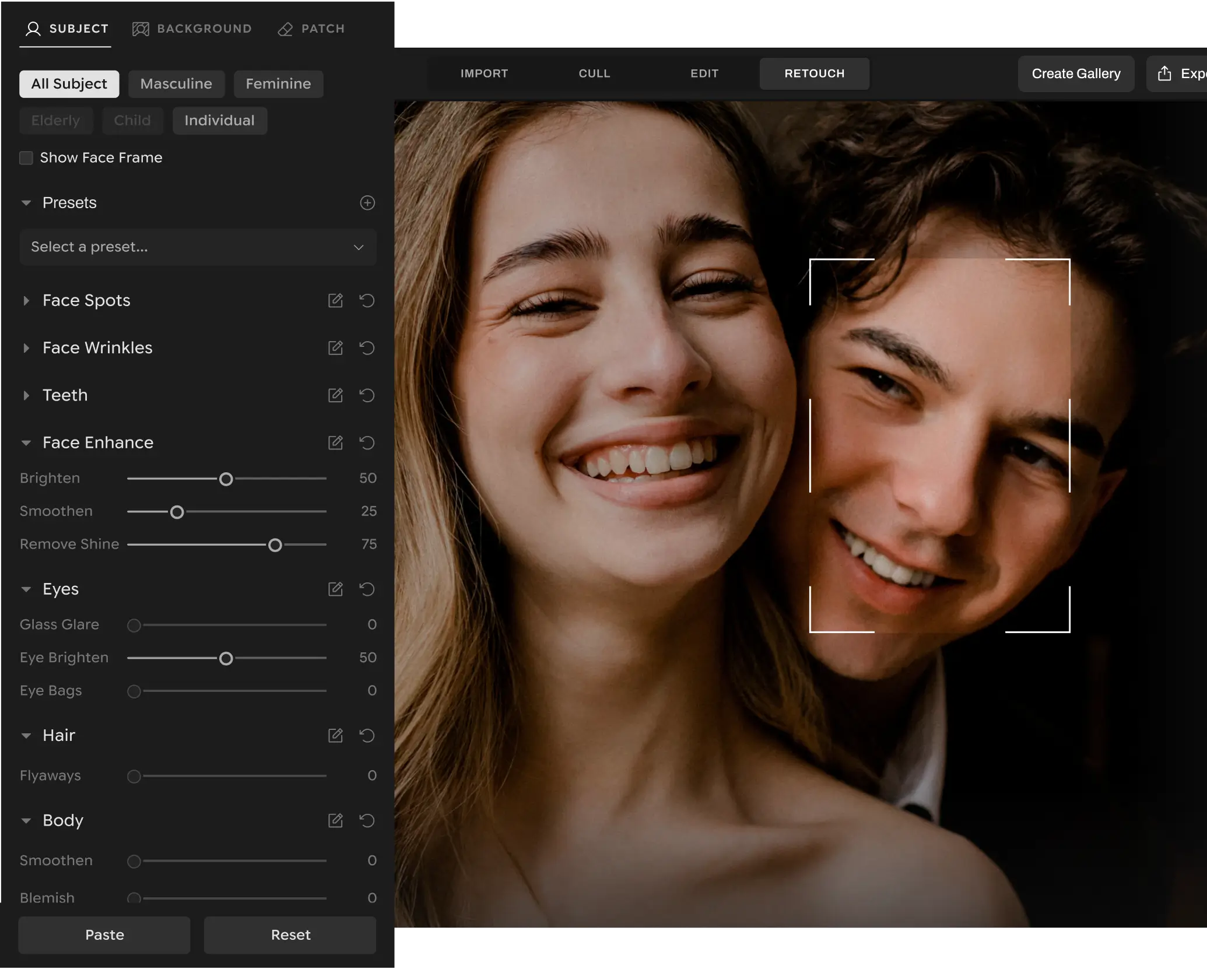
Once I’ve finalized my edits and selected the portraits from the wedding, I bring those RAW files directly into Aftershoot, and it’s done.
It’s also safe to say that being able to retouch RAW files has completely changed how I work.
Instead of retouching every image individually, I retouch one image exactly how I want it to look.
Then I sync those settings across the rest of the portrait session.
One click.
And it’s done.
That single feature has allowed me to start consistently delivering retouched portraits again, without adding hours back into my workflow.
Stage 4. Exporting
This is the easiest part of my workflow because there are very few decisions left to make.
Once everything has been culled, edited, refined, and retouched, it’s time to export.
One thing I appreciate about Aftershoot is that it doesn’t lock you into a single ecosystem.
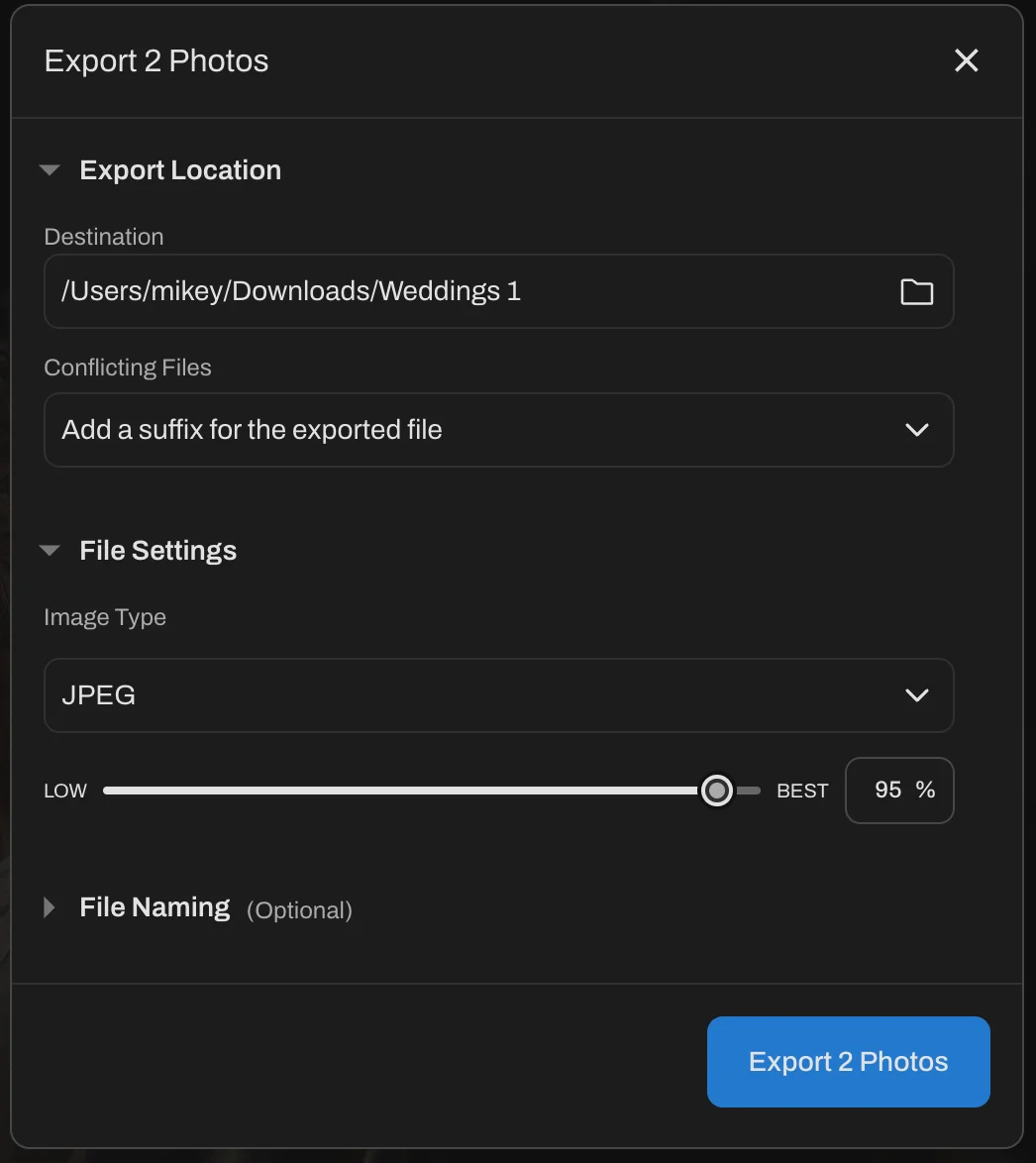
If your workflow still depends on Lightroom, Capture One, or another editor, you can export directly into those applications.
For me, though, I rarely need to.
I simply export directly to a folder on my computer.
From there, every wedding immediately goes through JPEGmini.
If you’ve never used it before, I honestly think it’s one of the most underrated pieces of software photographers can own.
JPEGmini compresses my exported JPEGs without any visible loss in image quality.
On average, my files end up about 50-60% smaller.
That has some pretty significant benefits:
- Faster uploads to my client gallery
- Less storage space over the course of a year
- Faster downloads for my client
- Less bandwidth being used every time someone shares or downloads their gallery
It’s one of those pieces of software that saves you time on every single wedding without asking you to change how you work.
Every wedding I deliver, goes through Aftershoot.
Final Thoughts
One of the biggest lessons I’ve learned over the years is that efficiency is not about finding one magical piece of software.
It’s about eliminating unnecessary steps.
Every time you switch between applications, rebuild previews, export temporary files, or repeat the same task manually, you’re adding friction to your workflow.
The goal is never to replace your creativity, but to remove everything that gets in the way of it.
For me, that has meant letting Aftershoot handle the heavy-lifting of importing, backing up, culling, editing, and retouching, while I spend my time making the creative decisions that actually matter.
Because at the end of the day, my clients don’t care how many applications I used.
They care that they received beautiful photographs quickly, consistently, and with the attention to detail they hired me for.
And that’s exactly what a great workflow should help you do.
FAQs for Best Photography Workflow Software for Each Stage of Post-Production
Q1. What software is used in a complete post-production photography workflow?
A complete post-production photography workflow covers five distinct stages, often utilizing specialized or centralized software for each step:
Import & Backup: Aftershoot or dedicated OS file transfer utilities for multi-drive redundancy.
Culling & Selection: Aftershoot Select or FilterPixel to sort duplicates, check focus, and detect closed eyes.
RAW Editing & Color Grading: Aftershoot Edit, Adobe Lightroom Classic, or Capture One for style consistency, white balance, and exposure adjustments.
Portrait Retouching: Aftershoot Retouch or Adobe Photoshop for non-destructive skin smoothing, blemish cleanup, and object removal.
Compression & Gallery Delivery: JPEGmini for file size reduction alongside client platforms like Aftershoot Galleries, Pic-Time, or Pass.
Q2. How can photographers create a same-day edit slideshow at a wedding?
Photographers can deliver same-day edit slideshows during a reception in under an hour by consolidating their post-production steps into an all-in-one platform like Aftershoot.
Rather than importing into one program, waiting for previews, exporting to an editor, and uploading elsewhere, photographers can ingest RAW files directly, run automated AI culling and editing profiles, fine-tune a 50-image selection, and export a gallery directly to a reception display or client device while guests eat dinner. Fast SSDs and a trusted second shooter are critical for keeping this process stress-free.
Q3. Is Aftershoot better than Adobe Lightroom for post-production workflows?
Aftershoot and Adobe Lightroom serve different core strengths in a photographer’s post-production pipeline:
Aftershoot is built specifically to maximize speed and reduce manual labor in high-volume post-production. It handles local automated culling, batch AI editing, portrait retouching on RAW files, and gallery delivery under a single ecosystem, eliminating preview rendering delays.
Adobe Lightroom Classic remains an industry standard for long-term catalog management, keyword organization, and complex manual editing across years of archived work.
Many photographers use Aftershoot to handle 75–90% of their initial post-production heavy lifting (culling and color grading) before opening Lightroom only if specialized cataloging is needed.
Q4. Can you retouch RAW files directly in Aftershoot without opening Adobe Photoshop?
Yes. Modern post-production platforms like Aftershoot allow photographers to perform AI portrait retouching, including natural skin smoothing, blemish removal, flyaway hair cleanup, and glare reduction, directly on uncompressed RAW files. Photographers can customize retouching parameters on a single image and sync those non-destructive adjustments across an entire portrait session in a single click, eliminating the time-consuming process of opening individual files in Photoshop.