
TL;DR
- Speed: A natural manual retouch takes 8–20 minutes per image. AI applies the same kind of corrections in about 5–10 seconds, plus a quick review.
- Where AI wins: blemishes, face shine, teeth whitening, glasses glare, stray hairs, clothing wrinkles, and consistency across group photos.
- Where manual wins: high-end beauty and fashion, dodge and burn sculpting, body shaping, composites, and anything printed large.
- Cost: Outsourced retouching runs about $1–$150+ per image. AI tools charge per image or credit (Imagen, Evoto) or a flat fee (Aftershoot Retouch is $20/month billed annually, with unlimited images).
- Best workflow: Run AI on the whole gallery, review the close-ups at 100%, then finish 3–10 hero images by hand.
- Clients: Only 1% of photographers in Aftershoot’s 2025 industry report said clients had raised authenticity concerns about AI use.
AI photo retouching is faster and more consistent for everyday client work like blemishes, shine, stray hairs and teeth across a full gallery. Manual retouching still wins when an image needs creative judgment at pixel level: high-end beauty, editorial covers, composites and body shaping. Most working portrait photographers now use both: AI for the gallery, manual for the handful of hero images.
That’s the answer most photographers land on eventually. The harder part is knowing where to draw the line for your own work.
To find out, portrait photographer Ernesto retouched the same portrait twice: once by hand in Lightroom, and once with Aftershoot’s AI retouching. He timed both and compared the results at full zoom. His take: “Both portraits looked good, but the AI version took a fraction of the time.”
Below, you’ll find what happened in that test, a task-by-task breakdown of what AI handles well and what it doesn’t, what each approach really costs, and a hybrid workflow you can use on your next session.
AI Photo Retouching vs Manual Retouching at a Glance
| Factor | Manual Retouching | AI Retouching |
|---|---|---|
| Time per image | 8–20 minutes for a natural client retouch; an hour or more for high-end beauty | 5–10 seconds to apply, plus a quick review |
| Consistency across a gallery | Drifts with fatigue and focus | Same settings applied to every image |
| Creative control | Total, down to individual pores | High for natural corrections, limited for creative or structural changes |
| Skin texture and realism | Fully in your hands | Good with texture-preserving tools; generative fills can look synthetic up close |
| Learning curve | Months to master frequency separation and dodge and burn | Minutes to learn sliders and presets |
| Cost model | Your time, or roughly $1–$150+ per image if outsourced | Flat subscription or per-image credits, depending on the tool |
| Scales with volume | No. Every extra image adds the same time | Yes. 40 images take minutes, not hours |
| Best for | Hero portraits, beauty and fashion, editorial, composites | Weddings, headshots, school and sports, family and mini sessions |
Prefer to watch? Here’s Ernesto’s side-by-side test:
What’s the Difference Between AI and Manual Retouching?
Manual retouching means you make every correction yourself, usually in Photoshop or Lightroom, using tools like the healing brush, frequency separation, dodge and burn, and liquify. You decide what to fix, how much, and what to leave alone.
AI retouching means software detects faces, skin, eyes, teeth and backgrounds and applies corrections for you, which you then adjust. But “AI retouching” covers three different kinds of tools, and they behave very differently:
| Type | How it works | Examples | What to expect |
|---|---|---|---|
| AI-assisted manual tools | AI makes selections or suggestions; you still do the retouching | Lightroom’s people masks, Photoshop’s Remove tool | Faster selections, but the time per image stays close to manual |
| Dedicated AI retouching tools | AI applies texture-preserving corrections you control with sliders, presets or effect strength, often across a whole batch | Aftershoot, Evoto, Retouch4me | Natural results at volume; you review and fine-tune |
| Generative or prompt-based editing | AI regenerates pixels from a text prompt or fill | Generative fill tools and prompt-based editors | Fast for distractions and backgrounds; risky on skin and faces, where texture and identity can change |
Most of the “AI looks plastic” complaints come from the third group, or from dedicated tools pushed too far. If you want the full picture of how AI retouching works, our guide to AI photo retouching covers it in depth.
We Retouched the Same Portrait Both Ways
Ernesto picked a single close-up portrait and retouched it twice. For the manual version, he stayed inside Lightroom, because that’s where most portrait photographers do their everyday retouching. For the AI version, he used Aftershoot’s AI retouching.
Manual Retouching in Lightroom: What Stood Out
He made deliberate choices about what not to fix. Good retouching is as much about restraint as removal:
“I’m leaving the under-eye line because it makes it look human. If I remove everything, it looks fake.”
That’s photographer judgment. AI can estimate what to soften, but it doesn’t know your client, what they’re self-conscious about, or the look your brand is known for.
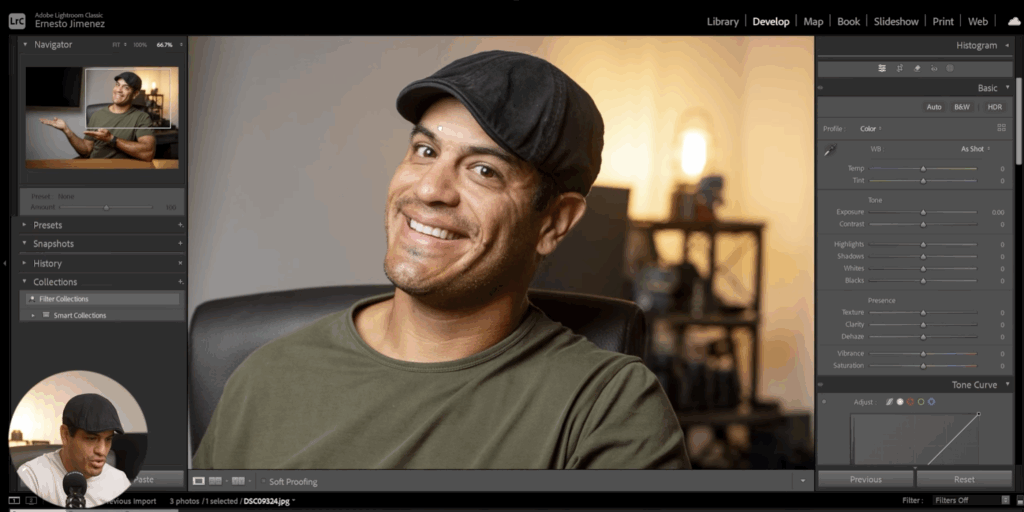
AI masks still needed manual cleanup. Even Lightroom’s AI-powered masks weren’t precise enough for him:
“The AI mask grabs some of my beard and eyebrows. It bleeds into teeth and hair. That’s why I still select things manually.”
The time doesn’t stay with one image. This was the part that changed how he thought about it:
“Whatever time it took me to retouch that one portrait manually, I’d have to repeat it for every single image in the set.”
AI Retouching in Aftershoot: What Stood Out
The AI workflow was a short series of slider decisions: acne, freckles, wrinkles, under-eyes, teeth, face shine.
“With Aftershoot retouching, it was just sliding acne removal, wrinkle reduction, teeth whitening, face shine… a few decisions and the portrait was done.”
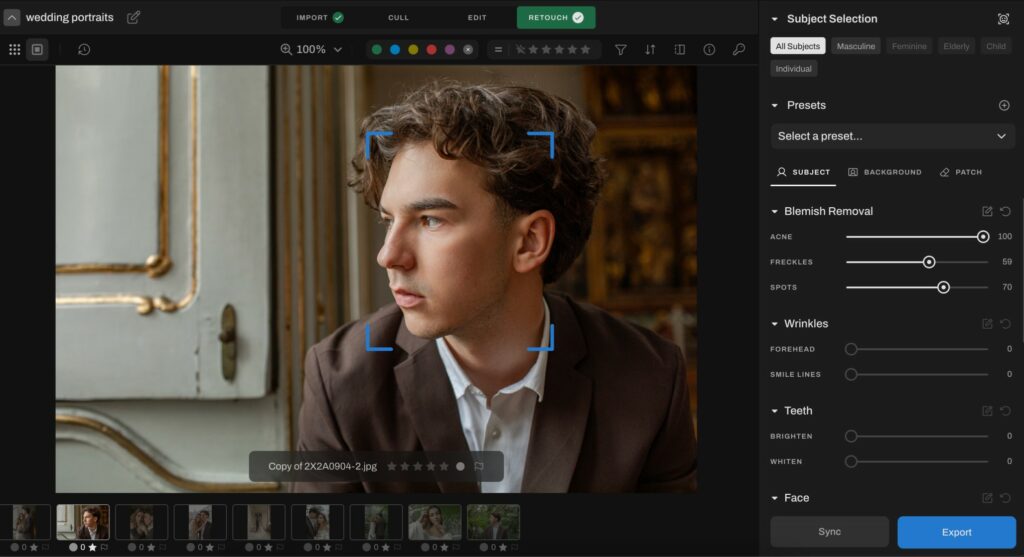
Face shine was the surprise. Shine is hard to fix convincingly without a trip to Photoshop, and Ernesto preferred the AI result:
“The AI actually handled face shine better than my manual edit.”
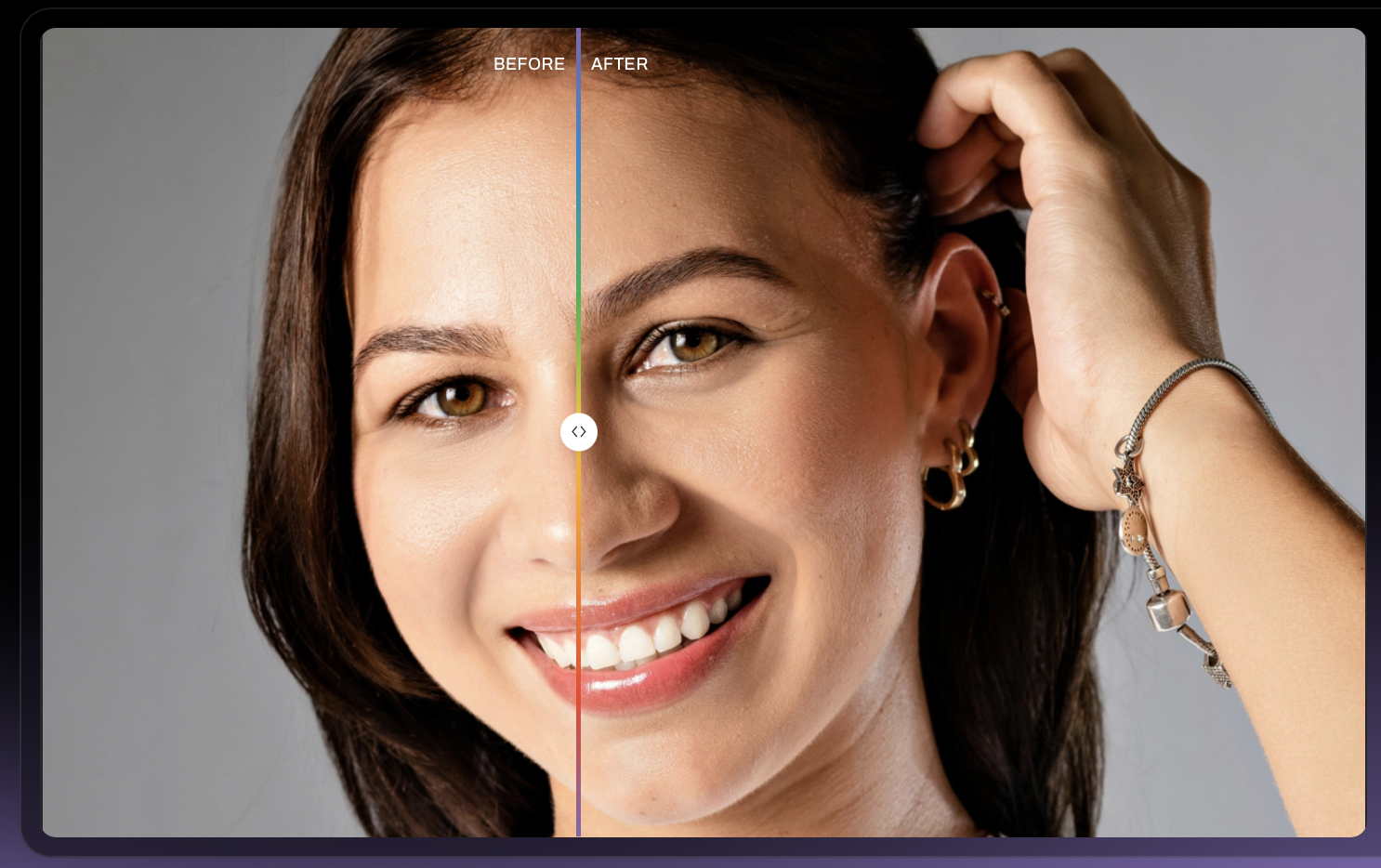
PS: You can try out the tool yourself, and see the results, they look something like this:
The gap widens with every image. Once the first portrait looked right, he synced the same settings to the rest of the set:
“There’s a huge time difference. For one image, it’s noticeable. For multiples, it becomes exponential.”
“If I retouched 20 or 30 portraits manually, time would double, triple, or more. With Aftershoot, I sync and apply, and I’m done.”
The Test Results
| Manual (Lightroom) | AI (Aftershoot) | |
|---|---|---|
| Time for one portrait | Several minutes of masking and brushwork | Seconds, after a few slider choices |
| Steps | Mask, brush, check at 100%, adjust, repeat per area | Choose a preset or set sliders, review, sync |
| Precision | Full control; masks needed manual refinement | Natural result; less control over individual strokes |
| Face shine | Acceptable | Ernesto preferred the AI result |
| Applying it to 20+ images | Repeat the full process on every image | Sync once, then review |
Both portraits looked good. The real difference showed up the moment there was more than one image to finish.
Task by Task: Where AI Wins and Where Manual Still Wins
Not every retouching job is the same. Here’s how AI and manual retouching compare on the tasks portrait photographers do most often.
| Retouching task | AI retouching | Manual retouching | Verdict |
|---|---|---|---|
| Blemish and acne removal | Detects and removes spots across every face in seconds | Precise, but slow across a gallery | AI |
| Face shine | Reduces shine while keeping texture | Takes careful brushwork to avoid flat, grey patches | AI |
| Teeth whitening | Even, natural brightening on every smile | Easy on one image, tedious on 50 | AI |
| Stray hairs and flyaways | Quick on simple backgrounds | Still better on hair against busy or textured backgrounds | AI for volume, manual for close-ups |
| Glasses glare | Removes reflections in one pass | Often needs cloning or a second frame | AI |
| Under-eye bags and wrinkles | Softens without erasing character, if you keep it subtle | You decide exactly which lines stay | Either; manual for hero images |
| Skin smoothing | Fast and consistent; overdo it and skin turns plastic | Frequency separation and dodge and burn preserve every pore | Manual for beauty, AI for everyday work |
| Clothing wrinkles | Smooths creases across a batch | Fine control over fabric folds | AI for volume |
| Object and people removal | Fast on simple scenes | More reliable on complex scenes | AI first, manual to fix edges |
| Background replacement | Quick, with shadows for realism | Necessary for complex hair edges and composites | AI for simple swaps, manual for composites |
| Dodge and burn sculpting | Limited control over shape and light | Full creative control | Manual |
| Body shaping and liquify | Limited or not available | Full control, and full responsibility for realism | Manual |
| Consistency across a group photo | Retouches every face to the same standard | Easy to miss a face in the back row | AI |
The pattern: AI is strongest on corrections that are repetitive and predictable. Manual retouching is still the better tool when the work is creative, structural, or judged at pixel level.
Which Approach Fits Your Type of Photography?
| Photography type | Typical volume | Recommended approach |
|---|---|---|
| Weddings and events | Hundreds to thousands of images | AI across the gallery; manual on a few portraits for the album cover or wall art |
| School and team sports | Hundreds of faces per session | AI. Consistency and glare removal matter more than pixel-level finesse |
| Corporate headshots | Dozens per session | AI with a headshot preset; manual for executive or press images |
| Family and mini sessions | 20–60 images | AI, with a quick review |
| Newborns | 20–40 images | AI for redness and blotchy skin, kept subtle; manual for hero frames |
| Boudoir | 30–80 images | AI for skin and blemishes; manual for body shaping and hero images |
| Beauty, fashion and editorial | A handful of final images | Manual, with AI as a first pass if it saves time |
| Commercial and advertising | A handful of final images | Manual. Client approvals and print scrutiny demand full control |
If you shoot weddings, AI retouching for wedding photos shows how batch retouching works on a full gallery.
Time and Cost: Manual vs AI Retouching
Time at Volume
Say a natural manual retouch takes 8 minutes per portrait, which is on the quick end for most photographers. Once the AI settings are dialed in, applying them takes around 10 seconds per image. Here’s what that looks like across a session:
| Images to retouch | Manual (8 minutes each) | AI (about 10 seconds each, before review) |
|---|---|---|
| 20 | 2 hours 40 minutes | About 3 minutes |
| 40 | 5 hours 20 minutes | About 7 minutes |
| 80 | 10 hours 40 minutes | About 13 minutes |
You should still review AI results, especially close-ups. Even if that adds a full minute per image, 40 portraits take under an hour instead of more than five. If you value your time at $100 an hour, that’s over $400 back on a single session.
For the business side of that math, including what it does to your effective hourly rate, see our real-world test of AI retouching.
What Each Option Costs
Prices below are list prices in USD, checked in November 2026.
| Option | Pricing model | Cost | Keep in mind |
|---|---|---|---|
| Manual, in Photoshop and Lightroom | Subscription plus your time | Adobe Photography plan (1TB): $19.99/month | The real cost is your hours, and they grow with every image |
| Outsourced retoucher | Per image | Roughly $1–$15 for basic to standard portrait work; $15–$150+ for high-end beauty | Turnaround time, revision rounds, and matching your style |
| Aftershoot | Flat fee, unlimited images | Retouch: $20/month billed annually ($25 month to month). Complete, with culling and editing: $45/month billed annually | Retouching runs on your computer, and you cull, edit and retouch in one app |
| Evoto | Credits (1 credit per exported photo) | Starter: $89/year for 800 credits | Costs rise with every exported image |
| Retouch4me | One-time license per plugin | $124 for most plugins; $149 for Dodge & Burn and Clean Backdrop | A full portrait retouch usually needs several plugins |
| Imagen | Per photo or flat plan | Pay-as-you-go: $0.05/photo plus a $7/month minimum; each extra AI tool adds $0.01/photo | Per-photo costs stack up when you add retouching tools to a large gallery |
For a closer look at each tool’s features, see our roundup of the best AI photo retouching software. For a plan-by-plan breakdown, see Aftershoot pricing.
The Hybrid Workflow Most Portrait Photographers Use
“Use both” only helps if you know where the handoff happens. Here’s a workflow that keeps the speed of AI without giving up control where it matters:
- Cull first. Retouch only the images you’ll actually deliver.
- Apply your base edit. Color and exposure first, so you judge skin on the final look.
- Run an AI retouching pass on the full gallery. Start from a preset that matches the shoot (wedding, headshot, newborn), set the sliders on one representative image, and sync to the rest.
- Review at 100% on close-ups and group shots. Check skin texture, eyes, hairlines and every face in group photos. Adjust individual images where needed.
- Pick your hero images. Usually 3–10 per session: album covers, wall art, anything that will be printed large or used in your marketing.
- Finish the heroes by hand. Dodge and burn, liquify, composites and pixel-level skin work in Photoshop.
- Export and deliver.
Independent testing points the same way. In a study by Color Experts International, reported by The Phoblographer, AI tools were about 22.7 times faster than human retouchers, and a retoucher working with AI finished faster than one working fully by hand, while AI on its own still fell short of human quality. Speed from AI, judgment from you.
If you want the full step-by-step for portraits, our portrait retouching workflow guide walks through it.
How to Keep AI Retouching From Looking Fake
AI retouching looks fake for the same reasons manual retouching does: too much smoothing, too many features erased, and edits judged at the wrong zoom level. A few habits prevent most of it:
- Start subtle. Begin with lower slider values and build up. It’s easier to add than to undo an over-smoothed gallery.
- Keep what makes the person recognizable. Moles, freckles, laugh lines and scars are usually part of who your client is. Remove temporary things (a breakout, a scratch) and leave permanent ones unless the client asks.
- Check texture at 100%. If pores disappear at full zoom, pull the skin slider back.
- Watch the face-to-neck transition. Smoothing or brightening the face but not the neck creates a visible line.
- Check every face in group shots. Adults, kids and newborns need different strength levels.
- Keep generative fills off faces. Prompt-based or generative edits can subtly change a face. Use them for backgrounds and distractions, not skin.
- Save what works as a preset. Once a look fits your style, retouching presets keep it consistent across every session.
Do Clients Care if You Use AI Retouching?
Mostly, no. In Aftershoot’s 2025 photography industry report, only 1% of photographers said clients had raised concerns about authenticity because of AI use. Meanwhile, 30% said clients gave positive feedback about faster, more consistent delivery.
What clients notice is the result. If a retouch looks natural and the gallery arrives on time, how it was done rarely comes up. If it looks over-smoothed, they’ll notice, whether a person or software did it.
The Verdict: AI or Manual Retouching?
Manual retouching wins on finesse. AI retouching wins on time and consistency. Neither wins outright, because they’re built for different jobs.
If you deliver more than a handful of portraits per session, retouching every image by hand is the slowest part of your workflow, and most of that time goes on repetitive fixes AI now handles well. Keep your manual skills for the images that deserve them.
The easiest way to find your own line is to test it. Run your next session through Aftershoot’s AI retouching, pick your three strongest portraits, and finish those by hand. Aftershoot includes a free 30-day trial, no credit card required.
FAQs for AI photo retouching vs Manual Retouching
Is AI photo retouching better than manual retouching?
It depends on the job. AI retouching is better for speed and consistency on repetitive corrections like blemishes, shine, teeth and stray hairs across a full gallery. Manual retouching is better for creative and structural work, such as high-end beauty, dodge and burn sculpting, body shaping and composites.
Can AI replace a professional retoucher?
Not for high-end work. AI handles routine corrections well, but it can’t make the creative calls a skilled retoucher makes: what to leave untouched, how to shape light on a face, or how a client wants to look. For volume portrait work, AI already handles most of the repetitive retouching photographers used to do by hand.
How long does manual portrait retouching take?
A natural client retouch usually takes 8–20 minutes per image in Lightroom or Photoshop. High-end beauty retouching with frequency separation and dodge and burn can take an hour or more per image. AI retouching applies the same kind of corrections in seconds, plus review time.
How much does AI photo retouching cost compared to outsourcing?
Outsourced portrait retouching typically costs from about $1 per image for basic cleanup to $150 or more for high-end beauty work. AI retouching tools charge either per image or credit (for example, Imagen and Evoto) or a flat subscription (Aftershoot Retouch is $20/month billed annually, with unlimited images). At wedding or school-photo volume, flat pricing is usually the cheapest option.
Does AI retouching look fake?
It can, if it’s pushed too far or uses generative fills on faces. Texture-preserving AI tools look natural at moderate settings. Start with subtle slider values, keep permanent features like freckles and moles, and check close-ups at 100% before delivery.
Can I batch retouch a full wedding gallery with AI?
Yes. With Aftershoot, you set the retouching on one representative image, or start from a built-in preset, and sync it across the gallery. Then review close-ups and group shots and adjust individual images where needed.