TL;DR
- GIMP is the strongest truly free, layer-based editor for Mac and Windows, closest to Photoshop’s core toolset.
- Photon by Aftershoot is a free RAW editor with an AI Coach that explains what to adjust and why; it’s a strong pick if you’re still learning to edit RAW files.
- darktable is the best free RAW editor if you shoot RAW and want a non-destructive, Lightroom-style workflow.
- Photopea works entirely in your browser and opens PSD files, no install and no upload required.
- Some “free” tools (Lightroom, Photoshop, Capture One) are actually free trials that convert to paid subscriptions.
- Your best pick depends on what you’re editing (RAW vs. JPEG), how you edit (layers vs. one-click), and where (Mac, Windows, or browser).
You searched “free photo editing apps” because you don’t want to pay for software you’re not sure you’ll stick with, or you’re just starting out and a $20/month subscription doesn’t make sense yet. Fair. But here’s the catch nobody mentions upfront: a lot of “free” photo editors aren’t actually free. They’re free trials wearing a free tool’s marketing.
We installed and used 15 of the most recommended free photo editing apps on both Mac and Windows, the same way you would, importing real RAW files, retouching a portrait, exporting for delivery, to find out which ones are genuinely free forever, which ones expect a credit card in 14 days, and which one actually fits how you work.
In this day and age, social media is swarming with zillions of beautiful pictures. The quality standard is far beyond what it used to be just five years ago.
For aspiring photographers, it is becoming easier to achieve that high quality without breaking the bank.
If you’re ready to dip your toes into creative waters, the free editing tools in this article offer a range of features to transform your images with just a few clicks.
Most of the options on this list are more suitable for beginner photographers but read until the end to see which editing tools we recommend for advanced photo editing (they are paid options that offer free trials).
All of the editing tools in this article are compatible with Mac and PC devices, with some offering mobile versions as well. Compare them and see which one is the best free editing software for Mac and PC for you to use for your photography.
How We Evaluated (quickly) – Free Photo Editor Decision Table
- RAW handling. Did it open CR3, NEF, and ARW files cleanly, and how much control did we actually have over exposure and color?
- Layers and masks. Could we realistically retouch a portrait, or were we stuck with one-click filters?
- Performance on Apple Silicon and Windows. A native build feels different from an emulated one, especially on a batch export.
- What happens to your files. Does the tool upload your images to a server, or can you work offline? That matters if you’re shooting under an NDA or somewhere without reliable Wi-Fi.
- Export quality. Bit depth, color profiles, and whether a batch export held up without dropped metadata.
- The stuff that only shows up after you’ve invested time. Ads, forced watermarks, export caps, or features that lock behind a paywall right as you’re about to finish.
| If you need… | Use this | Why it fits |
|---|---|---|
| A beginner-friendly start | Photoscape X | Batch tools and simple fixes without a learning curve |
| Professional-level retouching | GIMP | Real layers and masks, the closest free tool to Photoshop |
| RAW photo editing | darktable | Non-destructive RAW pipeline similar to Lightroom’s Develop module |
| Learning to edit RAW photos | Photon by Aftershoot | AI Coach explains each adjustment as you make it; free, with no watermarks or trial period |
| Layer and mask editing | GIMP or Krita | True layers, blend modes, and selection tools; Krita’s brush engine is stronger for painting |
| Browser-based editing | Photopea | Opens PSD/XD/Sketch files locally, nothing uploaded |
| AI-assisted editing (free tier) | Fotor | Built-in AI enhancer, though limited next to a paid AI workflow |
| Mac (Apple Silicon) | GIMP or darktable | Both run natively, no Rosetta slowdown |
| Windows (x64) | GIMP, darktable, or RawTherapee | Full native support with complete RAW handling |
| Editing at volume (weddings, events) | None of these, honestly | Free tools are built for one image at a time; see the experience-level section below |
OS compatibility for editing apps at a glance
Use this as your secondary filter. Native means compiled for that chip; Emulated means Rosetta/translation (usually slower), and N/A means not supported.
| App | macOS Intel | Apple Silicon (M-series) | Windows x64 | Windows on ARM |
| Photon | Native | Native | Native | N/A |
| GIMP | Native | Native | Native | Emulated |
| darktable | Native | Native | Native | Emulated |
| RawTherapee | Native | Native | Native | Emulated |
| Photopea (Web) | Browser | Browser | Browser | Browser |
| Photoscape X | Native | Native | Native | Emulated |
| Krita | Native | Native | Native | Emulated |
| Pixlr (Web/Desktop) | Browser/Desktop | Browser/Desktop | Browser/Desktop | Browser |
| Fotor (Web/Desktop) | Browser/Desktop | Browser/Desktop | Browser/Desktop | Browser |
| Adobe Photoshop Express (Web/Mobile) | Web/Mobile | Web/Mobile | Web/Mobile (Store app) | Web/Mobile |
| Adobe Lightroom (Classic / Lightroom) | Native | Native | Native | Emulated / Native* |
| Adobe Photoshop | Native | Native | Native | Emulated / Native* |
| Capture One | Native | Native | Native | Emulated |
| Aftershoot (AI Cull → Edit → Retouch → Deliver) | Native | Native | Native | Emulated / Native* |
*Some vendors now ship partial ARM builds; we’ll note specifics per app below.
Tip: On Apple Silicon and Windows on ARM laptops, native builds matter. If you’re batch‑exporting 1,000+ files, emulation overhead will show up in minutes, not hours.
9 Truly free editors (no time‑limited trial)
All of these free photo editing apps work natively on macOS and Windows, and include at least basic RAW support and export without watermarks.
1. Photon
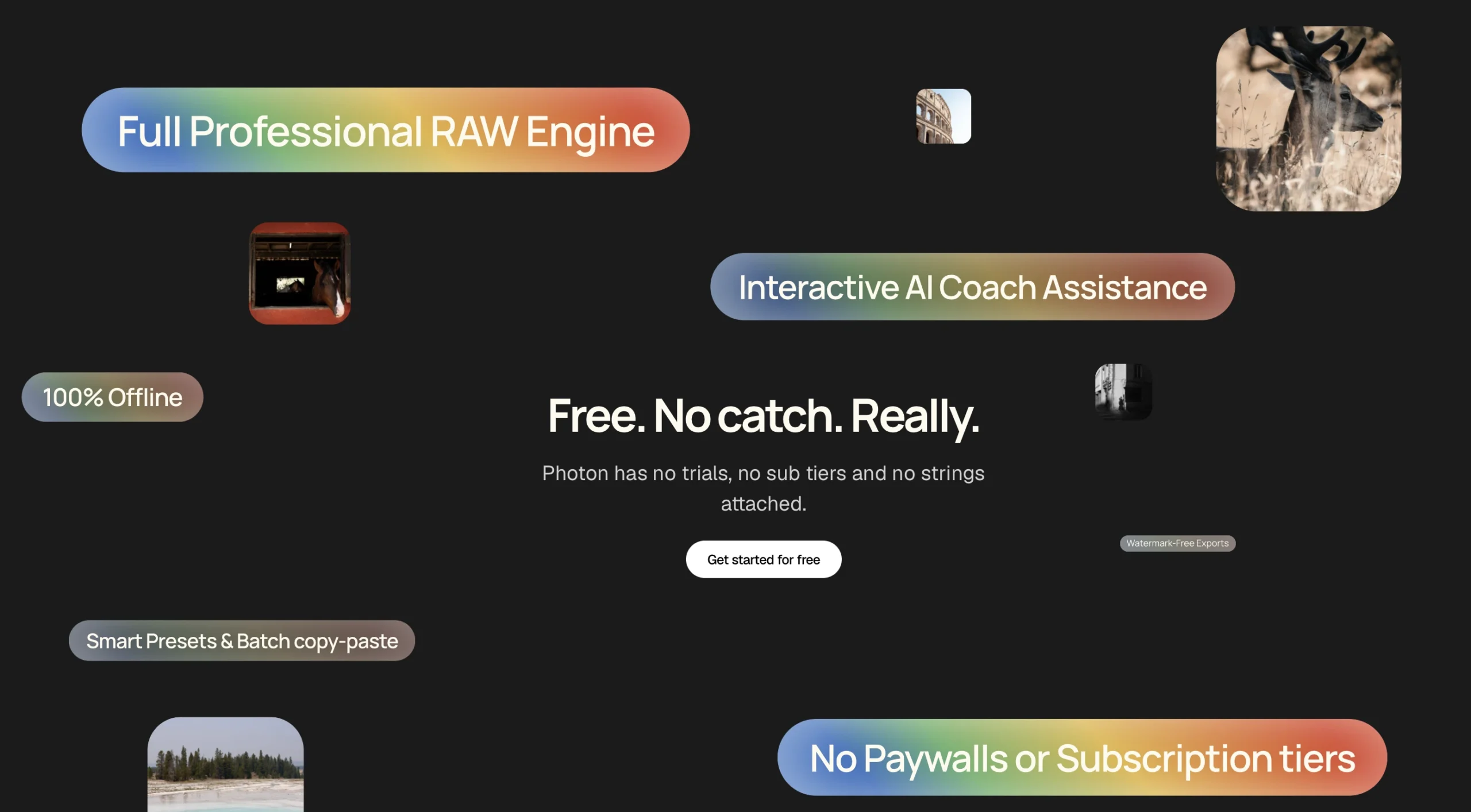
Best free choice if you want to edit RAW photos, learn what each adjustment does, and develop your editing skills without paying for a subscription.
Photon by Aftershoot is a free RAW photo editor designed for photographers who want more control over their images without the learning curve of traditional editing software. Its standout feature is AI Coach, which guides you through adjustments and explains what to change, why it works, and how each edit affects your photo. Alongside guided editing, Photon offers manual controls for exposure, color grading, tone curves, HSL, sharpening, noise reduction, and cropping. It also supports batch adjustments, smart presets, and offline editing. That makes it a practical starting point for hobbyists and photographers learning to edit RAW files.
If you’ve ever opened a RAW editor and felt overwhelmed by sliders you don’t understand, Photon takes a different approach. Rather than expecting you to figure everything out yourself or relying entirely on automatic edits, it helps you understand the decisions behind the image. You can follow AI Coach’s guidance or make adjustments manually, giving you room to experiment and develop your own editing style.
Where it fits in a photographer’s workflow
- Guided RAW editing: AI Coach explains what to adjust and why, helping beginners understand exposure, color, and other editing decisions.
- Manual editing controls: Fine-tune exposure, contrast, highlights, shadows, white balance, HSL, color grading, tone curves, sharpening, and noise reduction.
- Batch editing: Copy and paste adjustments across multiple photos to maintain consistency without editing every image from scratch.
- Non-destructive workflow: Experiment with adjustments while keeping your original photos intact.
- Offline editing: Work locally on your computer without needing an internet connection.
- Free exports: Export your finished images without subscription tiers, paywalls, or watermarks.
What makes Photon different?
Photon’s main distinction is its focus on helping photographers learn as they edit. AI Coach doesn’t simply apply an adjustment and leave you wondering what happened. It explains the reasoning behind the changes, which makes the editing process more educational.
You can also ignore the guidance whenever you want and use the manual controls yourself. This makes Photon useful both for beginners who need direction and for hobbyists who want to become more confident with RAW editing.
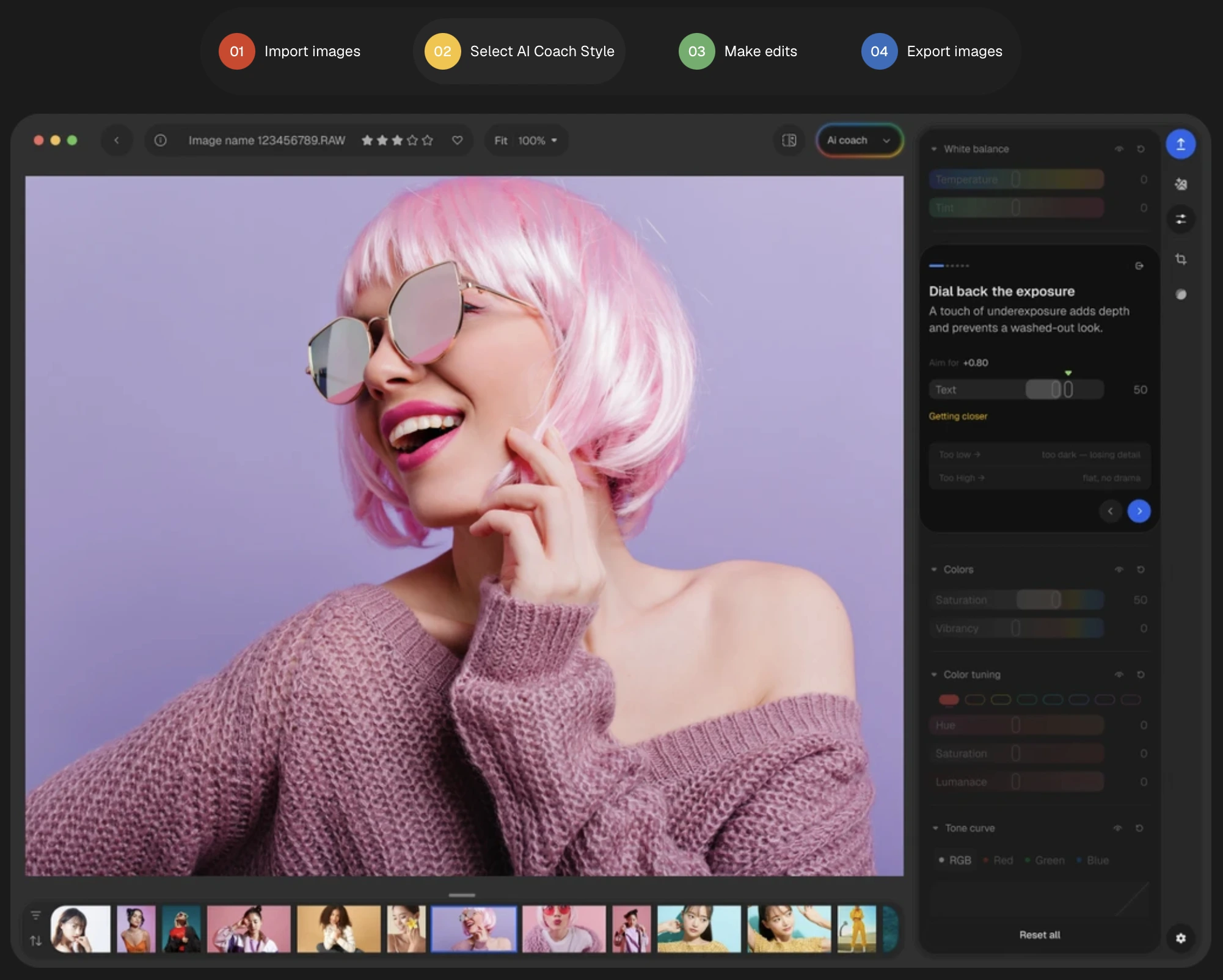
5-min setup guide:
- Download and install Photon. It’s available for Mac and Windows.
- Log in once. You only need to sign in the first time you open the app.
- Download the DNG converter. This is also a one-time step.
- Import an album. Use stars and likes to sort and filter your images, so you’re only editing the ones worth keeping.
- Double-click any image to start editing. Apply a preset, or fine-tune with the sliders.
- Save the look you’ve nailed. Copy and paste your settings across similar shots, or save them as a preset to reuse on future albums.
- Export your finished images. Add frames or a watermark of your choice.
Performance & compatibility
- macOS: Available for Mac computers.
- Windows: Available for Windows computers.
- Offline editing: Designed to work without an internet connection after installation.
- File formats: Supports RAW and JPEG images.
- Privacy: Photos are processed locally rather than uploaded to Aftershoot’s servers for AI training.
- Pricing: Free to use, without a subscription or trial period.
Considerations
- Learning-focused rather than automation-first: Photon helps you understand editing decisions. It isn’t positioned as a one-click solution for processing entire professional galleries.
- A different experience from Lightroom: Photographers used to Lightroom’s catalog management and broader ecosystem may need another application for those parts of their workflow.
- You still make the creative decisions: AI Coach offers guidance, but developing a consistent personal style takes practice and experimentation.
- Not a replacement for every professional tool: Workflows that involve specialized plugins, advanced compositing, or complex retouching may need additional software.
Who it’s best for
- Beginners learning how to edit RAW photos for the first time.
- Hobbyist photographers who want more control over their images without committing to a paid editing subscription.
- Photography students who want to understand how exposure, white balance, and color adjustments affect an image.
- Enthusiasts looking for an approachable alternative to traditional RAW editing software.
- Photographers who prefer editing locally on their computers rather than relying on cloud-based workflows.
Plays well with
- Aftershoot: Use Aftershoot for AI-powered culling and batch editing when you need to process a large shoot. Use Photon when you want to work on individual photos and learn the reasoning behind your adjustments.
- Manual RAW editing: Import your camera’s RAW files into Photon, experiment with exposure and color, and export finished JPEGs for sharing or printing.
- A learning-first workflow: Start with AI Coach’s guidance, then revisit the same adjustments manually to understand how they affect your images.
Photon is worth considering if you want to learn RAW editing without paying for another subscription. Its biggest strength isn’t just that it’s free. It’s that it helps you understand the craft of editing instead of leaving you to guess what every slider does.
2. GIMP
Best free choice if you need layers, masks, and pro‑level retouching without spending a cent.
GIMP is a powerful and versatile free photo editing software, offering advanced tools and features comparable to professional suites. A top open-source photo editing app for Mac and PC, it is ideal for photographers needing layers and masks without a paid plan. It supports various image formats, offers extensive customization options, and is widely used for retouching, editing, and creating digital artwork.
GIMP 3.2 was released in March 2026, bringing improved performance, updated GEGL tooling, and better compatibility on Apple Silicon.
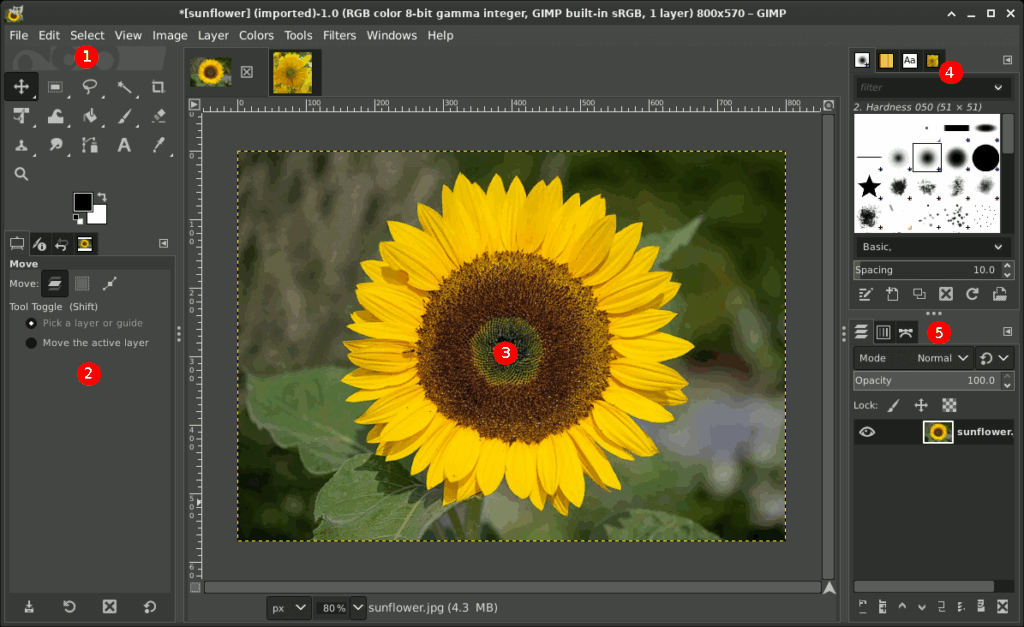
Source: GIMP
If you’re running a lean toolkit or outfitting a second workstation, GIMP covers the raster side of finishing without a subscription. You won’t replace Photoshop feature‑for‑feature, but you can comfortably do skin cleanup, composites, local corrections, and last‑mile exports for client delivery. It’s also a solid safety net for opening PSDs in a pinch and for assistants or editors who only need a dependable layer/mask toolset.
Where it fits in a working photographer’s workflow
- True layer/mask workflow (adjustment layers via GEGL, blend modes, precise selections)
- Retouching toolset that covers real client work (Heal/Clone, Warp Transform, Liquify‑style filters, frequency‑separation actions)
- Reads/writes PSD reasonably well for handoff; exports 8/16‑bit with profile control
- Mature plugin ecosystem (Resynthesizer, G’MIC, wavelet tools)
A reviewer on Trustpilot said:
“This software is really good if you want to make a YouTube thumbnail or cut something out of a photo. The layout is extremely easy and simple to navigate. It even has all the necessary keyboard shortcuts. If you’re debating whether or not to take the 15 minutes to install this and try it out, I suggest you do it since it’s only about 250 MB.”
5‑minute setup guide:
- Preferences → Color Management → set working space + enable display profile.
- Install G’MIC plugin (adds 500+ photo‑centric filters, denoise, film emulations).
- Add a basic retouching tool palette to your left dock (Heal, Clone, Dodge/Burn, Paths).
- Create export presets: sRGB 8‑bit JPG (quality 90) and 16‑bit TIFF (Adobe RGB) for print.
- Save a workspace layout for dual‑display tether/retouch days.
Performance & compatibility
- macOS: Intel + Apple Silicon builds available; runs well on M‑series once you disable tool‑tips lag and enable multi‑threading.
- Windows: solid on modern CPUs/GPUs; prefers plenty of RAM for big panoramas.
- Linux: extremely stable; many studios use it on ingest stations.
Considerations
- UI conventions differ from Adobe; expect a day of muscle‑memory rewiring.
- No true parametric “smart objects”; use non‑destructive layers/masks instead.
- Some third‑party plugins lag behind major OS updates—test before wedding season.
Who it’s best for
- Beauty/portrait retouching, composites, local corrections on hero selects.
- Opening client PSDs to make small changes without maintaining a Photoshop sub.
Plays well with
- RAW first in darktable/RawTherapee → finish in GIMP.
- Aftershoot for Cull → AI Edit consistency, then GIMP for manual polish on picks.
Photon is worth considering if you want to learn RAW editing without paying for another subscription. Its biggest strength isn’t just that it’s free. It’s that it helps you understand the craft of editing instead of leaving you to guess what every slider does.
2. darktable
A capable, no‑cost RAW developer that can carry full jobs if you click with its module‑based UI.
If you’re looking for a great Lightroom alternative to edit your RAW files, darktable is probably the best free photo editing app out there at the moment. A professional-grade RAW photo editor for Mac and Windows that rivals Lightroom in flexibility and depth. Essentially, it is both a photo management tool and an advanced RAW file development solution. So if you are looking for free photo editing software like Lightroom, this might be it.
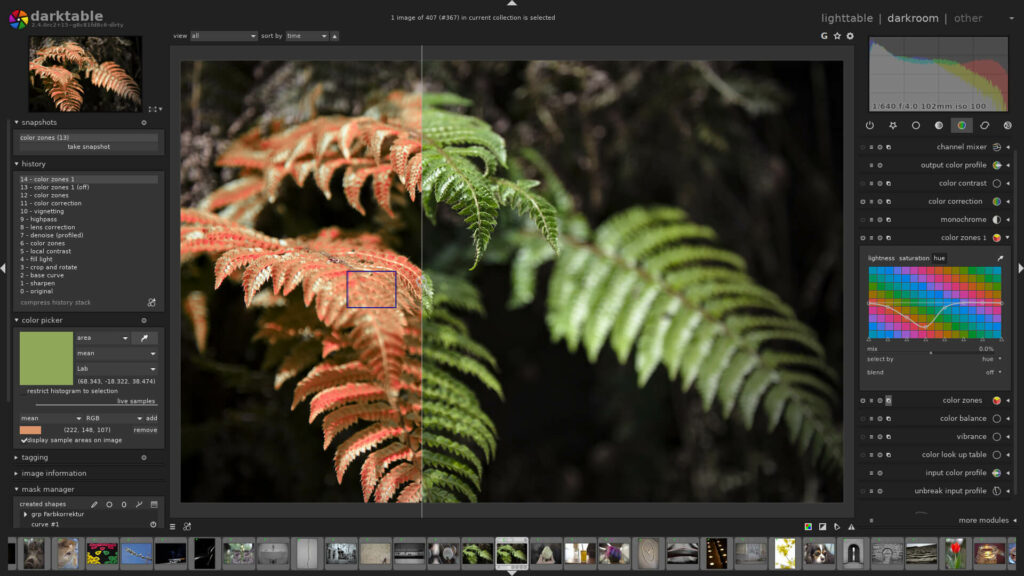
Source: darktable
darktable is closest to Lightroom’s Develop module: non‑destructive, deep color control, rock‑solid RAW pipeline. If you don’t need an all‑in‑one catalog or you prefer to keep folders in the OS, it’s an excellent way to process entire shoots, then bounce hero selects to a pixel editor.
Where it fits in a working photographer’s workflow
- Full RAW pipeline with scene‑referred editing, filmic tone mapping, AgX tone mapping, Capture Sharpening, and robust color tools
- Multiple Workspace support – you can now maintain separate databases and configurations per project or client, with an optional in-memory workspace for temporary sessions
- Tethering support for many bodies; practical for studio days
- Powerful copy/paste styles and batch editing; solid export presets for sRGB/Adobe RGB/ProPhoto
- Plays nicely with external editors (send to GIMP/Krita with one click)
A reviewer on Trustpilot said:
“For a free program, it’s great. It successfully replaced a paid competitor for me. It has everything you need to process photos, and from what I can see, the program is constantly developing.”
5‑minute setup
- Preferences → Processing → set default workflow to scene‑referred with filmic.
- Create styles for your common looks (daylight, tungsten, mixed).
- Map hotkeys for rate/label/copy‑settings to speed through sets.
- Add export recipes (social JPG, print TIFF).
- Enable OpenCL if your GPU supports it.
Performance & compatibility
- macOS Intel & Apple Silicon: Starting with release 5.4, Intel Macs and macOS versions older than 14.0 (Sonoma) are no longer supported by darktable. Apple Silicon (M-series) users remain fully supported via a dedicated arm64 build; GPU acceleration where available.
- Windows: Windows x64 users continue to have full native support; stable and quick on modern CPUs/GPUs; loves VRAM for heavy denoise.
- Linux: first‑class support and frequent updates.
Gotchas
- Module names and order can feel academic; spend an hour with a good starter style.
- Cataloging is minimal—great if you hate databases, limiting if you love them.
Best for
- High‑volume RAW processing, consistent color across events, studio tether days.
- Photographers who prefer folders + sidecars over catalogs.
Plays well with
- Send hero selects straight to GIMP/Krita for layers/retouch.
- Use Aftershoot up front for Cull → AI Edit to get to consistent baselines faster.
3. RawTherapee
Precision RAW control with obsessive detail tools; perfect if you’re meticulous and don’t mind a steeper UI.
RawTherapee is an open-source RAW photo processing software with advanced editing capabilities. It offers comprehensive tools for adjusting exposure, color balance, noise reduction, and more. It’s designed for photographers who shoot in RAW format and need precise control over their image processing.
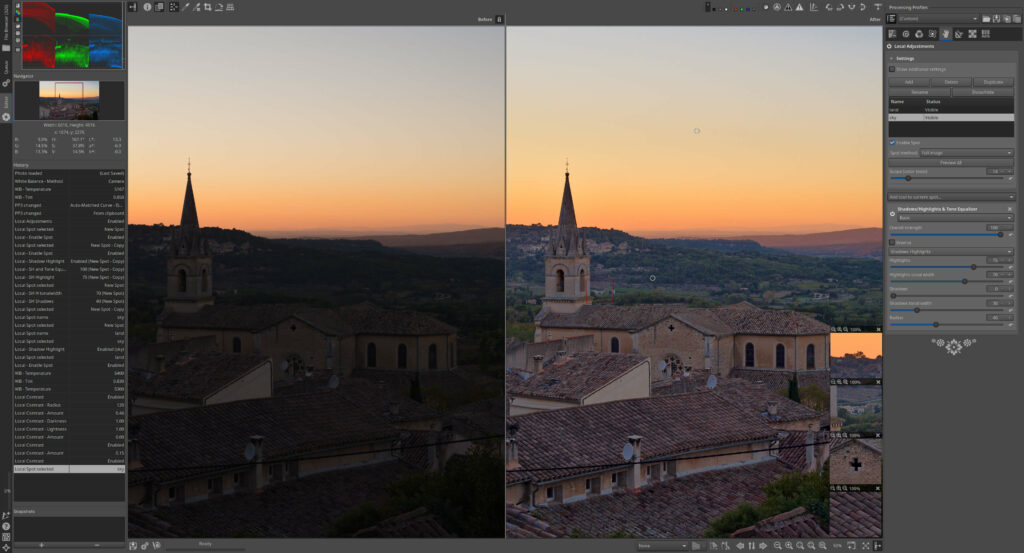
Source: rawtherapee
If you live for micro‑contrast, demosaicing choices, and color science, RawTherapee delivers surgical control. It’s slower to learn than darktable, but the output can be spectacular, especially for landscapes, macro, and available‑light work where fine texture matters.
Where it fits in a working photographer’s workflow
- Advanced demosaicing, sharpening, and noise‑handling modules
- Color toning and curves that reward patience and profiling
- Batch parameters apply cleanly across similar sets; sidecars keep things portable
- Easy hand‑off to GIMP/Krita for layer‑based finishing
5‑minute setup
- Pick a default demosaicing method per camera (AMaZE/Dual‑Demosaic).
- Save a baseline profile per ISO range.
- Create output profiles for web (sRGB JPG) and print (16‑bit TIFF).
- Set up a detail‑first panel order to speed muscle memory.
- Enable cache/temp folders on a fast SSD.
Performance & compatibility
- Cross‑platform native builds; likes CPU cores and RAM for high‑MP bodies.
Cons
- UI density can overwhelm at first; consider a minimal preset.
- No layers—plan on a pixel editor for local retouch.
Best for
- Landscape, product, and archival work where micro‑detail rules.
- Photographers who want absolute control over the pipeline.
Plays well with
- GIMP/Krita for local work.
- Aftershoot to normalize exposure/white balance before deep fine‑tuning.
4. Photopea (Web)
Photopea is a free online photo editing software that offers a unique combination of convenience, versatility, and powerful features.
Unlike other online editors, Photopea runs locally on your device without the need to upload files to a server, ensuring your privacy and allowing you to work even when you are offline. Great if you need a browser-based free Photoshop alternative that works on both Mac and PC. One of the standout advantages of Photopea is its broad file format support, including PSD, XCF, Sketch, XD, and CDR files.
A PSD‑savvy, layer‑based editor that runs in your browser and works locally—great for quick fixes and handoffs.
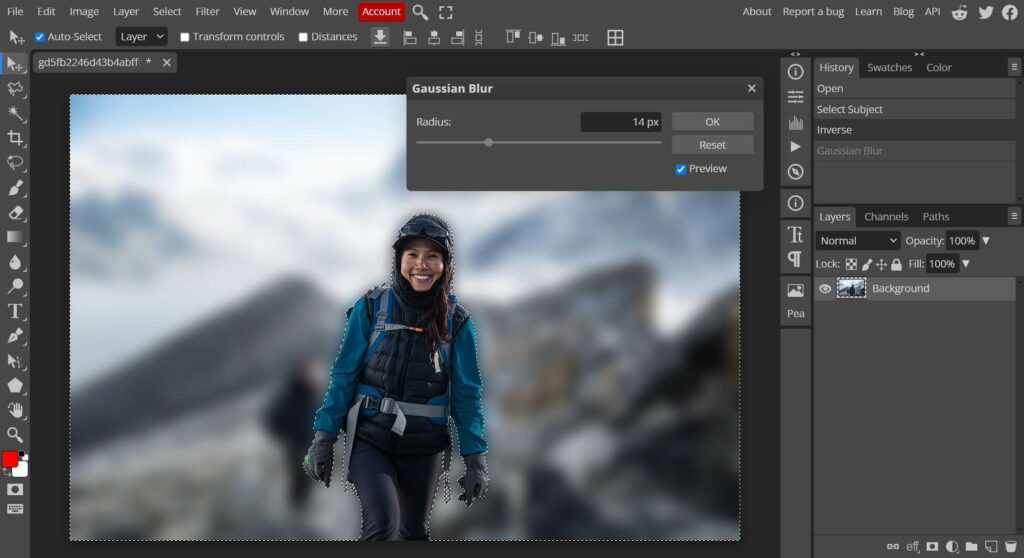
Source: Photopea
When you’re on a client machine, Chromebook, or a studio workstation without your usual tools, Photopea gets you out of a bind. It opens PSDs (plus Sketch/XD) with layers intact, so you can do real edits without installing anything.
Where it fits in a working photographer’s workflow
- Real layer/mask workflows for compositing, text, and basic retouch
- Local processing in‑browser; images don’t have to upload
- Handy for last‑minute changes to layered deliverables
- Paid tier removes ads and lifts certain limits
5‑minute setup
- Pin Photopea as an app/tab in your default browser.
- Set PSD as default working format for layered jobs.
- Save export presets (JPG 85, PNG‑24, TIFF).
- Enable history states and autosave in settings.
- Add brand fonts (licensed) to keep type consistent across machines.
Performance & compatibility
- Runs anywhere there’s a modern browser; loves RAM and fast storage for big PSDs.
Gotchas
- Browser memory caps can choke on huge multi‑gig PSDs.
- Free tier displays ads; offline depends on prior caching.
A trustpilot reviewer said:
“Great tool, but too many ads. Overall, it’s a good alternative if you don’t have any photo editing software installed.”
Best for
- On‑the‑road fixes, client‑review tweaks, social crops with brand text.
- Teams that move layered files between editors and designers.
Plays well with
Aftershoot for upstream speed; GIMP/Krita when you’re back at your main rig.
5. Pixlr (Web/Desktop)
Template‑driven, quick web editor for fast social assets and lightweight photo tweaks.
Pixlr is an online photo editor available in web, desktop, and mobile versions.
It offers a variety of editing tools, filters, overlays, and effects, along with easy-to-use features like auto-fix and collage creation. Great for quick edits and sharing images on social media.
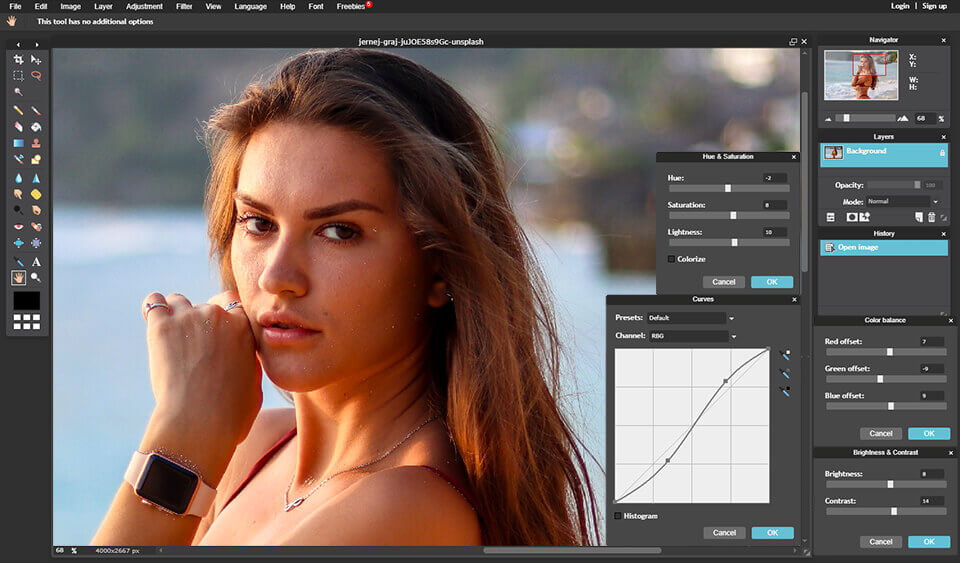
Source: Pixlr
Pixlr is about speed in the browser. If you’re churning out story crops, thumbnails, and simple promo images, its templates and one‑click tools get you done quickly without installing a heavy app. Ideal for creators looking for lightweight photo editing software for PC and Mac with templates and filters for social content.
Where it fits in a working photographer’s workflow
- Rapid social variants and announcement graphics
- Quick crops, exposure tweaks, blemish fixes
- Team workflows where non‑photographers also make edits
- Paid tier removes ads/watermarks and lifts export caps
5‑minute setup
- Save brand fonts/colors/logos into a starter kit.
- Build reusable templates per aspect ratio (1:1, 4:5, 9:16, 16:9).
- Create export presets for each platform’s compression.
- Enable autosave/versioning in cloud workspace.
- Bookmark the clean editor (E) vs playful (X) mode you prefer.
Performance & compatibility
- Runs in any modern browser; desktop variants are lightweight.
Considerations
- Free tier shows ads and may watermark or limit exports.
- Minimal RAW controls; not suitable for color‑critical jobs.
- Pixlr’s current pricing tiers (as of 2026): Free / Plus at $1.49/mo / Premium at $6.49/mo / Teams at $16.99/mo.
Best for
- Social promos, flyers, simple campaign graphics.
- Deliverables where speed matters more than deep control.
Plays well with
Aftershoot + a RAW editor for baseline quality; use Pixlr to version for socials.
6. Fotor (Web/Desktop)
Friendly web editor with presets and design tools—handy for marketing assets; watch the free‑tier limits.
Fotor is a free online photo editor with a sleek interface and a range of basic editing tools.
The editor is also available as a desktop app for macOS and Windows.
It offers features like filters, effects, borders, and basic retouching options. It also provides templates for creating collages, social media graphics, and more.
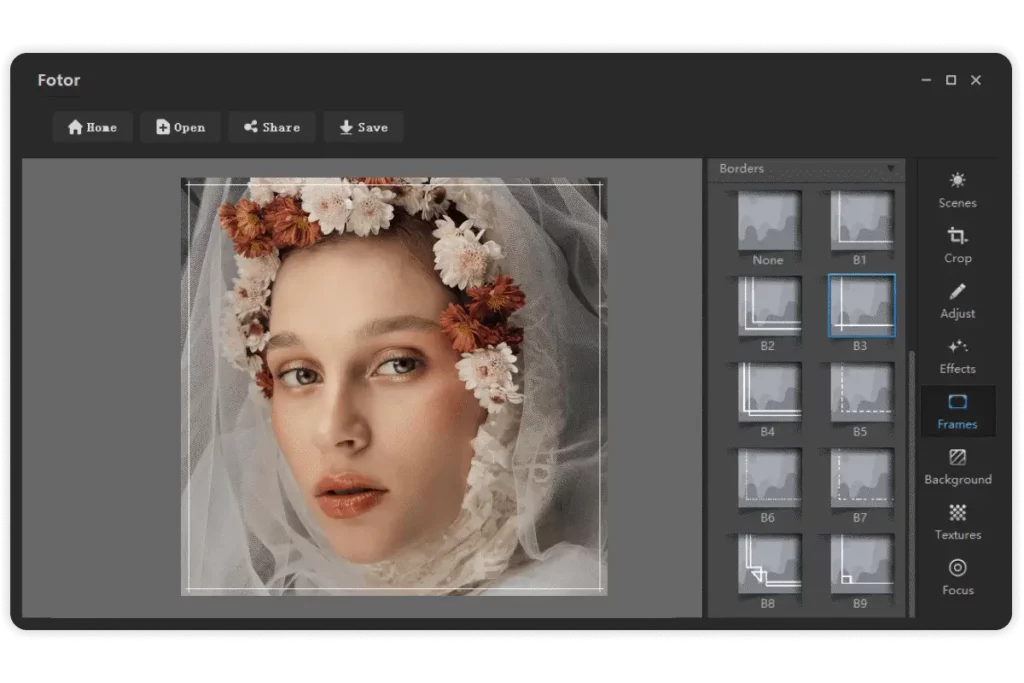
Source: Fotor
Fotor leans into presets, HDR-like looks, and design elements. It’s convenient for quick client announcements, pricing sheets, or event promos – especially when you want more design scaffolding without hiring a designer. A perfect pick for quick marketing visuals – this photo editing software for PC and Mac blends creative templates with easy-to-use presets.
In 2026, Fotor launched “ReShot,” an AI-powered photo enhancement tool to re-shoot/reconstruct poor-quality images rather than just enhance them and an AI Image Enhancer. Fotor also now includes AI text-to-image generation tools in its paid tiers (Pro at $3.33/mo, Pro+ at $7.49/mo), making it a stronger pick for photographers creating marketing content.
Where it fits in a working photographer’s workflow
- Batch social sets, covers, and simple ads
- One‑click looks for non‑critical images
- Lightweight desktop app if you prefer local work
- Paid plans unlock higher quality exports and more assets
5‑minute setup
- Save a brand kit (fonts, colors, logo).
- Build a pricing card and “new gallery” announcement template.
- Pre‑make exports for web/print handouts.
- Toggle metadata retention where available.
- Sync templates across team accounts.
Performance & compatibility
- Runs in browser; desktop app for Mac/Windows available.
Cons
- Free tier can watermark or cap quality/exports.
- Preset‑heavy look can be overdone—dial back for paid work.
Best for
- Fast marketing collateral, web banners, and social series.
- Studios that hand minor design tasks to non‑designers.
Plays well with
Aftershoot + RAW editor for the base image; do the layout/finish in Fotor.
7. Photoscape X
Swiss‑army utility for quick edits, batch tasks, and collages—free core with optional Pro.
Photoscape X is a versatile photo editor for Mac that offers a wide range of editing tools, including filters, frames, and color adjustments. Popular among beginners who want an offline free photo editing program for Windows or macOS, especially for batch jobs and quick touch-ups.
It also comes with some cool features such as Photo Viewer, Editor, Cut Out, Batch, Collage, Combine, Create GIF, Color Picker, Screen Capture, RAW images, and More. It is particularly popular for its batch editing capabilities and collage maker.
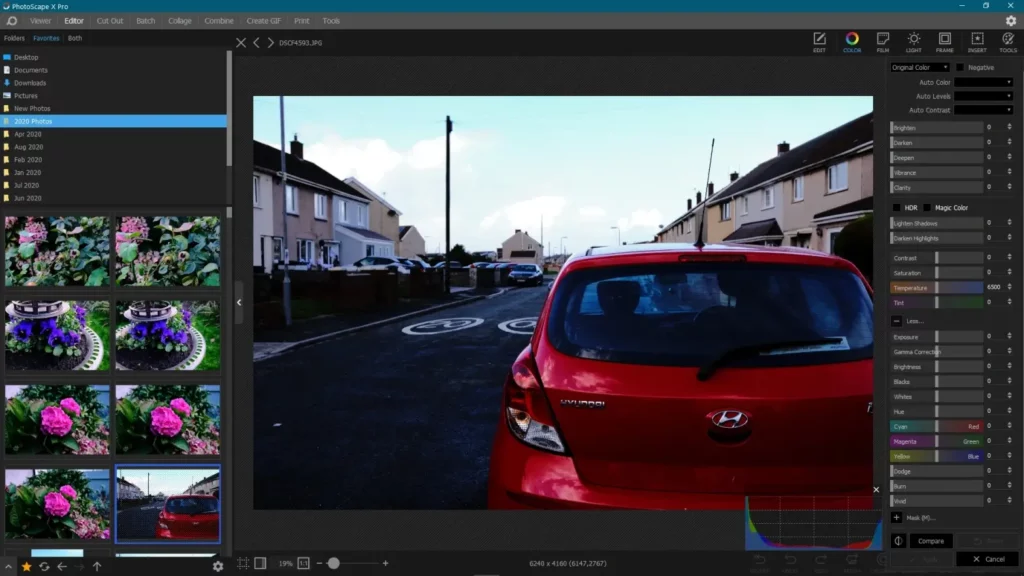
Source: onecameraonelens.com
Photoscape X is perfect when you don’t need layers but you do need speed: batch rename/convert, contact sheets, frames, and quick retouch. It’s a pragmatic tool for social‑ready deliverables and studio admin tasks.
However, Photoscape X has not received significant feature updates in several years and does not include AI-powered editing tools. It remains a reliable option for basic batch tasks, collage creation, and simple adjustments, but photographers looking for AI workflow features should look elsewhere.
Where it fits in a working photographer’s workflow
- Batch resize/rename/convert for proofing galleries
- Quick blemish fixes and tone tweaks
- Collage and layout tools for moodboards and socials
- Optional Pro unlocks deeper adjustments
5‑minute setup
- Save batch presets for your proofing sizes.
- Create a contact‑sheet template with your brand footer.
- Configure quick keys for crop/aspect/straighten.
- Preload frame/text styles for social series.
- Verify store price before upgrading to Pro.
Performance & compatibility
- Lightweight and responsive on Mac/Windows store builds.
Considerations
- Advanced tools sit behind Pro; no true layers.
- Color‑critical work still belongs in a RAW + layer editor combo.
Best for
- Proofing, social assets, simple retouch, and batch admin.
Plays well with
- Aftershoot for cull/edit speed; finish utilities in Photoscape, hero retouch elsewhere.
8. Adobe Photoshop Express (Web/Mobile)
Adobe’s lightweight, free‑to‑start editor for quick fixes and social assets—best as a mobile/web companion, not a desktop replacement.
Adobe Photoshop Express is a simplified version of the industry-standard Adobe Photoshop. It provides basic editing tools, filters, and adjustments for quick edits on desktop or mobile devices. It integrates with Adobe Creative Cloud for seamless workflow across platforms.
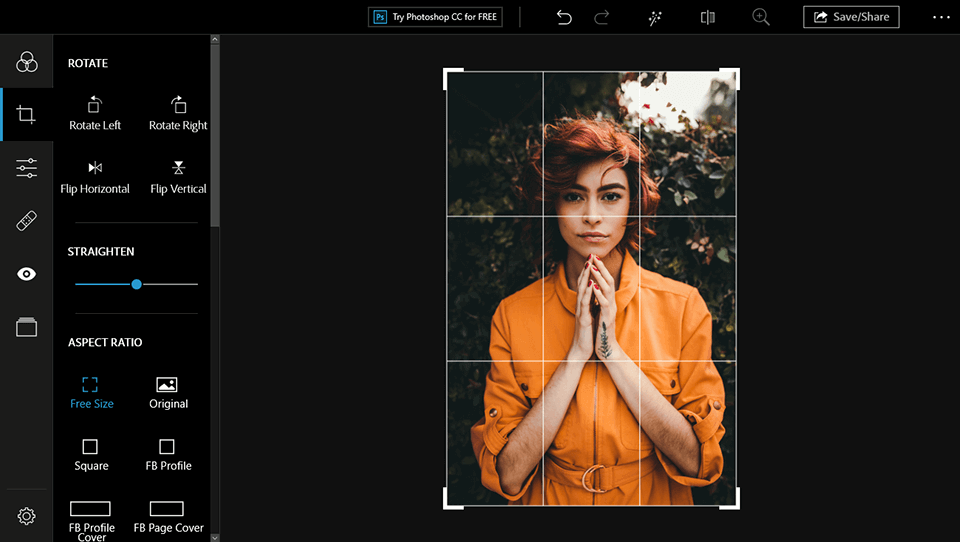
Source: fixthephoto.com
Photoshop Express gives you credible one‑click fixes, crops, blemish removal, local adjustments, and text/overlays in a pared‑down UI. The free plan is useful for casual/social deliverables; premium unlocks RAW editing and more advanced tools. Treat it as a convenience layer for fast turnarounds, especially from phone to publish.
Where it fits in a working photographer’s workflow
- On‑device edits after a shoot for teasers and BTS posts
- Quick social crops, text overlays, and basic retouch
- Handoffs into Adobe Express templates when you need branded graphics
- Premium plan adds RAW support and broader toolset
5‑minute setup
- Sign in with your Adobe ID and sync a brand kit (logo, fonts, colors).
- Create export presets for Stories, Reels, and Posts.
- Enable auto‑save to cloud and auto‑upload from your camera roll.
- Add a watermark template (mobile) for quick attribution.
- Pin the web app bookmark on desktop for emergency edits.
Performance & compatibility
- iOS/Android apps + web; Windows store app available; no dedicated Mac desktop build (use web).
Considerations
- Free plan locks some tools behind Premium; limited RAW on free.
- Not intended for color‑critical work or layered composites—keep GIMP/Krita for that.
- Platform feature differences (e.g., some watermarking options vary by device).
Best for
- Speedy social teasers, BTS posts, and simple corrections on the go.
- Non‑photographer team members who need Adobe‑ecosystem convenience.
Plays well with
Aftershoot + RAW editor for baselines; use PS Express for quick mobile/web outputs.
BONUS free tool ✨
9. Krita
Open‑source brush and mask beast—fantastic for overlays, composites, and tablet‑based finishing.
Editor’s note: Krita is optional for photographers. It’s not a RAW developer and it’s marketed to illustrators—but its brush engine, masks, and tablet UX make it a strong, free finishing tool for creative work (composites, painted dodging/burning, textures). If your jobs are mostly straight retouch and export, you can skip it and stick with GIMP.
Despite its illustrator pedigree, Krita is excellent for photo composites and creative retouch. The brush engine, layer masks, groups, and transform tools make it feel like a painterly Photoshop—ideal for dodging/burning and texture work on hero images.
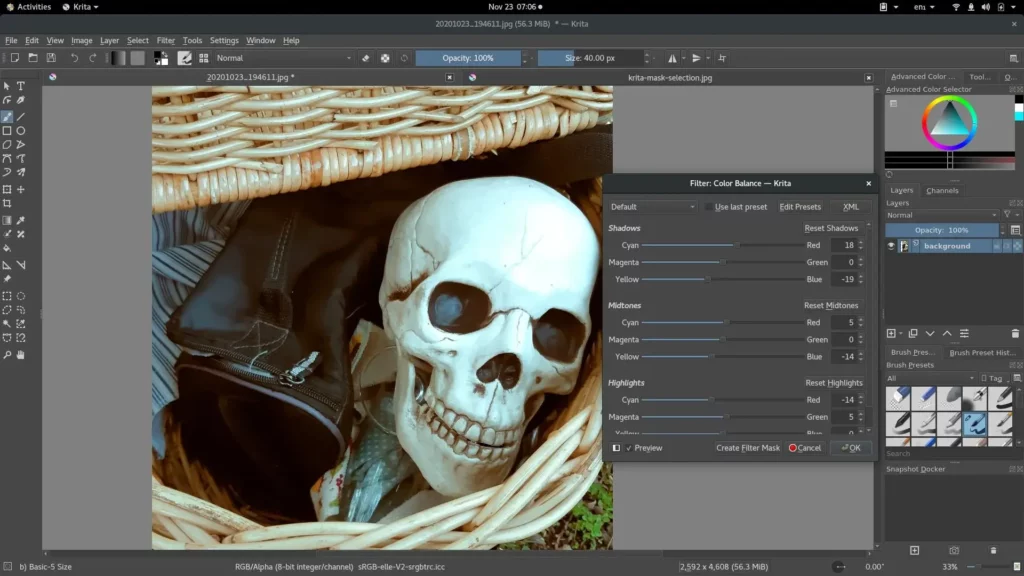
Source: opensource.com
Where it fits in a working photographer’s workflow
- Layer masks, clone/heal, transform, and perspective tools strong enough for composites
- Tablet‑friendly with responsive brushes and stabilizers
- Good PSD interoperability for handoffs
- Useful generators (noise, patterns) for backdrops and overlays
5‑minute setup
- Create a photo‑retouch workspace (hide paint‑specific panes).
- Load a neutral brush pack for dodge/burn and texture repair.
- Set color management (display + working profile).
- Map tablet buttons for brush/erase/zoom.
- Save export presets (JPG/TIFF/PNG) with metadata intact.
Performance & compatibility:
Fast on Apple Silicon/Windows; GPU acceleration helps with large canvases.
Cons
- Menus skew toward illustration—photography tools are there but not foregrounded.
- Some advanced photo filters require plugins or workarounds.
Best for
- Creative portraits, composites, branding overlays, and stylized looks.
- Tablet users who want responsive brushes.
Plays well with
- Aftershoot to get color/exposure consistent before painting.
- darktable/RawTherapee for RAW → Krita for artful finish.
Pro editors with free trials for advanced users (not truly free)
While we’d all love to save a few bucks, investing in paid editing software is the way to go if you want to unlock advanced editing features.
Luckily, most paid photo editing tools offer free trials so you can test the waters before committing to a subscription.
The following platforms are the most popular and trusted photo editing tools for professional photographers.
1. Adobe Lightroom (Classic / Lightroom)
Catalog‑centric RAW processor built for speed, consistency, and delivery at scale.
Lightroom handles ingest, organization, culling/rating, and deep RAW development with modern masking and noise tools. Classic suits file‑server workflows; Lightroom (cloud) favors cross‑device sync. Either way, it’s the backbone for high‑volume pipelines.
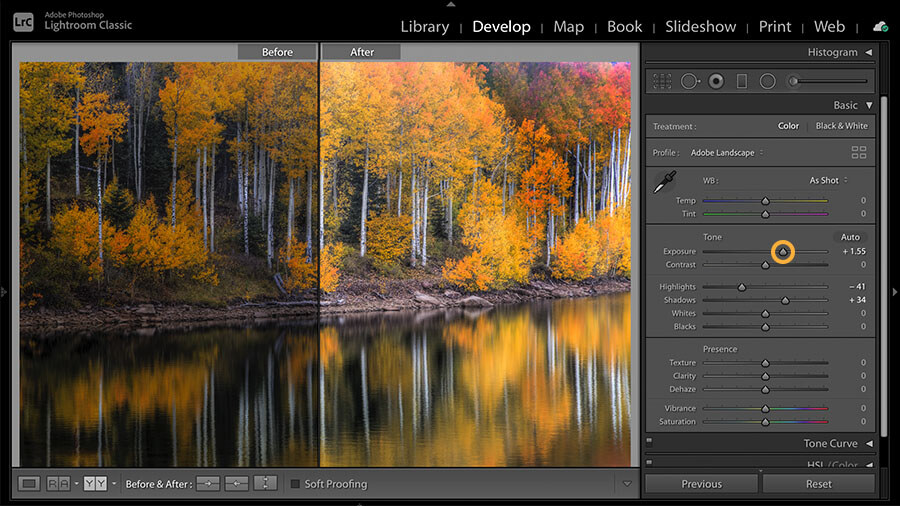
Source: Adobe
Where it fits in a working photographer’s workflow
- Import → rate → develop → export for entire shoots
- Powerful subject/sky/object masks and quality denoise
- HDR/panorama merges; lens/camera profiles; soft‑proofing
- Publish services and export presets for galleries/labs
5‑minute setup
- Create import presets (renaming, metadata, develop defaults per camera/ISO).
- Build export recipes (social JPG, client proofs, print TIFF).
- Map hotkeys for rate/label and compare/survey.
- Set catalog backup cadence and cache size.
- Sync essential presets to your secondary machine.
Performance & compatibility:
Native on Apple Silicon & Windows x64; cloud sync available.
Cons
- Subscription required after trial.
- Catalog hygiene matters; huge catalogs need regular archiving.
- There’s a steep learning curve for new users.
- It can be resource-intensive, particularly when working with large files or editing multiple images simultaneously.
Pricing (USD, price‑checked in 2026)
- Photography Plan (1TB): US$19.99/mo (includes LR, LrC, PS).
- Legacy Photography Plan (20GB) for existing customers: US$14.99/mo if billed monthly; US$119.88/yr prepaid.
- Lightroom Plan (1TB): commonly ~US$11.99/mo (region‑dependent).
(Regional pricing varies; confirm on your local Adobe page.)
Best for
- Event/wedding/portrait shooters processing thousands of images.
- Teams standardizing look and delivery.
Plays well with
Round‑trip to Photoshop/GIMP/Krita for pixel‑level work.
Aftershoot to accelerate Cull → AI Edit prior to final tweaks in LR.
2. Adobe Photoshop
The definitive pixel editor for precision retouching, compositing, and advanced automation.
Adobe Photoshop is renowned for its extensive features and capabilities.
It provides professional photographers with a wide range of tools and functionalities to manipulate and enhance images.
Photoshop offers advanced features like layers, masks, brushes, and filters, enabling precise control over every aspect of the editing process. Like Lightroom, it also supports non-destructive editing techniques, allowing photographers to experiment and make changes without compromising the original image.
In October 2025, Photoshop enabled Remove Background and Select Subject to run fully on-device (no cloud upload), keeping client images private. New additions include Harmonize for natural-looking composites, Topaz Gigapixel-powered Generative Upscale for large print output, and Grain, Clarity, and Dehaze as non-destructive adjustment layers – reducing Smart Object workarounds.
From retouching and compositing to graphic design and digital art, Photoshop offers unparalleled flexibility and creativity for photographers looking to push the boundaries of their work.
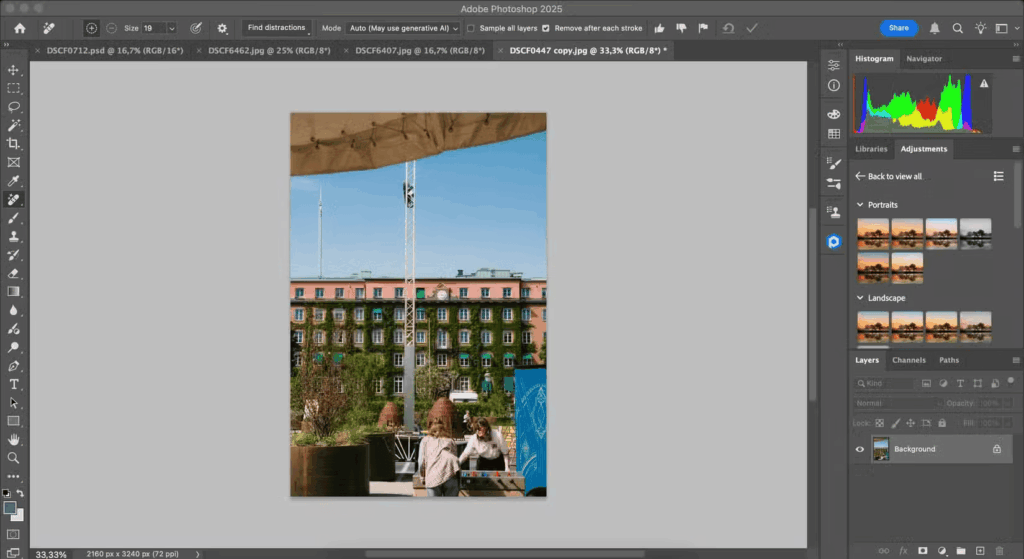
Source: makeuseof.com
What that really means in practice
Photoshop is where hero images get finished: layers, smart objects, advanced selections/masks, and industry‑standard retouching/CGI/compositing. It complements any RAW tool by taking over at the pixel stage.
Where it fits in a working photographer’s workflow
- Frequency separation, dodge/burn, skin and product cleanup
- Complex composites, text, and layout with vector/smart objects
- Actions, droplets, and scripts for repeatable tasks
- Color management and soft‑proofing for print‑critical jobs
5‑minute setup
- Build a minimal retouch panel/workspace.
- Set color settings (working space, policies, proof setup).
- Create actions for your common retouch stack.
- Configure export presets (Save a Copy / Export As) with metadata rules.
- Link external editor hand‑offs from your RAW app.
Performance & compatibility
- Native on Apple Silicon & Windows x64; integrates with Camera Raw and cloud libraries.
Cons
- Raster focus; bulk job management belongs in a RAW/catalog tool.
- Photoshop’s extensive capabilities can be overwhelming for beginners
- It can be demanding on computer resources, especially when working with large files or complex compositions
- Like other Adobe software, it is available through a subscription-based model, which may not be ideal for users seeking a one-time purchase option
Pricing (USD, price‑checked in 2026)
- Photography Plan (1TB): US$19.99/mo (LR + LrC + PS).
- Photoshop Single‑App: typically ~US$22.99/mo (varies by region).
(Regional pricing varies; confirm on your local Adobe page.)
Best for
- Beauty, product, architecture—any job needing precise pixel control.
- Studios building automated, repeatable retouch pipelines.
Plays well with
- Aftershoot/Lightroom/Capture One
3. Capture One
Color‑first pro editor and tethering champ with surgical control and reliable session workflows.
Capture One is a professional-grade paid photo editing software known for its robust features and exceptional image quality.
It offers a comprehensive set of tools designed specifically for professional photographers, including precise color grading, tethered shooting, and powerful adjustment layers.
It also boasts exceptional RAW image processing, delivering unparalleled image quality and allowing photographers to extract the maximum amount of detail from their RAW files.
With its intuitive interface and efficient workflow, Capture One enables photographers to enhance and optimize their images with speed and precision.
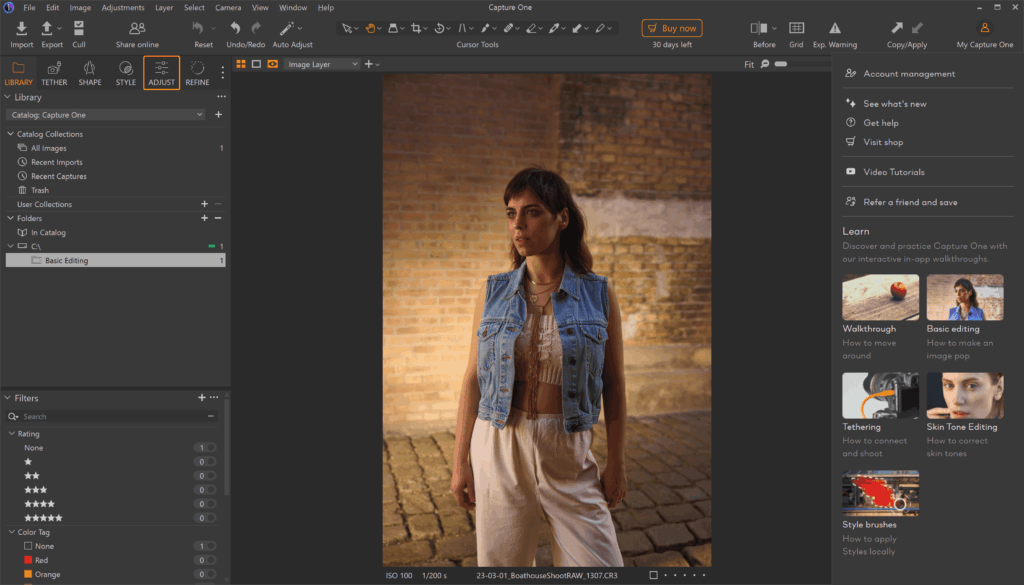
Source: PCmag
If your work lives on set—product, fashion, e‑comm—Capture One’s tethering, live view, and color tools make it a production favorite. Sessions are superb for job‑based folder structures; catalogs are there if you prefer a library.
Where it fits in a working photographer’s workflow
- Bulletproof tethering with live adjustments and overlays
- Excellent color editor, skin tone uniformity, and film curves
- Sessions for per‑client/per‑shoot organization
- Solid round‑trip to pixel editors when needed
5‑minute setup
- Create Session templates (Capture/Selects/Output/Trash) per client.
- Save styles for common lighting setups.
- Map hotkeys for next/previous with focus peaking and exposure warnings.
- Build output recipes (web JPG, print TIFF, contact sheets).
- Enable backup-on-close for on‑set safety.
Performance & compatibility
- Native on Mac/Windows; loves fast storage for tethered capture.
Cons
- No longer offers a free “Express” tier; subscription or license required after trial.
- The learning curve can be steep, particularly for photographers transitioning from other editing software
- Limited plugin support
- It can be demanding on computer resources, particularly when working with large RAW files or applying complex adjustments
Pricing (USD, price‑checked in 2026)
- Subscriptions & perpetual licenses available; pricing varies by region and reseller. Capture One announced a 6% price increase in 2025 across Pro, All‑in‑One, and Perpetual options – check the current price on the official page.
(We avoid quoting exact numbers here because Capture One geofences prices.)
Best for
- Tethered studio work, controlled color pipelines, and client‑attended sessions.
- Shooters who prefer job‑based Sessions over monolithic catalogs.
Plays well with
- Aftershoot for pre‑grading consistency before on‑set selects.
- Pixel editors for final composite/retouch.
4. Aftershoot (AI Cull → Edit → Retouch → Deliver)
Flat‑rate AI workflow that removes the bulk work – so your paid time goes to selects and finishing.
Aftershoot automates the time‑sinks: fast AI culling (dupes, blur, blinks/eyes, expressions), consistent scene‑aware edits via AI profiles, and natural‑look JPEG retouching for batches. It runs locally after setup and doesn’t charge per image, which makes it attractive for high‑volume shooters.
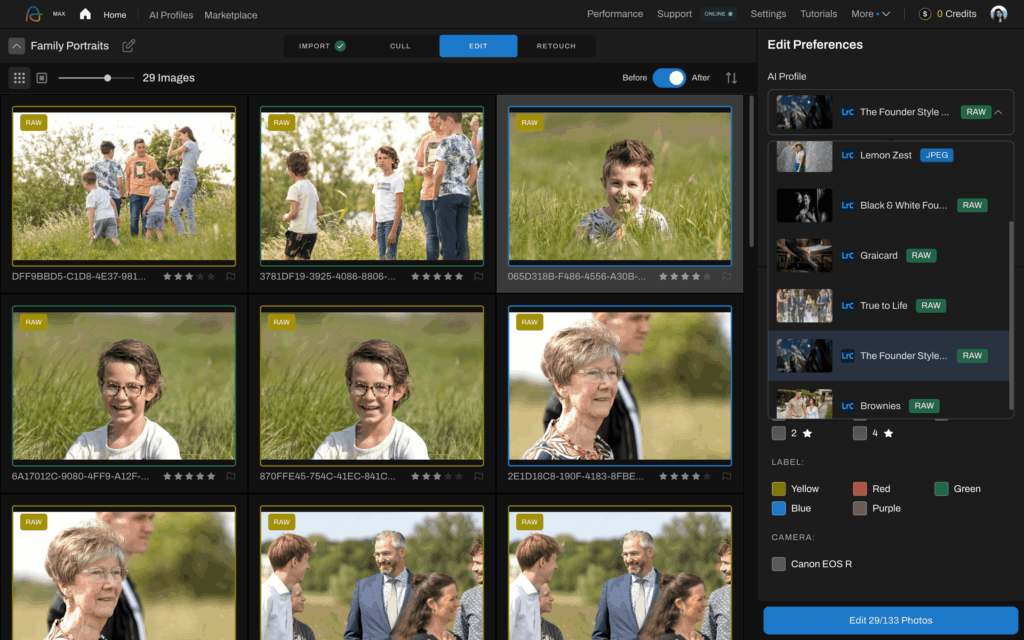
Aftershoot EDITS is unique in that it automates the editing process for professional photographers who already have a subscription to professional editing software like Lightroom or Capture One.
The AI-powered software requires that you create an AI Profile (which is like your personal preset) so it can learn your precise editing style and automatically apply your editing preferences to images. They’re like editing presets, only smarter!
To create an AI Profile, upload a minimum of 2,500 of your previously edited images from your Lightroom or Capture One Catalogs for training.
Once your AI Profile has been created, you’re just one click away from getting thousands of images edited in minutes with Aftershoot’s intuitive editing software.
For photographers who don’t have enough images to create their own pro AI Profiles, there’s also instant AI profiles which you can create using your favorite Lightroom preset, and 3 sample edits on Aftershoot.
Additionally, there many stunning AI Styles (pre-built AI Profiles) curated by pro photographers from across the world to choose from.
Raw Editing is the biggest update: photographers can now fine-tune and tweak their AI edits directly inside Aftershoot — no Lightroom round-trip required. In Edit Tab → Loupe View, users get full manual RAW controls including White Balance, Exposure, HSL, Color Grading, Detail, crop and straighten tools, subject masking, Before/After view, Sync, Preset saving, Lightroom preset import, and direct export to JPEG, TIFF, or original. You can refine an AI edit or skip AI and edit fully by hand, making Aftershoot a much stronger standalone editing solution.
Aftershoot has also improved white balance consistency across edits, helping reduce color shifts across similar images and cutting down on post-edit corrections. If you have a custom profile, you’ll need to manually update white balance. Other editing improvements include Aggressive Cropping for tighter subject-focused framing, improved AI Straightening for complex scenes, and a redesigned editing flow with Compare Profiles and Real-time Profile Adjustment.
Where it fits in a working photographer’s workflow
- Front-loads Select → AI Edit to deliver consistent baselines across a shoot
- Fine-tune AI edits or edit fully by hand – all without leaving Aftershoot
- Personal AI Profiles improve after ~2,500+ edited images; Instant Profiles adapt your presets when you don’t have history
- Batch JPEG retouch for “good-enough” sets; send hero images to a layer editor
- Works offline after setup – no internet connection needed, no upload speed concerns
5‑minute setup
- Point Aftershoot at your reference edits to train (or choose an Instant Profile).
- Set cull rules (dupes, blur, eyes, expressions).
- Create export presets that match your gallery/lab.
- Enable offline mode after initial sign‑in.
- For white balance consistency: if you use a Custom Profile, opt into the WB update manually via the in-app option.
- For fine-tuning edits: open any image via Edit Tab → Loupe View to access full manual controls.
Performance & compatibility
- macOS & Windows; flat subscription (no per-image fees).
Considerations
- Personal profile training takes some runway; results tighten as it sees more of your edits.
- Aggressive Cropping Mode: Select AI Crop → Aggressive Mode in the Edit tab for tighter, more intentional crops – great for cluttered backgrounds or editorial-style portrait framing.
- Straightening Improvements: AI Straightening now handles complex scenes and unclear horizon lines more reliably, with less need for manual fixes.
- Redesigned editing flow: Three primary editing paths are highlighted upfront, with new Compare Profiles and Real-time Profile Adjustment tools to make choosing and customizing a profile faster.
- You’ll have to figure out what to do with all the time you’re saving. 🙌🏼
Pricing (USD, price‑checked in 2026, billed annually)
- Select: $10/mo ($120/yr)
- Edit: $30/mo ($360/yr)
- Retouch: $20/mo ($240/yr)
- Complete: $45/mo ($540/yr) — Select + Edit + Retouch
- Add‑ons: Extra AI Profile $7/mo or $70/yr; Profile storage on pause $4/mo
- Trial: 30-day free trial
Best for
- Weddings, portraits, events — anyone delivering volume on deadlines, and photographers who want a complete Select → Edit → Retouch → Galleries workflow in one app.
Plays well with
- Works with any editing software you prefer — or entirely on its own with the full manual editing controls now built into the app.
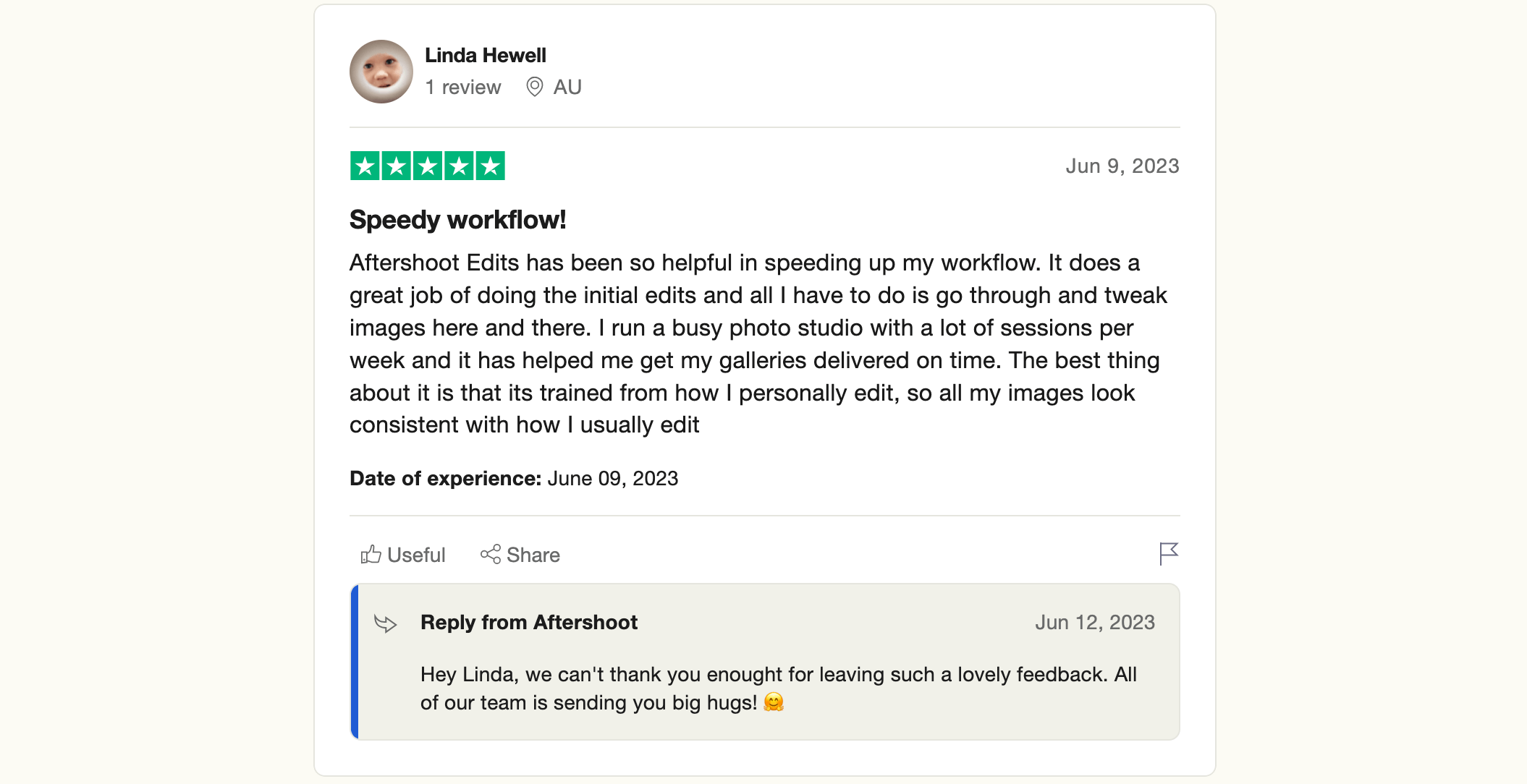
Here’s what Australian maternity and newborn photographer, Linda Hewell, had to say about Aftershoot EDITS.
Best Free Photo Editor by Experience Level
If you’re just starting out
Try Photoscape X or Adobe Photoshop Express first. Both let you crop, fix color, and retouch without a steep learning curve. Skip RAW-heavy tools like RawTherapee for now, they assume you’re already comfortable with exposure and color basics.
If you’re shooting RAW from day one, Photon is the exception. Its AI Coach explains what each adjustment does as you make it, so you learn the basics while you edit.
If you’re a hobbyist shooting regularly
GIMP or darktable will take you further than a one-click editor once you want real control. Pick darktable if you shoot RAW and want a Lightroom-style Develop workflow. Pick GIMP if you’re doing more compositing or creative retouching.
If you want RAW control but still like having guidance, Photon sits in between. You get full manual sliders, plus an AI Coach you can turn to or ignore.
If you’re editing professionally
Free tools can absolutely handle individual images, GIMP for retouching, darktable for RAW, but most working photographers hit a wall at volume. If you’re delivering a few hundred images per shoot in a consistent style, the manual hours add up fast, and that’s a different problem than any free tool here is built to solve. That’s usually the point where photographers start looking at AI-assisted editing, like Aftershoot, not to replace their editing style, but to get through the repetitive first pass faster so they can spend their time on the images that need real attention.
If you’re a content creator
Pixlr or Fotor are built for exactly this, fast crops, templates, and quick AI touch-ups for social content. If you’re also shooting client work alongside content, pairing Aftershoot’s batch editing for your RAW files with Pixlr or Fotor for social-ready exports is a practical two-tool setup.
Common Mistakes When Choosing a Free Photo Editor
- Assuming “free” means no strings attached. Several browser-based editors show ads, cap your export resolution, or add a watermark once you hit export. Check the export step before you edit anything you actually plan to deliver.
- Mixing up a free trial with a free tool. Lightroom, Photoshop, Capture One, and Aftershoot all offer trials. None of them are free forever. If your plan is to never pay for editing software, stick to the truly-free list above. That said, Photon, Aftershoot’s free RAW editor, are the exception; it’s free with no trial period.
- Skipping the RAW check. Pixlr, Fotor, and Photoscape X’s free tier have limited or no RAW support. If you shoot RAW and skip this step, you’ll end up exporting to JPEG first and losing editing room you didn’t need to lose.
- Not checking for native Apple Silicon or Windows support. An emulated build can slow down noticeably on a batch export. It’s worth confirming before you build a whole workflow around a tool.
- Picking the tool with the most features instead of the right one. GIMP has more raw power than Photoscape X, but if all you need is a quick batch touch-up, that extra power just means a longer learning curve for no real benefit.
- Not planning for what happens when your volume grows. Free tools are built for editing one image carefully, not hundreds of images consistently. If you’re a working photographer, the real cost of “free” software often shows up as hours spent repeating the same edit across an entire gallery, which is exactly the gap that pushes people toward AI-assisted tools once shoot volume picks up.
- Not checking whether your files leave your device. Some browser tools upload your images to process them. If you’re shooting under an NDA, or somewhere with unreliable internet, confirm a tool works offline before you rely on it.
FAQs for Free Photo Editing Apps for Mac and PC
What is the best truly free photo editing software for Mac and PC?
GIMP. It’s the only free tool with a real layer and mask workflow close to Photoshop’s, and it runs natively on macOS (Intel and Apple Silicon) and Windows.
Is there a free version of Photoshop?
Not a full one. Adobe Photoshop Express offers a free tier with basic edits and filters. Photopea is a closer free alternative for browser-based editing since it opens native PSD files and supports layers.
What’s the best free software for editing RAW photos?
darktable, with a non-destructive editing pipeline similar to Lightroom’s Develop module. RawTherapee is a close second if you want more granular control over demosaicing and noise reduction. If you’re new to RAW editing, Photon by Aftershoot is the easiest place to start, since its AI Coach explains each adjustment.
Can I edit photos for free without a watermark?
Yes. Photon, GIMP, darktable, RawTherapee, Krita, and Photoscape X’s desktop app all export without watermarks. Some browser tools, like Pixlr and Fotor, may watermark or cap exports on their free tier, so check before you finish client work in one.
Do free photo editors support layers and masks?
GIMP and Krita both do, with true layers, masks, and blend modes. Photopea supports layers in the browser too and opens PSD files with layers intact. darktable and RawTherapee are RAW processors, not layer-based editors.
What’s the real difference between a free photo editor and a free trial?
A truly free tool never expires and never costs money later, Photon, GIMP, darktable, and Photopea are good examples. A free trial (Lightroom, Photoshop, Capture One, Aftershoot) gives full access for a limited window, then asks you to pay to keep using it.
Which free photo editing app is easiest for beginners?
Photoscape X or Adobe Photoshop Express. Both have simple interfaces built for quick fixes, which matters more when you’re starting out than having every advanced tool available. If you shoot RAW, Photon is the beginner-friendly option, with guided edits that explain what each slider does.
Is GIMP actually as good as Photoshop?
For photo retouching, close enough that most photographers won’t miss much. GIMP covers layers, masks, and retouching well. It falls short on Smart Objects, some AI-powered tools like Generative Fill, and third-party plugin support, so heavy compositing or design work still leans toward Photoshop.
Can I use free photo editing software for professional client work?
Yes, for individual images. GIMP and darktable can produce results good enough to deliver to clients. Where free tools struggle is volume, editing hundreds of images by hand, consistently, on a deadline takes real time, which is usually when photographers start pairing a free tool with an AI-assisted workflow like Aftershoot.
What free photo editor works best on a Chromebook or low-spec PC?
Photopea and Pixlr, since both run in the browser without needing local processing power. Fotor’s web version is also light enough for older machines.
Do I need an internet connection to use free photo editing software?
Desktop tools, Photon, GIMP, darktable, RawTherapee, Krita, and Photoscape X, work fully offline once installed. Photopea runs locally in your browser tab without uploading your files, though it needs a connection to load initially. Pixlr and Fotor need a connection for most features.
Is Photon by Aftershoot really free?
Yes. Photon is free to use, with no subscription, trial period, or watermarks on exports. It’s separate from Aftershoot’s paid AI culling and editing plans, which come with a 30-day free trial. Photon is built for individual RAW edits and learning, while the paid plans handle high-volume galleries.