
TLDR:
- Traditional vs. AI batch editing: Standard batch tools apply identical slider values across an entire selection, while modern AI batch editing adapts exposure, contrast, and color frame by frame to match your signature aesthetic.
- Top pick for professionals: The best batch photo editing software for professionals is Aftershoot Edit for high-volume wedding and portrait workflows, Imagen AI for cloud-based profile editing, and Capture One Pro for tethered studio work.
- Workflow integration matters: The best batch tools fit directly into your existing Lightroom Classic or Capture One setup rather than forcing you into a disconnected app.
- Pricing models impact profitability: Pay-per-image models scale costs up dramatically during peak shooting season, whereas flat-rate plans keep overhead predictable.
- Data privacy counts: On-device processing keeps your client files secure on your local machine without mandatory cloud uploads.
Every wedding and portrait photographer knows the feeling: you wrap a ten-hour Saturday shoot, back up your memory cards, and stare down 4,000 RAW files that all need to be culled, edited, and delivered before the next client email lands in your inbox. Editing isn’t the hardest part of professional photography. It’s the part that quietly steals your evenings, weekends, and time away from the camera.
When peak season hits, adjusting exposure, white balance, and color grading frame by frame simply doesn’t scale. That’s where batch photo editing software comes in: tools designed to apply consistent, polished edits across hundreds or thousands of photos at once, without sacrificing the personal touch clients hire you for.
Batch Editing vs. Batch Processing: What This Guide Covers
Before diving in, it helps to make an important distinction. In photography software, “batch processing” often refers to utility tasks like bulk resizing, renaming files, converting formats, or stamping watermarks onto web exports.
This guide is not about bulk image utilities. We are specifically evaluating batch editing software built for professional RAW workflows: software that handles exposure compensation, color grading, tonal curve adjustments, and adaptive style matching across full client galleries.
What Do Professional Photographers Need in Batch Editing Software?
When you evaluate software for high-volume client delivery, generic photo editors built for social media resizing don’t meet professional standards. A working photography business requires precision, reliability, and speed. Here are the core criteria that matter most:
- Personalization
The software must replicate your specific color grading, contrast, and skin tone preferences rather than forcing generic looks onto your work.
- Consistency
Images captured under shifting lighting conditions (such as open shade to direct golden hour sunlight) must maintain visual cohesion across the entire delivered gallery.
- Batch speed
Processing hundreds of RAW files must take minutes, freeing you up to focus on client communication and business growth.
- Supported formats
Full compatibility with uncompressed RAW formats from Canon, Nikon, Sony, Fujifilm, and Leica, alongside standard JPEGs.
- Lightroom workflow
Seamless round-trip integration with Lightroom Classic catalogs so your existing organization remains intact.
- Learning curve
Fast onboarding that allows you to generate client-ready galleries without weeks of technical configuration.
- Review controls
Full manual override capability to inspect edits, adjust masks, and refine individual frames before final export.
- Pricing transparency
Predictable costs that don’t penalize you with extra fees when your shooting volume increases during peak season.
- Output quality
Delivered files must meet strict professional standards directly out of the software, requiring minimal manual cleanup.
Comparing the Best Batch Photo Editing Software
To help you choose the right tool for your studio, we compared the leading batch editing solutions across features, workflow integration, and pricing models.
How We Evaluated and Selected These Tools
To compile this guide, we evaluated the leading software options against the realities of a working photography business. We looked at how each tool handles multi-thousand-image RAW catalogs, performance under mixed and fluctuating lighting, integration with industry-standard catalog managers, data privacy protocols, and overall pricing fairness during busy shooting months.
| Software | Best For | Adaptive AI Style | Processing | Starting Price |
| Aftershoot Edit | High-volume wedding, portrait, and event photographers | Yes | Local | $30/mo (billed annually, unlimited photos) |
| Imagen AI | Photographers looking for cloud-based profile editing | Yes | Cloud | $129/mo (billed annually) |
| Narrative Select | Photographers wanting culling and preset application together | Limited | Local | $20/mo (billed annually) |
| Adobe Lightroom Classic | Native catalog management and manual preset syncing | Limited | Local / Cloud | $9.99/mo (Photography Plan) |
| Capture One Pro | Studio and commercial photographers utilizing tethered capture | No | Local | $18/mo (billed annually) or $349 one-time |
| ON1 Photo RAW | Enthusiasts, hobbyists, and landscape shooters wanting a non-subscription tool | Limited | Local | $89.99/yr (billed annually) or $99.99 one-time |
| Luminar | Hobbyists and creative landscape shooters using generative tools | No | Local | $129 one-time |
1. Aftershoot Edit: The Best Overall Batch Photo Editor for Professionals
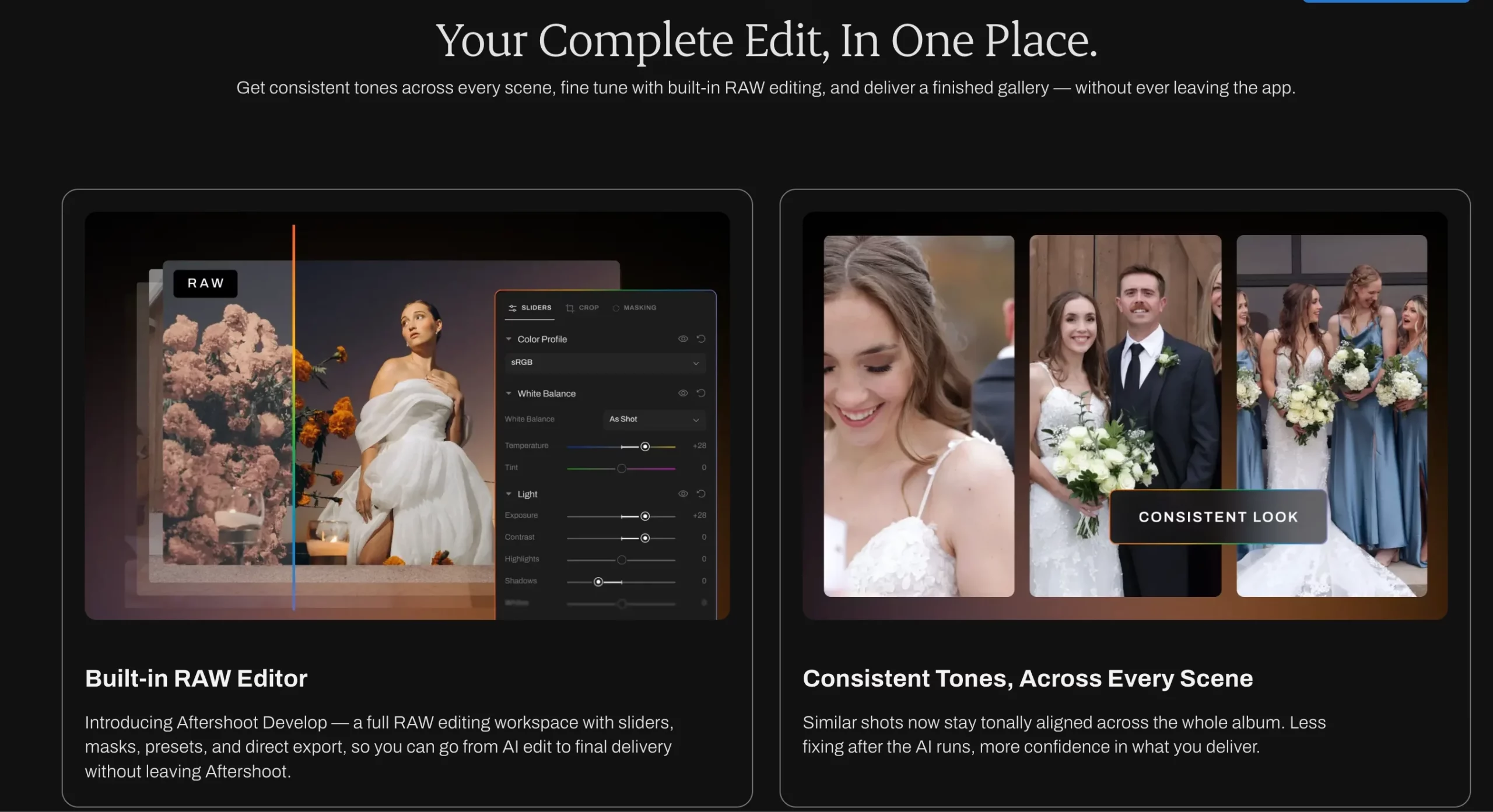
Aftershoot Edit is built specifically for working photographers who process thousands of RAW files each week and need their distinct visual style applied reliably across every gallery.
Key Strengths
- Deep style personalization: Analyzes 2,500+ of your past edited images to build a Personal AI Profile that replicates your treatment of highlights, shadows, skin tones, and white balance across varied lighting conditions.
- Instant AI profiles: Converts existing Lightroom presets into adaptive AI profiles in under a minute, so your trusted presets automatically adjust to each image’s unique exposure rather than applying flat, static values.
- Scene-level consistency: Uses automated tonal alignment to recognize similar scenes, keeping portrait sequences and speeches visually cohesive throughout the entire gallery.
- Local processing and complete privacy: All edits and neural network computations run locally on your machine. Your client RAW files never leave your drives, avoiding bandwidth bottlenecks and complying with client NDAs.
- Integrated RAW workspace: Includes a built-in Develop panel with sliders, local masking, and AI retouching (skin, blemish, and eye adjustments) so you can review and fine-tune without switching programs.
- Predictable flat-rate pricing: Unlimited photo editing for a flat $30 per month (billed annually) with zero per-image charges or hidden add-on costs.
Where It Falls Short
Because Aftershoot processes RAW files and trains AI models locally on your computer, performance depends on your local hardware specs rather than offloading compute to remote cloud servers. Photographers working on older or lower-spec machines may experience longer render times compared to modern Apple Silicon or high-end multi-core PC setups.
Need Culling Too? The Aftershoot Complete Bundle
For studios looking to streamline their entire front-end post-production, the Aftershoot Complete bundle pairs Aftershoot Edit with Aftershoot’s automated AI culling. Instead of paying for separate culling software and export utilities, the Complete bundle lets you ingest, cull, batch edit, retouch, and export to Lightroom Classic from a single application at a discounted flat rate of $45/month (billed annually).
2. Imagen AI: Cloud-Based Personalized AI Editing
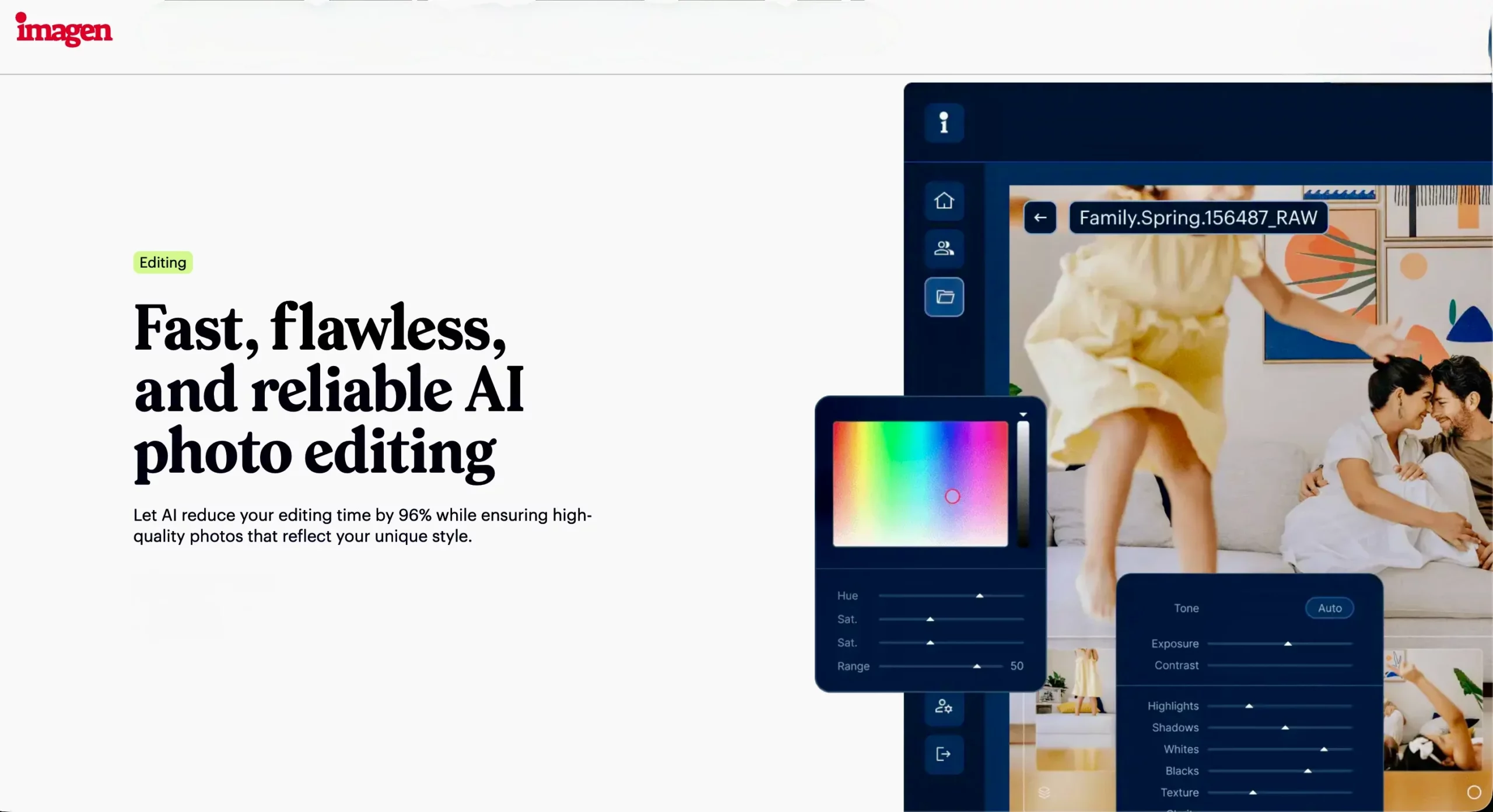
Imagen AI provides personalized AI profile creation by analyzing your Lightroom catalog history in the cloud.
Key Strengths
- Profile accuracy: Builds reliable personal profiles that adapt exposure and temperature based on past work.
- Talent profiles: Access to paid pre-built profiles from recognized photographers.
- Lightroom round-trip: Downloads edits directly into your Lightroom catalog via a desktop companion app.
Where It Falls Short
Imagen operates primarily on a pay-per-image pricing model starting at $0.05 per photo (subject to a $7 monthly account minimum), with additional charges ($0.01 each) for cropping, straightening, and subject masking. While Imagen also offers a flat-rate “Limitless” subscription for solo shooters, it starts at $129 per month when billed annually, more than 4 times Aftershoot’s flat rate, while additional AI tools still incur separate costs. Furthermore, because processing relies on uploading catalog and thumbnail data to the cloud, high-volume editors are dependent on stable upload speeds.
3. Narrative Select: Integrated Culling and Batch Processing
Narrative Select combines image selection with editing features designed to streamline the front end of post-production.
Key Strengths
- Fast image rendering: Zero-lag RAW preview engine that allows quick image evaluation.
- Close-up face panels: Automatically detects faces and displays zoomed crops to verify focus and expressions across large group shots.
- Unified workspace: Allows photographers to cull and apply presets in a single environment before transferring to Lightroom.
Where It Falls Short
While Narrative offers lower entry-level pricing tiers, personalized AI editing capabilities are restricted to higher-tier subscription plans (Premium and Ultra, ranging up to $60/month billed monthly). Photographers looking for deep, adaptive style learning across complex lighting scenarios will find fewer customization controls on entry plans.
4. Adobe Lightroom Classic: The Industry-Standard Manual Solution

Adobe Lightroom Classic remains the baseline catalog and develop tool for professional photographers worldwide.
Key Strengths
- Complete ecosystem: Unmatched catalog management, keywording, tethering, and print layout tools in one program.
- Advanced color controls: Precision masking, color grading wheels, and camera profile calibration.
- Adaptive masking features: Adobe has integrated machine learning for subject, background, and sky detection, allowing selective adjustments to be bundled into presets.
- Preset ecosystem: Access to thousands of third-party presets and creative profiles.
Where It Falls Short
While Lightroom now features AI-assisted masking and auto-tone algorithms, it does not offer true personalized style learning. Its batch tools such as “Sync Settings” and “Auto Sync” apply identical slider values across selected images without adapting to exposure differences. A preset applied to a backlit sunset portrait often blows out highlights when lighting conditions change mid-sequence moments later, requiring extensive manual frame-by-frame correction.
5. Capture One Pro: Precision Color and Studio Workflows
Capture One Pro is widely celebrated for its tethered shooting reliability and exceptional color science, making it a staple in commercial and fashion studios.
Key Strengths
- Color engine: Industry-leading skin tone editing tools and advanced color balance wheels.
- Tethering performance: Instant camera connection and reliable image transfer during live shoots.
- Export recipes: Robust batch export capabilities allowing simultaneous multi-format exports with custom sharpening.
Where It Falls Short
Capture One utilizes static Styles rather than machine-learning profiles that adapt per image. For event and wedding shooters dealing with unpredictable lighting across thousands of frames, manual batch adjustments remain labor-intensive compared to automated AI profile workflows.
6. ON1 Photo RAW: Best for Enthusiasts and Landscape Shooters
ON1 Photo RAW provides an all-in-one editing and organizing platform for photographers who want to avoid software subscriptions.
Key Strengths
- No subscription required: Available as a perpetual one-time purchase.
- Built-in AI tools: Includes modules for AI noise reduction, sharpening, portrait retouching, and sky replacement.
- Batch processing: Apply develop settings, resize, and export across batches of RAW files.
Where It Falls Short
While ON1 is an capable all-in-one suite for hobbyists, landscape shooters, and small portrait sessions, its batch processing applies fixed settings and presets rather than learning your unique creative style over time. It lacks the adaptive speed required for high-volume wedding and event production.
7. Luminar: Best for Creative Landscape and Fine-Art Work
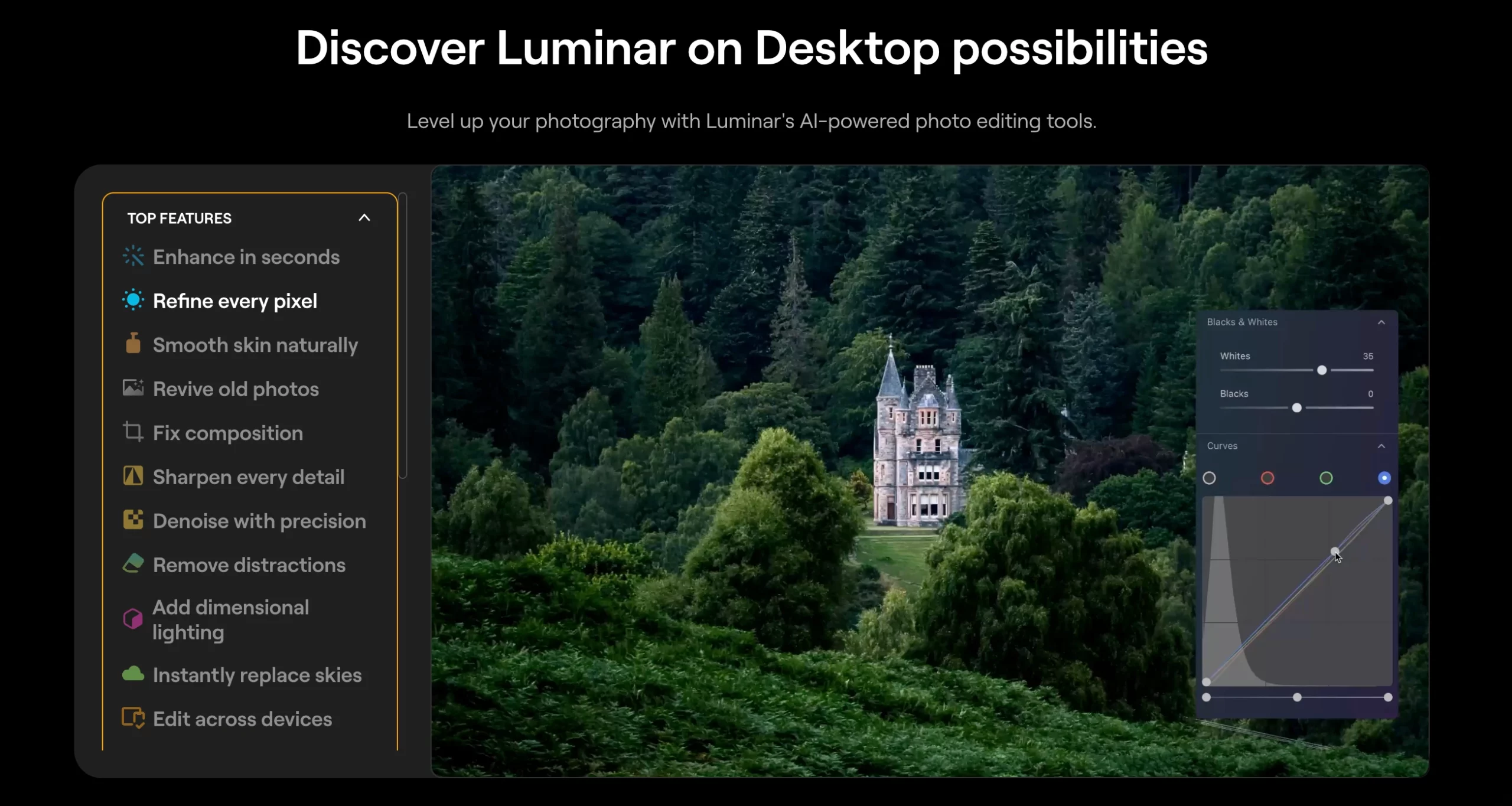
Luminar focuses on creative, scene-level enhancements powered by modular AI tools.
Key Strengths
- Creative tools: Generative erase, sky replacement, and relighting controls for complex scene adjustments.
- Intuitive interface: Accessible slider system suitable for quick creative experiments.
- Batch preset sync: Apply adjustments across multiple selected frames.
Where It Falls Short
Luminar is designed primarily for creative landscape, travel, and fine-art photography rather than production batch editing. Syncing heavy generative tools across large photo sets is resource-intensive, and the software lacks personalized AI style training based on your catalog history.
Free and Budget Batch Editing Options
If you are just getting started or running a studio with minimal post-production overhead, there are free and low-cost tools capable of batch processing RAW files:
- darktable: A free, open-source RAW developer and catalog manager. While it lacks automated AI style learning, its “History Stack” feature allows you to copy and paste entire develop module stacks across hundreds of RAW files in bulk.
- RawTherapee: Another powerful open-source RAW processing application. It features robust batch queuing and processing profiles, making it useful for color-accurate non-destructive batch conversions without subscription fees.
- Lightroom Classic’s Native Batch Sync: If you already subscribe to Adobe’s $9.99/mo Photography Plan, you can select multiple images in the Develop module and use Auto Sync or Sync Settings. While it won’t adapt to lighting changes automatically, applying baseline camera profiles and lens corrections in bulk costs nothing extra.
How to Choose the Right Batch Photo Editing Software
Selecting the best tool depends on your shooting volume, existing software catalog, and business goals:
- For high-volume wedding and event photographers: If you process tens of thousands of RAW files each year and want a consistent look with predictable expenses, Aftershoot Edit delivers the ideal balance of personalized style learning, local privacy, and flat-rate pricing.
- For cloud-reliant photographers with fluctuating volume: If your shoot calendar varies significantly month to month and you don’t mind cloud uploads, Imagen AI’s pay-per-image tier offers flexible per-photo billing.
- For Lightroom-centric photographers with consistent lighting: If you shoot primarily in controlled environments like studios, Lightroom Classic’s native presets and sync tools remain a reliable, built-in option.
- For studio and commercial shooters: If your work revolves around controlled studio lighting and tethered shooting, Capture One Pro offers unmatched color precision.
- For photographers seeking standalone non-subscription tools: If you want a one-time purchase with traditional batch preset tools, ON1 Photo RAW provides a solid alternative to monthly plans.
Why Aftershoot Edit Is the Best Batch Photo Editing Software for Professional Photographers
When you strip away the marketing hype, professional photographers switch to batch editing software for one reason: to reclaim their time without compromising their reputation.
Aftershoot Edit leads the category because it was built specifically around how working photographers operate:
1. True Style Personalization: It doesn’t impose a canned filter. By learning from your actual catalog history or adapting your trusted Lightroom presets, your delivered galleries look like you edited every frame by hand.
2. Local Machine Speed and Privacy: Your clients’ RAW files never sit on a third-party cloud server or get held up by slow residential upload connections. Everything processes on your computer with complete privacy.
3. Full Creative Override: With a built-in RAW Develop workspace, you never feel locked in. You can inspect edits, refine individual frames, and polish portraits with AI retouching without jumping between three different apps.
4. Predictable Pricing: Peak season shouldn’t come with a financial penalty. With flat-rate pricing and no per-image upcharges for crops or masks, your post-production overhead stays completely predictable.
Closing Thoughts
Batch photo editing software is no longer just about copying develop settings from one image and pasting them across three hundred others. For professional photographers, modern AI tools have transformed post-production from a weekend-consuming chore into an automated, highly reliable workflow that preserves your creative signature.
By choosing a solution that adapts to lighting changes, respects your data privacy, fits into your Lightroom catalog, and keeps your costs predictable, you can cut days off your turnaround times and deliver exceptional galleries to your clients faster than ever.
Ready to see how automated batch editing handles your own work? Start your 30-day free trial of Aftershoot – no credit card required – and test your personal editing style on your next full shoot.
Also Read: AI Editing Guide for Photographers: What Is AI in Photography?
FAQs for Best Batch Photo Editing Software
Q1. What is batch photo editing software?
It is software that allows photographers to apply adjustments – such as exposure corrections, color grading, cropping, and retouching – across multiple images simultaneously, significantly reducing manual post-production time.
Q2. How is AI batch editing different from traditional preset syncing?
Traditional preset syncing applies the exact same numerical slider values across every selected photo, regardless of lighting differences. AI batch editing analyzes each photo individually, adapting the exposure, white balance, and contrast to match your signature editing style across diverse shooting conditions.
Q3. Does batch editing lower overall image quality?
No. High-quality batch editors work directly with uncompressed RAW sensor data and maintain complete 16-bit color fidelity. Because modern AI profiles adapt to each image’s dynamic range, the output quality remains consistent with manual frame-by-frame edits.
Q4. Can I manually adjust photos after batch editing is complete?
Yes. Professional tools like Aftershoot Edit provide full manual control through built-in RAW adjustment sliders, local masks, and seamless export to Lightroom Classic or Capture One for final creative touches.
Q5. Does batch photo editing software work with Lightroom Classic?
Yes. Leading batch editing software integrates directly with Lightroom Classic catalogs, allowing you to train profiles on past edits, apply adjustments in bulk, and review the final results within your standard Lightroom workspace.
Q6. How many photos do I need to train a personal AI editing profile?
Most personal AI editing profiles require between 2,500 and 5,000 previously edited RAW or JPEG images to learn your tonal preferences, contrast handling, and color grading across different lighting scenarios. With Aftershoot Edit, you can also use Instant AI Profiles to convert an existing Lightroom preset into an adaptive AI profile in under a minute without needing thousands of sample edits upfront.
Q7. Is there free batch photo editing software available for RAW files?
Yes. Open-source programs like darktable and RawTherapee allow photographers to batch process RAW files and copy develop stacks without subscription costs. Additionally, Lightroom Classic includes native batch sync tools if you already have an Adobe Photography plan. However, free tools lack automated AI style learning and require manual adjustment when lighting varies across a shoot.