
TL;DR
- Aftershoot 2.22 brings new retouching tools include Double Chin Remover, Dark Circles Remover, and Neck Brightening & Smoothing.
- Background Replacement has been improved for indoor and studio images, including support for multiple subjects, while Background Shadow can add an AI-generated shadow to a replaced background.
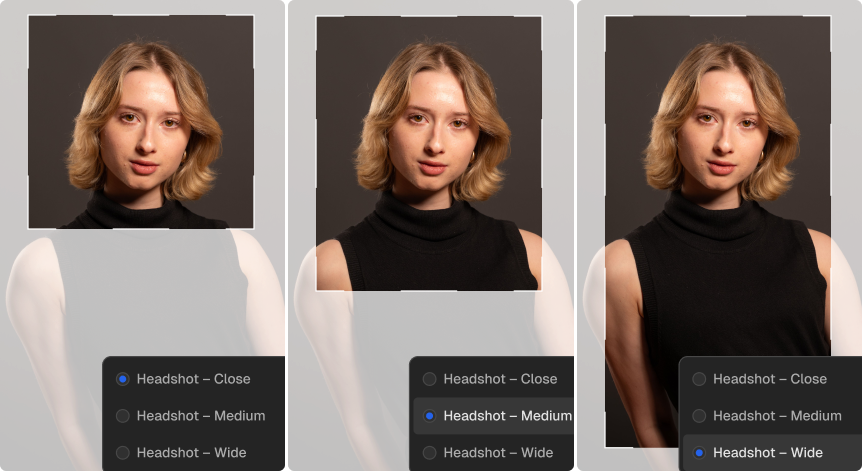
- Portrait & Headshot Crop lets portrait photographers batch-crop a set using close, medium, or wide framing.
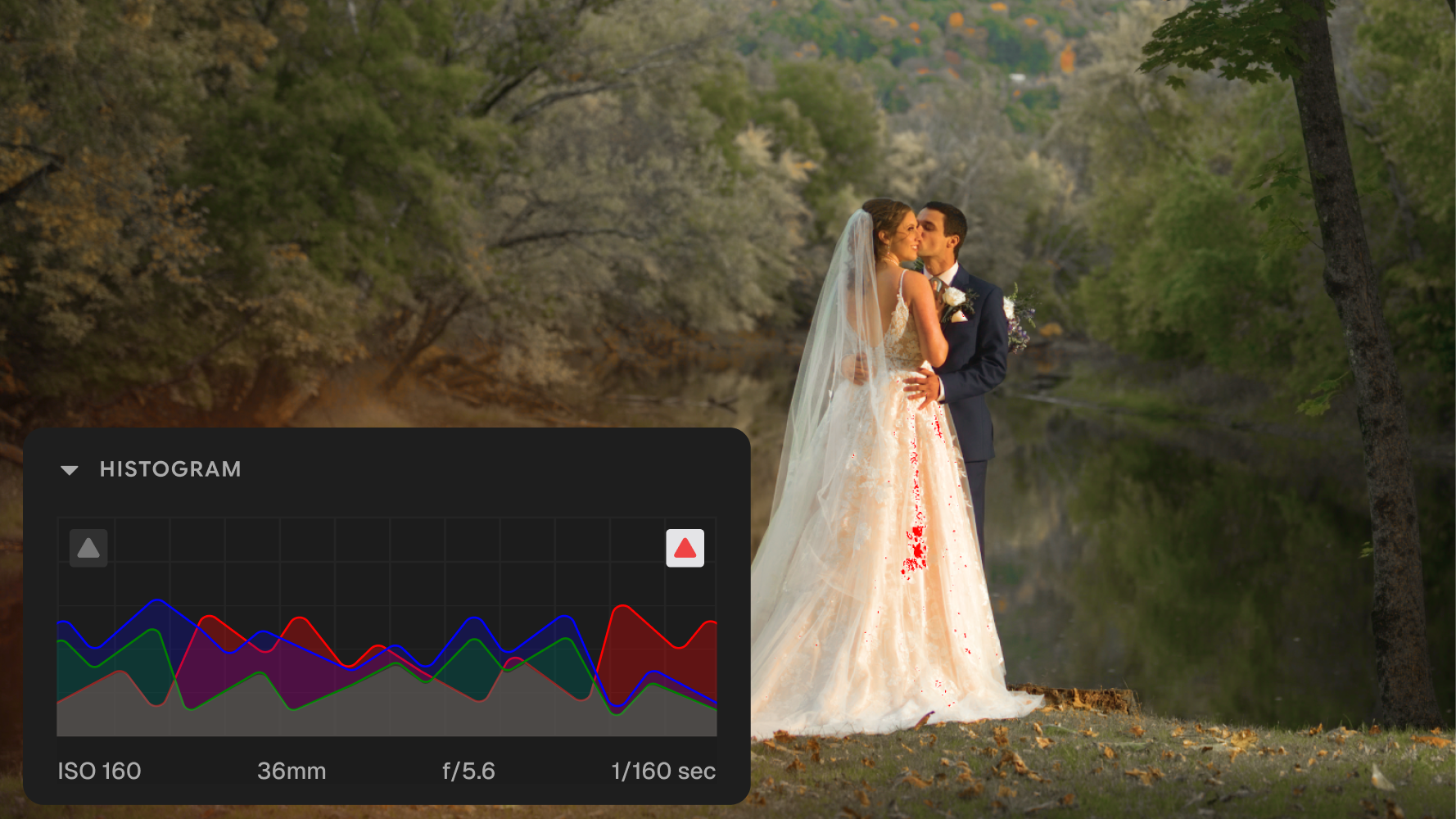
- New RAW editing controls include Histogram & Clipping Indicators, Manual Brush Mask, and mask inversion.
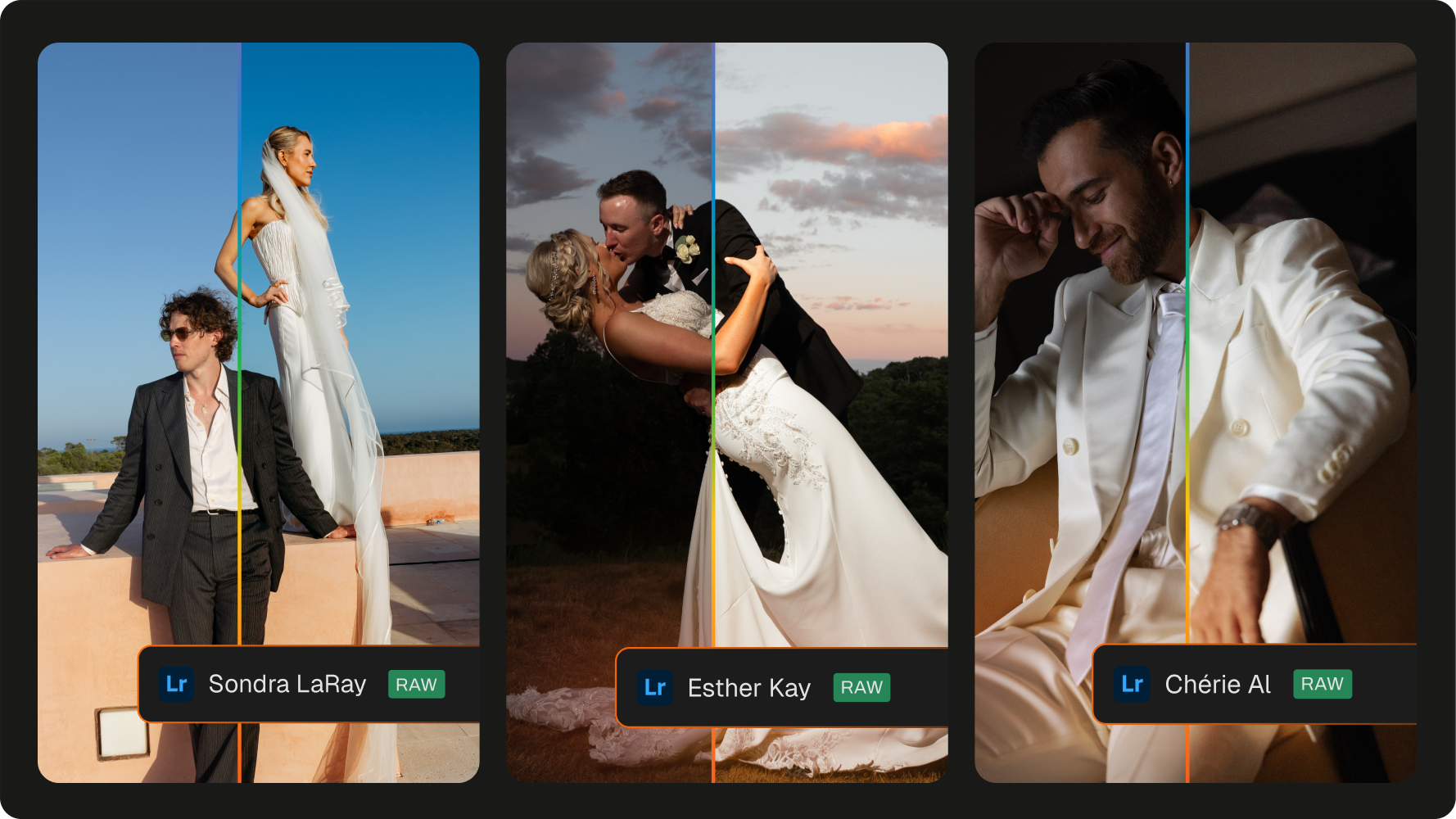
- Three new Creator Profiles from Sondra LaRay, Esther Kay, and Shane Thomas offer new starting points for wedding, sports, and portrait edits.
- Export Enhancements now let you resize images and add watermarks with placement, size, and opacity controls.
There’s usually a point near the end of an edit when the big decisions are already made.
You’ve chosen the images. The color and composition are close. You’ve chosen the images. The color and composition are close. What’s left are the details: tired-looking eyes, under-eye darkness, uneven tones between the face and neck, a less flattering frontal angle, or a replaced background that needs cleaner edges and a more natural shadow before the image feels truly finished.
Those small fixes can make an image feel finished. They can also turn into a lot of repetitive work when you’re making them across an entire gallery.
With Aftershoot 2.22, we’re giving photographers more control over those final details, led by new retouching capabilities that help refine the subject and the frame without making the result feel overworked.
There are also new tools for editing style, RAW editing, and export.
Here’s what’s new to help you refine, edit, and finish your images:
1. Retouch what clients would notice
A finished portrait isn’t about making someone look like somebody else.
It’s usually about taking care of the small things that inevitably show up over the course of a shoot: tired eyes, an angle that wasn’t quite as flattering as the one before it, or a difference in tone between the face and neck.
The challenge is that these details often need to be corrected image by image. Across a large wedding, event, portrait, or headshot gallery, those seemingly small adjustments add up.
Aftershoot 2.22 introduces three retouching tools designed for exactly that kind of work.
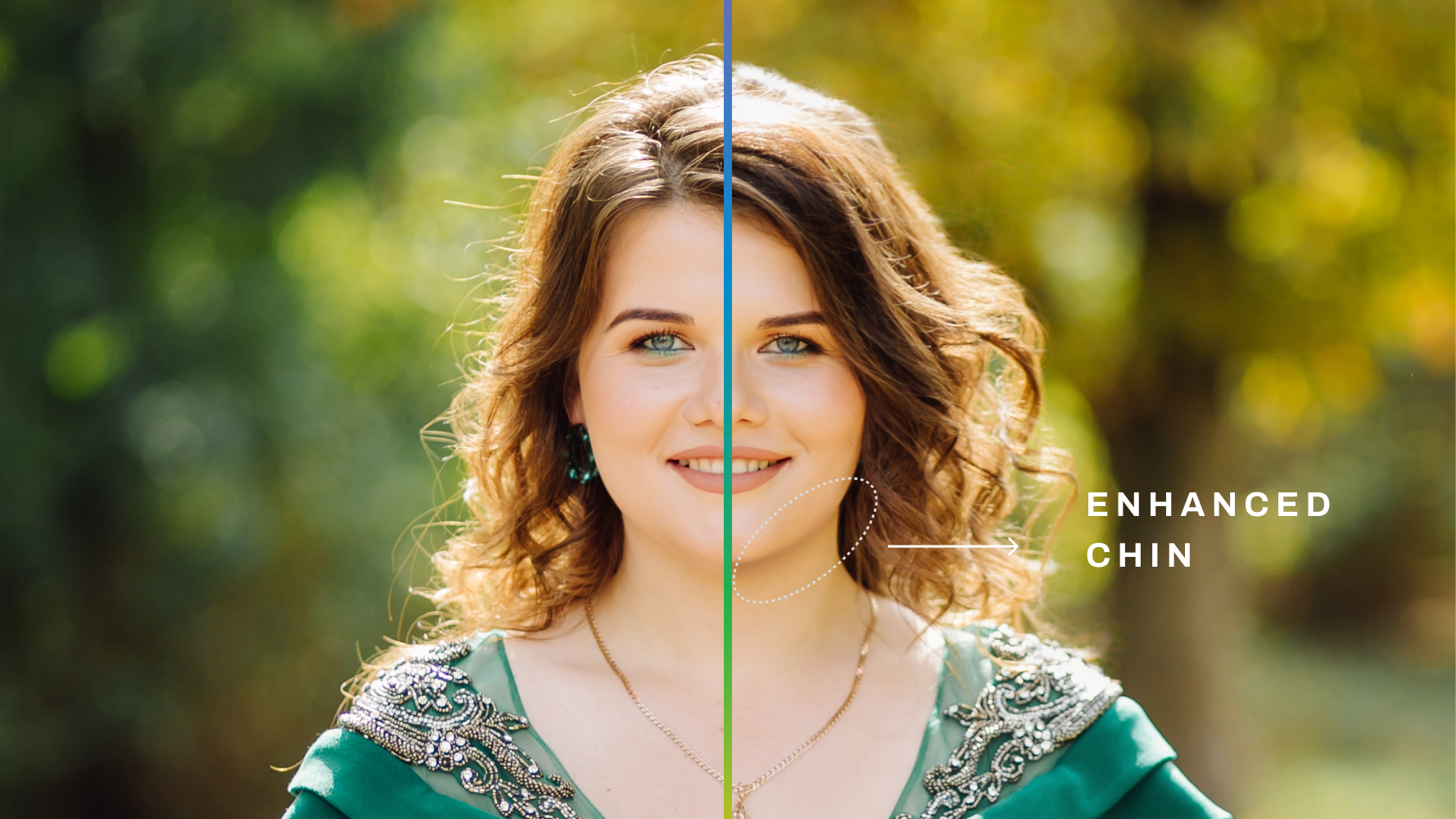
a. Double Chin Remover
Double Chin Remover reduces the appearance of a double chin by creating a contouring effect with AI-generated shadows, helping the area appear slightly more defined.
That said, an important thing to know before using it: Double Chin Remover currently works on frontal angles, not sideways-facing subjects.
The feature is also currently in public beta, so it will continue to evolve.
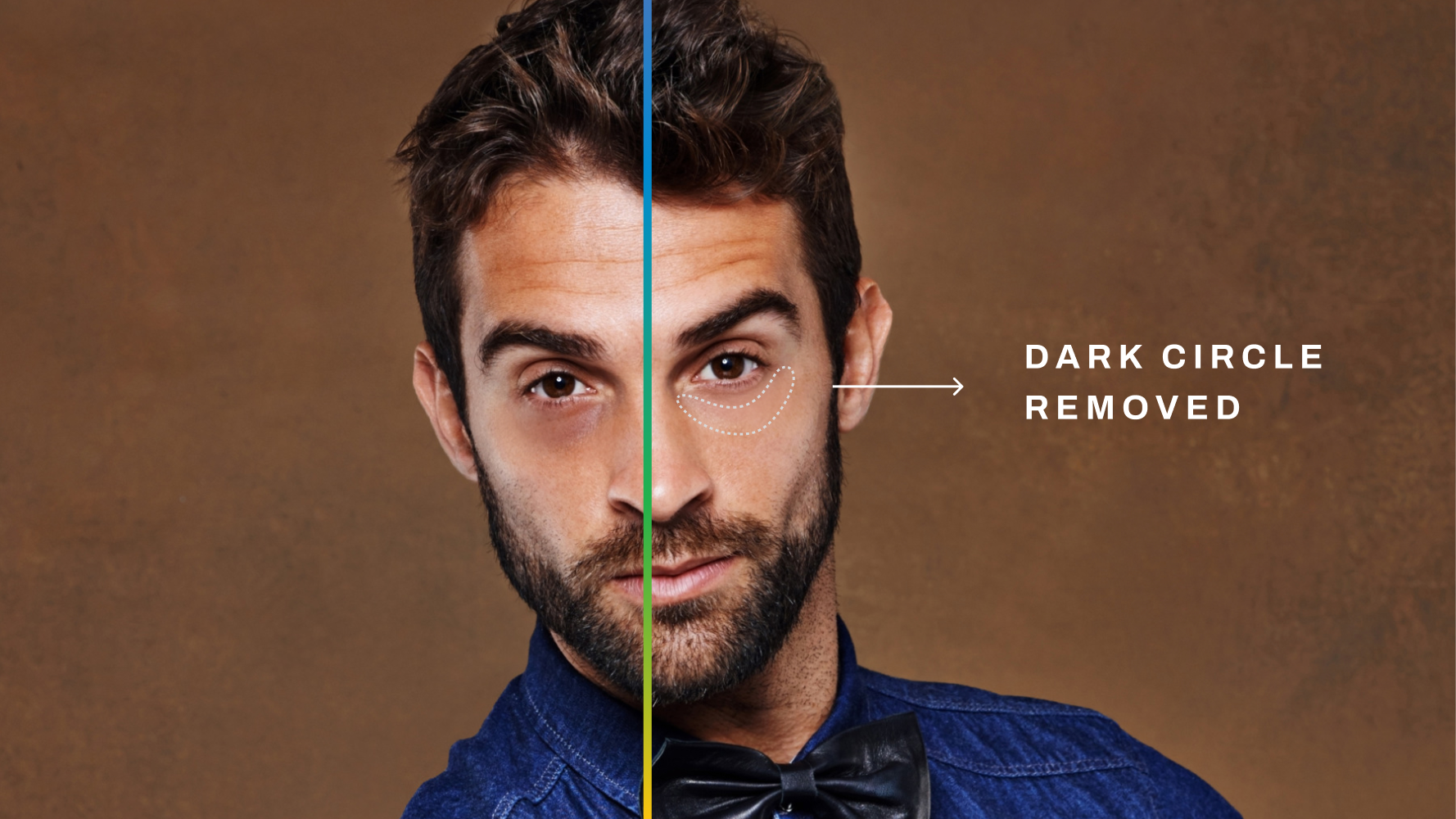
b. Dark Circles Remover
Long shoots don’t always happen under ideal conditions, and tired eyes can become more noticeable depending on the light.
Dark Circles Remover lightens under-eye darkness for a fresher look without turning the correction into the focus of the image.
Instead of manually making the same adjustment across portrait after portrait, photographers have another way to handle one of those small details before an album goes out to a client.
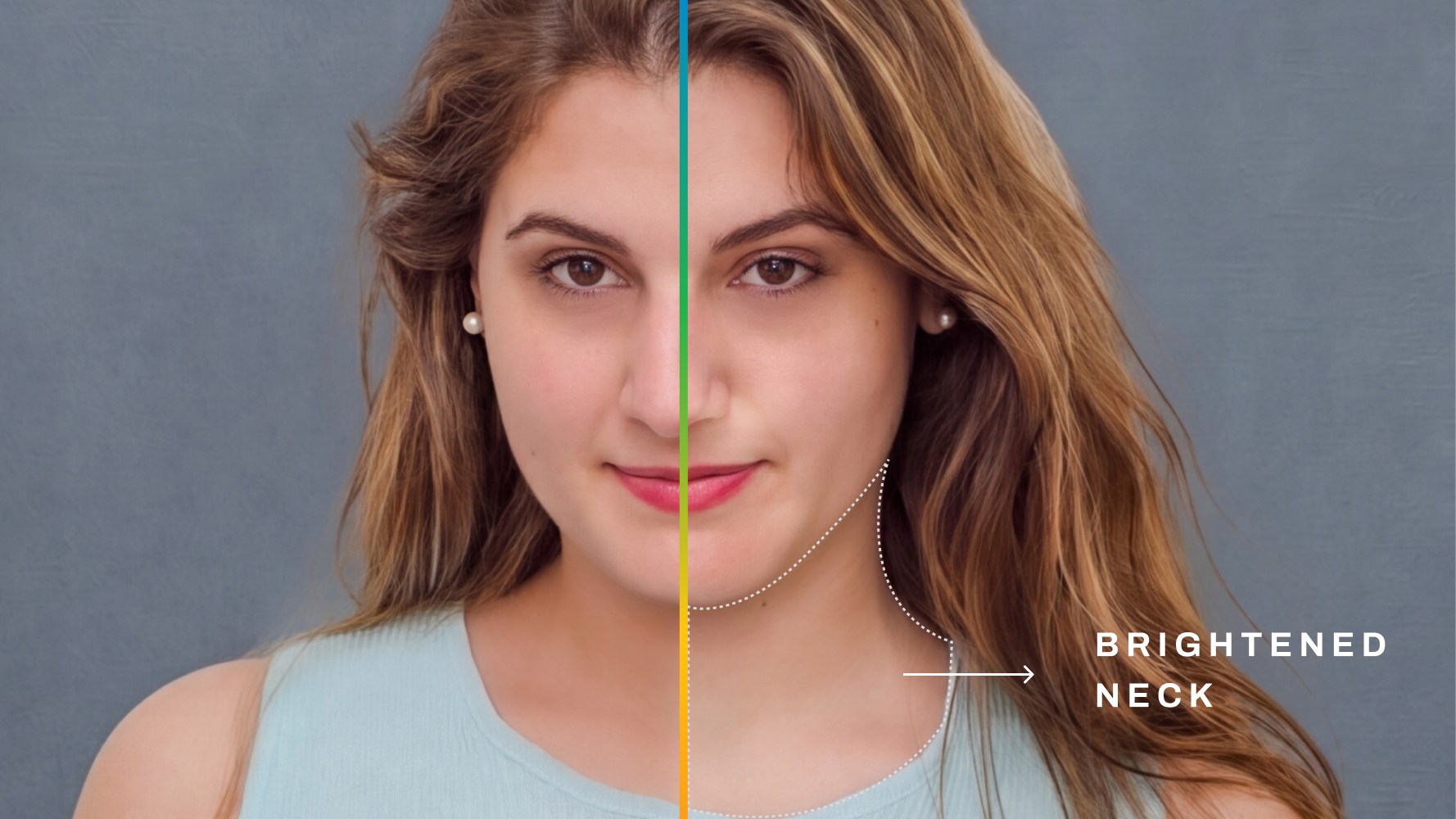
c. Neck Brightening & Smoothing
Even when a face is evenly lit, the neck and surrounding area may photograph differently.
Neck Brightening & Smoothing helps lighten and smooth this area so the transition between the face and neck appears more even and natural.
The idea across all three tools is the same: retouch the details that affect the finished image without making the retouching itself obvious.
Put simply, these are the kinds of corrections clients may never notice individually, they’ll just notice how polished the final image feels.
2. Make every part of the frame work together
Retouching doesn’t stop with the person in the image.
When a background is replaced, the smallest inconsistencies around hair, hands, props, or shadows can make an otherwise strong edit feel disconnected.
But Aftershoot 2.22 expands the controls available for working with the surroundings too.
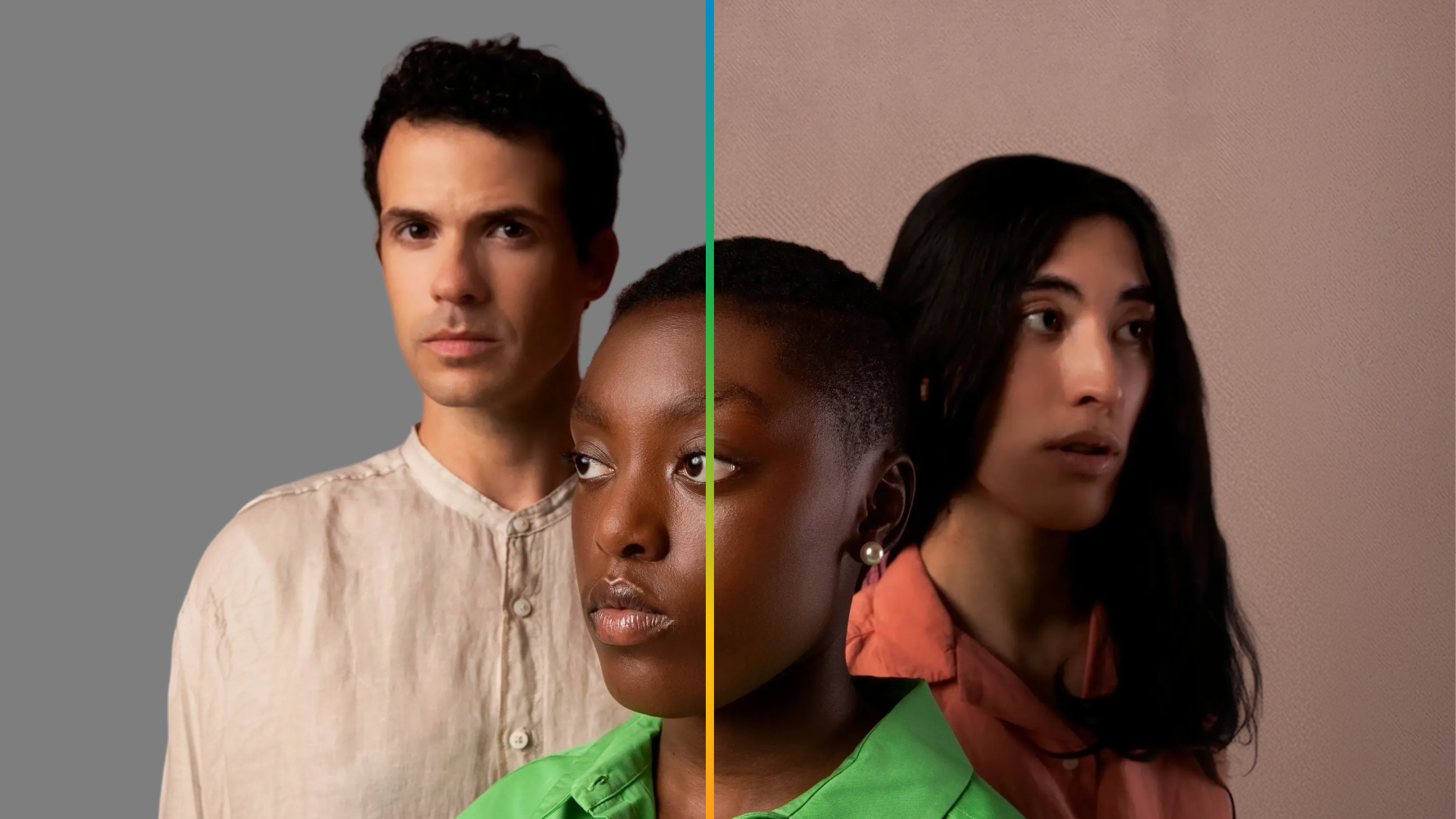
a. Smarter Background Replacement
Background Replacement now supports multiple subjects and improves the handling of edges around areas such as hair, hands, and props.
This feature is currently restricted to indoor and studio-shot images.
But that makes it particularly useful when you’re working through a set where multiple subjects need to be placed into a new background while maintaining a consistent look from image to image.
b. Background Shadow
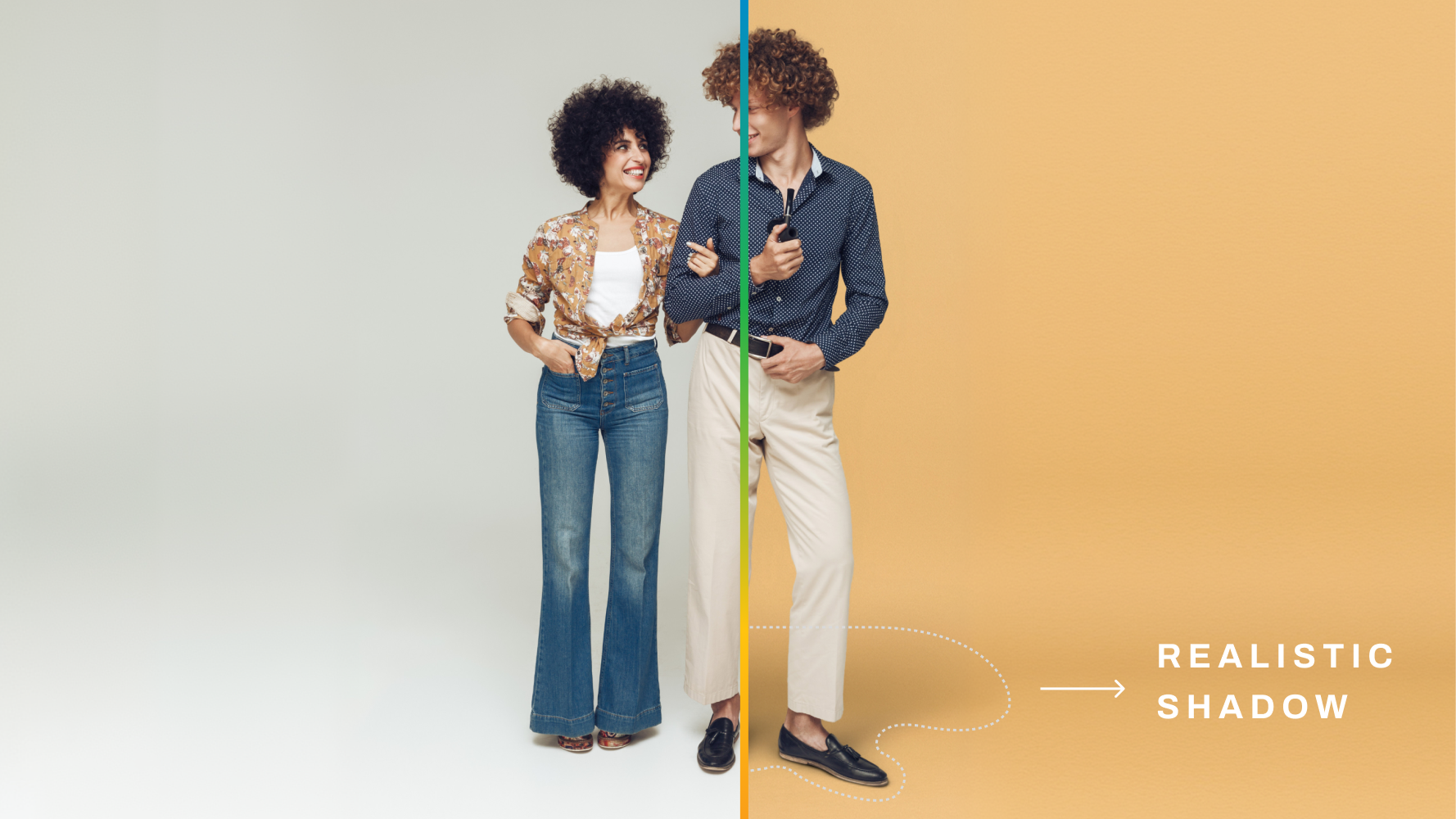
A replaced background can look technically correct and still feel slightly off if the subject doesn’t appear grounded within it.
Background Shadow adds an AI-generated shadow to help the subject sit more naturally in their new surroundings.
Full disclosure, the shadows are currently created, with manual controls planned to follow.
3. Create more consistent portrait and headshot albums
For portrait and headshot photographers especially, composition is part of the consistency clients see across the final set.
A few images framed tightly, others much farther away, and several somewhere in between can make an otherwise cohesive album feel uneven.
Portrait and Headshot Crop gives you a faster way to standardize that framing.
You can batch-crop an entire portrait set using:
- Close framing
- Medium framing
- Wide framing
Instead of manually adjusting the crop on every image, you can establish the kind of composition you want and carry it more consistently across the set.
4. Shape light and tone with greater precision
Sometimes the image is already there. The edit just needs to catch up with how you saw it.
Aftershoot 2.22 adds more RAW editing controls so you can better understand what’s happening across the tonal range and make more targeted adjustments.
a. Histogram & Clipping Indicators
Histogram & Clipping Indicators show how shadows and highlights are distributed and flag clipping as you edit, giving you a clearer reference for fine-tuning tone.
b. Manual Brush Mask
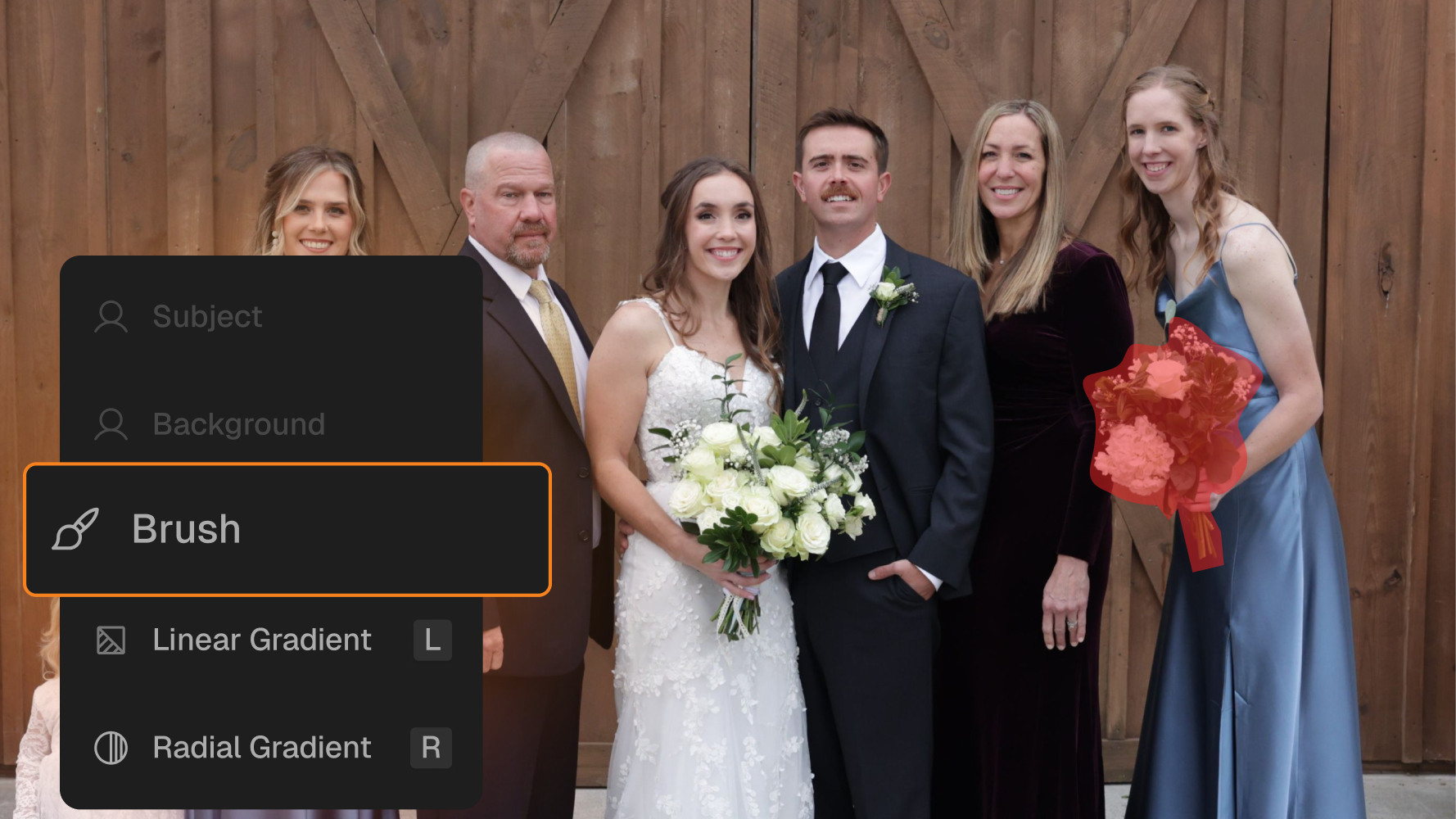
Some edits only need to touch one part of the image. And the updated masking tools give you another way to work on specific areas without changing everything around them.
With the Manual Brush Mask, you can brush over the area you want to adjust. You can also invert a mask to switch from the area you selected to everything outside it.
That gives you more flexibility when an edit needs to be local rather than global.
c. Creator Profiles for more consistent edits
Consistency also comes from the editing style you carry across an album. Aftershoot 2.22 also adds three new Creator Profiles from professional photographers, giving you more starting points for shaping the look of an album.
- Sondra LaRay’s Wedding & Sports profile: rich color and dramatic light.
- Esther Kay’s Wedding profile: timeless, painterly tones inspired by her signature look.
- Shane Thomas’ Cherie AI Wedding & Portrait Editing Profile 2.0: soft, elegant tones, refined skin, and balanced greens.
These profiles give you a new starting point for building a consistent look across your album, while leaving the final creative decisions in your hands.
5. Finish the image without adding another export step
Once the image looks right, there are still a couple of practical things that can happen before delivery.
With the latest Export Enhancements, you can now resize images and add a watermark directly during export in RAW editing.
Watermarks include controls for:
- Placement
- Size
- Opacity
These additions keep the finishing process within the same workflow, cutting down on the back-and-forth that can eat up hours of your time.
In a Nutshell: More control over every detail, while keeping your vision intact
At Aftershoot, we’ve always believed in one thing: As the photographer, you still decide what a finished image should look like.
What changes with Aftershoot 2.22 is how much of the repetitive work around that vision can happen in one place.
You can refine details on the subject. Make a replaced background feel more believable. Bring consistency to a portrait set. Explore a new editing profile. Shape tones more precisely. Make local adjustments. Then resize and watermark the finished image on export.
The tools are different, but they’re solving the same problem: helping you spend less time fixing images one by one and more time deciding what the final result should be.
Get the latest Aftershoot app version and start trying the latest retouching, editing, and export tools.
FAQs about the Aftershoot 2.22 update
Q1. What’s new in Aftershoot 2.22?
Aftershoot 2.22 introduces new retouching tools including Double Chin Remover, Dark Circles Remover, and Neck Brightening & Smoothing. It also includes improvements to Background Replacement, Background Shadow, Portrait & Headshot Crop, three new Creator Profiles, Histogram & Clipping Indicators, enhanced masking, and new export controls.
Q2. Does Double Chin Remover work on every portrait?
No. Double Chin Remover currently works with frontal angles and not sideways-facing subjects. The feature reduces the appearance of a double chin using a contouring effect created with shadows. It is currently available in public beta and will continue to evolve.
Q3. Can Background Replacement work with multiple people?
Yes. The updated Background Replacement supports multiple subjects and includes improved handling around areas such as hair, hands, and props. However, the feature is currently restricted to indoor and studio-shot images.
Q4. What framing options are available with Portrait & Headshot Crop?
Portrait & Headshot Crop offers close, medium, and wide framing options. Photographers can use these options to batch-crop an entire set rather than manually adjusting the composition of every portrait individually.
Q5. What new RAW editing tools are included in Aftershoot 2.22?
The RAW editing updates include Histogram & Clipping Indicators, and enhanced masking. The Manual Brush Mask allows precise local adjustments, while mask inversion lets you switch between your selected area and everything outside it.
Q6. Can I add a watermark when exporting from Aftershoot?
Yes. Export Enhancements in Aftershoot 2.22 let you add a watermark during export in RAW editing, with controls for its placement, size, and opacity. You can also resize images during export.