AI Retouching, Trusted by the Pros
See why top photographers rely on Aftershoot to streamline their workflow and achieve stunning results.
*Start Your 30-Day Free Trial





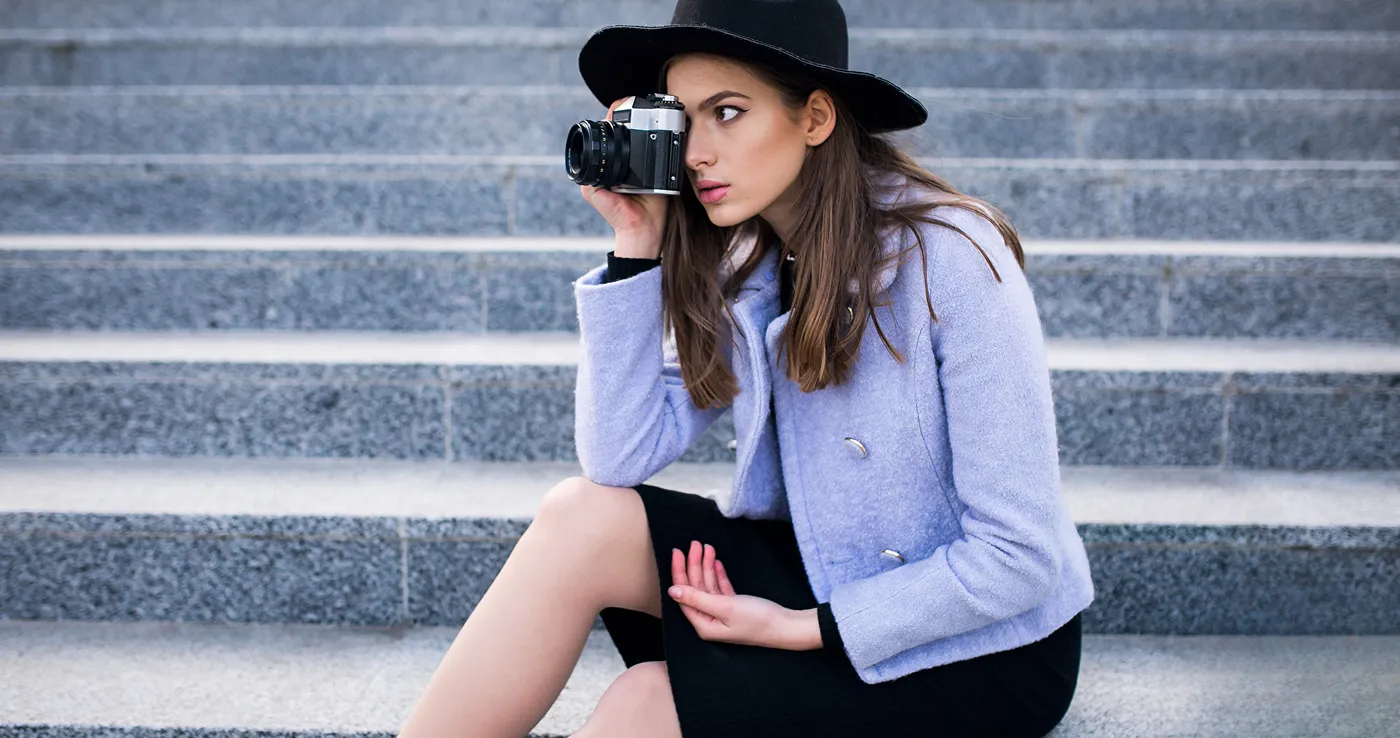
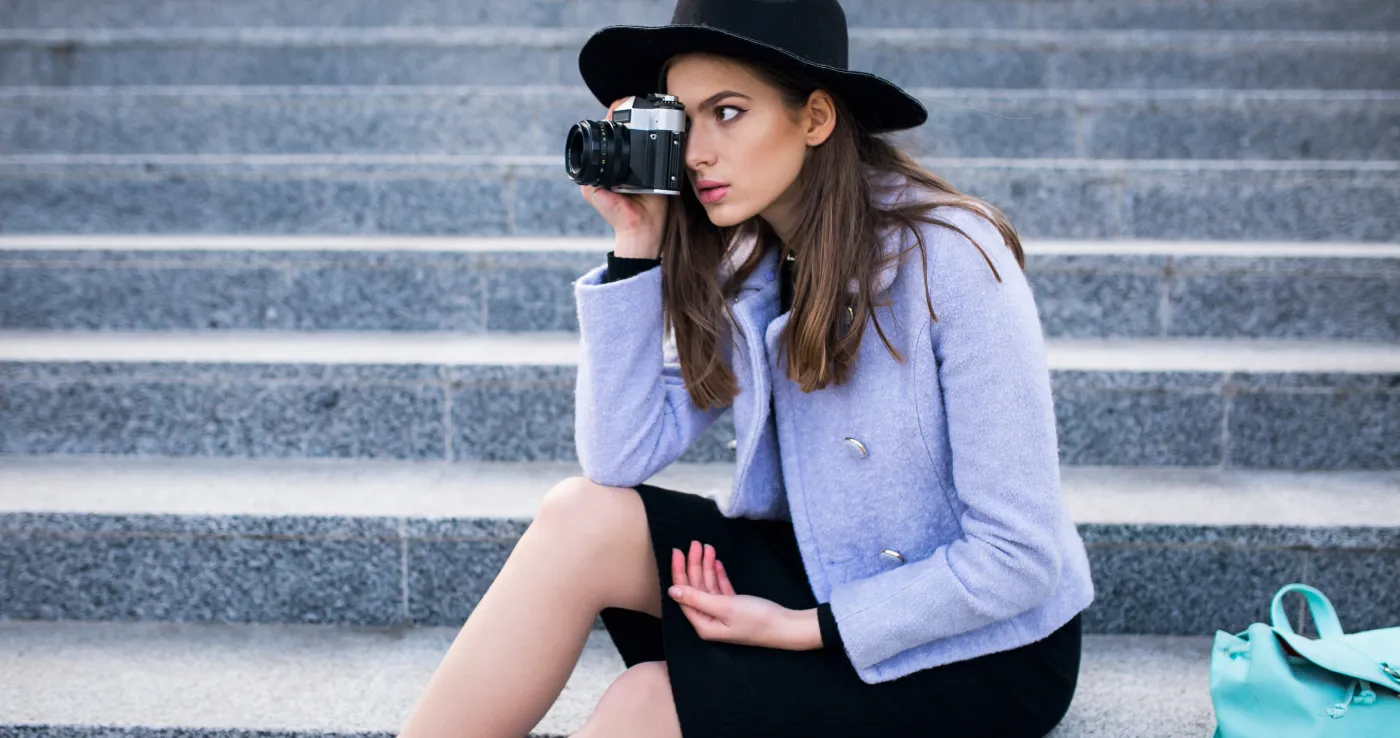 BEFOREAFTER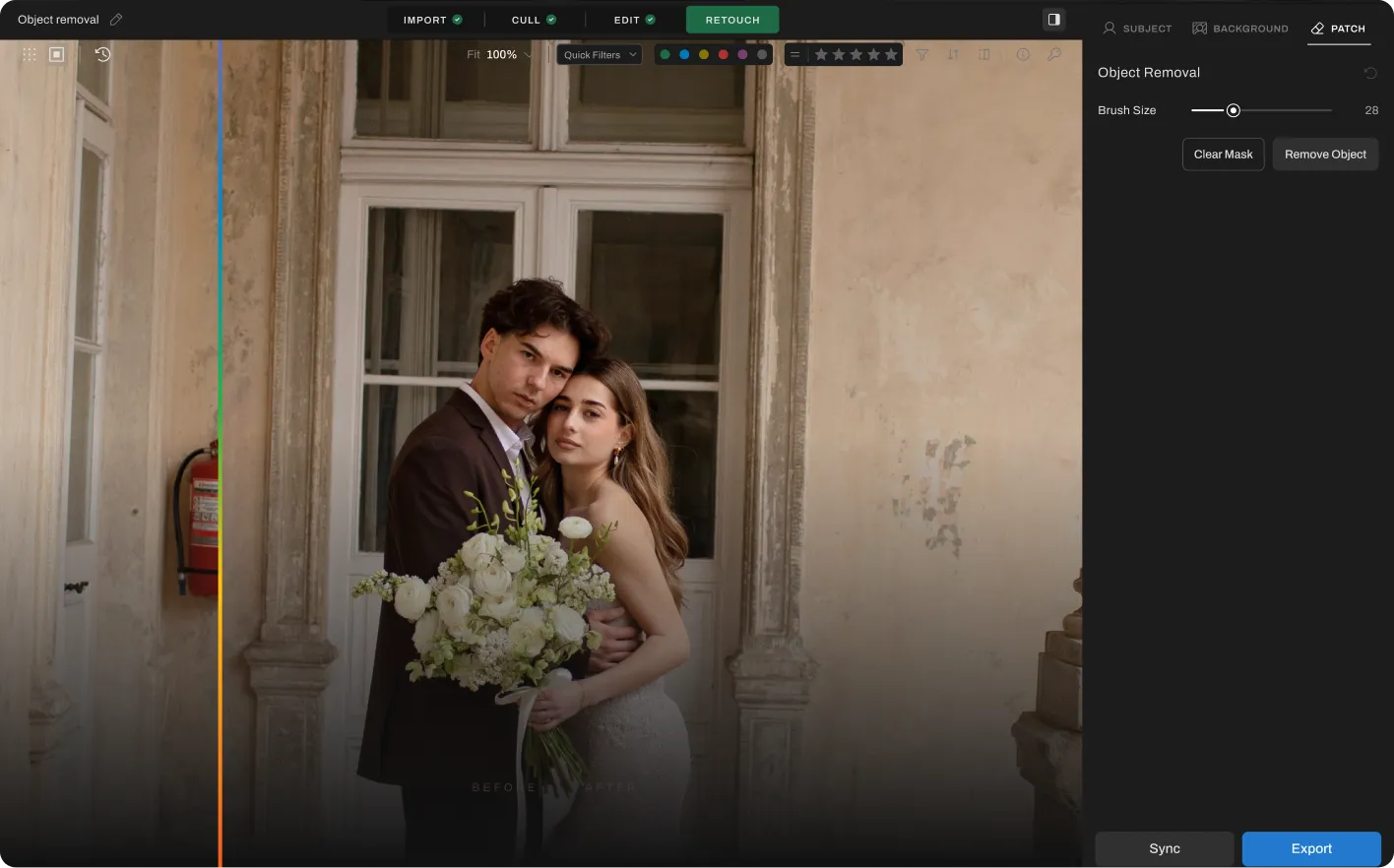
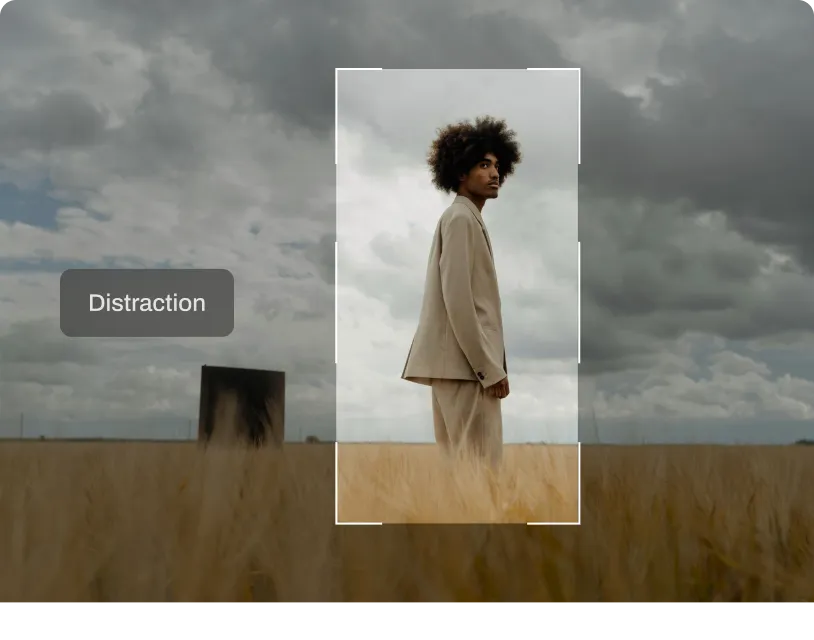
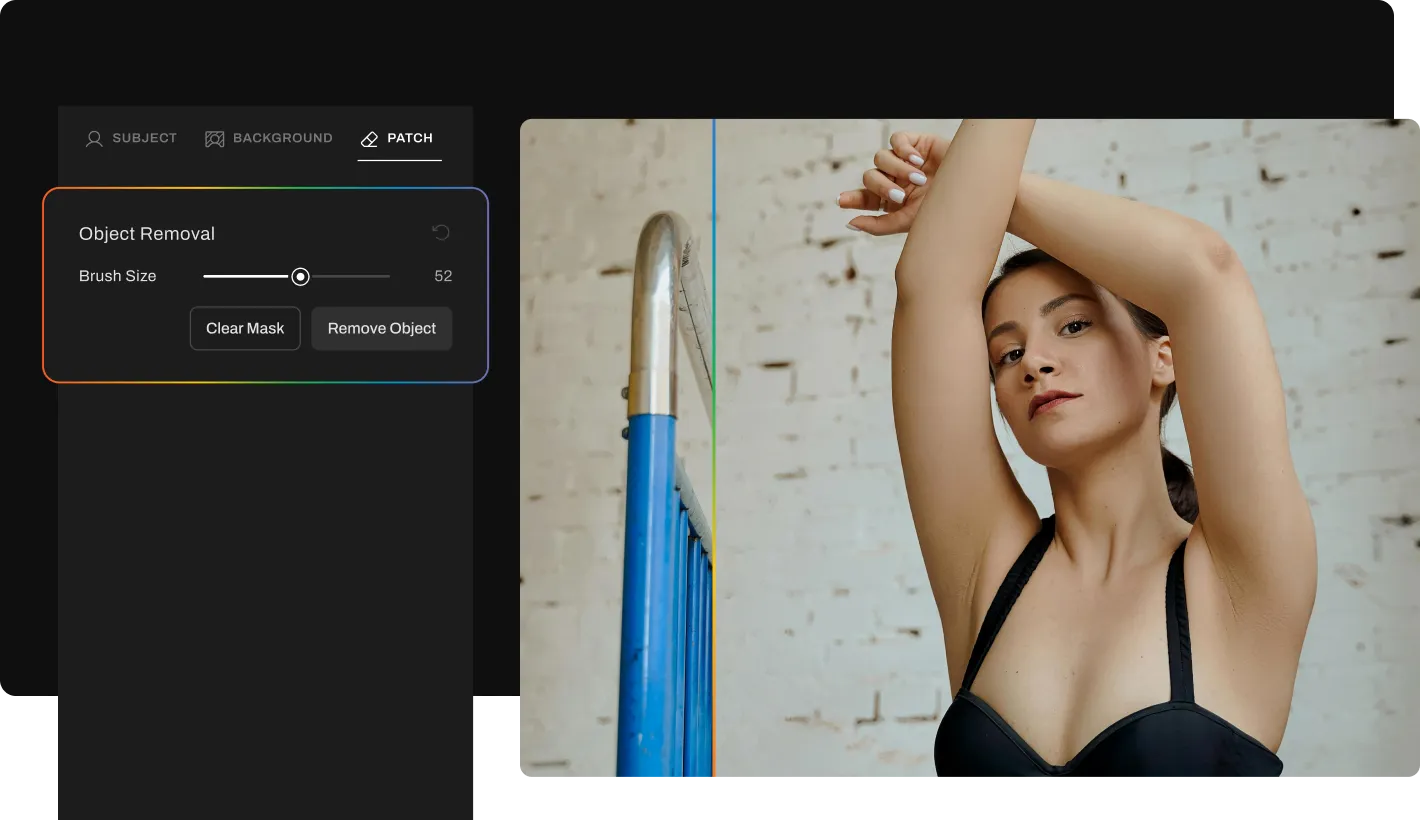

Step 1
Add your gallery (RAW or JPEG)

Step 2
Go to Retouching, select Object Removal under “Patch” tab, and adjust the slider to remove distracting objects from the photo

Step 3
Preview and export to view final results
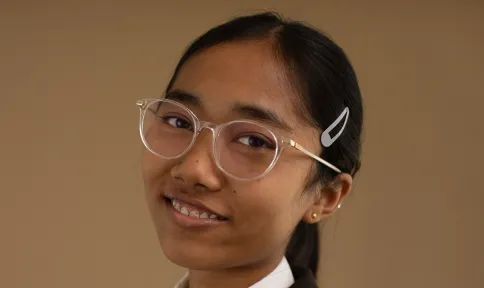
 BEFOREAFTER
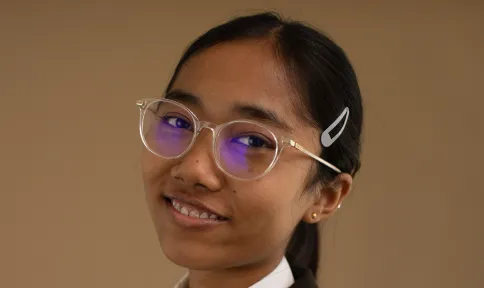
Remove glare and reflections from glasses in portraits while preserving natural skin tone and eye detail.
 BEFOREAFTER
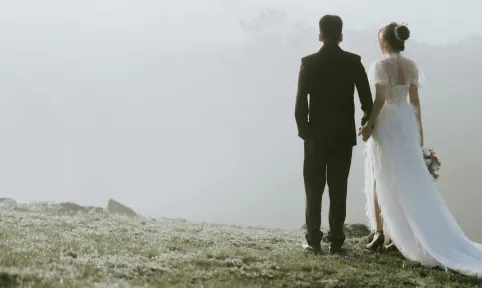
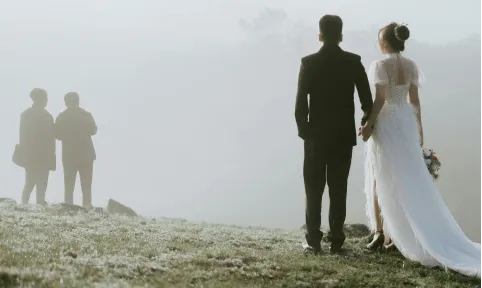
Clear unwanted people from backgrounds while keeping the rest of your composition intact and natural.
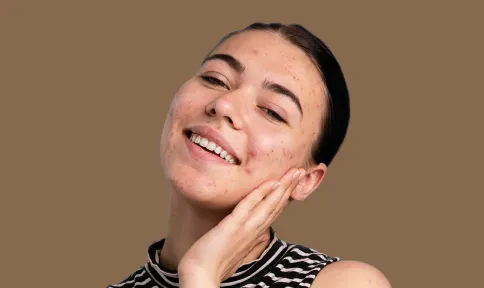 BEFOREAFTER
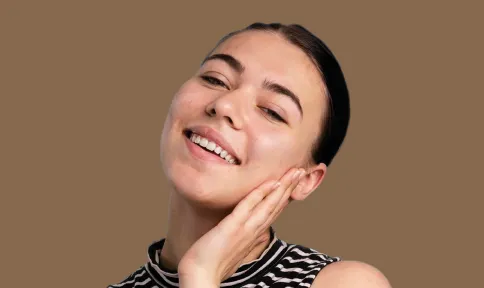
Remove temporary blemishes and spots while preserving natural skin texture and tone.
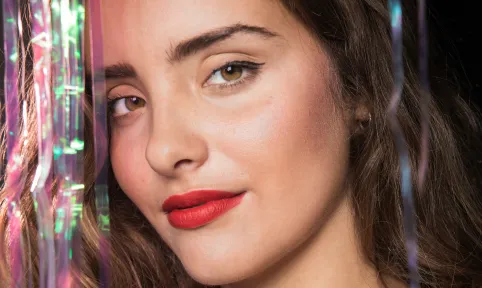
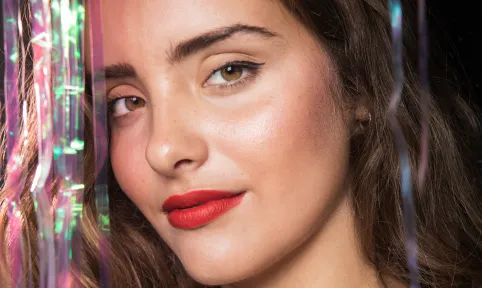 BEFOREAFTER
Reduce oily shine and hotspots on skin while preserving natural glow and healthy skin tone.
PHOTOGRAPHERs
PHOTOS RETOUCHED
Hours saved




Start Your 30-Day Free Trial
Turn those hours into more shoots, not more edits.
Need help with migrating from a different app? Contact Us


Aftershoot’s AI identifies the object area and seamlessly blends it with the surrounding background. This AI Object Removal process is smart, precise, and requires no manual masking.
Common use cases include signs, cords, trash cans, props, equipment, and small background elements. Works best on simple or moderately textured backgrounds.
Yes! Apply AI Object Removal across entire galleries, though we still recommend reviewing key hero images for final polish.
Absolutely. Aftershoot delivers consistent results on both RAW and JPEG files.
No. The AI targets only the area that needs fixing, keeping your subject and essential details intact.
It’s faster, more consistent, and eliminates tedious manual masking — perfect for photographers handling high-volume workflows.
Results can vary with background complexity. Simple areas like grass, sky, walls, or blur work best.
Yes. It delivers natural results, fits seamlessly into a pro workflow, and processes images locally for full control.