TL;DR
- Most pros in 2026 run a six-layer software stack: editing, backup, client delivery, business/CRM, marketing, and archiving, not just one editing app.
- Aftershoot handles the full culling-to-retouching loop in one flat-rate subscription; Lightroom Classic and Photoshop remain the standard for fine color control and pixel-level work.
- Topaz Photo AI and Evoto are specialists, one for noise/detail recovery and upscaling, one for high-volume portrait retouching, not full workflow replacements.
- Use the decision guide below to figure out which layer of the stack you’re actually missing before adding another subscription.
- Pricing, AI features, and platform support below are current as of 2026 and get rechecked quarterly.
The old adage is that “it’s a poor craftsman that blames his tools,” and while there’s some truth to that, we know the right tools make the work and the process better, more predictable, and even more fun.
In photography, gears and tools for photographers matter. Together, they allow us to do what we love to do.
You can’t separate software from workflow anymore. Not if you shoot for a living. The hand-off between culling, editing, and retouching is where hours disappear and consistency slips. You feel it when you’re chasing exposure across a gallery or trying to match tone from one venue to another.
That’s why the best tools in 2026 don’t stop at editing. They keep your look steady, handle the grunt work in the background, and leave you to make the real calls.
Most pros in 2026 run a six-layer setup that keeps the business stable and scalable:
- Workflow & Editing Tools — where the main production happens.
- Backup & Storage Management — your insurance layer.
- Client Galleries & Delivery Systems — how you present and sell work.
- Business & CRM Systems — where contracts, payments, and reminders live.
- Marketing & Branding Tools — how you stay visible between bookings.
- Archiving & Recovery Utilities — your safeguard when drives fail.
Each deserves its own guide. (And we’ve attached links for each, of course!)
This one focuses on Layer 1 — the software that carries you from card import to the gallery your clients download.
Which Photography Software Do You Actually Need?
Before adding another subscription, figure out which part of your workflow is actually the bottleneck. Most photographers don’t need more software, they need the right piece for the specific stage that’s costing them time.
| If your bottleneck is… | Start with | Why |
|---|---|---|
| Culling thousands of images after every shoot | Aftershoot (Select) | AI-assisted culling that learns your keep/reject patterns, cuts hours to minutes |
| Getting a consistent baseline edit across a whole gallery fast | Aftershoot (Edit) | Trains on your own past edits, holds tone and white balance across mixed lighting |
| Fine color grading and print-ready precision on hero images | Lightroom Classic | Masking, tone curve, and color mixer panels still lead for manual control |
| Complex composites, branding work, or pixel-level retouching | Photoshop | Layers, frequency separation, and generative fill for the images that need full control |
| Noisy, underexposed, or low-resolution files that need rescuing | Topaz Photo AI | Denoise, sharpen, and upscale in one pass, especially for older sensors or big prints |
| High-volume portrait or headshot retouching with natural skin | Evoto AI | Per-region skin analysis and batch retouching built specifically for portrait sets |
| You’re not sure where files, backups, or client delivery live | Start with the “beyond editing” stack below | Editing software won’t fix a business that’s missing backup, CRM, or delivery systems |
If more than one row applies to you, that’s normal, most working photographers run three to five of these tools together, not one. The section “How These Tools Fit Together” further down shows what that actually looks like in practice.
How We Selected These Photography Software Tools
We didn’t pick these five tools off a spec sheet. Each one is either software our team uses directly in client workflows, or software we’ve tested hands-on against real RAW files and client galleries, the same way a working photographer would.
What we checked for each tool:
- Where it actually fits in a workflow. Is this a full production tool (Aftershoot, Lightroom) or a specialist you reach for occasionally (Topaz, Evoto)? We didn’t force every tool into the same category.
- AI capabilities, and their limits. We looked at what each tool’s AI actually automates, culling, baseline edits, denoise, retouching, and where it still needs a human decision. None of these tools replace judgment entirely, and we call that out specifically for each one.
- Platform and integration support. Does it run natively on the operating systems photographers actually use? Does it hand off cleanly to the other tools in a typical stack (XMP metadata, catalog sync, plugin support)?
- Pricing model and what you’re really paying for. Flat subscription, credit-based, or per-app, we checked whether the pricing model matches how photographers actually use the tool (a credit system makes sense for occasional retouching, less sense for a tool you run on every image).
- How it holds up at volume. A tool that works beautifully on 20 images can fall apart on a 2,000-image wedding gallery. We factored real production volume into every recommendation.
We recheck pricing, AI feature updates, and platform support every quarter, since all five of these tools ship updates often enough that a guide written once and left alone goes stale fast (see refresh note #5). This guide is maintained by the team at Aftershoot, we build one of the tools covered here, so where Aftershoot is genuinely the better fit, we say so, and where another tool is the better fit for a specific job, like Photoshop for composites or Topaz for upscaling, we say that too.
Feature Comparison – Pricing, AI, Platforms, and Ideal Users
| Tool | Entry pricing (Aug 2026) | Core AI capability | Offline support | Platforms | Integrates with | Ideal user |
|---|---|---|---|---|---|---|
| Aftershoot | $10/mo Select, $30/mo Edit, $20/mo Retouch, $45/mo Complete (all annual) | AI culling, personal-style AI editing profiles, batch retouching | Yes, processes locally, no upload required by default | macOS, Windows | Lightroom, Capture One (import/export via catalog) | High-volume photographers (weddings, portraits, events) who need the full cull-to-retouch loop |
| Lightroom Classic | $11.99/mo (Lightroom only) or $19.99/mo (Photography plan w/ Photoshop) | AI Masking, Generative Remove, AI Denoise, Adaptive Presets | Yes, desktop catalog works offline; cloud sync is optional | macOS, Windows | Photoshop, most plugins, tethering software | Photographers who need fine color control, cataloging, and print-ready precision |
| Photoshop | Included in Lightroom’s $19.99/mo Photography plan, or standalone via Creative Cloud | Generative Fill/Expand, object-aware masks, non-destructive live collaboration | Yes, desktop app works offline | macOS, Windows, iPad | Lightroom, most creative and plugin ecosystems | Photographers who need composites, branding work, or pixel-level retouching |
| Topaz Photo AI | ~$25/mo (annual) standalone, or $33–45/mo for the full Topaz Studio bundle | Unified denoise, sharpen, and upscale pipeline that reads image intent | Yes, runs as a local desktop app or Lightroom/Photoshop plugin | macOS, Windows | Lightroom, Photoshop (plugin) | Photographers rescuing noisy, underexposed, or low-res files, or prepping large-format prints |
| Evoto AI | From $80/yr (800 credits, ~$6.67/mo equivalent) up to $1,205/yr for high-volume tiers | Per-region skin/portrait retouching, AI Liquify, body contour mapping | Partial, desktop app available, but processing and credits are account-based | macOS, Windows | Works as a standalone step alongside Lightroom or Aftershoot | Studios and portrait photographers retouching large batches with consistent skin realism |
The Best Photography Software For Pros
Here is a breakdown of the best photography software for pros in 2026:
1. Aftershoot – Full workflow automation (Culling, Editing, Retouching and Delivery)
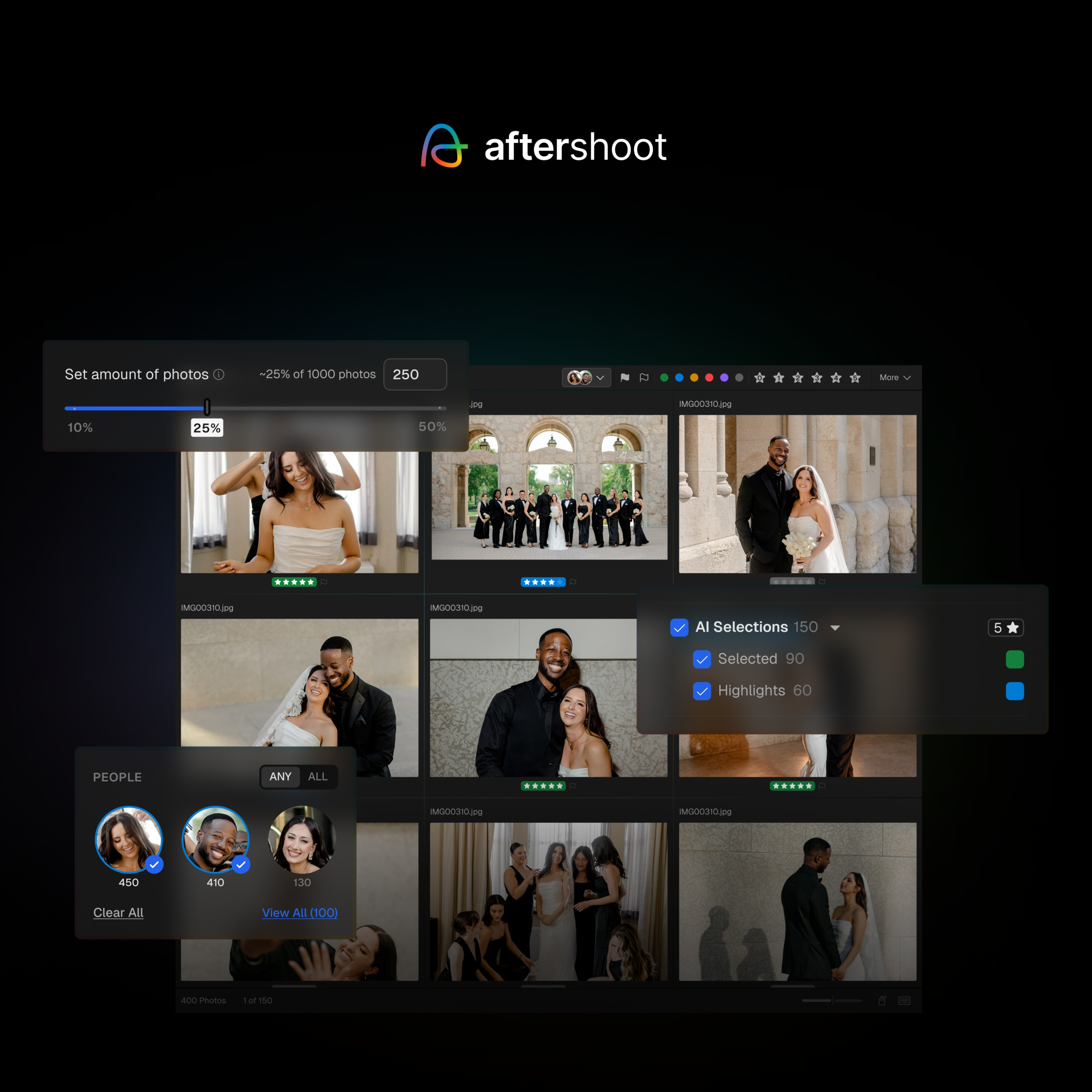
Aftershoot is the only tool built around the full post-shoot loop: culling, editing, and retouching in one system. It’s designed for photographers who move volume and need to keep style consistent across changing light, multiple cameras, and busy schedules.
The culling engine reads over 30 factors including sharpness, focus depth, and facial clarity. It groups duplicates, flags closed eyes, and learns from what you keep so each session becomes faster and more accurate. That data trains locally, not in the cloud, which means the system keeps adapting to your personal preferences without uploading client files.
Editing runs on AI profiles you train with your own work. Instant AI Profiles convert your presets into adaptive edits in a few clicks; Professional Profiles learn from thousands of your finished images and keep tone, exposure, and white balance steady across an entire gallery. The output holds even under mixed lighting — one of the main reasons pros switched to it from preset-based systems.
Retouching currently supports JPEGs, handling skin smoothing, blemish cleanup, and glare reduction while keeping texture natural. Batch retouching and consistency across portraits have made it part of newborn and portrait workflows in particular.
The workflow now extends past editing, too. Aftershoot Galleries handles client delivery in the same platform, unlimited hosting, built-in proofing, AI face search, and a checkout flow for print and digital sales. Branding carries over as well, so the gallery still feels like your studio. It works standalone, but for photographers already in Aftershoot, it closes the gap between final edit and client delivery.
The appeal isn’t only speed. Aftershoot’s flat subscription removes per-image pricing, so high-volume photographers can process as much as they shoot without calculating credits. For most professionals, that predictability is the business case: consistent results, controllable cost, and a workflow that finishes hours earlier.
2. Lightroom Classic — Editing, Color Grading, and Catalog Management
Lightroom remains the foundation for most professional editors. Even in 2026, it’s unmatched for color accuracy, cataloging, and print readiness.
Its strength is control. The masking, tone curve, and color mix panels let you dial in skin tones, greens, and shadows with precision most AI tools can’t replicate yet. The 2026 update finally made some upgrades that matter day to day:
- Generative Remove replaces the old Heal tool with smarter object cleanup.
- AI Denoise and Lens Corrections now run at import, cleaning high-ISO files automatically.
- Adaptive Presets help maintain your look across variable light without manual adjustments.
The tradeoff is time. Lightroom wasn’t built for modern volume, and full weddings or commercial sets can still bog it down. Most pros now use Lightroom for finishing—fine color work, print prep, or hero frames—while faster AI tools handle first-pass editing.
Its real value is ecosystem depth: it plays well with plugins, cloud sync, and long-term archives. If precision matters more than speed, Lightroom still holds its ground.
3. Photoshop — Advanced Retouching, Composites, and Creative Control
Photoshop is still where absolute control lives. It’s the precision tool photographers keep for the files that need pixel-level work—composites, branding imagery, fine-art retouching, and advertising output.
The 2026 version expanded its AI feature set without compromising manual control. Generative Fill and Expand now deliver edge-aware background extensions good enough for billboard work. Object-aware masks handle hair and fabric detail with accuracy that cuts retouching time in half.
Color management and layer control remain its strongest appeal. You can blend modes, frequency-separate skin, or build complex dodge-and-burn maps with precision Lightroom can’t match.
The downside is weight. Photoshop is too heavy for production volume; it’s not where you cull, batch edit, or export galleries. Use it as the final stop in your pipeline—hero portraits, composites, or branded artwork.
For teams and studios, Photoshop 2026 finally supports non-destructive live collaboration, so multiple editors can work on the same PSD from different systems. That’s small, but it saves real time when deadlines stack.
4. Topaz Photo AI — Image Enhancement, Noise Reduction, and Upscaling
Topaz Photo AI has evolved into a precision enhancer rather than a fix-it plugin. It’s the quiet step between editing and export that sharpens, cleans, and rescues details before print or large-format output.
Its biggest leap for 2026 is the unified pipeline: sharpening, denoise, and upscale now process together. The software reads image intent—portraits, motion, landscapes—and applies tuned models. For low-light shooters or anyone rescuing underexposed RAWs, this update finally stops texture from turning waxy.
Where Lightroom’s Denoise improves convenience, Topaz still wins on depth. It handles dynamic range recovery on older sensors, rescues fine detail from motion blur, and can enlarge files up to 6× with minimal edge distortion.
Most professionals keep Topaz in their workflow for two reasons: it gives older work new life, and it preps large-format prints without compromising quality. It’s not daily-use software, but when you need it, nothing else performs at the same level.
5. Evoto AI — Portrait Retouching and Skin Finishing
Evoto sits at the specialist end of AI editing—made for portraits, beauty, and headshots where skin realism matters.
It uses per-region analysis to retouch faces, balance tones, whiten teeth, and even polish fabric without flattening skin texture. The AI model distinguishes between pores, reflections, and color shifts, which keeps the output looking human rather than plastic.
Batch retouching is its real value: entire sets can be processed with uniform intensity, which matters for studios managing hundreds of images per client. In 2026, Evoto added AI Liquify and body contour mapping that hold shape ratios true, reducing the need for manual warp layers.
It’s not a replacement for Lightroom or Aftershoot, but it’s the tool you pull up when portraits need finesse beyond batch edits. Consistent, fast, and subtle.
How These Tools Fit Together in a 2026 Workflow
The most efficient workflows now mix automation with manual control.
- Cull and base edit in Aftershoot to clear volume fast.
- Fine-tune color and exposure in Lightroom for creative control.
- Handle precision retouching and composites in Photoshop.
- Enhance detail and prep for print in Topaz Photo AI.
- Apply final polish for portrait sets in Evoto AI.
- Deliver the finished gallery, with proofing and print sales, through Aftershoot Galleries, without switching to a separate delivery platform.
Together, they form a full post-production loop that’s fast enough for modern client turnaround and consistent enough to carry your signature look across every job.
If you manage backups, client delivery, or CRM in separate systems, link them here. These five tools handle everything between capture and export — the part of your business that turns raw files into finished work.
Beyond Editing: the rest of the software stack you actually need
Editing moves the work forward. The rest keeps the business alive. Use this as a checklist and tighten what’s missing.
1) Backup & storage — protect RAWs and delivery masters
Purpose: Redundancy you don’t have to think about.
Baseline: 3–2–1 rule (three copies, two different media, one off-site).
What to use:
- Local: Synology/QNAP NAS with RAID + scheduled sync (ChronoSync/CCC on Mac, built-in tools on Windows).
- Cloud: Backblaze (hands-off whole-machine backup), Dropbox/Google Drive (selective project folders, quick share).
Watch for: Single-drive “archives,” untested restores, cloud-only reliance, and letting catalogs live in sync folders without versioning discipline.
How pros run it: Card → fast SSD working drive → NAS nightly → cloud continuous. Format cards only after delivery and at least one verified off-site copy.
Learn the top 11 cloud storage solutions best suited for photographers in 2026
2) Client galleries & delivery — proof, sell, and hand over files
Purpose: Clean viewing, fast downloads, print sales that don’t need supervision.
What to use: Pixieset, Pic-Time, CloudSpot, ShootProof, or Aftershoot Galleries if you’re already culling and editing in Aftershoot and want delivery in the same platform.
What matters:
- Upload speed + automatic web sizing.
- Storefront control (price lists, lab integrations, coupons).
- Album proofing and favorites that translate into orders.
- Expiry nudges and cart recovery emails (money you’d otherwise leave).
- Whether delivery lives inside your existing editing workflow or requires exporting to a separate platform.
Watch for: Unlimited originals dumped online without local masters; galleries that never expire (storage creep); no lab margin controls.
Pro setup: Delivery masters exported to a “Deliver” folder (versioned), uploaded with print presets, gallery expiry set on creation, automated reminders turned on. If you’re on Aftershoot end to end, galleries can go out directly from the same app you edited in, no export/re-upload step required.
16 Best Online Proofing Galleries for Photographers in 2026
3) Business & CRM — bookings, contracts, invoices, reminders
Purpose: Stop running the studio out of your inbox.
What to use: Studio Ninja, Sprout Studio, Táve, HoneyBook, Bloom.
What matters:
- Contract + invoice templates that auto-fill.
- Calendar + payment integration (Stripe/PayPal), payment plans.
- Questionnaire and prep email sequences tied to session type.
- Lead capture that tags source (so you know what’s working).
Watch for: CRMs that look pretty but don’t automate; double-entry between CRM and gallery platform; manual date chasing.
Pro setup: Lead form → pipeline stage → auto-send brochure → proposal (contract + invoice) → paid → prep sequence → shoot → gallery → review request. One path per service.
10 Best CRMs for Photographers in 2026: Expert Picks for Every Style & Workflow
4) Marketing & web — make it easy to find you and trust you
Purpose: Keep inquiries coming without living on social.
What to use: Squarespace/WordPress for site; Canva/Adobe Express for brand assets; Planoly/Later/Meta tools for scheduling; Google Business Profile for local discovery.
What matters:
- Fast site, compressed images, clear CTAs above the fold.
- One strong portfolio per niche; recent blog posts that answer client questions (“what to wear,” “venue guides,” “timeline templates”).
- GBP kept fresh with posts and new images; reviews requested on delivery.
Watch for: Heavy themes that tank Core Web Vitals; posting without a lead path; portfolios that bury your best work.
Pro setup: Quarterly homepage refresh, one educational post per month, two social slots per week scheduled, ask-for-review automation tied to gallery delivery.
Marketing for Photographers: Proven Photography Marketing Tips (2026)
5) Archiving & recovery — when things go wrong
Purpose: Get files back quickly and keep old jobs findable.
What to use: Carbon Copy Cloner/ChronoSync (versioned mirrors), Disk Drill/Recoverit (last-resort recovery), Photo Mechanic/Bridge for fast archive browsing.
What matters:
- Versioned backups (so you can step back before corruption).
- A simple, date-based folder convention that outlives any app.
- A documented restore process you’ve actually tested.
Watch for: “Archive” drives that never spin up; moving catalogs without previews; relying on recovery tools instead of prevention.
Photography Backup Strategy Every Photographer Needs
How to stitch the stack together
- Naming:
YYYY/MMDD_Client_Projecteverywhere—cards, folders, catalogs, galleries, invoices. It ends 90% of search pain. - Handoffs: In your editor, write ratings/flags to XMP so cull decisions travel cleanly into Lightroom and beyond.
- Automation: Nightly sync to NAS; continuous cloud backup; gallery expiry + cart reminders; CRM review requests on delivery.
- Review cadence: First business day of each month—check backup alerts, storage headroom, unpaid invoices, gallery expiries, and lead sources. Ten minutes, big impact.
Quick “essentials” checklist
- Working SSD + NAS + cloud backup in place and tested
- Galleries with print pricing, expiry, and reminders
- CRM pipeline from lead to review, no manual gaps
- Website loads fast, clear CTA, current work featured
- Versioned archive and a documented restore
Closing thoughts
At some point, the software stops feeling exciting. You’ve tested enough updates to know the difference between something that helps and something that just adds noise. What you start looking for instead is steadiness.
Good systems give you that. They don’t make you faster for the sake of it; they make the job feel predictable again. The culling finishes when you said it would. The edits look the same from start to finish. You walk into a double-header weekend knowing the files will be backed up before you sleep.
That kind of reliability changes how you work. You start paying attention to smaller things—the way a subject exhales between frames, the quiet moments you used to miss when you were thinking about backlog.
Software can’t give you taste or timing. What it can give you is room to notice again. And that’s the real upgrade. That’s where Aftershoot stands out when compared with others.
FAQs for Best Photography Software
What software do most professional photographers use in 2026?
Most pros run a combination: Aftershoot or Lightroom Classic for culling and first-pass editing, Photoshop for pixel-level retouching and composites, and specialist tools like Topaz Photo AI or Evoto for noise reduction, upscaling, or portrait retouching at volume. Very few professionals rely on a single tool for the entire workflow.
Do I need Lightroom if I already use Aftershoot?
Not necessarily. Aftershoot now includes full RAW editing (Aftershoot Develop) with manual sliders, masking, and crop tools, so many photographers complete their entire workflow without opening Lightroom. Lightroom still adds value for advanced color grading, print soft-proofing, and long-term catalog management if you need those specifically.
Is AI photo editing software good enough for professional client work?
Yes, for the repetitive parts of the job. AI tools like Aftershoot handle culling and baseline edits reliably at professional quality. What AI doesn’t replace is the final creative judgment on hero images, composites, or the specific mood a photographer wants a gallery to carry, that still benefits from manual review.
What’s the difference between Aftershoot and Evoto?
Aftershoot covers the full workflow, culling, AI editing, and JPEG retouching, in one flat-rate subscription. Evoto is a specialist focused specifically on portrait and skin retouching, priced per credit rather than flat-rate. Many studios use both: Aftershoot for the full gallery, Evoto for portrait sets that need deeper retouching finesse.
Is Topaz Photo AI worth it if I already use Lightroom’s Denoise?
It depends on your files. Lightroom’s AI Denoise is convenient and handles most day-to-day noise well. Topaz still wins on depth, recovering detail from older sensors, rescuing motion blur, and upscaling for large-format prints. If you regularly shoot low light or need big prints, Topaz earns its place alongside Lightroom rather than replacing it.
How much should a full photography software stack cost per month?
It varies widely by volume and niche, but a working photographer might reasonably spend $50 to $150 per month across editing (Aftershoot or Lightroom), a specialist tool (Topaz or Evoto, as needed), client galleries, and a CRM. High-volume studios with multiple specialists in the stack can run higher. Start with the decision guide above to figure out which pieces you actually need before adding cost.
Can I run a full professional workflow without Photoshop?
Yes, for most day-to-day work. Photoshop earns its place for composites, advanced object removal, and branding work, but a typical wedding or portrait gallery can be culled, edited, and retouched entirely in Aftershoot and Lightroom. Reserve Photoshop for the specific hero images that need pixel-level control.
What software do I need besides an editor?
A backup system (local NAS plus cloud), a client gallery and delivery platform (Pixieset, Pic-Time, CloudSpot, or ShootProof), a CRM for bookings and contracts (Studio Ninja, HoneyBook, Táve), and an archiving/recovery plan. Editing software is one layer of a six-layer stack, see the “Beyond Editing” section above for the full breakdown.
Does Aftershoot work offline?
Yes. Aftershoot processes culling, editing, and retouching locally on your machine by default, and doesn’t require an internet connection for day-to-day use. This matters for photographers working with sensitive client data or shooting in locations with unreliable connectivity.
How often should I re-evaluate my photography software stack?
At least once a year, and ideally every quarter for pricing and feature changes specifically. AI capabilities in this space move quickly, a tool that was the best fit six months ago may have been updated (or a competitor may have caught up). This guide itself is rechecked quarterly for exactly that reason.