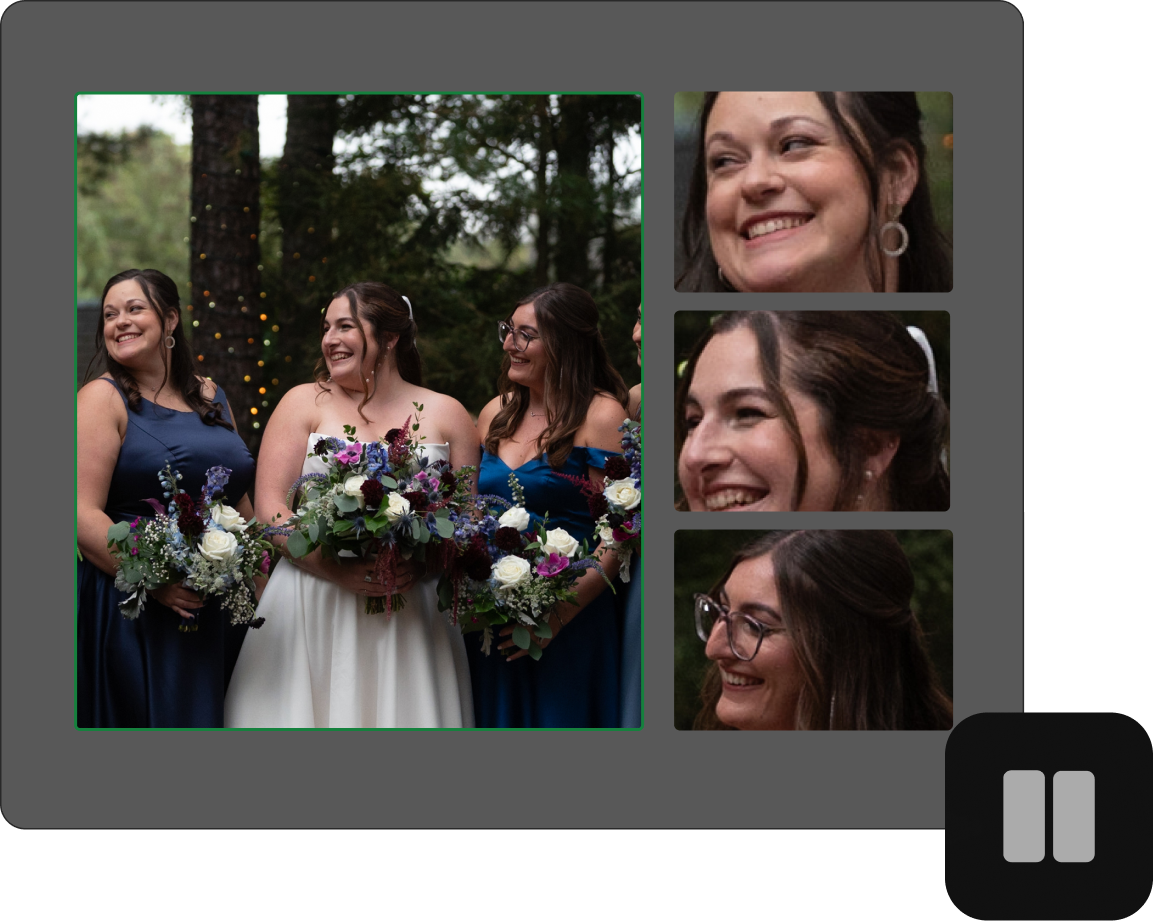
1.7K+ Reviews
4.9/5
AI Culling Software That Never Misses A Perfect Shot
Upload your shoot and get selections matching what you’d pick. Aftershoot’s AI photo culling evaluates 30+ factors per photo, filters flaws and duplicates, and takes you from 4,000 shots to your final 500 in minutes.
Full Access for 30 days.
Step 1
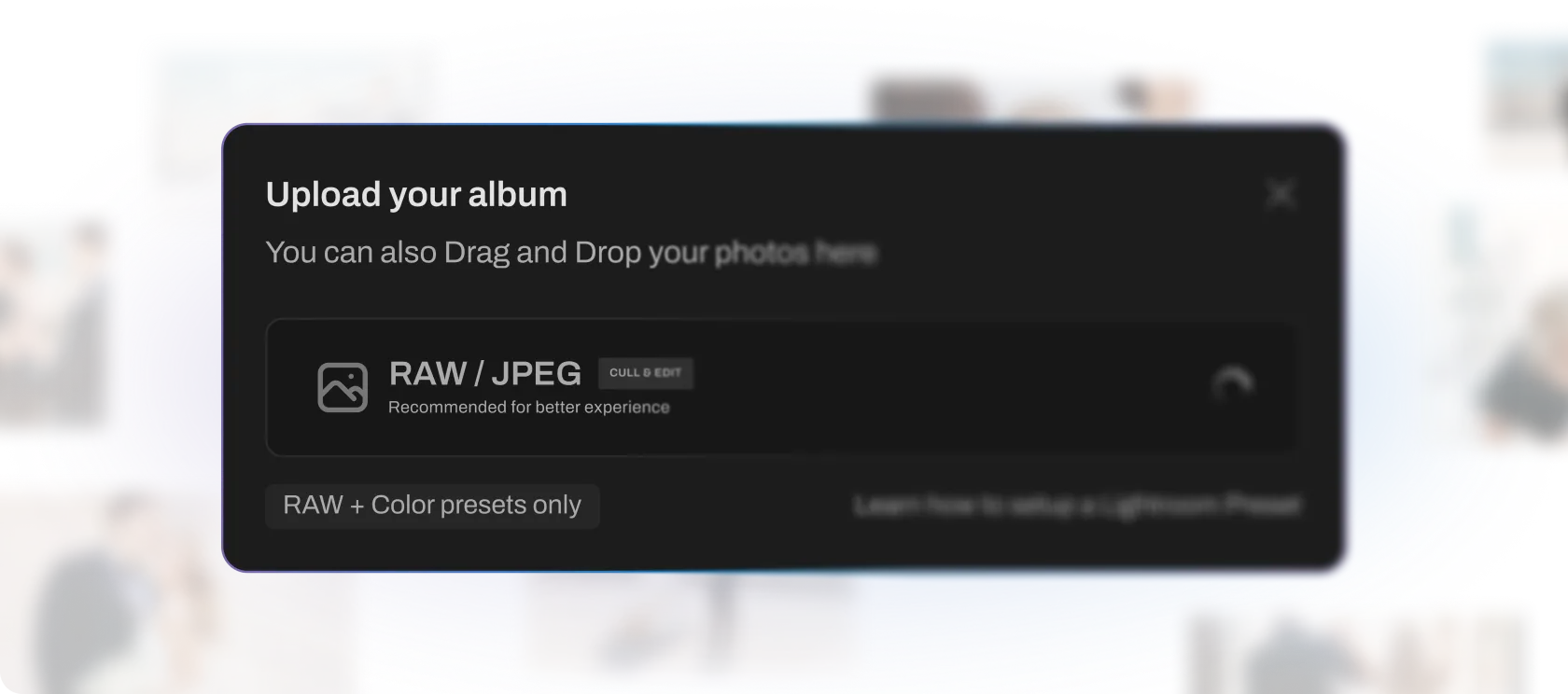
Upload your shoot
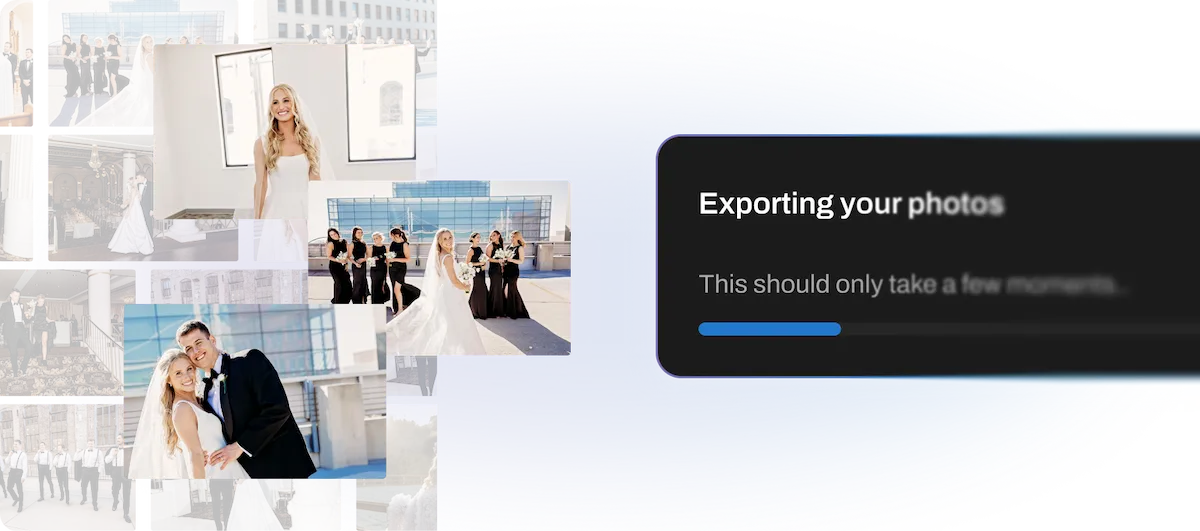
Drag and drop your photos. RAW and JPEG files are recommended for best results
Step 2
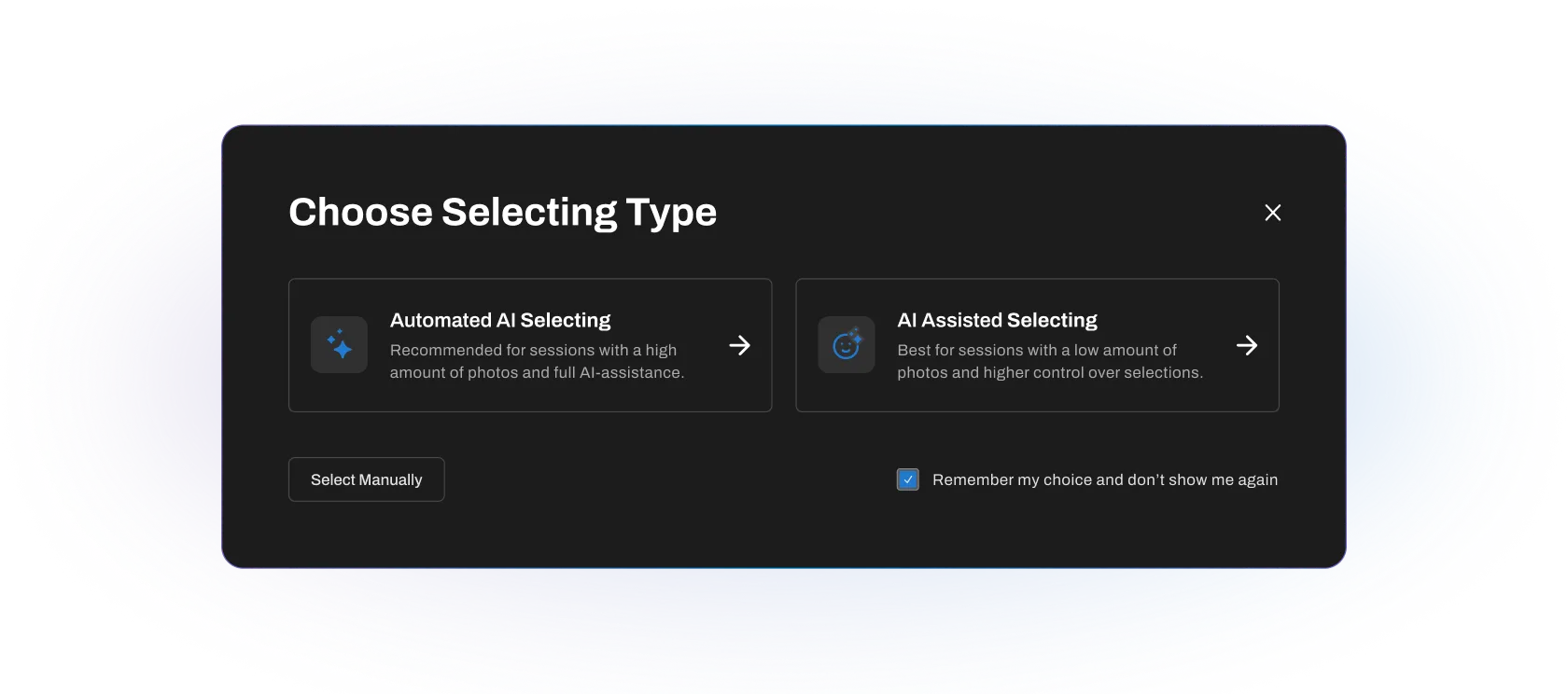
Choose your culling mode
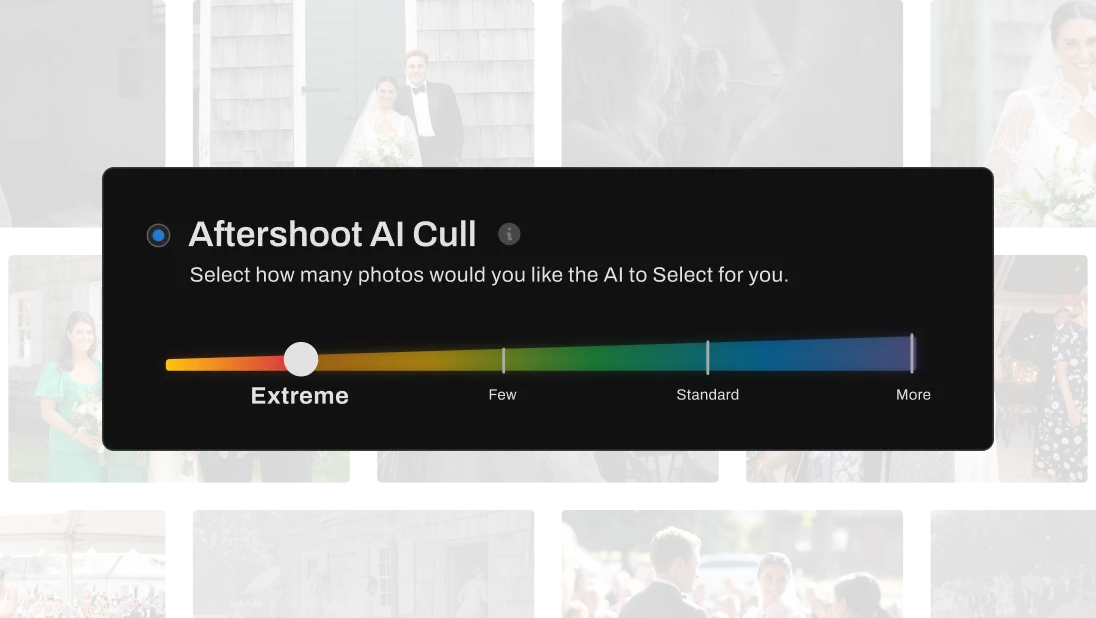
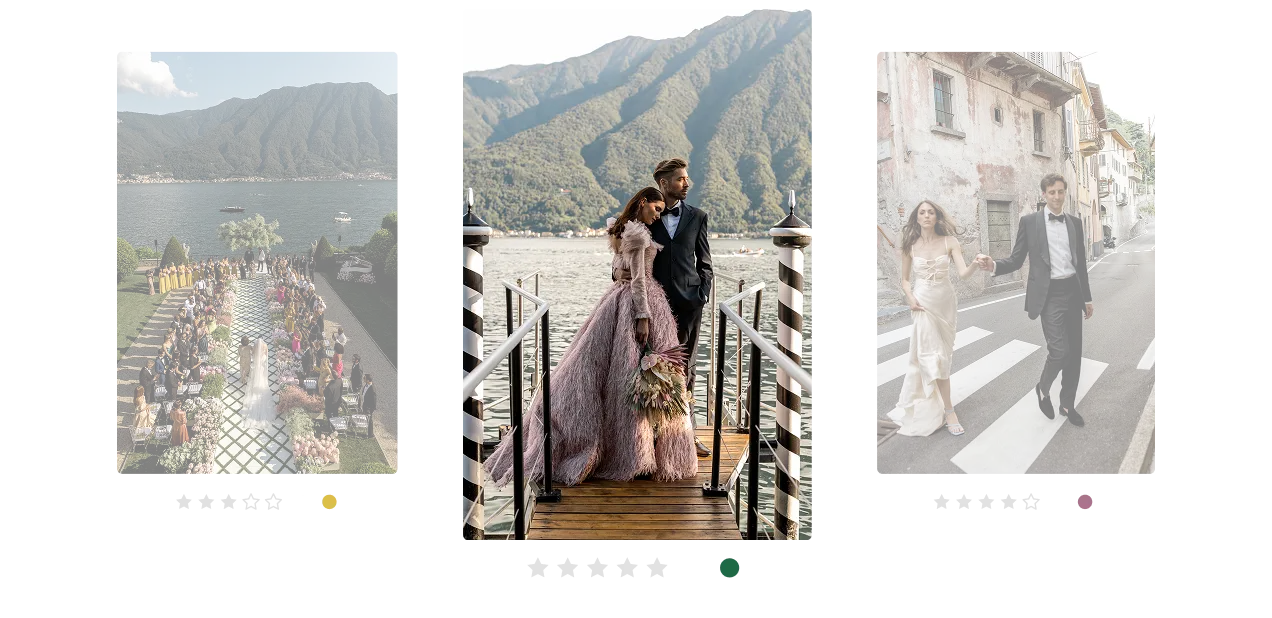
Automated AI Culling: Let AI cull everything, review after
Customized AI Culling: Customize how AI selects photos for you
Step 3
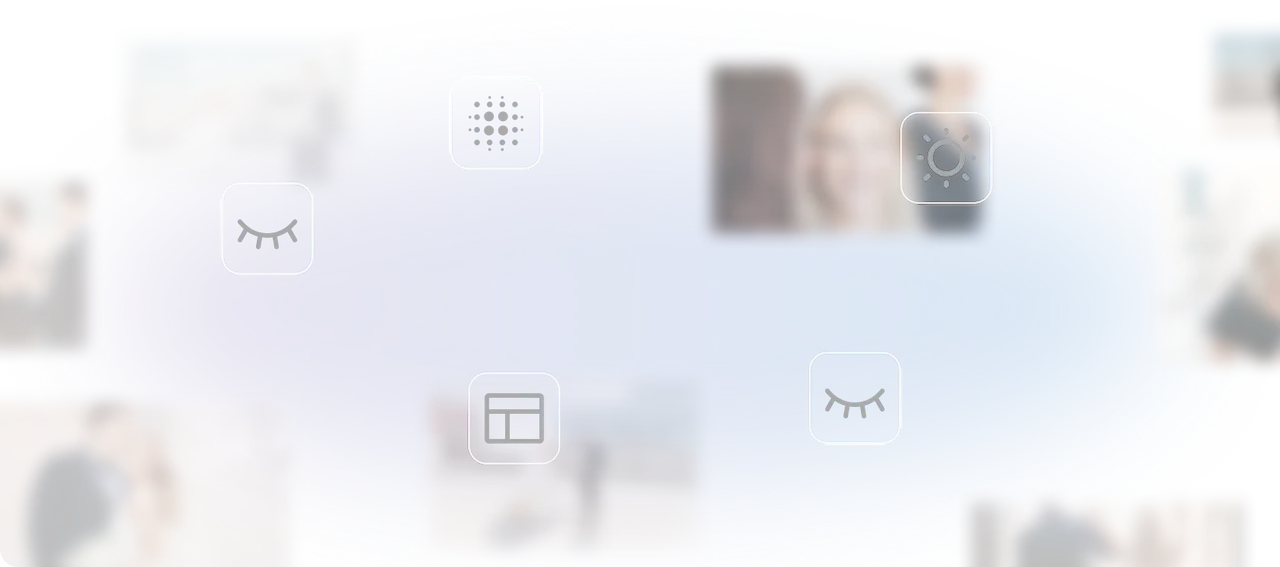
AI analyzes every frame
Our AI evaluates 30+ factors per photo including sharpness, composition, expression, lighting to identify your best shots.
Step 4
Review and export
Scan selections, adjust ratings if needed, and export to Lightroom or edit directly in Aftershoot.
MANUAL VS AFTERSHOOT
You review
Time spent per shoot
Duplicates
Blinks & Blur
Adaptability
Privacy
Manual Culling
Every single photo (Thousands)
3-5 hours
Spot them one-by-one
Catch them manually
Same effort every shoot
Varies – cloud tools upload your files
AI’s top picks (~200-500)
20-30 minutes
Grouped automatically
Flagged and filtered automatically
Learns from your style
100% offline. Images never leave your machine.
Get Started in Three Steps


Pricing
Selects
AI Culling for every shoot
- Unlimited AI Culling
- AI Automated + AI Assisted modes
- Survey Mode & Spray Can
- Precision culling options
- All integrations (LrC, C1, PM, Bridge)
- Offline processing
Our business is primarily focused on dance photography, so we shoot a lot of shots at each show to get the best images of our dancers in motion. Aftershoot allows us to select much faster, which speeds up our work, making our lives and nights easier and allowing us to deliver to our clients much sooner.
Carlos
Our photographers can sometimes get a little trigger happy and shoot dozens of images of the same pose and Aftershoot greatly reduces the time culling.

William Edward
Aftershoot has given us a huge chunk of our lives back. It learned our culling style effortlessly, even with pets, and we fully trust it for culling and editing. For the first time in over 10 years, we’ve been able to truly take days off and even enjoy a full winter break with family. That’s been a game-changer for us.

Kasey + Tyler Rajotte
Ours is a photography company that has completed over 5000 weddings, We do 1000+ Weddings per year and we use Aftershoot to take down the time of our culling and editing dramatically.
Alex Leon
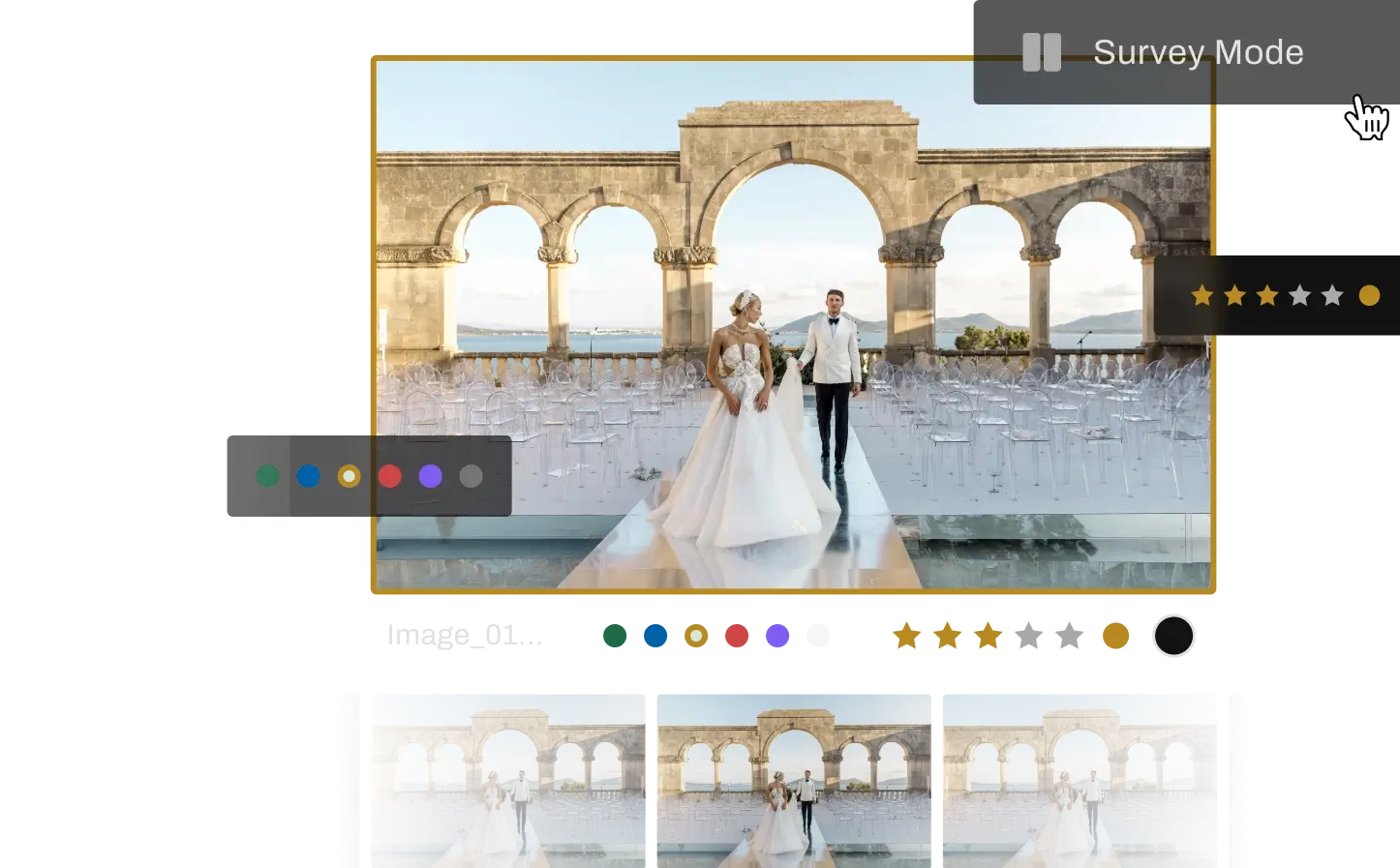
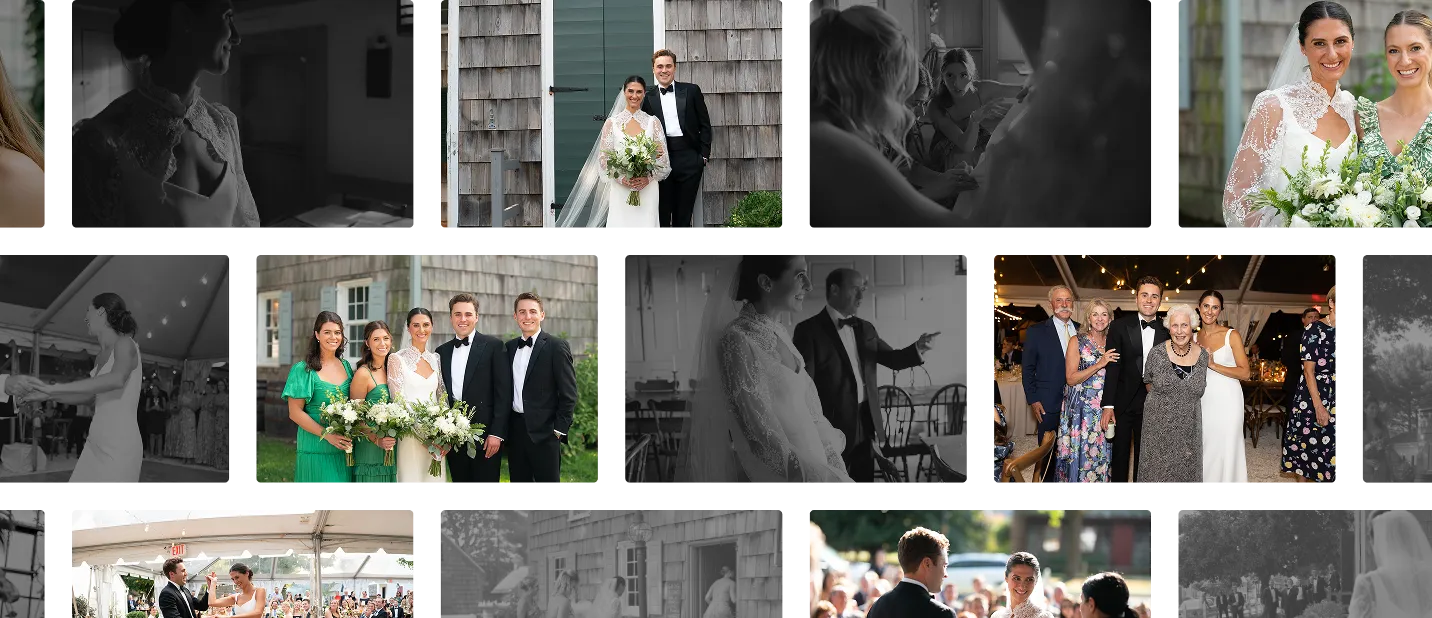
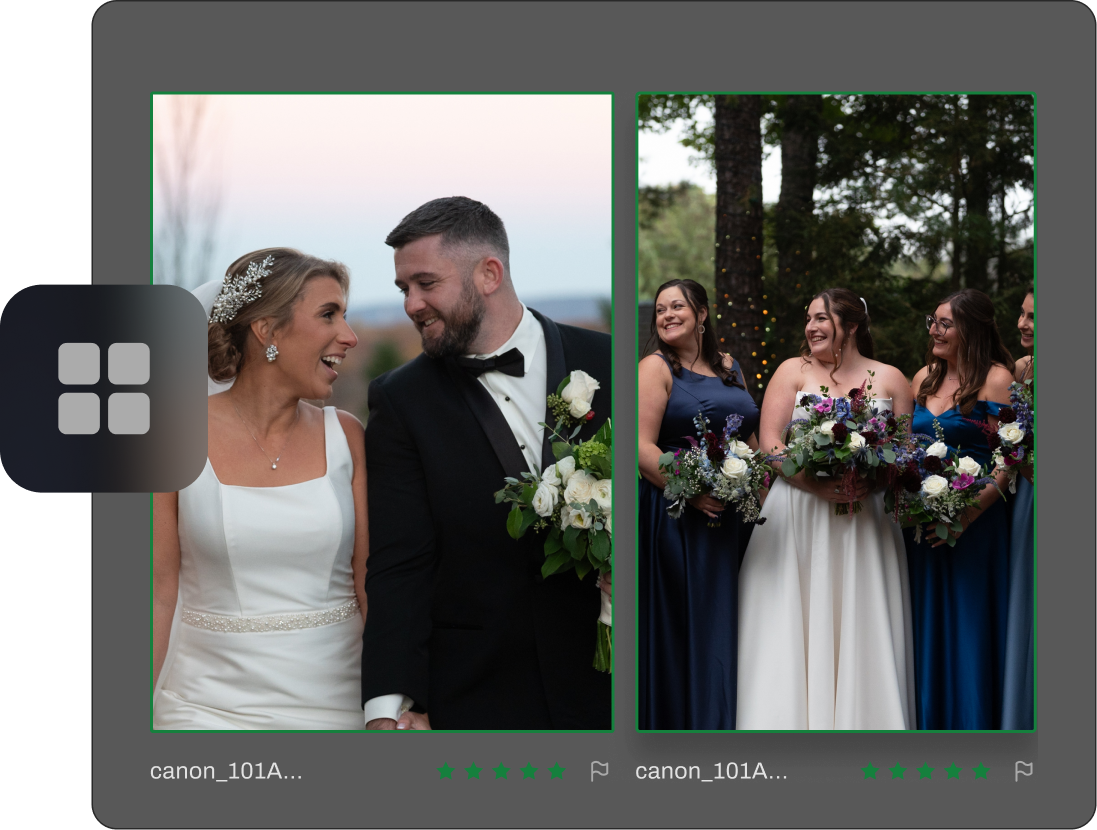
Grid View
Loupe View
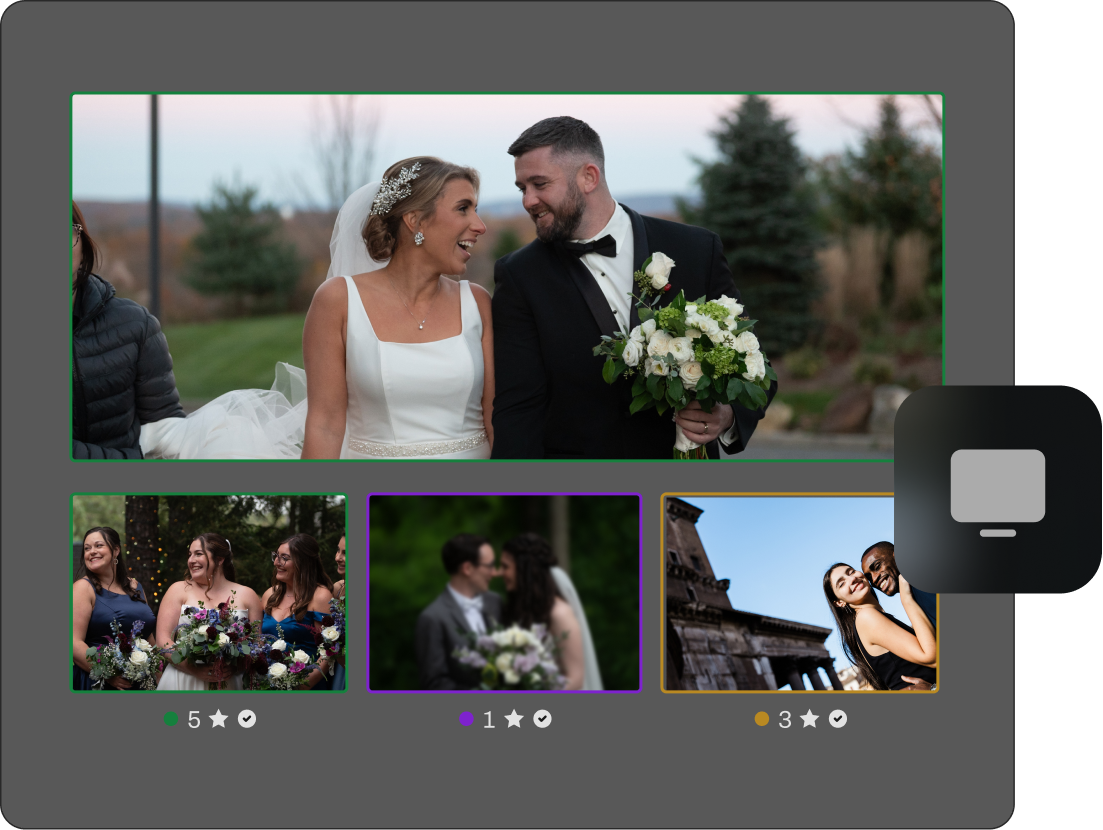
Survey Mode